YSH20_Ope_E.pdf - 第97页
2-40 2 asic operation 1. Angle teach 1 Set a wafer component. 1. On the Setup screen, press the [T rayCnt] button in the "Utility" group box. 2. Select the component whose position you want to teach. 3. Press…
2-39
2
asic operation
4.2.4 Teaching the wafer component positions
After wafer components run out during production and new components are supplied, you must teach their
positions using the procedures described below. Teaching must be performed in the specified order: "Angle
teach"
→
"Alignment teach"
→
"Pitch teach"
→
"Position teach".
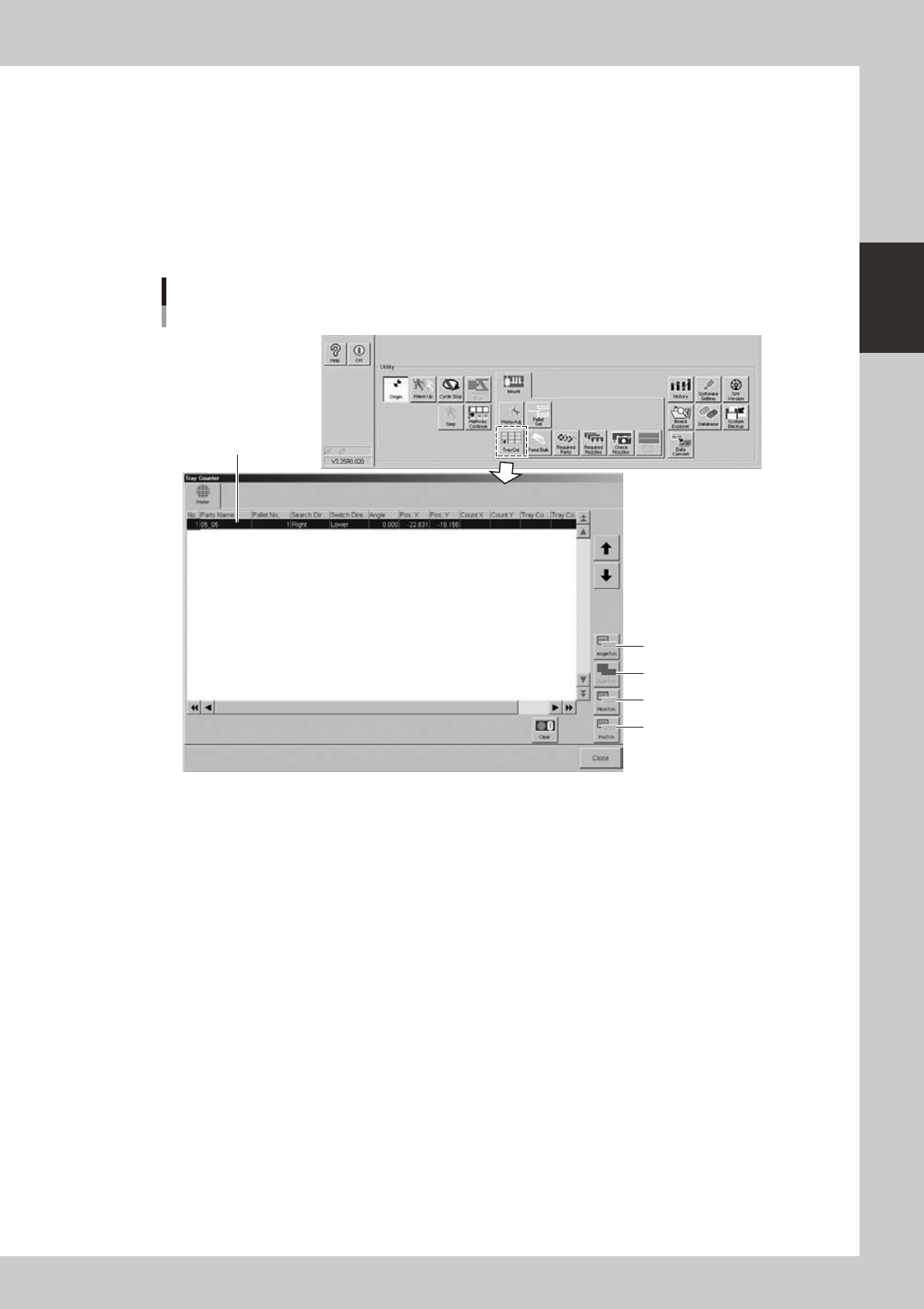
The teach screens can be opened with the buttons on the "Tray Counter" screen that opens when you press the
[TrayCnt] button in the "Utility" group box on the Setup screen, or with the buttons on the "Wafer Information"
screen that opens when you press the [Wafer] button on the [Parts]-[Tray] screen.
n
Using the [TrayCnt] button on the Setup screen
1. Angle teach
2. Alignment teach
3. Pitch teach
4. Position teach
Selected component data
"Tray Counter" screen
24234-H0-00
2-40
2
asic operation
1. Angle teach
1
Set a wafer component.
1. On the Setup screen, press the [TrayCnt] button in the "Utility" group box.
2. Select the component whose position you want to teach.
3. Press the [Angle Tch] button.
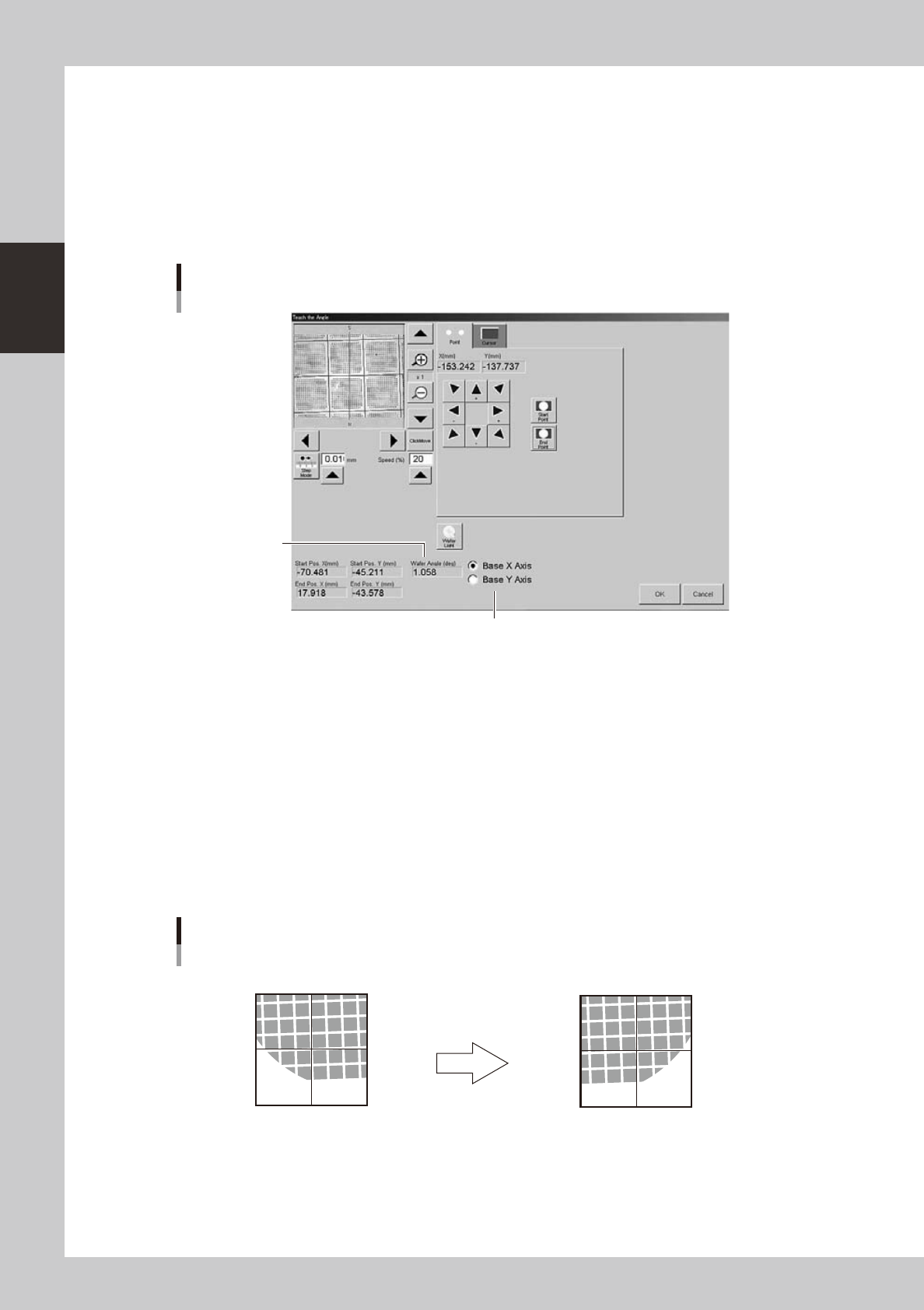
The component is extracted from the magazine and set on the stage. The following screen then
appears.
Select X or Y as reference axis.
Calculated angle
Teach screen
Angle teach
24235-H0-00
2
Select the X or Y axis as the reference axis.
Normally, select the default "Base X axis".
3
Determine the start point.
Align with a position used as the reference point (start point) by "Point" or "Cursor" teach, and press the
[Start Point] button.
Specify a corner of the component because other positions near the center of the component may not
be calculated accurately. If it is difficult to see the component, press the [Wafer Light] button and
adjust the brightness.
4
Determine the end point.
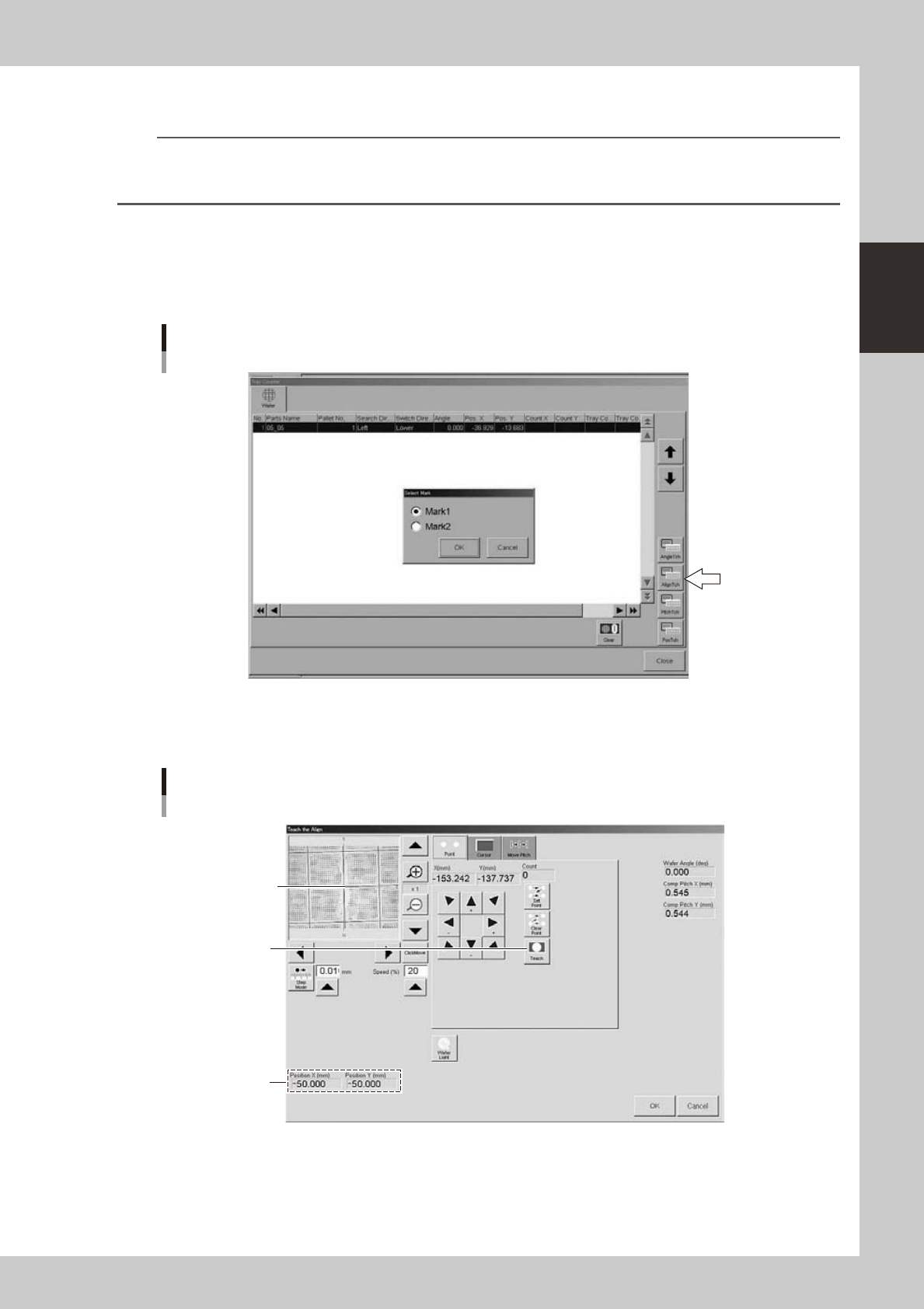
Move the camera in the X direction to align with the end point by "Point" or "Cursor" teach, and press
the [End Point] button.
Angle teach start point and end point
Start point (center of cross hairs)
Use arrow keys to move camera.
End point (center of cross hairs)
23236-H0-00
5
Check the result.
The teaching result is displayed in the "Wafer Angle" box.
2-41
2
asic operation
2. Alignment teach
n
NOTE
To perform alignment teaching, wafer fiducial marks must be set in mark information. Also, the "E. Align Mark"
parameter displayed on the [Option] tab of the "Wafer Information" screen must be set to other than "Not Use". (The
"Wafer Information" screen opens when you press the [Wafer] button on the [Parts]-[Tray] tab.)
1
Press the [AlignTch] button
2
Select the mark.
Select the mark from the "Select Mark" dialog box. The wafer camera then moves to the selected mark
position.
Selecting the mark for alignment teach
24238-H0-00
3
Teach the mark position.
Teach the mark position or the center of component used as the mark.
Press this button to
determine the position.
Teach screen
Alignment teach
Center coordinates
of mark
Align the mark or the
center of component
used as the mark
with the center of
cross hairs.
24239-H0-00