YSH20_Ope_E.pdf - 第71页
2-14 2 asic operation 8. [Entrance Stopper] button Use this button to stop the incoming board at the standby position. 9. [Axis] button Use this button when moving eac h axis manually . Pressing this button displa ys t…
2-13
2
asic operation
2.3 Unit screen
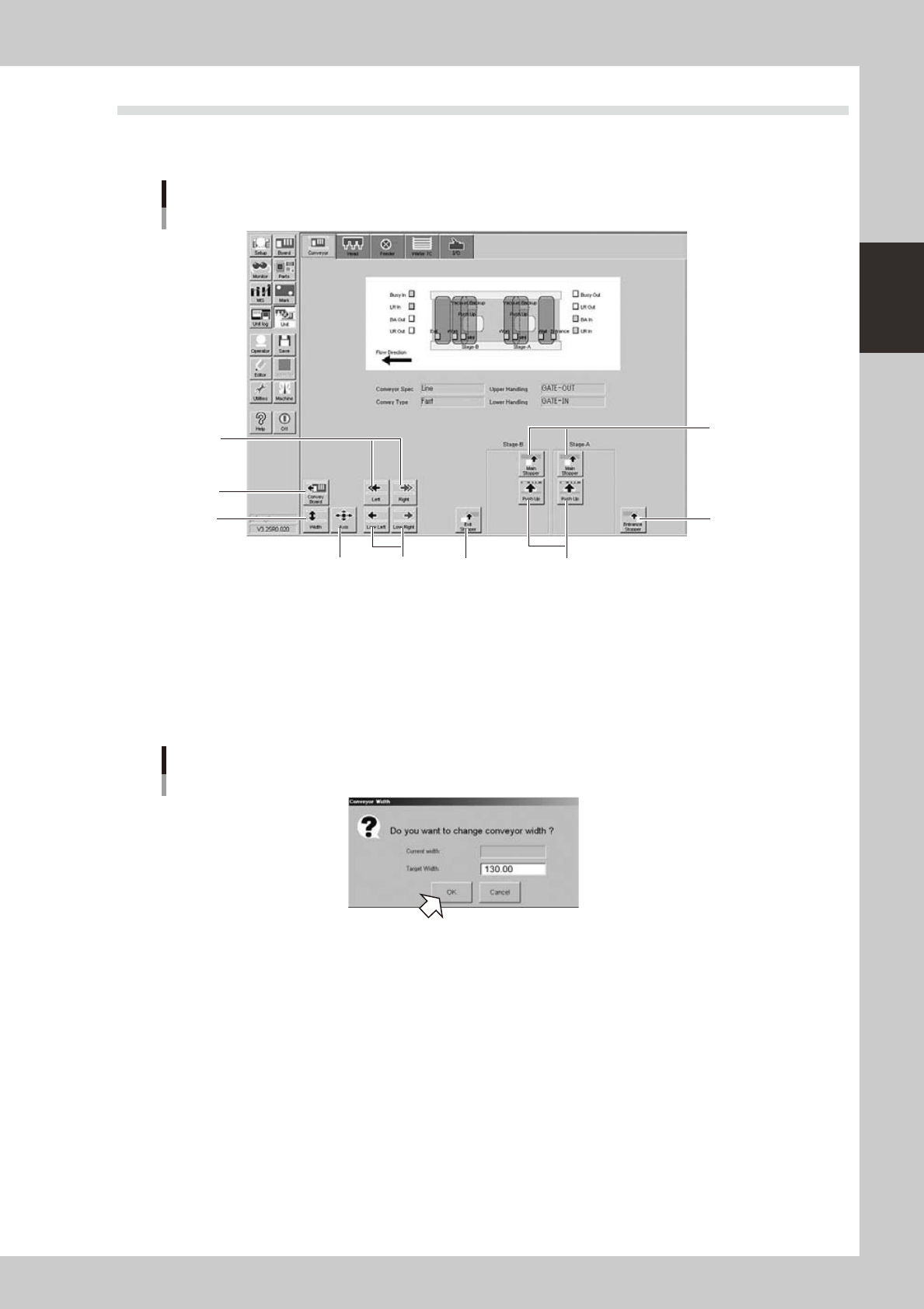
This section describes the manual operation buttons on the Unit screen.
n
Manual conveyor operation
Conveyor manual buttons
1
2
3
49
6
8
5 7
24204-H0-00
1. [Convey Board] button
The board(s) to be conveyed can be specified by selecting "All Positions" or "Specify Position".
2. [Width] button
Use this button to adjust the conveyor width to match the width of boards to be produced.
Pressing this button displays the "Conveyor Width" dialog box. Check the conveyor width and press the [OK] button. The
conveyor rail automatically changes to the specified width.
"Conveyor Width" dialog box
24205-H0-00
3. [Left] button, [Right] button
Rotates the conveyor motor in the left or right direction at high speeds.
4. [Low Left] button, [Low Right] button
Rotates the conveyor motor in the left or right direction at low speeds.
5. [Exit Stopper] button
Raises or lowers the exit stopper that stops a board at the conveyor exit.
6. [Main Stopper] button
Raises or lowers the main stopper that stops a board in the clamp position on the conveyor.
7. [Push Up] button
Pressing this button clamps the board by pushing it up from the bottom (underside) in conjunction with the clamp unit.
2-14
2
asic operation
8. [Entrance Stopper] button
Use this button to stop the incoming board at the standby position.
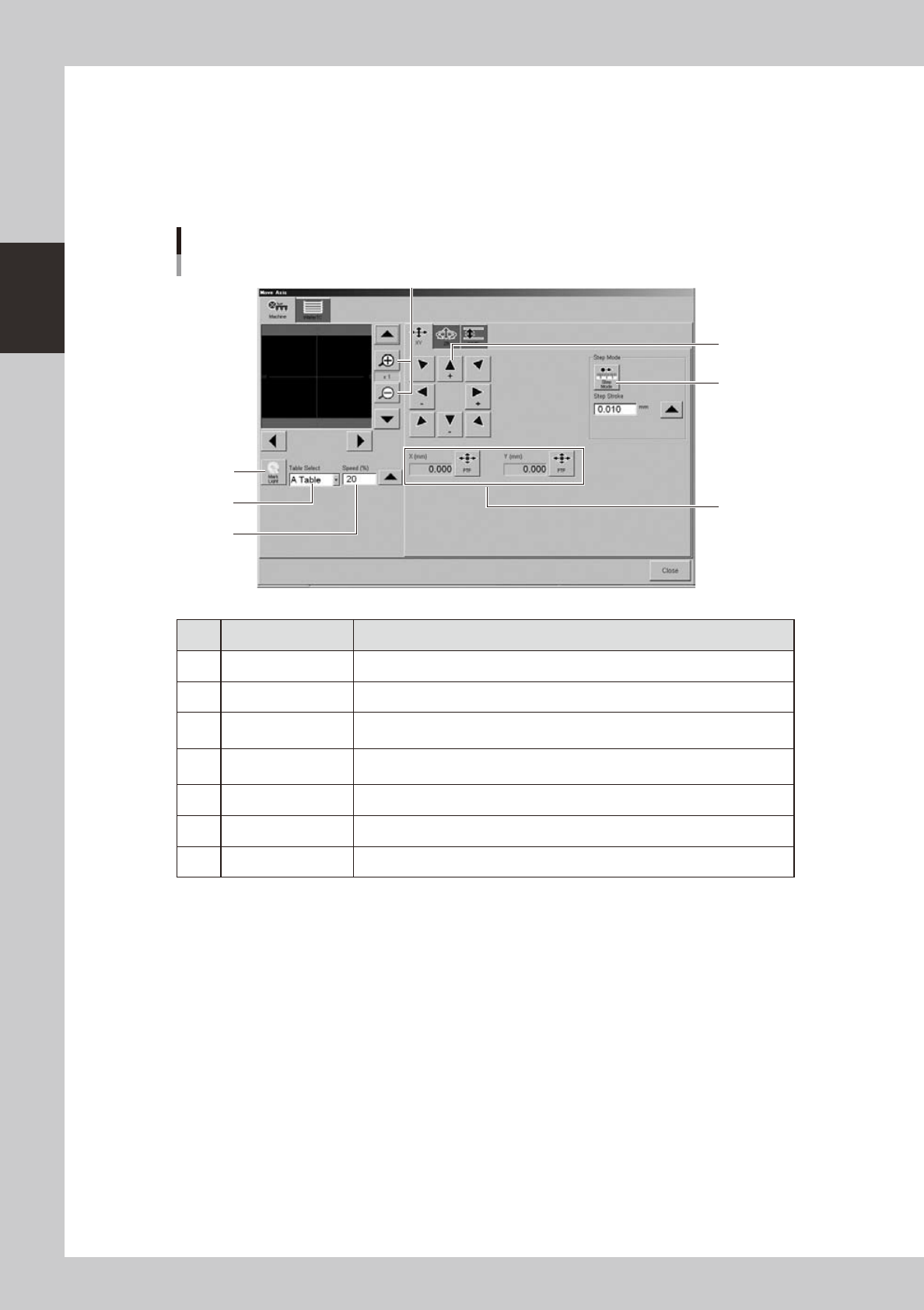
9. [Axis] button
Use this button when moving each axis manually.
Pressing this button displays the "Move Axis" screen that allows you to manually move each axis at a specified step stroke
with the arrow buttons or to a specified position with the [PTP] buttons.
"Move Axis" screen
1
2
3
4
5
6
7
24206-H0-00
Button name Function
1 Zoom in/out (+, -) Zooms in or out the image. (16 times to 1/16 times)
2 Mark Light Allows changing mark lighting manually. Using this button does not affect data.
3 PTP
Displays the "PTP" dialog box that allows directly specifying the position where
you want to move the selected axis.
4 Step Mode
When this button is pushed in, the selected axis can be moved in "step mode
(inching mode)" with the arrow buttons at a specified step stroke (inching stroke).
5 Arrow Use these buttons to move the selected axis in the desired direction.
6 Table Select Select the table to move.
7 Speed Select the speed in axis move mode.
2-15
2
asic operation
n
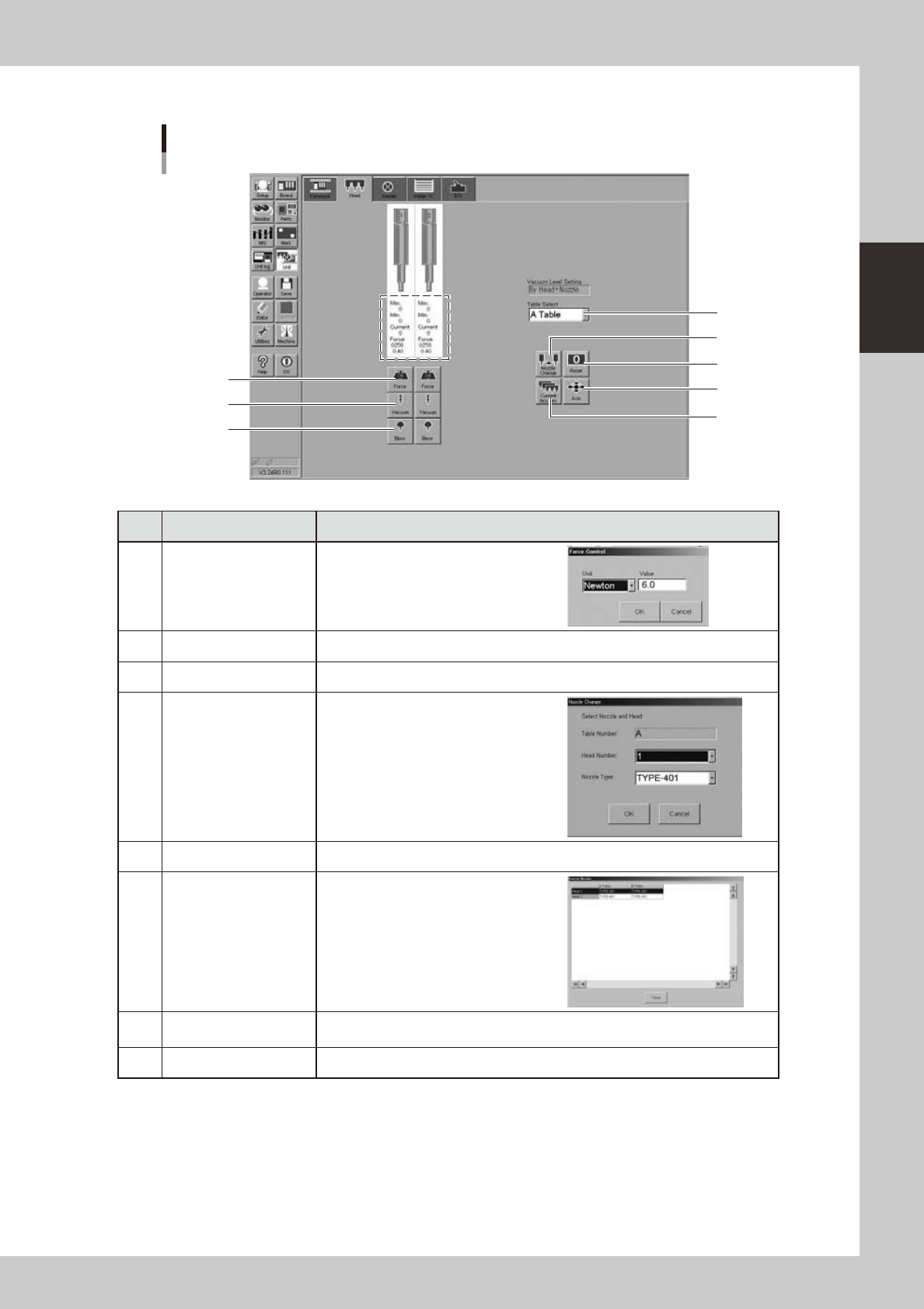
Manual head operation
[Unit] - [Head] screen
Example of FF head
2
1
3
5
4
8
7
6
24207-H0-00
Button name Function
1 Force
Use this button to set a load manually
or check the set load. Units are either in
Newtons or bits.
2 Vacuum Turns the vacuum of each head on or off.
3 Blow Turns the air blow in each head on or off.
4 Nozzle Change
When the machine is equipped with a
nozzle station, pressing this button opens
the "Nozzle Change" dialog box. Specify
the head and nozzle type to perform
nozzle change.
5 Reset Resets the values enclosed by a dotted line on the above screen.
6 Current Nozzles
Shows a list of nozzle types currently
attached to each head.
7 Axis
Opens the "Move Axis" screen. This is the same as the [Axis] button on the [Unit]-
[Conveyor] screen.
8 Table Select Select the table for operation.