00195813-07_IM_SSW_605.03_SP3_DE EN.pdf - 第22页
Installat ion Manual, Station Software Version 605.03 SP 3 12 /2012 E dition 22 of 46 5.3 Prep aratio ns for I nst alli ng the S of tware 5.3.1 Requireme nts Requirem ents f or installing the SIPLACE s oftware and the op…
Installation Manual, Station Software Version 605.03 SP3 12/2012 Edition
21 of 46
5.2 Performing BIOS Update/Settings on the Machine Computer and
Vision Computer
The image files for the automatic BIOS update/BIOS settings and the corresponding installation instruction
(readme file) are available on the V1.0 BIOS CD that can be ordered via the service technician or
downloaded from the SIPLACE Download Center.
5.2.1 Machines in One-Computer Operation
On machines in one-computer operation the Multicore has to be reactivated in BIOS, as it is used by the
station software. If the activation is not performed, the machine might not work with full power.
Installation Manual, Station Software Version 605.03 SP3 12/2012 Edition
22 of 46
5.3 Preparations for Installing the Software
5.3.1 Requirements
Requirements for installing the SIPLACE software and the optional Vision computer software:
• Installation of the Windows XP Professional operating system including Service Pack 2 on the
station computer and the Vision computer (if present)
(see Installation Manual "Windows XP Operating System", item no. [00194575-xx]).
• Installation of the Windows XP Embedded operating system on the machine controller
(see Installation Manual "Windows XP Embedded Operating System for the Machine Controller",
item no. [00195327-xx]).
• Installation of the Windows XP Embedded operating system for machines in one-computer
operation with 627C/827C (see Installation Manual "Windows XP Embedded Operating System
SP2", item no. [00196737-xx]).
The default Windows display settings must be changed and the touchscreen must be calibrated. You
must be logged on as the Administrator in order to be able to carry out this work.
5.3.2 Changing the Display Settings
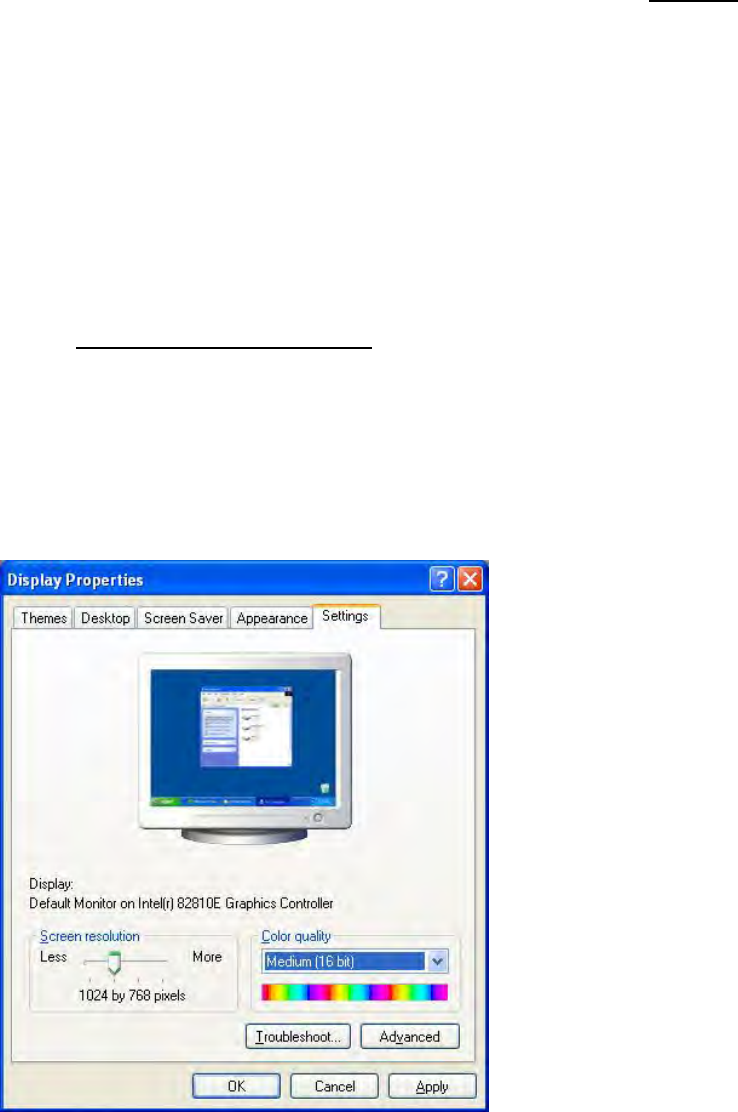
→ Choose Start Settings Control Panel Display.
→ Click the Settings tab.
→ Set the "Screen resolution" slider to "1024 by 768 pixels".
Fig. 5-1: Screen settings
→ Confirm the settings by clicking OK.
Installation Manual, Station Software Version 605.03 SP3 12/2012 Edition
23 of 46
5.3.3 Calibrating the Touch Screen
5.3.3.1 Calibrating the Touch Screen for the X-Series and CA-Series
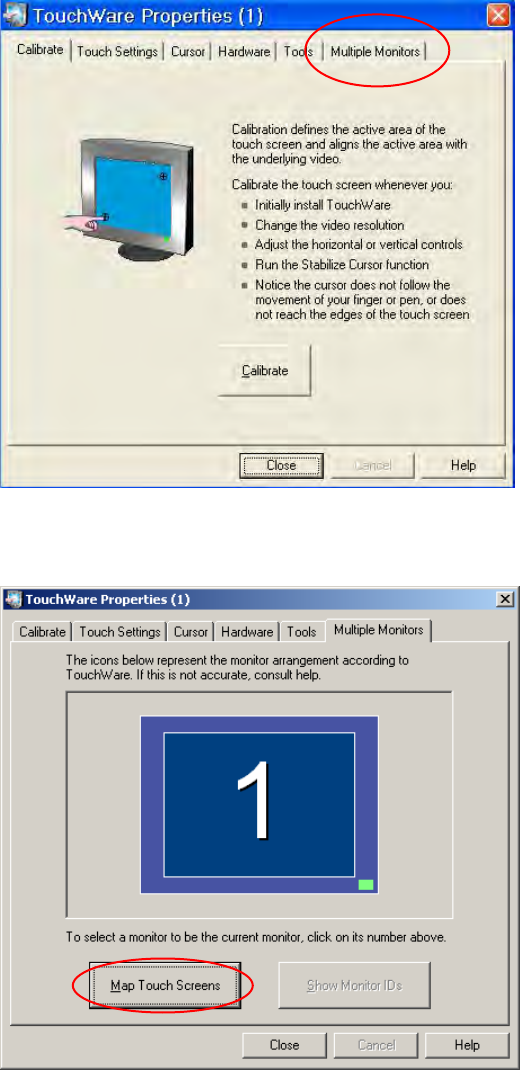
→ Choose Start
Settings
TouchWare, to start the TouchWare Properties program.
Fig. 5-2: TouchWare Properties
→ Open the Multiple Monitors tab.
Fig. 5-3: TouchWare Properties – Multiple Monitors tab
→ Click the Map Touch Screens button.
The "Multiple Monitor Layout" dialog box appears.