00195813-07_IM_SSW_605.03_SP3_DE EN.pdf - 第24页
Installat ion Manual, Station Software Version 605.03 SP 3 12 /2012 E dition 24 of 46 Fig. 5-4 : "Multiple Monitor Layout" dialog box → Click the M irr ored Monitors button. → Confirm your entry with OK . The t…
Installation Manual, Station Software Version 605.03 SP3 12/2012 Edition
23 of 46
5.3.3 Calibrating the Touch Screen
5.3.3.1 Calibrating the Touch Screen for the X-Series and CA-Series
→ Choose Start
Settings
TouchWare, to start the TouchWare Properties program.
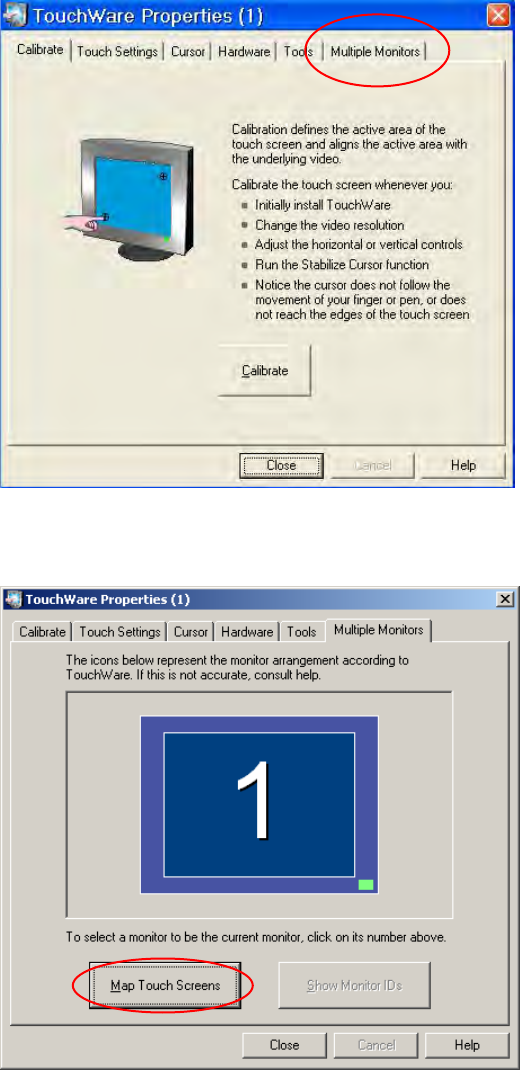
Fig. 5-2: TouchWare Properties
→ Open the Multiple Monitors tab.
Fig. 5-3: TouchWare Properties – Multiple Monitors tab
→ Click the Map Touch Screens button.
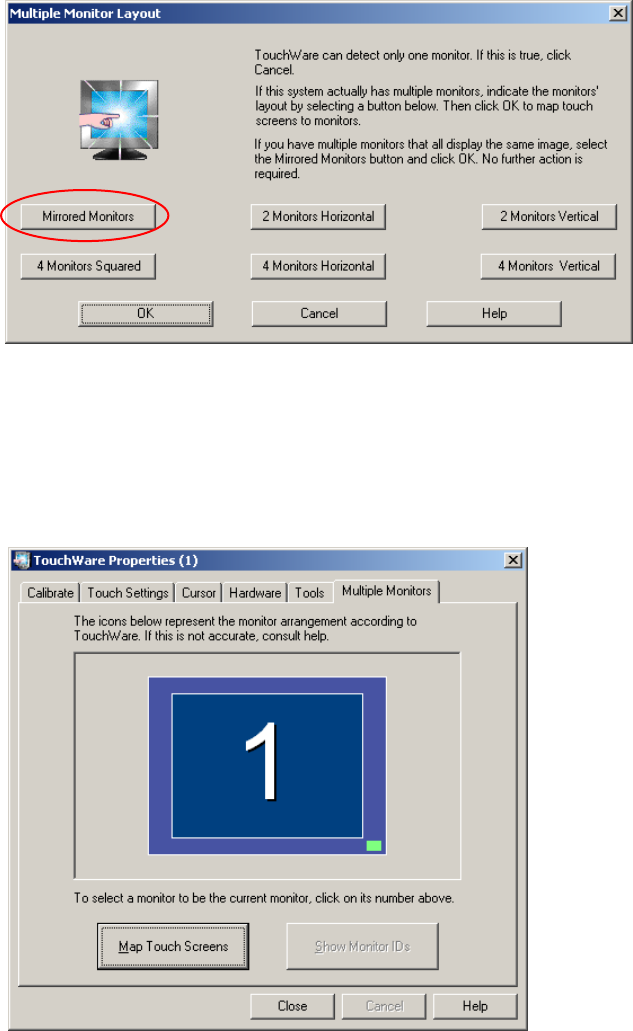
The "Multiple Monitor Layout" dialog box appears.
Installation Manual, Station Software Version 605.03 SP3 12/2012 Edition
24 of 46
Fig. 5-4: "Multiple Monitor Layout" dialog box
→ Click the Mirrored Monitors button.
→ Confirm your entry with OK.
The touch screens are now mapped and the "Multiple Monitors" tab is displayed again.
Fig. 5-5: TouchWare Properties – Multiple Monitors tab (example for Monitor 1)
Installation Manual, Station Software Version 605.03 SP3 12/2012 Edition
25 of 46
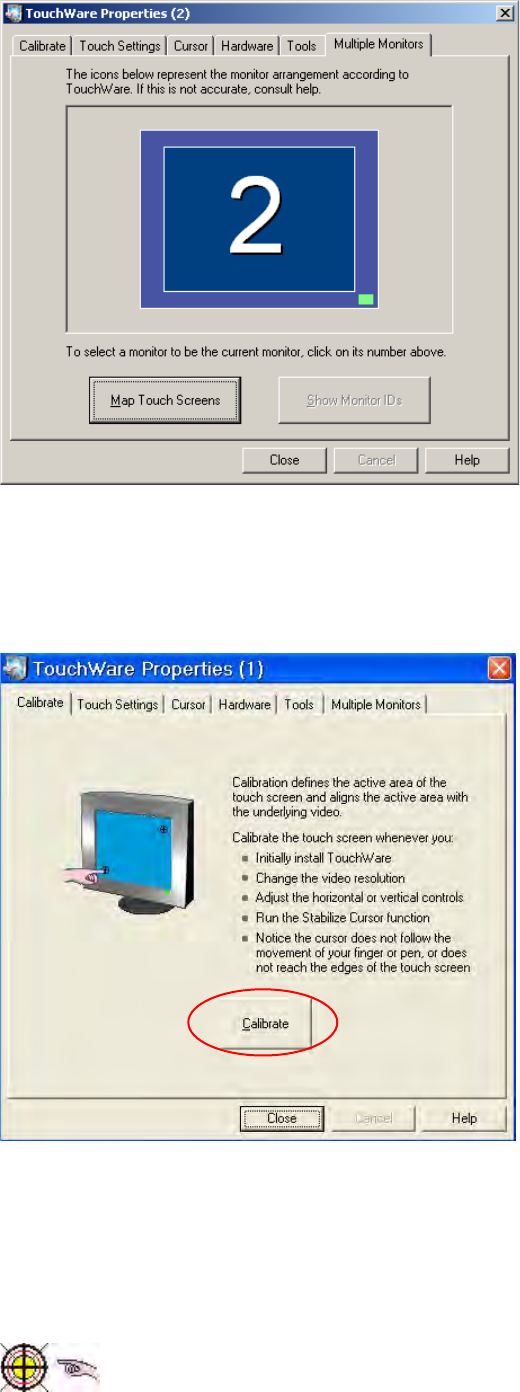
Fig. 5-6: TouchWare Properties – Multiple Monitors tab (example for Monitor 2)
→ Click the number of the monitor you wish to calibrate.
→ Open the Calibrate tab.
Fig. 5-7: TouchWare Properties – Calibrate tab (example for Monitor 1)
→ Click the Calibrate button. An icon representing the calibration is shown on screen. An icon
representing a hand guides you through the calibration steps by pointing to the calibration icon you
must touch.
Fig. 5-8: Calibration marks