00195813-07_IM_SSW_605.03_SP3_DE EN.pdf - 第39页
Installat ion Manual, Station Software Version 605.03 SP 3 12 /2012 E dition 39 of 46 The instal lation pro gram now uninstalls th e SIPLAC E software including the SIPLACE hot f ixes, SI PLACE Language Pack and SI PLACE…
Installation Manual, Station Software Version 605.03 SP3 12/2012 Edition
38 of 46
6 Uninstalling the SIPLACE Software
NOTICE
You must be logged in as administrator to uninstall the software.
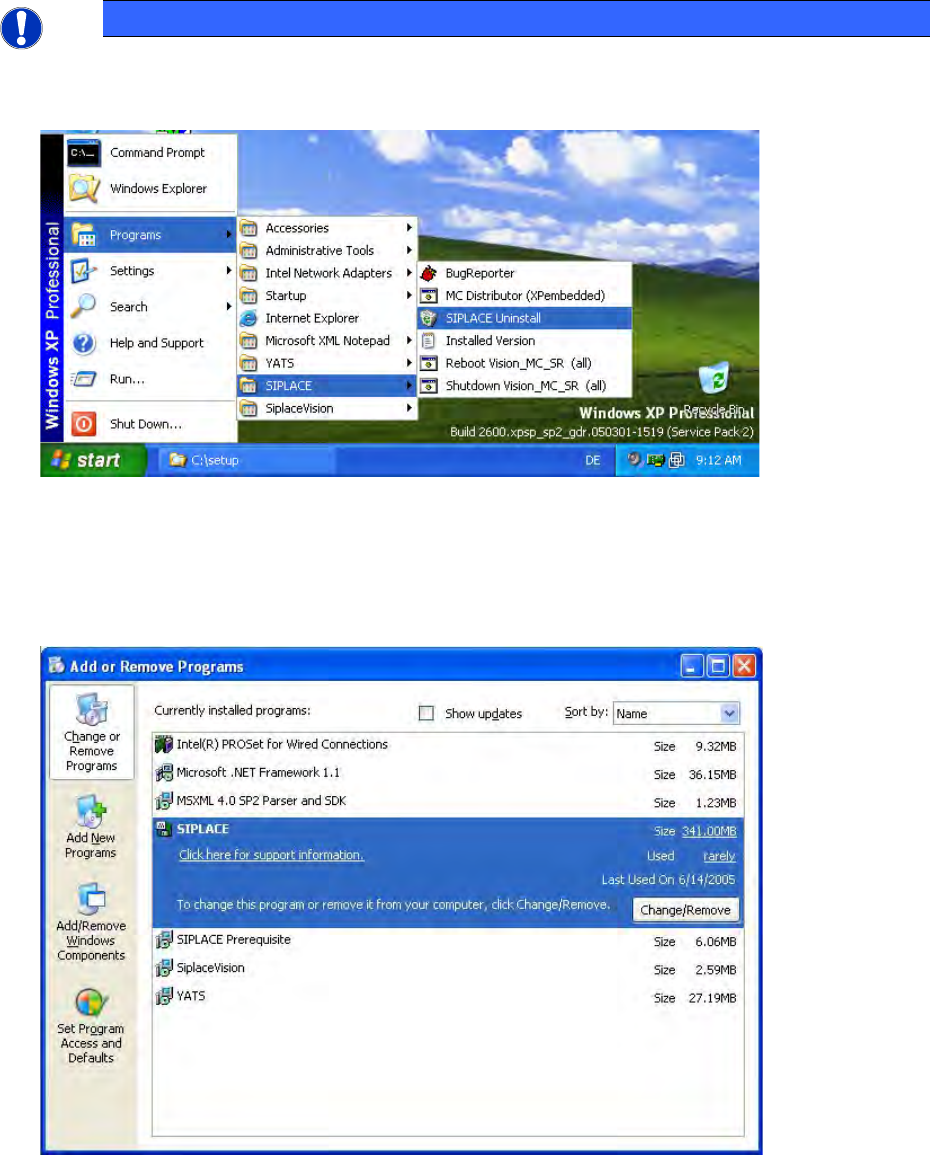
→ Open the Start menu and choose Programs SIPLACE SIPLACE Uninstall.
Fig.6-1: Starting uninstallation (alternative 1)
Or:
→ Open the Start menu and choose Settings Control Panel.
→ Double-click Add/Remove Programs.
Fig.6-2 Starting uninstallation (alternative 2)
→ Select SIPLACE from the list of installed programs.
→ Click the Change/Remove button.
Installation Manual, Station Software Version 605.03 SP3 12/2012 Edition
39 of 46
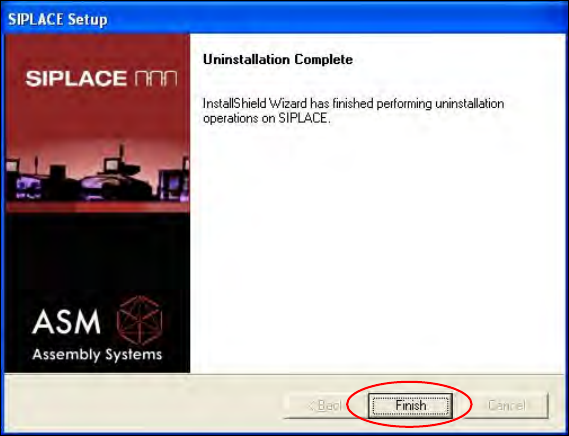
The installation program now uninstalls the SIPLACE software including the SIPLACE hot fixes, SIPLACE
Language Pack and SIPLACE Vision.
Fig.6-3: Finalizing uninstallation
→ Click the Finish button.
The SIPLACE software and SIPLACE Vision have now been uninstalled correctly.
Installation Manual, Station Software Version 605.03 SP3 12/2012 Edition
40 of 46
7 Installing the Vision Computer Software (Option)
NOTICE
The Vision computer is only required if the optional 3D coplanarity sensor is used.
In one-computer operation the Vision computer software
is automatically installed during the
station software installation.
In two-computer operation the Vision computer software has to be installed explicitly.
The installation requires approx. 20 minutes.
→ Connect the USB keyboard to the Vision computer.
→ Switch the video multiplexer from the station computer to the Vision computer.
→ Switch on the SIPLACE placement machine.
→ Log in to the Vision computer as Administrator.
(Keep the Shift key pressed as soon as the Windows XP logo appears)
→ Insert the installation CD in the drive.
→ Open the Explorer and start "setup.exe" under drive E: by double clicking it.
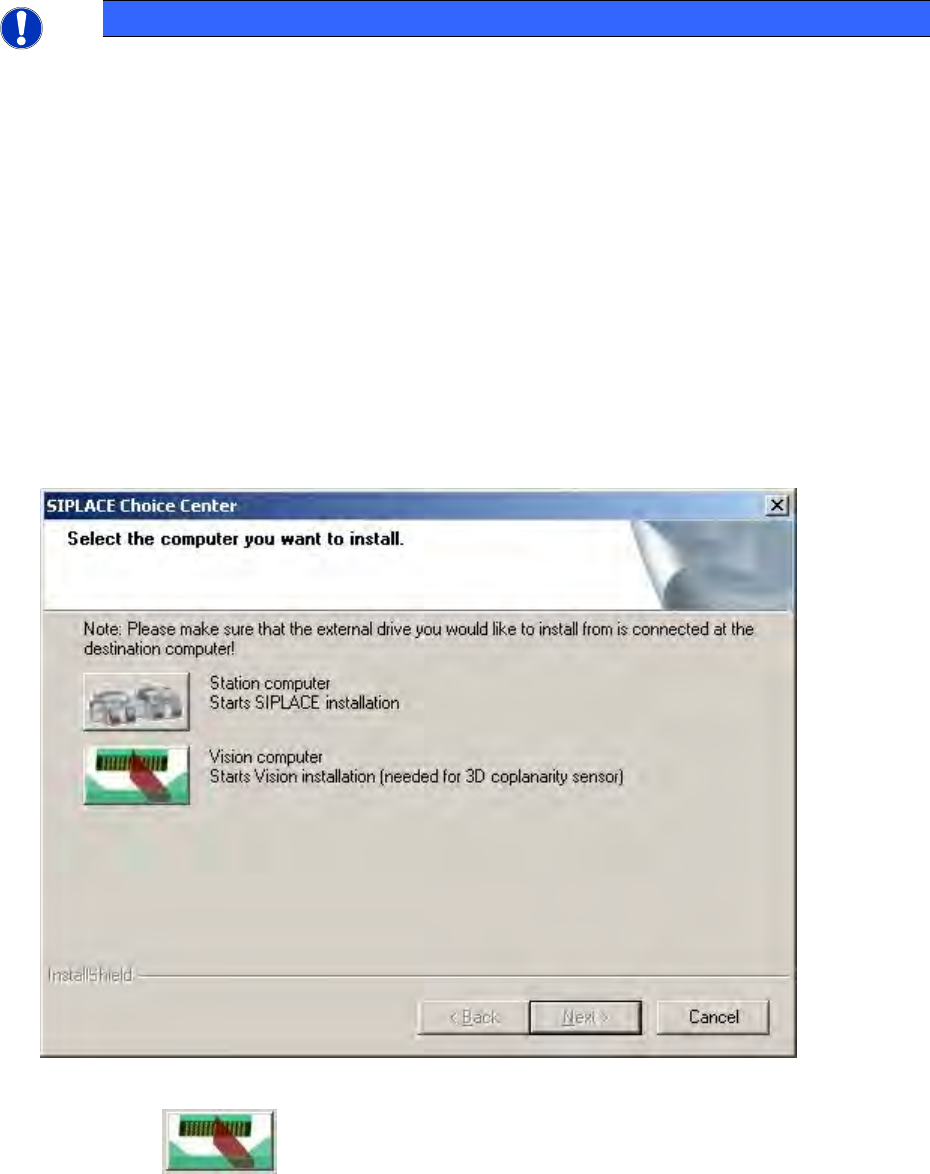
The "SIPLACE Choice Center" dialog box is opened.
Fig.7-1: "SIPLACE Choice Center" dialog box
→ Click the "Vision computer" button.