00196805-02_VD_EDM_1_10_de_en.pdf - 第10页
EDM V1.10 / Version Description Ausgabe 07/2011 Edition The message dialog box returns to the foreg r ound and the selected objects are transfe rred: Figure 4-4: Data transfer completed When data transfer has been com pl…
EDM V1.10 / Version Description Ausgabe 07/2011 Edition
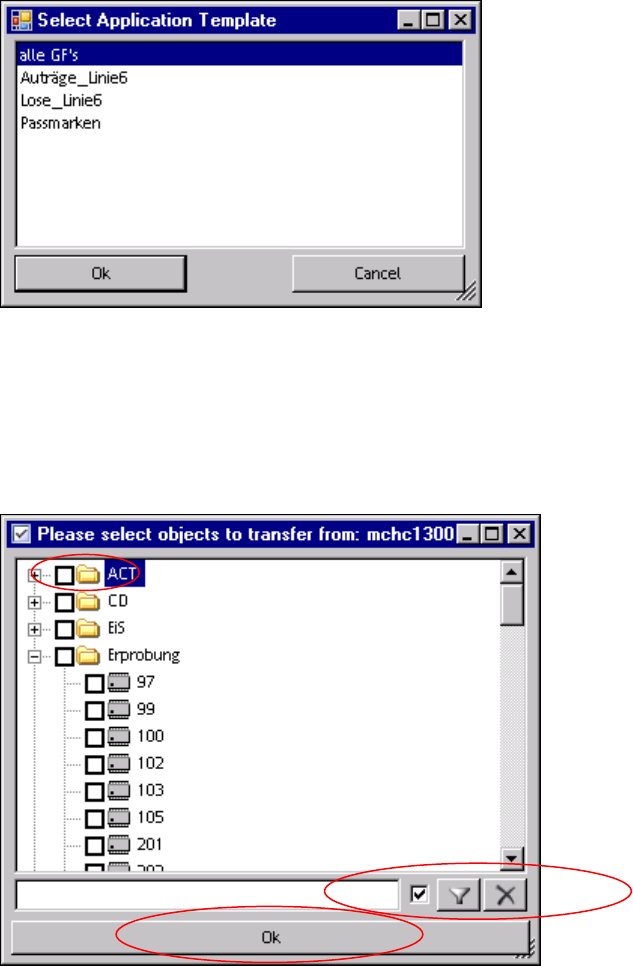
The following dialog box opens
(the templates must have been configured on the master beforehand):
Figure 4-2: Selecting application template
► Select the appropriate template from the list.
► Click OK to proceed.
The following dialog box opens:
Figure 4-3: Selecting objects
► Select the object you require by checking the check box for the object.
► The filter bar at the bottom of the selection window and the context menu of the selection
window (click the right-hand mouse button) support you when selecting the objects you wish to
pull.
► Confirm your selection by clicking OK.
9
EDM V1.10 / Version Description Ausgabe 07/2011 Edition
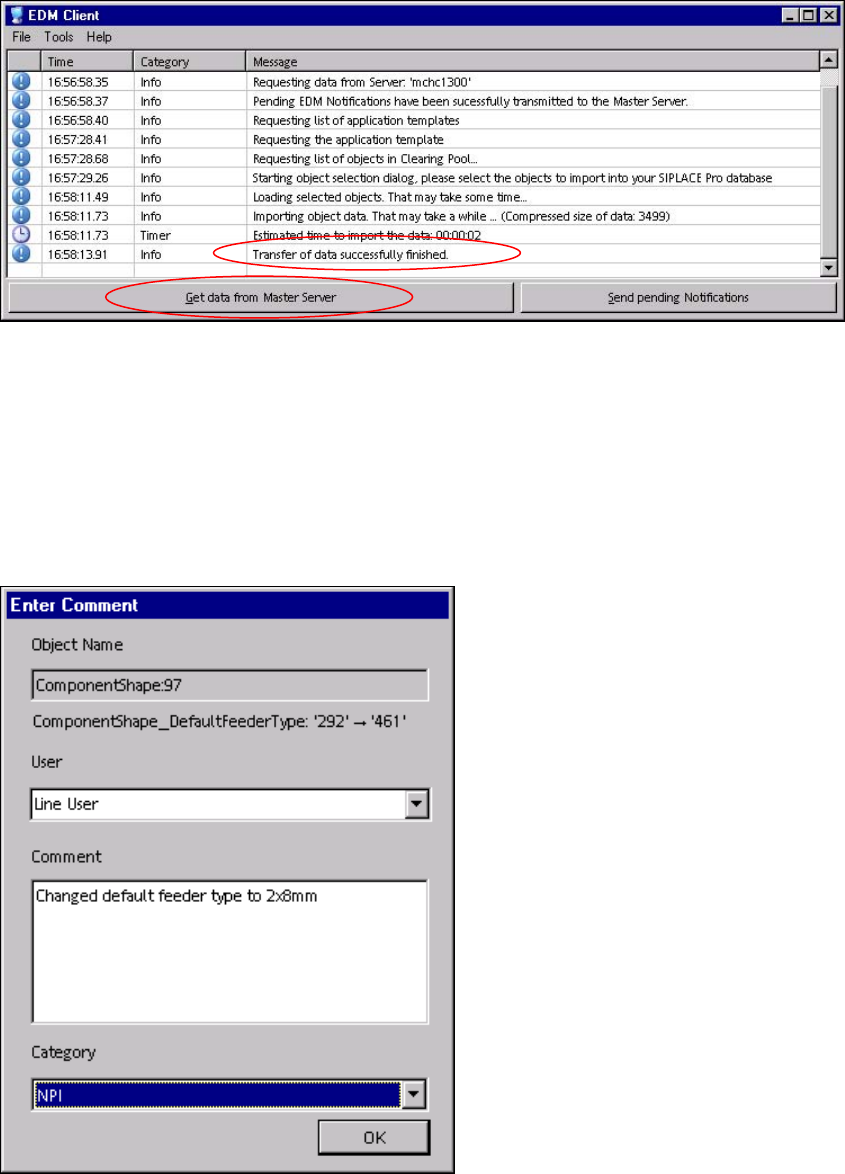
The message dialog box returns to the foreground and the selected objects are transferred:
Figure 4-4: Data transfer completed
When data transfer has been completed successfully, the message Transfer of data
successfully finished appears and the Get data from Master Server button is enabled
again.
4.2.1.1 Comment dialog box
The comment dialog box opens if you make changes in SIPLACE Pro on the Line Server (e.g. if
you change the component shape).
Figure 4-5: Comment dialog box
► Enter your user name.
► Describe exactly the modifications you have made in SIPLACE Pro in the Comment field.
► Select the appropriate category from the drop-down list.
► Click OK to close the comment dialog box.
10
EDM V1.10 / Version Description Ausgabe 07/2011 Edition
4.2.1.2 Restoring data with pending changes in the Clearing Pool
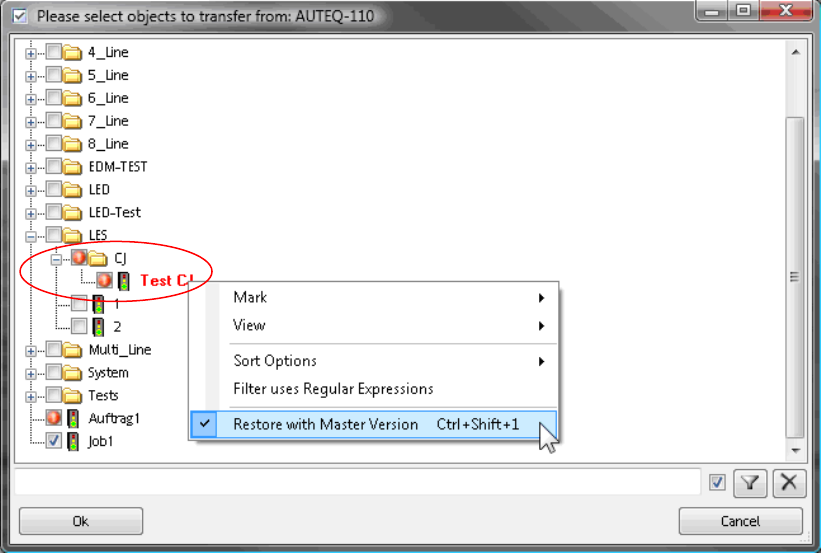
By default, an object is not overwritten or restored as long as there are untreated changes for this
object on the current line in the Clearing Pool. During a pull operation it is now possible to restore
data on the Line Server to the current version of the Master Server, although a modified version
has been transmitted to the Clearing Pool.
Figure 4-6: Restoring data
The folders that contain at least one object that can be restored and the objects themselves are
marked with the icons above.
► Check the object(s) to be restored.
► Click the right-hand mouse button to open the context menu and select the Restore with
Master Version menu entry.
11