00196805-02_VD_EDM_1_10_de_en.pdf - 第21页
EDM V1.10 / Version Description Ausgabe 07/2011 Edition 4.4.1.2 Selecting multiple objects The Clearing Pool has bee n extended to support the selection of multiple objects to be accepted or rejected for import. Single o…
EDM V1.10 / Version Description Ausgabe 07/2011 Edition
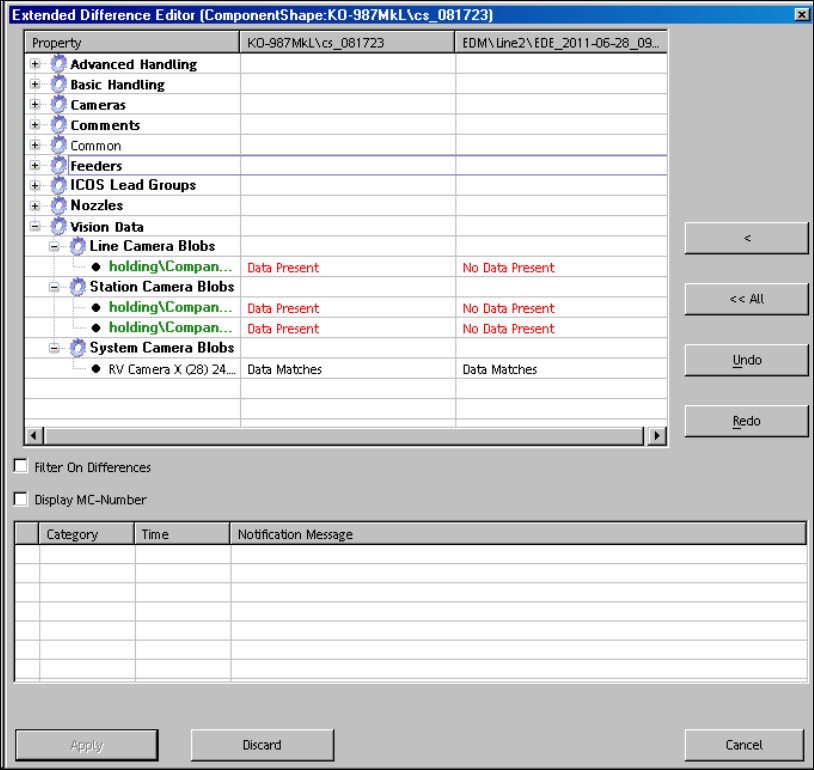
Figure 4-16: Displaying differences in the line data
The master version is displayed on the left side and the client version on the right side and the
assigned SIPLACE Pro lines are highlighted. The data preparation engineer accepts the changed
line Vision data for all assigned SIPLACE Pro lines by clicking the <<All or All>> buttons (or the
Apply button, if repeating the action).
The differences for line data of non-assigned SIPLACE Pro lines can be merged via the < and >
buttons.
20
EDM V1.10 / Version Description Ausgabe 07/2011 Edition
4.4.1.2 Selecting multiple objects
The Clearing Pool has been extended to support the selection of multiple objects to be accepted or
rejected for import.
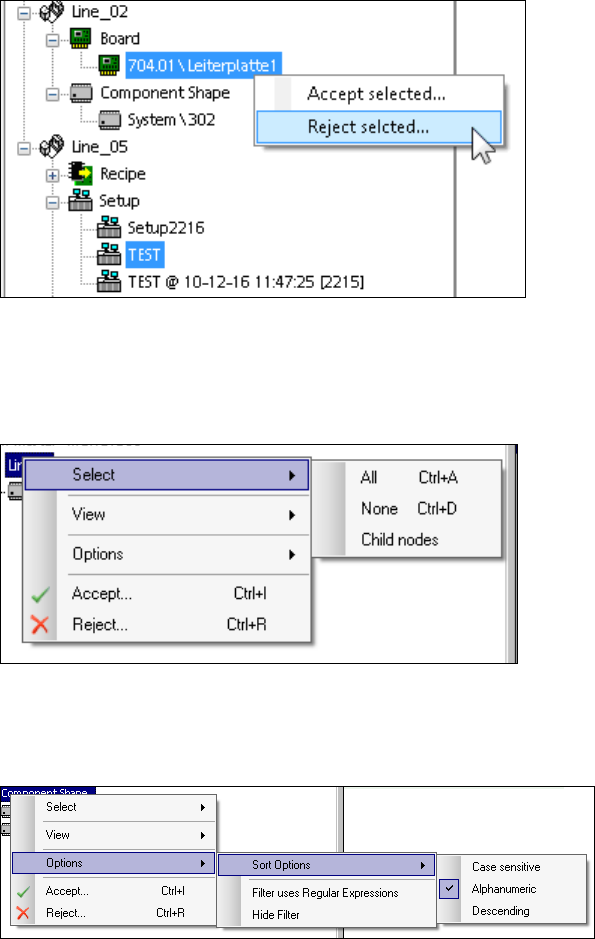
Single objects from different container nodes have to be selected manually in the context menu of
the object:
Figure 4-17: Manual selection of multiple objects
On a container node, the user can select Accept / Reject / Select - All in the context menu to
perform the changes for all objects of the container node. By selecting Select / Accept / Reject –
Child nodes, the changes are only performed for the objects of the current sub node.
Figure 4-18: Changing all objects
Via the Options – Sort Options menu entry the objects can be sorted Case sensitive,
Alphanumeric or Descending:
Figure 4-19: Sort Options
21
EDM V1.10 / Version Description Ausgabe 07/2011 Edition
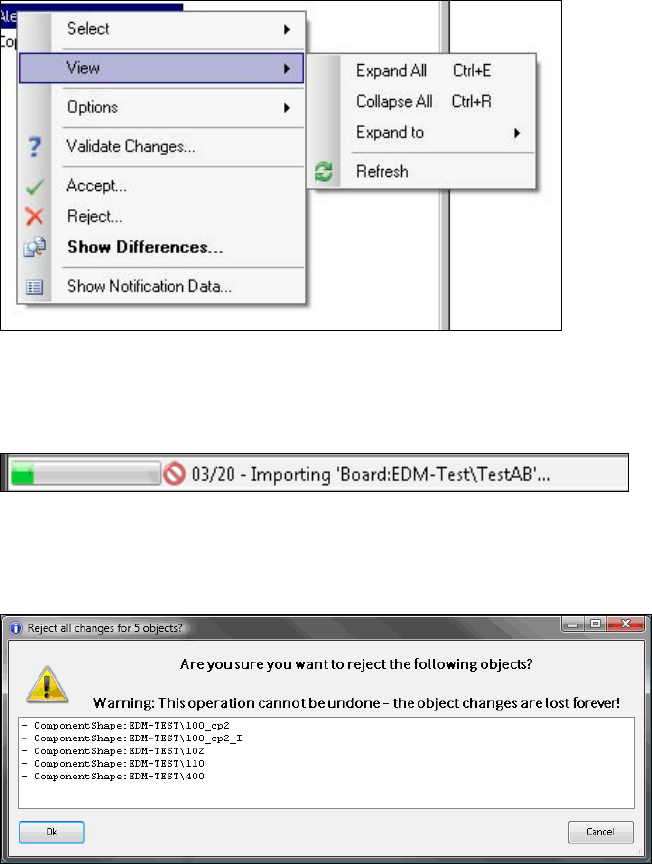
Via the View menu entry settings can be made for the tree structure (expanding / collapsing).
On a single node, the Extended Difference Editor can be displayed for the selected object via the
Show Differences menu entry:
Figure 4-20: Show Differences for a single object
During the import of multiple objects, the batch import progress is displayed in the status bar of the
Clearing Pool:
Figure 4-21: Batch import progress
When multiple objects are rejected, a dialog is displayed, in which the rejection has to be confirmed
or canceled:
Figure 4-22: Confirmation dialog
22