00196805-02_VD_EDM_1_10_de_en.pdf - 第13页
EDM V1.10 / Version Description Ausgabe 07/2011 Edition 4.2.3 Configuring "Auto Reject" and "Dir ect Import" at the EDM Client Data which complies with the rules for Auto Reject and Direct Import does…
EDM V1.10 / Version Description Ausgabe 07/2011 Edition
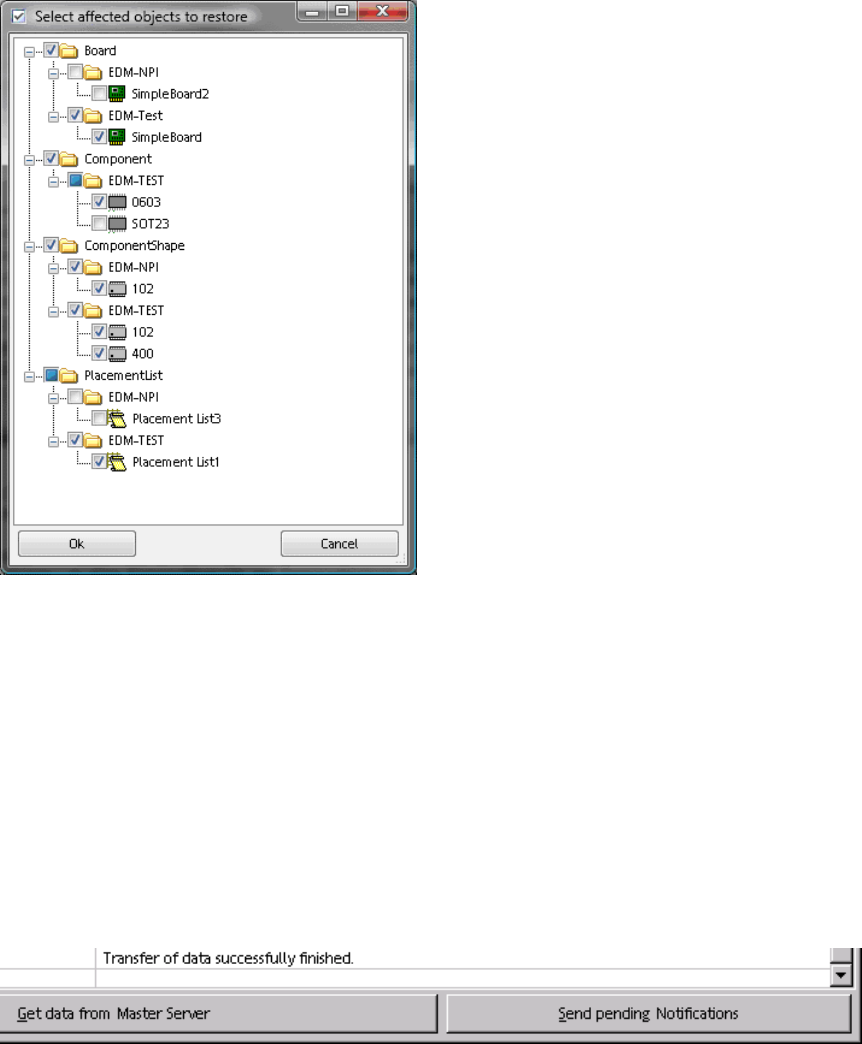
A corresponding confirmation window is displayed.
Figure 4-7: Confirming objects to be restored
► Confirm your selection by clicking OK.
The selected objects are restored on the Line Server and the changes are removed from the
Clearing Pool.
4.2.2 Transferring the change notices to the EDM Master
At the latest after a configurable time period (see the EDM Installation Manual, section 5.2.3.5), all
the change notifications are transferred to the EDM Master. Notifications can be sent immediately
by clicking Send Pending Notifications in the EDM Client:
Figure 4-8: Sending pending notifications
12
EDM V1.10 / Version Description Ausgabe 07/2011 Edition
4.2.3 Configuring "Auto Reject" and "Direct Import" at the EDM Client
Data which complies with the rules for Auto Reject and Direct Import does not flow into the
Clearing Pool. In the case of Direct Import, the data flows directly into the EDM Master database,
and the data is ignored in the case of Auto Reject. It therefore makes no sense to enter comments
at the EDM Line in a case such as this. The comment dialog box is not displayed provided that the
EDM Client knows these rules:
► Immediately after any changes for Auto Reject and Direct Import have been made, the user
must manually distribute the relevant configuration files of the EDM Master
(ClearingPoolImportFilterConfig.xml and ClearingPoolRejectFilterConfig.xml) to all the EDM
Clients.
13
EDM V1.10 / Version Description Ausgabe 07/2011 Edition
4.3 EDM Data Transfer Manager (push mode)
The Data Transfer Manager allows users to send defined data packages to Line Servers.
The Data Transfer Manager opens in selection view when it is started (either from the Windows®
Start menu: Programs - SIPLACE EDM - EDM Data Transfer (Push) or from the shortcut on the
desktop).
4.3.1 Creating a data package
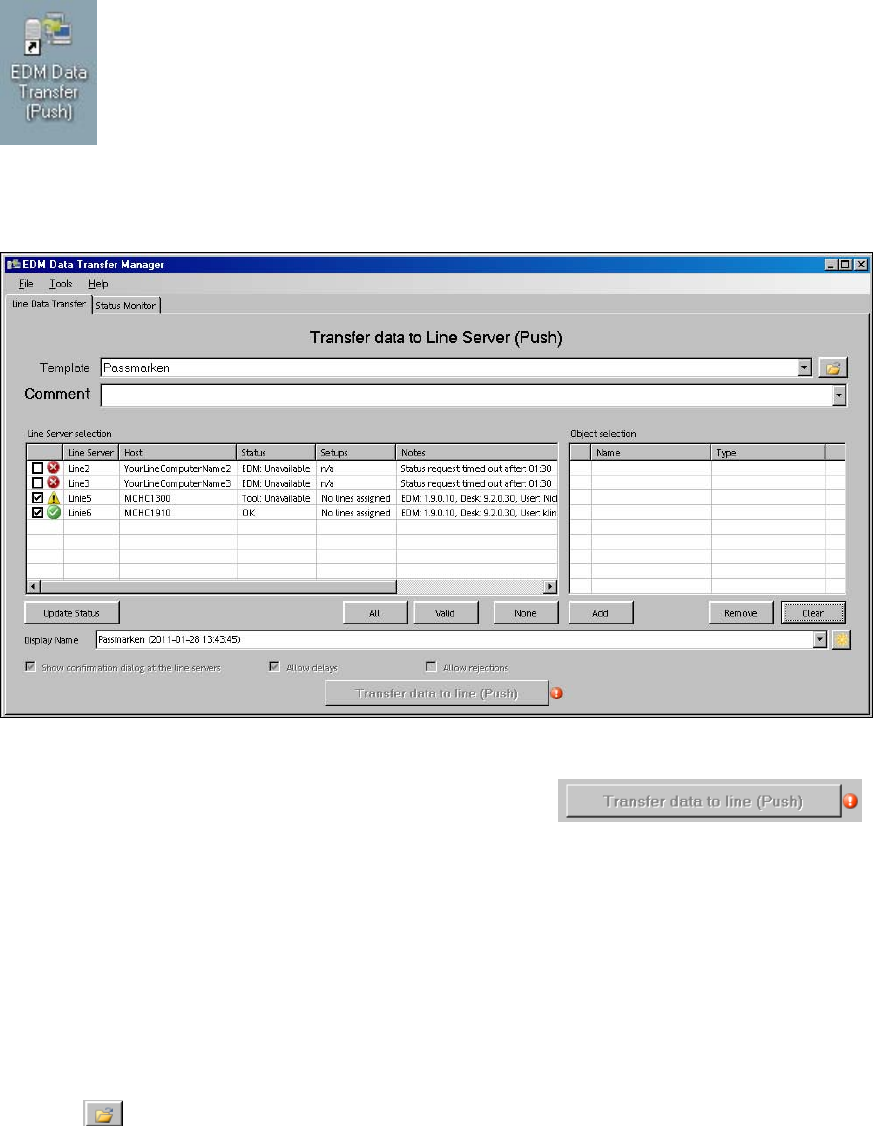
Figure 4-9: Creating a data package
The Transfer data to line (Push) button is disabled by default: .
The red error icon shows that the user still has to make entries. Details are displayed as a tooltip or
if the user left-clicks on the error indicator.
The following steps are necessary to successfully transfer objects to a line. It is recommended that
you initially follow the sequence given.
4.3.1.1 Selecting an application template
If a template has previously been selected in an earlier session of the Data Transfer Manager, this
is preselected in the selection list. This list contains all the templates stored in the selected
template folder.
► Click
to select a template folder.
14