00196805-02_VD_EDM_1_10_de_en.pdf - 第8页
EDM V1.10 / Version Description Ausgabe 07/2011 Edition 4 Description of the software components 4.1 EDM Master Service The EDM master service is the server co mponent of EDM. It replies to queries from EDM line services…
EDM V1.10 / Version Description Ausgabe 07/2011 Edition
3 Requirements
The software and system requirements for SIPLACE EDM 1.10 broadly correspond to those for
SIPLACE Pro 9.3. Details can be found in the EDM Installation Manual, item no. 00196806-xx.
7
EDM V1.10 / Version Description Ausgabe 07/2011 Edition
4 Description of the software components
4.1 EDM Master Service
The EDM master service is the server component of EDM. It replies to queries from EDM line
services and distributes the data in the central SIPLACE Pro database among the lines.
In return, it accepts change notifications and collects them in the EDM database. The Clearing Pool
can be selectively bypassed using Auto-Reject and Direct Import (see the EDM Installation
Manual, section 5.4.3).
4.2 EDM Client
The EDM Client enables user interaction on the line. It implements customer specific data
distribution. This user interface implements pull mode and forced pull mode. The push mode
workflow, on the other hand, is based on the EDM Data Transfer Manager and is described in
section 4.3.
4.2.1 Getting data from the master (pull mode)
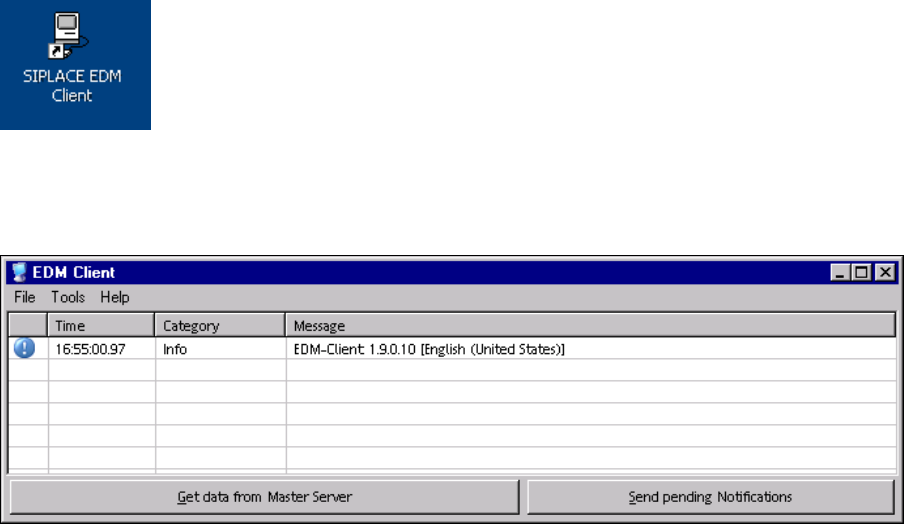
► Double click the icon on your desktop to start the EDM Client.
The EDM Client opens:
Figure 4-1: EDM Client
► Click the Get data from Master Server button.
8
EDM V1.10 / Version Description Ausgabe 07/2011 Edition
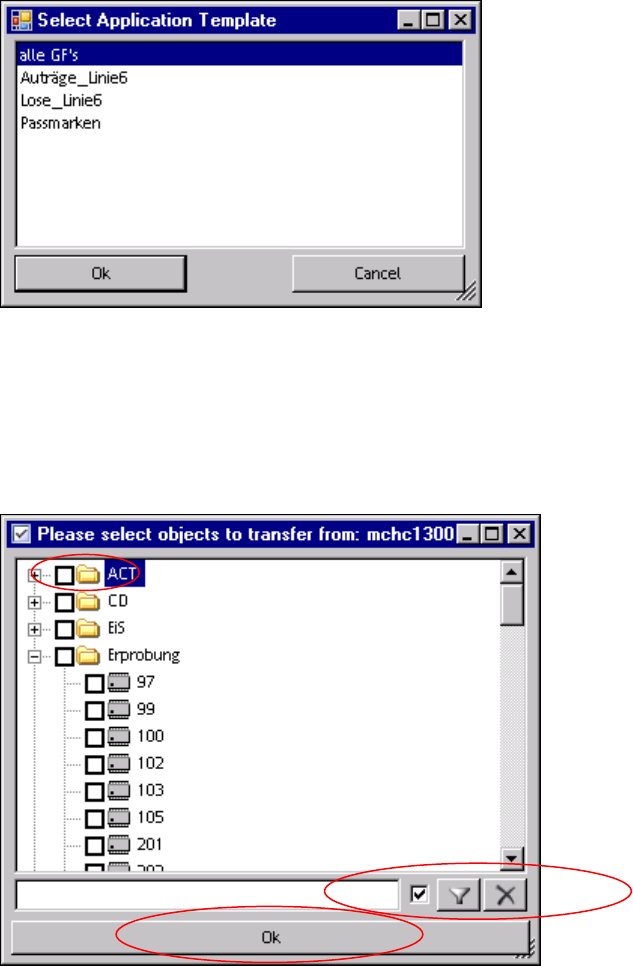
The following dialog box opens
(the templates must have been configured on the master beforehand):
Figure 4-2: Selecting application template
► Select the appropriate template from the list.
► Click OK to proceed.
The following dialog box opens:
Figure 4-3: Selecting objects
► Select the object you require by checking the check box for the object.
► The filter bar at the bottom of the selection window and the context menu of the selection
window (click the right-hand mouse button) support you when selecting the objects you wish to
pull.
► Confirm your selection by clicking OK.
9