00196805-02_VD_EDM_1_10_de_en.pdf - 第15页
EDM V1.10 / Version Description Ausgabe 07/2011 Edition 4.3.1.2 Selecting the line(s) Once a template has been selected, the Line Se rver selection list shows all the known lines selected by the template. The following i…
EDM V1.10 / Version Description Ausgabe 07/2011 Edition
4.3 EDM Data Transfer Manager (push mode)
The Data Transfer Manager allows users to send defined data packages to Line Servers.
The Data Transfer Manager opens in selection view when it is started (either from the Windows®
Start menu: Programs - SIPLACE EDM - EDM Data Transfer (Push) or from the shortcut on the
desktop).
4.3.1 Creating a data package
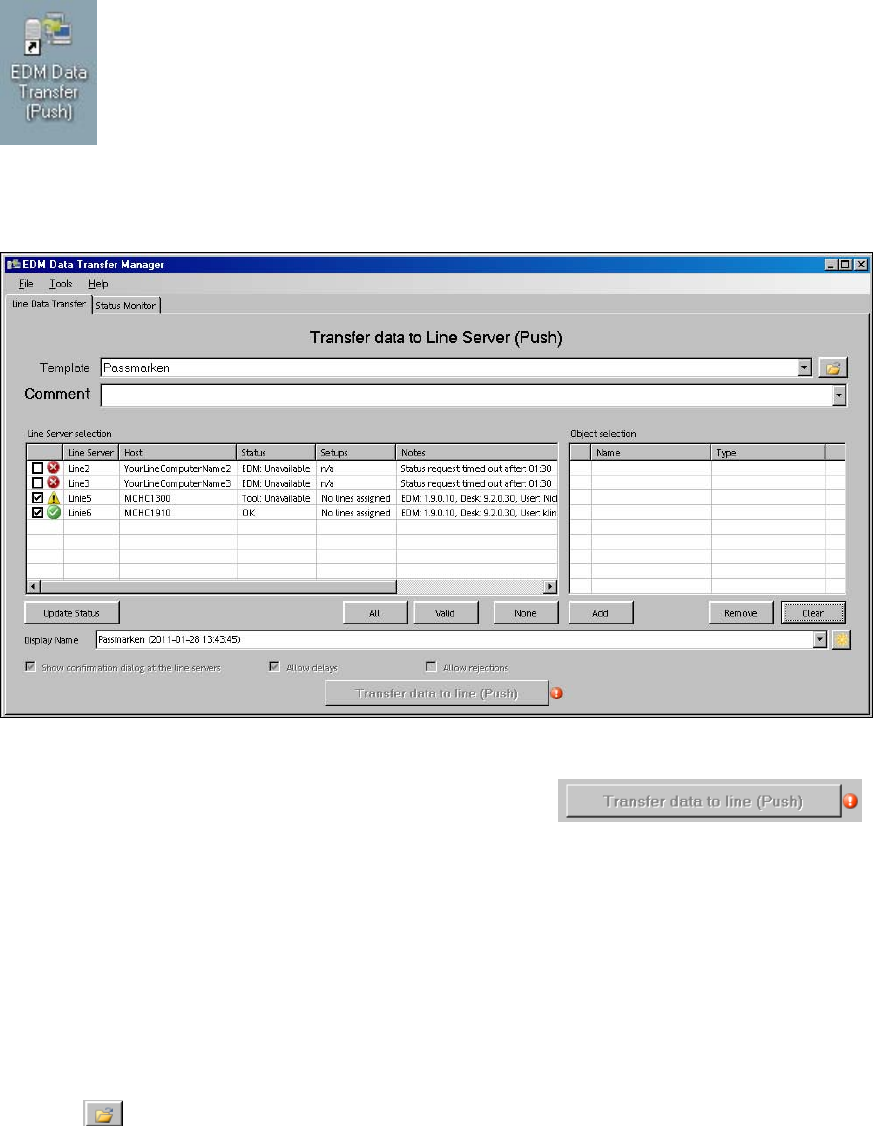
Figure 4-9: Creating a data package
The Transfer data to line (Push) button is disabled by default: .
The red error icon shows that the user still has to make entries. Details are displayed as a tooltip or
if the user left-clicks on the error indicator.
The following steps are necessary to successfully transfer objects to a line. It is recommended that
you initially follow the sequence given.
4.3.1.1 Selecting an application template
If a template has previously been selected in an earlier session of the Data Transfer Manager, this
is preselected in the selection list. This list contains all the templates stored in the selected
template folder.
► Click
to select a template folder.
14
EDM V1.10 / Version Description Ausgabe 07/2011 Edition
4.3.1.2 Selecting the line(s)
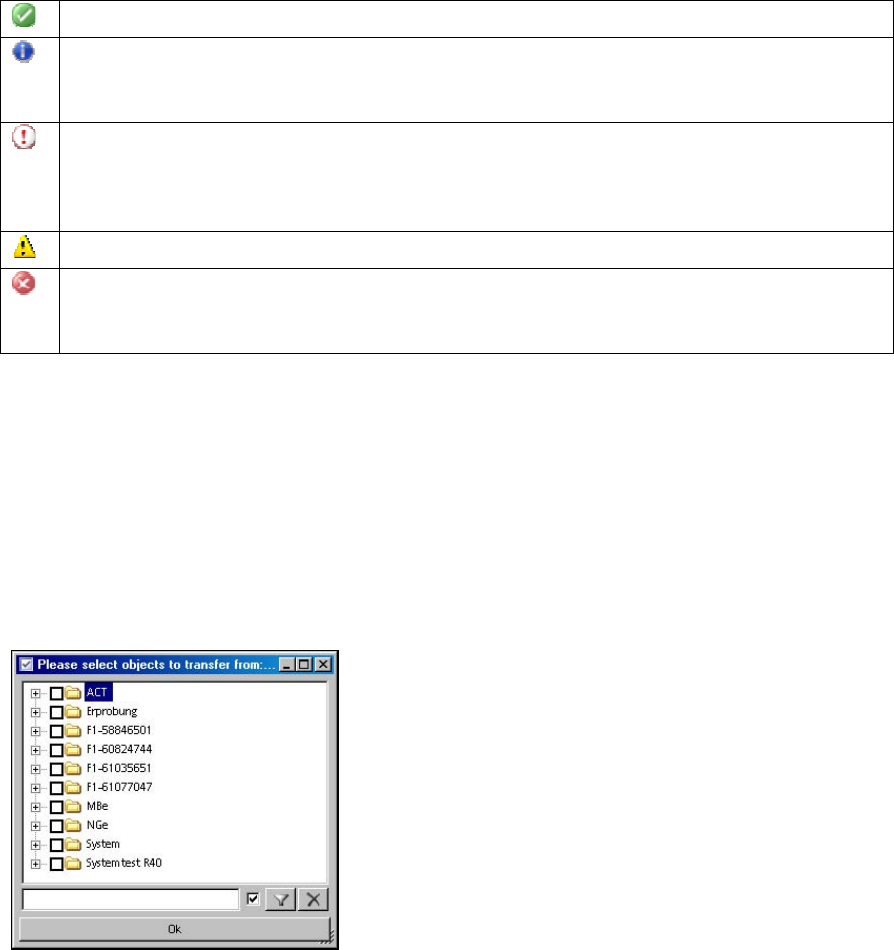
Once a template has been selected, the Line Server selection list shows all the known lines
selected by the template. The following icons indicate the status of the line. Further details are
displayed in the tooltip for the icon and in the Status field of the Line Server selection list.
The Line Server is available and can receive data packages.
The Clearing Pool contains unprocessed entries for this line. The entries in the Clearing
Pool should be checked and removed before data is sent to this Line Server. Nevertheless,
it is possible to push data.
The Clearing Pool contains unprocessed entries for this line. One of these objects in the
Clearing Pool has been added to the Object selection list. The object must be removed
from the Clearing Pool or the Object selection list or the line must be deactivated in the
Line Server selection list before data can be sent to this Line Server.
Something is wrong on the Line Server. The EDM Tool may not be running.
The Line Server is not responding, does not exist (incorrect entry in the EDM configuration
file), the EDM service is not running on the Line Server, or push mode is not enabled
there.
Table 4-1: Icons for line status
The associated check box must be checked to transfer objects to a Line Server. The All (all Line
Servers shown), Valid and None buttons check or uncheck the check boxes of the relevant Line
Server groups.
4.3.1.3 Selecting the objects to be transferred
The Add button opens a dialog box for selecting the objects. The filter function and the context
menu allow the relevant objects to be selected quickly. The checked entries are added to the
Object selection list.
Figure 4-10: Selecting objects to be transferred
4.3.1.4 Entering a comment
A text must be entered in the Comment field. This is subsequently used as a notice and identifies
the content of the push package to the user at the Line Server.
15
EDM V1.10 / Version Description Ausgabe 07/2011 Edition
4.3.1.5 Sending the data package
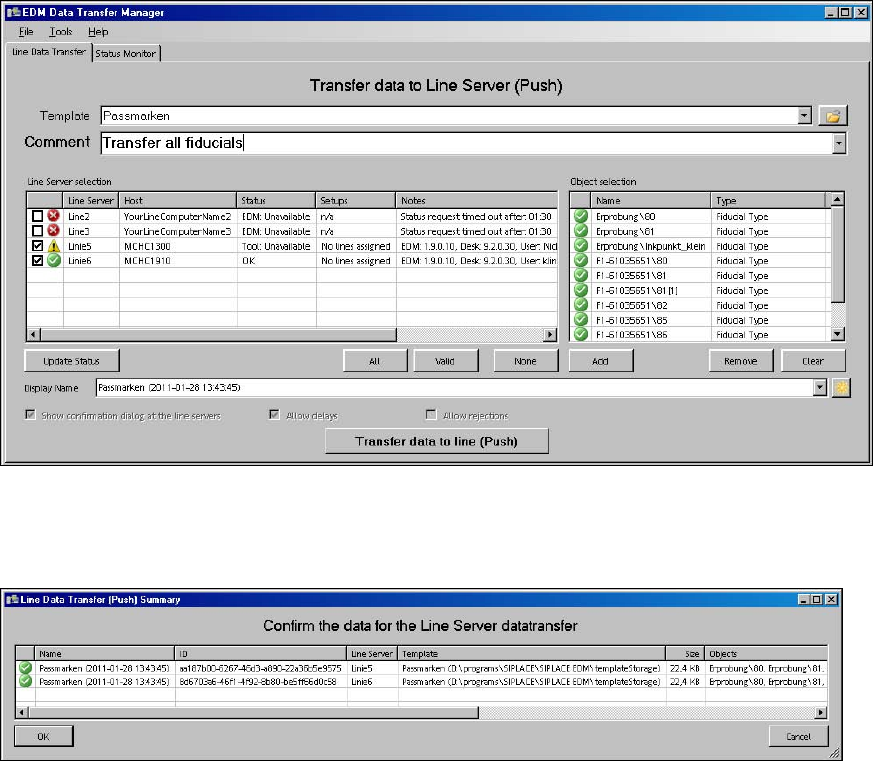
Once the user has performed all the steps above, the button for transferring the package is
enabled and the error icon next to it is no longer visible.
Figure 4-11: Sending the data package
After the Transfer data to line (Push) button is pressed, the selected data is exported from
SIPLACE Pro. The summary has then to be confirmed or the push operation has to be canceled:
Figure 4-12: Confirming/Cancelling the push operation
16