00196805-02_VD_EDM_1_10_de_en.pdf - 第26页
EDM V1.10 / Version Description Ausgabe 07/2011 Edition All selected filter attributes are display ed on a summary page in the EDM Co nfiguration. Figure 4-25:Summary page of a user-based direct i mport filter Further in…

EDM V1.10 / Version Description Ausgabe 07/2011 Edition
4.7 EDM Line Service
The EDM Line Service is the counterpart to the EDM Master Service and performs the following
tasks:
● It sends requests to the master service, receives requests from it and forwards them for
processing to the EDM Client.
● It receives and processes push data packages and supplies status information to the EDM
master.
● Furthermore, it monitors the changes made by users to the local SIPLACE Pro database,
documents the changes and sends them to the master service for entry in the Clearing Pool.
4.8 EDM filter configuration
The EDM filter configuration configures filters that block irrelevant events, preventing them from
opening a comment dialog and generating a notification.
The filtered events are written in the log file EdmService_NotificationFilter.log in the folder
…\logs\EdmService\. The file specifies which events are filtered (-) or accepted (+) by which rules.
The names of the filter rules are identified by [RF].
NOTICE
To activate the changes, the current file log4net.config must be installed in the folder
\config on the line. This is done automatically in the event of a fresh installation. If,
however, keep the configuration is selected during the installation, the file must be
copied and overwritten manually.
EDM filter configuration at the EDM Client
The default EDM filter has been extended so that fewer changes are received by the EDM Line
Service than in previous versions. All filters may now be enabled or disabled in the filter editor
using the check boxes.
A number of filter rules have also been added that are flagged with OPT as the first part of the filter
comment. These filters are required for level-3 optimization at the EDM Client in order to hide
unnecessary comments.
4.8.1 New features
The following features have been added to the EDM filter configuration as of the EDM 1.10
Version.
4.8.1.1 EDM notification filtering on user
The EDM filter classes have been extended to support filtering by SIPLACE Pro and Windows user
names for both Line Server (notification) and Master Server (direct import/reject) filters. This
provides the possibility to automatically accept changes from experts without using the Clearing
Pool.
Additionally, these filters may be used to filter changes from certain applications/services, if they
are started as a different Windows user than SIPLACE Pro Desk.
25
EDM V1.10 / Version Description Ausgabe 07/2011 Edition
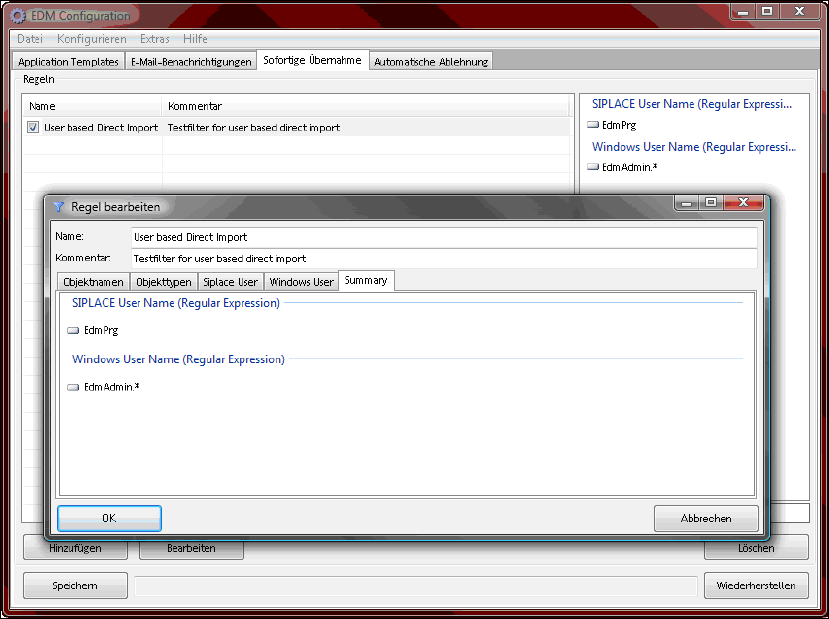
All selected filter attributes are displayed on a summary page in the EDM Configuration.
Figure 4-25:Summary page of a user-based direct import filter
Further information can be found in the EDM Installation Manual, item no. 00196806-xx.
4.8.1.2 Updated default filters
New sets of filter rules have been added to the default filters to support the following SIPLACE Pro
features that modify SIPLACE data on the EDM Line Server:
– Random Setup (mandatory)
– LED Pairing (mandatory)
Optionally, new filter rules are also available for LES.
These filters are disabled by default, as they may filter user interactions that should be transferred
to the EDM Master Server.
They also might filter changes made by the user at the EDM Line Server (e.g. changing the feeder
offset on a table). This can be avoided by using user-based filters and either enabling the SIPLACE
Pro security and working as a non-service user, or by starting SIPLACE Pro as another Windows
user as the user of the Line Control Server.
26
EDM V1.10 / Version Description Ausgabe 07/2011 Edition
4.9 EDM Tool
The EDM Tool is a utility that is always installed with the other EDM components. The tasks of the
EDM Tool are as follows:
● It monitors the status of the EDM Service and checks the integrity of the EDM configuration
files.
● It also allows the line engineer to enter comments for new notifications when installed on the
Line Server.
● It displays the confirmation dialog box in push mode.
● The tool may also be used to enter the comment on a different workstation from the Line
Server if installed on another workstation.
27