Infinity Generic Tooling.pdf - 第39页
INFINITY MACHI NE PROG RAMMI NG STAGE 6 E - FORMFLEX TOOLING User Manual 1.65 6. Ensure ther e is a 10mm gap bet ween the stencil side and the en d of the spri ng l ock asse mbly . 7. T ighten the t humbscrews of the two…
INFINITY
MACHINE PROGRAMMING
STAGE 6E - FORMFLEX TOOLING
1.64 User Manual
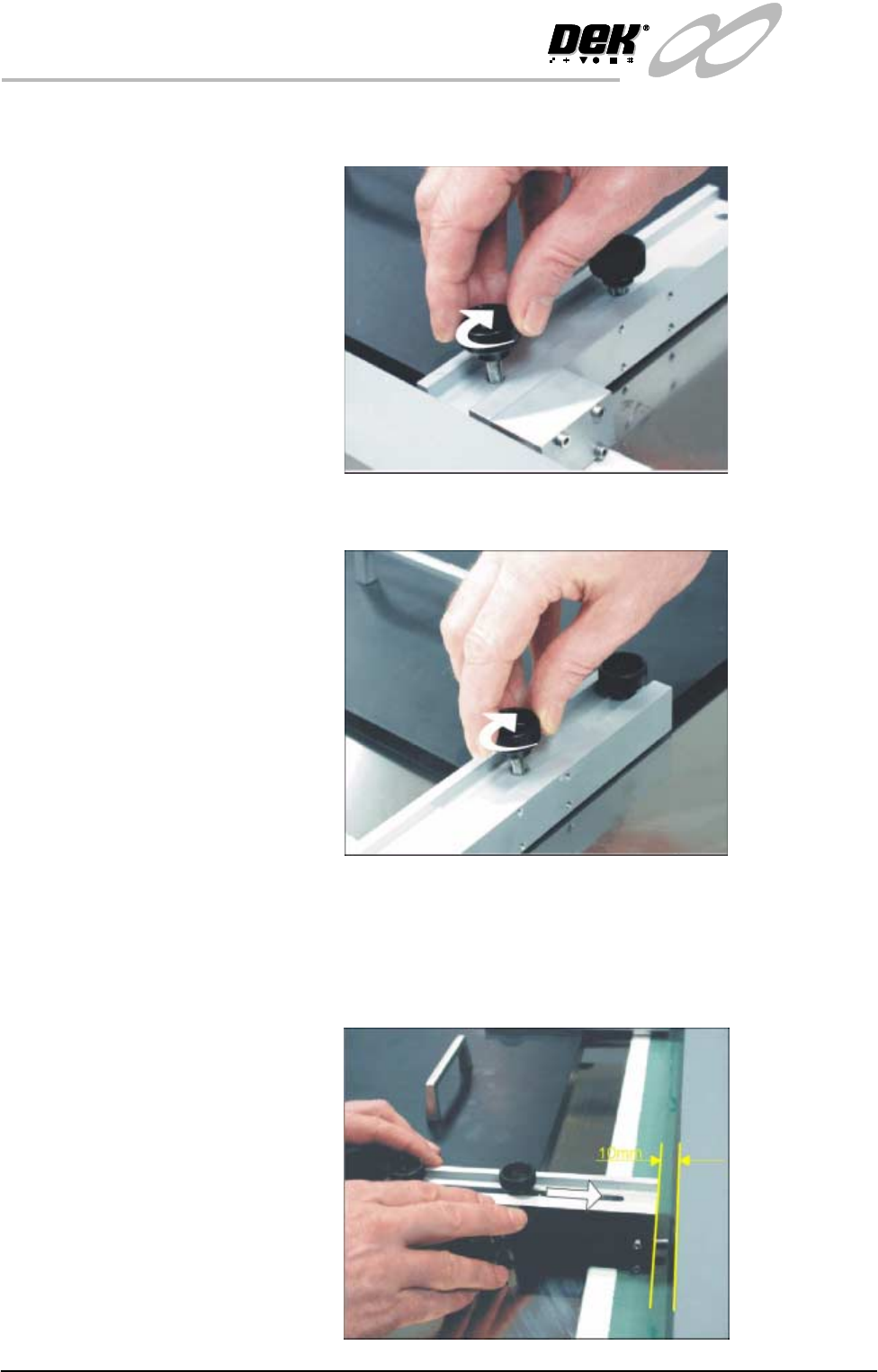
means of the two knurled thumbscrews through the outer and centre
mounting holes in the mount assembly.
b. For a 23″ I/D stencil or larger, secure the rod mounts to the plate using
the centre and inner mounting holes.
4. Position the set plate in the stencil centrally over the image, ensuring the
rods of the rod mounts are in contact with the left hand stencil side.
5. Adjust the position of the right hand spring lock assemblies by releasing the
two knurled thumbscrews and sliding the assembly towards the side of the
stencil.
INFINITY
MACHINE PROGRAMMING
STAGE 6E - FORMFLEX TOOLING
User Manual 1.65
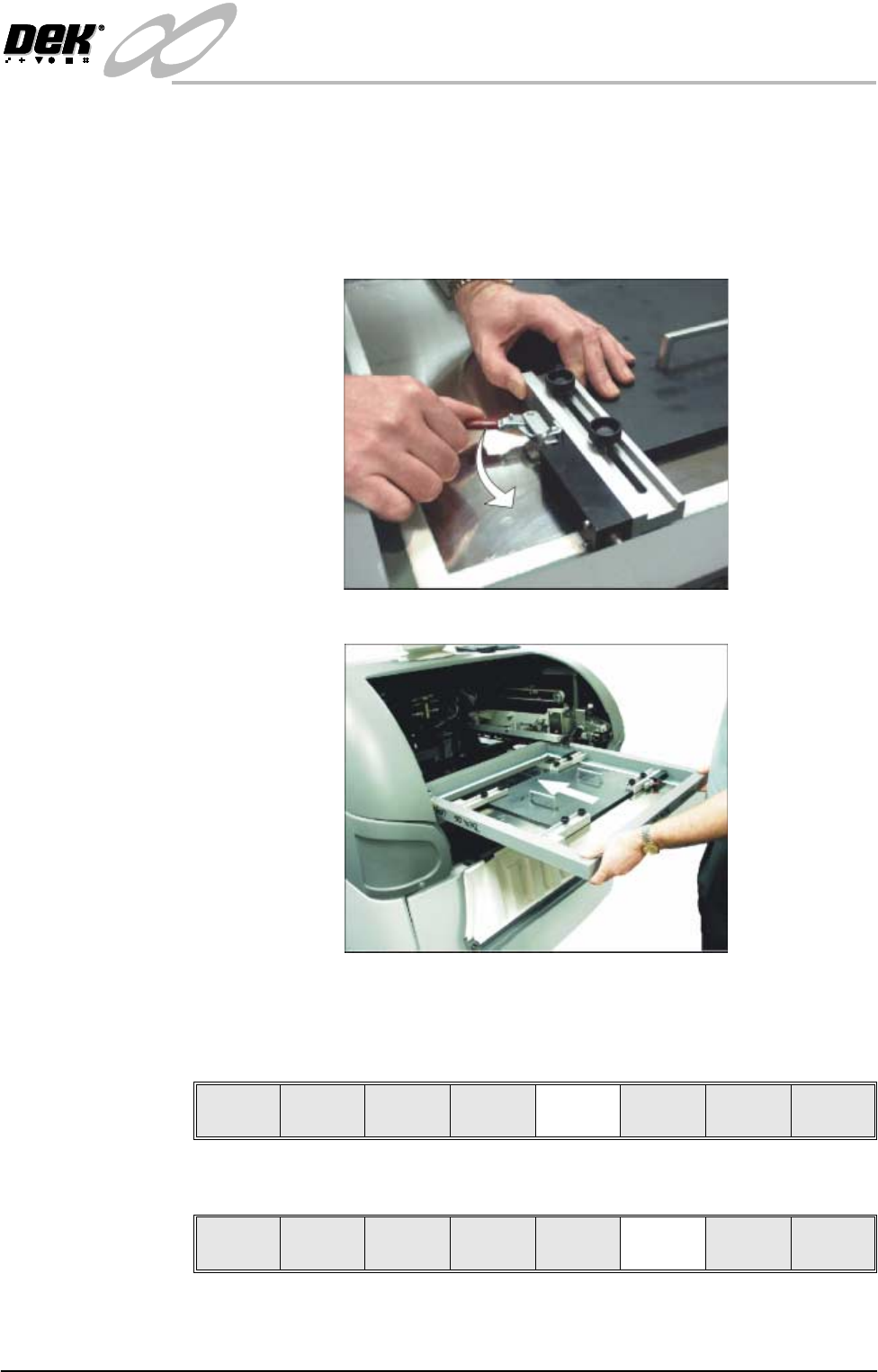
6. Ensure there is a 10mm gap between the stencil side and the end of the
spring lock assembly.
7. Tighten the thumbscrews of the two spring lock assemblies.
8. Ensuring the set plate remains parallel to the stencil sides operate the toggle
clamps to extend the piston shafts against the right hand stencil side. Thus,
clamping the set plate to the inside of the product stencil.
9. Ensuring correct orientation, load the product stencil into the machine.
10. Lower the front printhead cover.
11. Press the System button.
12. Select Change Screen (F5).
13. Select Change Tooling (F6). The print carriage moves to the front of the
printer.
Mode
Load
Data
Edit
Data
Setup
Squeegee
Change
Screen
Change
Toolin g
Change
Language
Exit
Mode
Load
Data
Edit
Data
Setup
Squeegee
Change
Screen
Change
Tooling
Change
Language
Exit
INFINITY
MACHINE PROGRAMMING
STAGE 6E - FORMFLEX TOOLING
1.66 User Manual
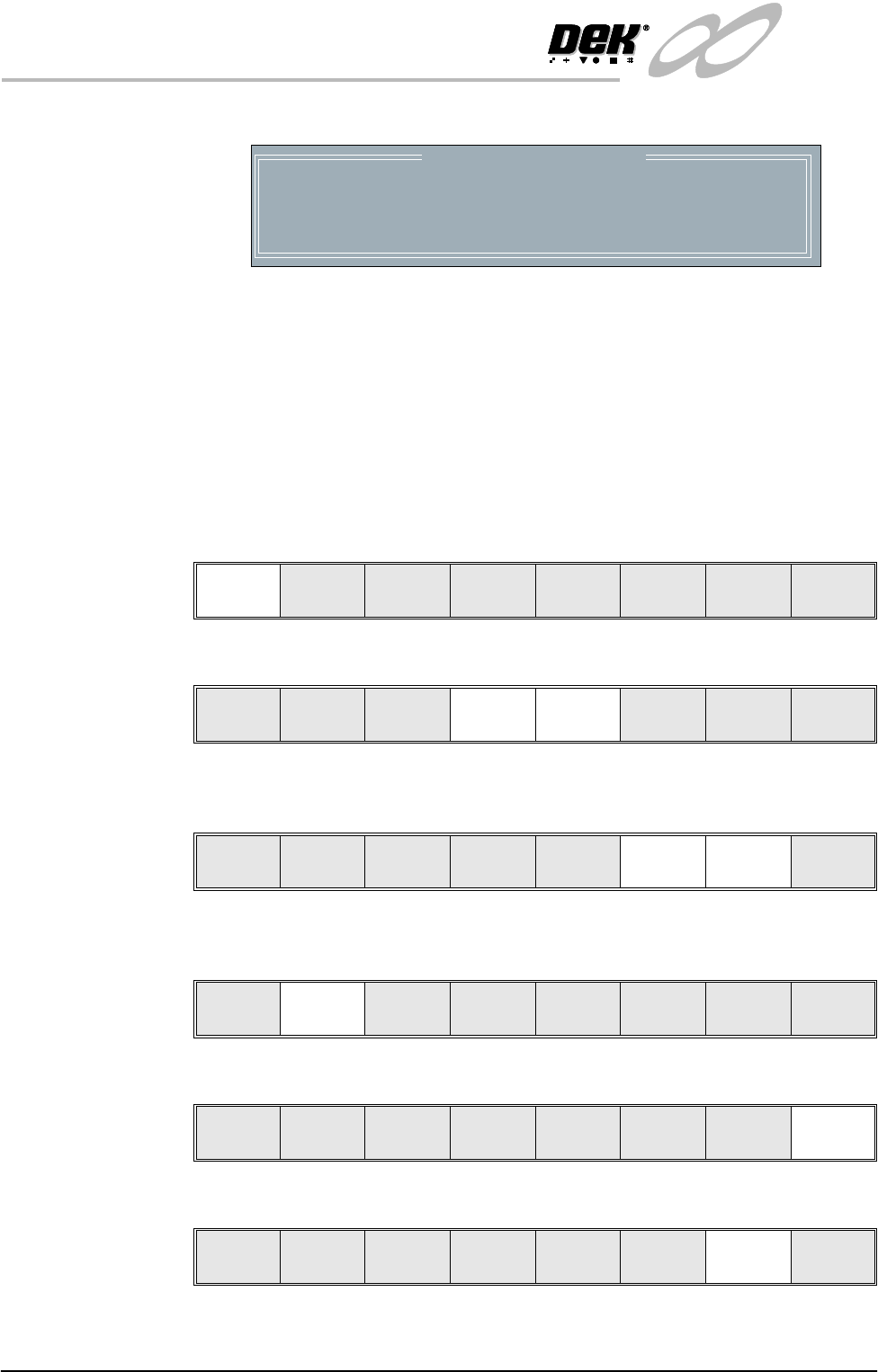
The Change Tooling Parameters window is displayed:
NOTE
If the remote board stop is fitted the Board Stop X and Board Stop Y
parameters are replaced by Remote Board Stop X.
14. Setting up the board stop position is automatically done using the board
dimensions previously set in the product file. If they need adjustment to re-
position the board stop for any reason, ie any routing on the board edge or
a badly positioned image on the stencil, this can be done now. If adjustment
is necessary continue with Step 15. If adjustment is not necessary go to
Step 20.
15. Select Adjust (F1).
16. Use the Next and Previous keys (F4 - F5) to highlight each parameter.
17. Use the Incr. and Decr. keys (F6 - F7), or the forward slash key (/) on the
keyboard, to change the parameter value.
18. Select Save (F2). The message ‘Saving fiducial data - Please wait Board
data file saved’ is displayed.
19. Select Exit (F8).
20. Select Generic Tooling (F7).
Change Tooling Parameters
BOARD WIDTH
BOARD STOP X
BOARD STOP Y
UNDER CLEARANCE
216.0
125.0
142.6
19.0
mm
mm
mm
mm
Adjust
Raise
Head
Remove
Cleaner
Board
Stop
Full
Width
Load
Width
Generic
Toolin g
Exit
Save Next Previous Incr. Decr. Exit
Save Next Previous Incr. Decr. Exit
Save Next Previous Incr. Decr. Exit
Save Next Previous Incr. Decr. Exit
Adjust
Raise
Head
Remove
Cleaner
Board
Stop
Full
Width
Load
Width
Generic
Tooling
Exit