4OM-1075-002.pdf - 第67页
1 . 2 "CHECK" Windows 1.2.1 "CHECK" Windows • Window Layout When the machine is not reset to its normal condition after an operator makes an error operation or an error occurs in the operation system,…
1. Scope
1.1 Troubleshooting
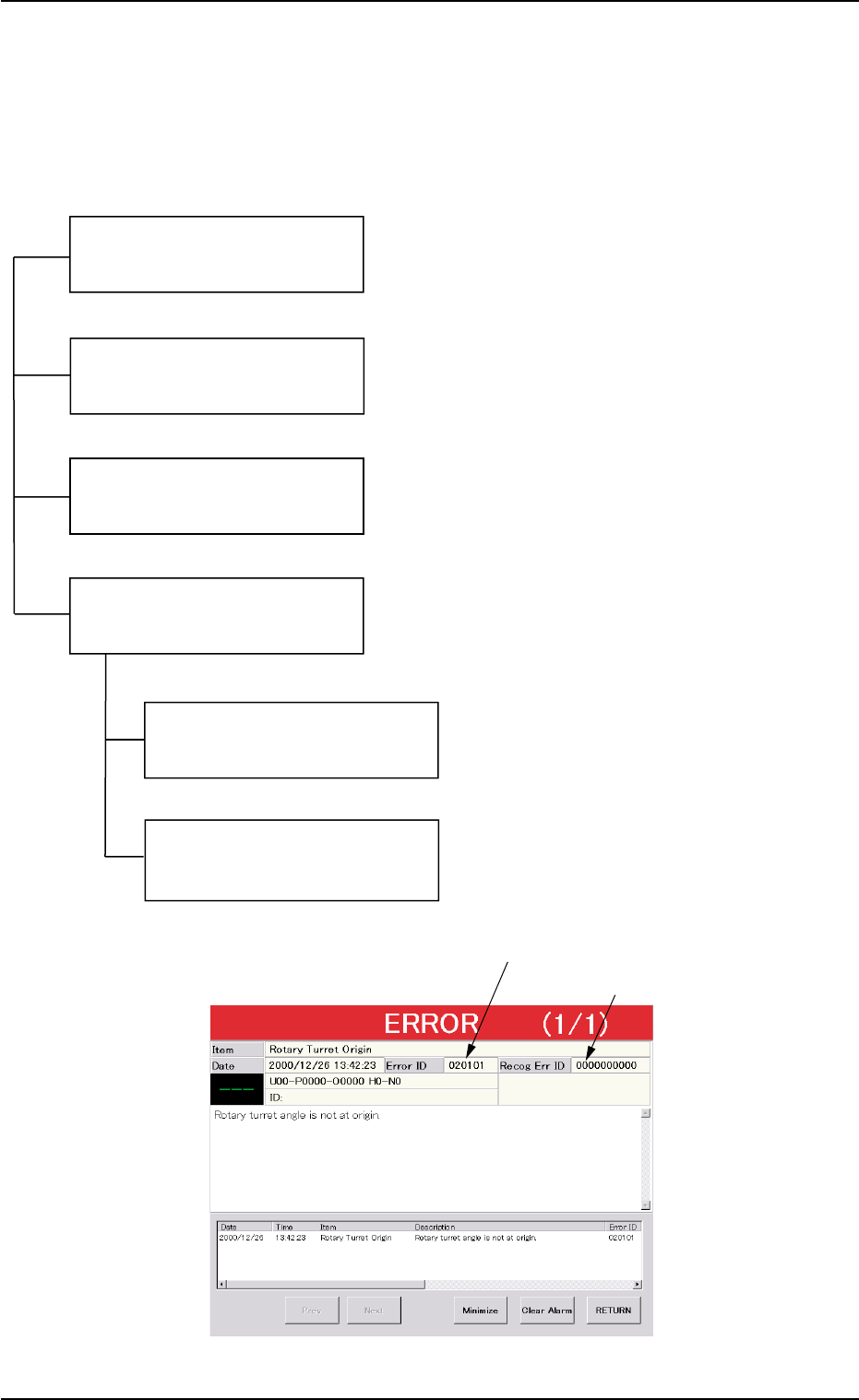
The troubleshooting is composed as follows.
Fig. 4B1
0308-002 2-1
AHB01ETRP
1. Scope
Error ID (6 digits)
Recognition Error ID (10 digits)
Troubleshooting after
"CHECK" Window
Troubleshooting after
"Machine Information" Window
Troubleshooting after
"ERROR" Window
This session describes the remedial procedures in
a "CHECK" window.
Refer to "1.2 "CHECK" Windows" for details.
This session describes the remedial procedures
at the "Machine Information" Window.
Refer to "1.3 Machine Information" for details.
This session describes the remedial procedures of
an error for which no error message is issued.
Refer to "2. Easy Troubleshooting" for details.
Various troubleshootings must be performed
according to the difference of error IDs and
recognition error IDs.
See Fig. 4B1.
Refer to "3. Troubleshooting after "ERROR"
Window (Error ID)" for details.
Refer to "4. Troubleshooting after "ERROR"
Window (Recognition Error ID)" for details.
Troubleshooting based on
Error ID (6 digits)
Troubleshooting based on
Recognition Error ID
(10 digits)
Easy Troubleshooting
1.2 "CHECK" Windows
1.2.1 "CHECK" Windows
• Window Layout
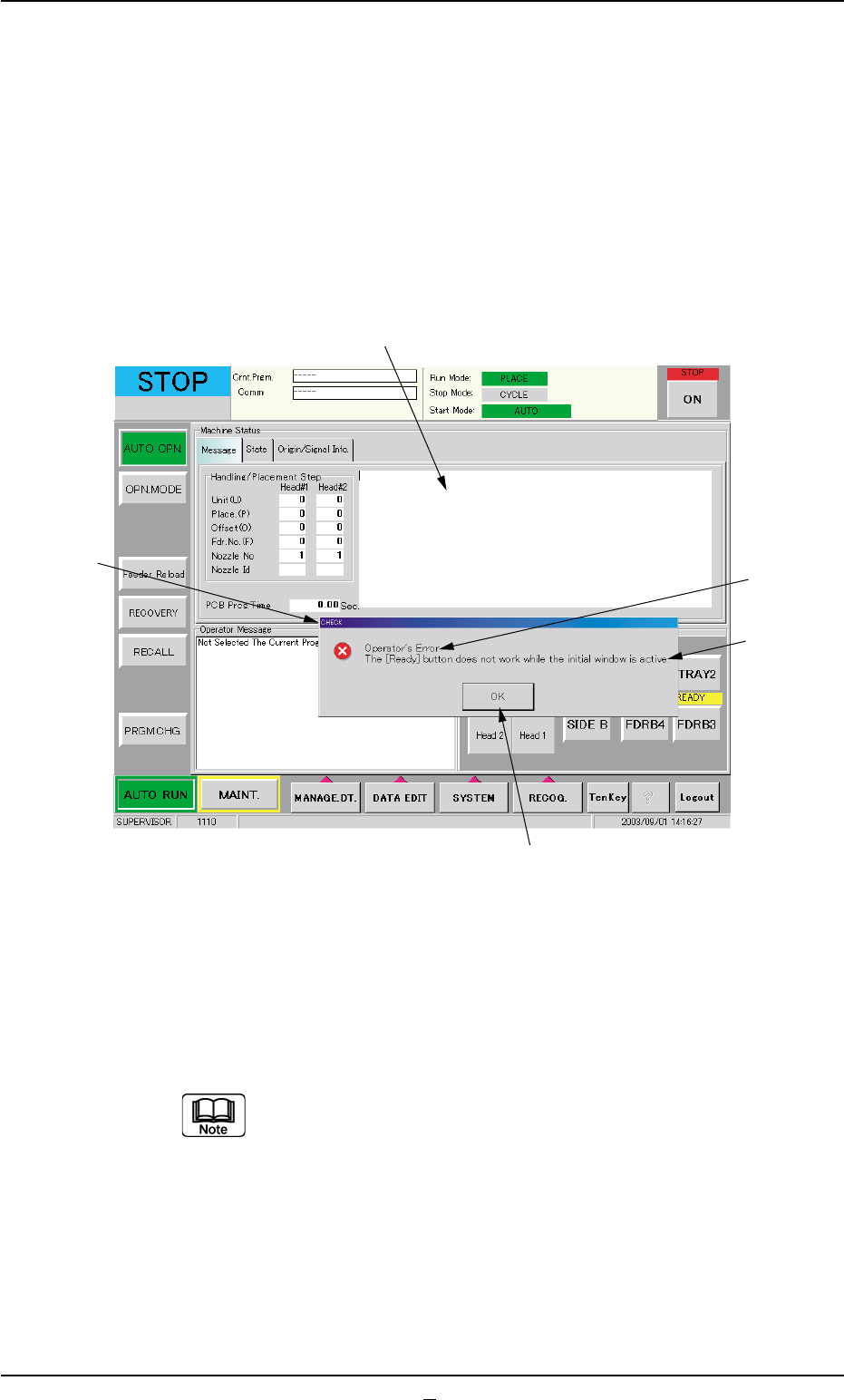
When the machine is not reset to its normal condition after an operator
makes an error operation or an error occurs in the operation system, a
window like the following opens.
Fig. 4B2 Example of "CHECK" Window
• Window Composition
*1 Check Message
A check message is issued and displayed.
Refer to "1.3 List of Check Messages" in "Section 1" for
details.
*2 Display Field A
Displayed is the scope of the check message.
*3 Display Field B
Displayed are the details of the check message.
1.2 "CHECK" Windows
0308-003 2-2 AHB01ETRP
*1
*5
*4
*3
*2

*4 [OK] Button
When pressed, this button resumes the previous window (the win-
dow before a "CHECK" one).
*5 Saving the check message
The check message is saved as a production message.
••
••
• Reset Procedure from "CHECK" Window
(1) Take a note of the issued check message.
Note: Be sure to take a note of the check message. If you forget
the contents of the message, the machine cannot be reset
correctly to its normal condition.
(2) Press the [OK] button. The original window resumes.
(3) Follow the contents of the check message to reset the machine
correctly to its normal condition.
1.2 "CHECK" Windows
0308-002 2-2-1 AHB01ETRP