DFD6361-Maintenance.pdf - 第272页
C-60 DEVICE DATA MAINTENANCE screen The description of DEVICE DATA MAINTENANCE screen is as follows: [Screen] [3] [4] [2] [1] Device data list windo w [Setting Ite m] Item No. Descriptions [1] Indicate s the directory su…
C-59
Procedures for changing values of device data (Continued)
Step No.
Do This
9
Enter the new value at [4] for the item selected at [1].
- You can set a new value for more than one item. The
background of the changed item becomes blue and the box on
the left side of the item is checked ( ).
- When the <Discard Change> button is pressed, all the entries
made on this screen will be cleared.
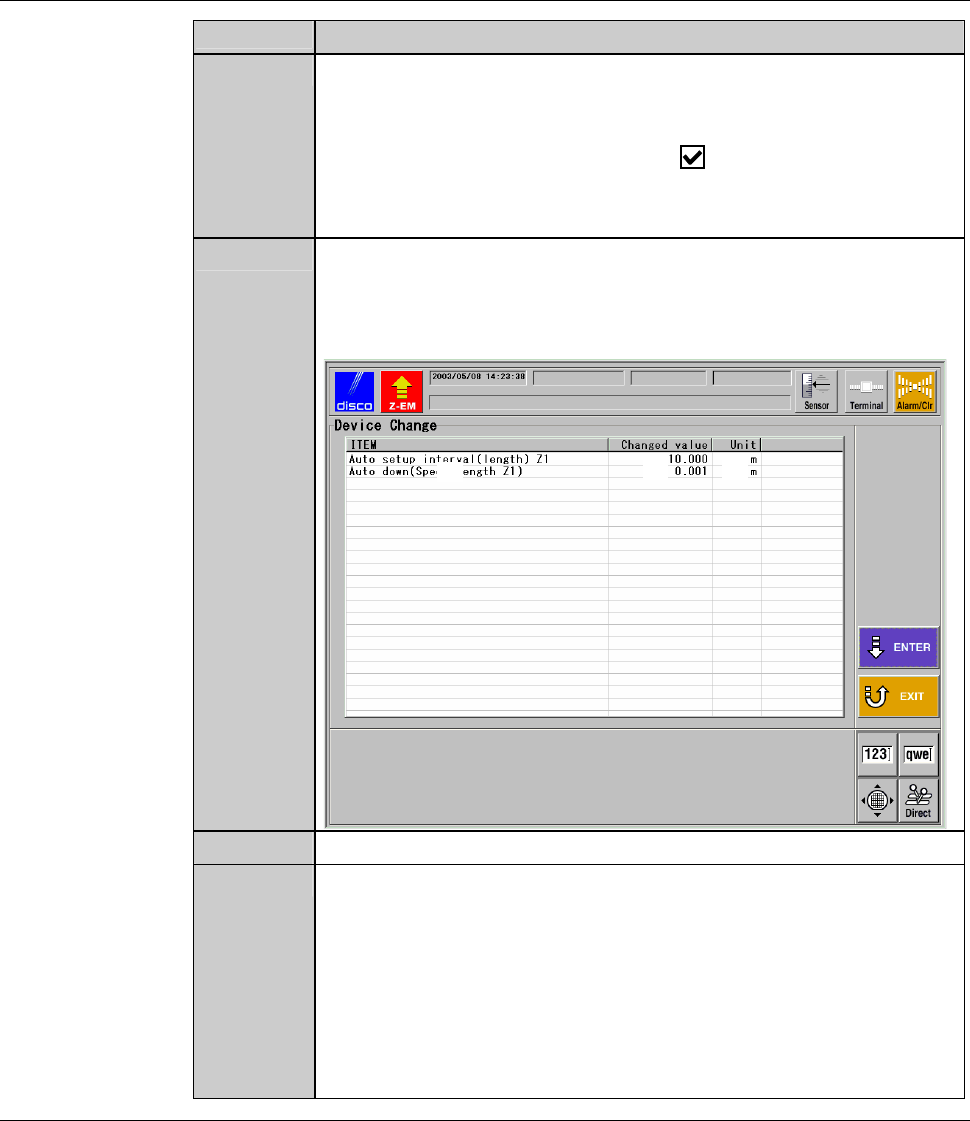
10
Press the <ENTER> button.
- All the items selected and their new values changed in the step
9 are displayed in the DEVICE DATA CHANGE screen (for
confirmation).
ÿ
[1]
[2] [3]
11
Check the item at [1] and the new value at [2].
12
Press the <ENTER> button.
- The change will be applied to all the device data stored in the
designated directory, and the screen display returns to the
DEVICE DATA MAITNENANCE screen.
- If you do not press the <ENTER> button but the <EXIT>
button, the screen display returns to the DEVICE DATA
CHANGE screen (for setting). In this case, the machine retains
what you changed in the previous screen.
C-60
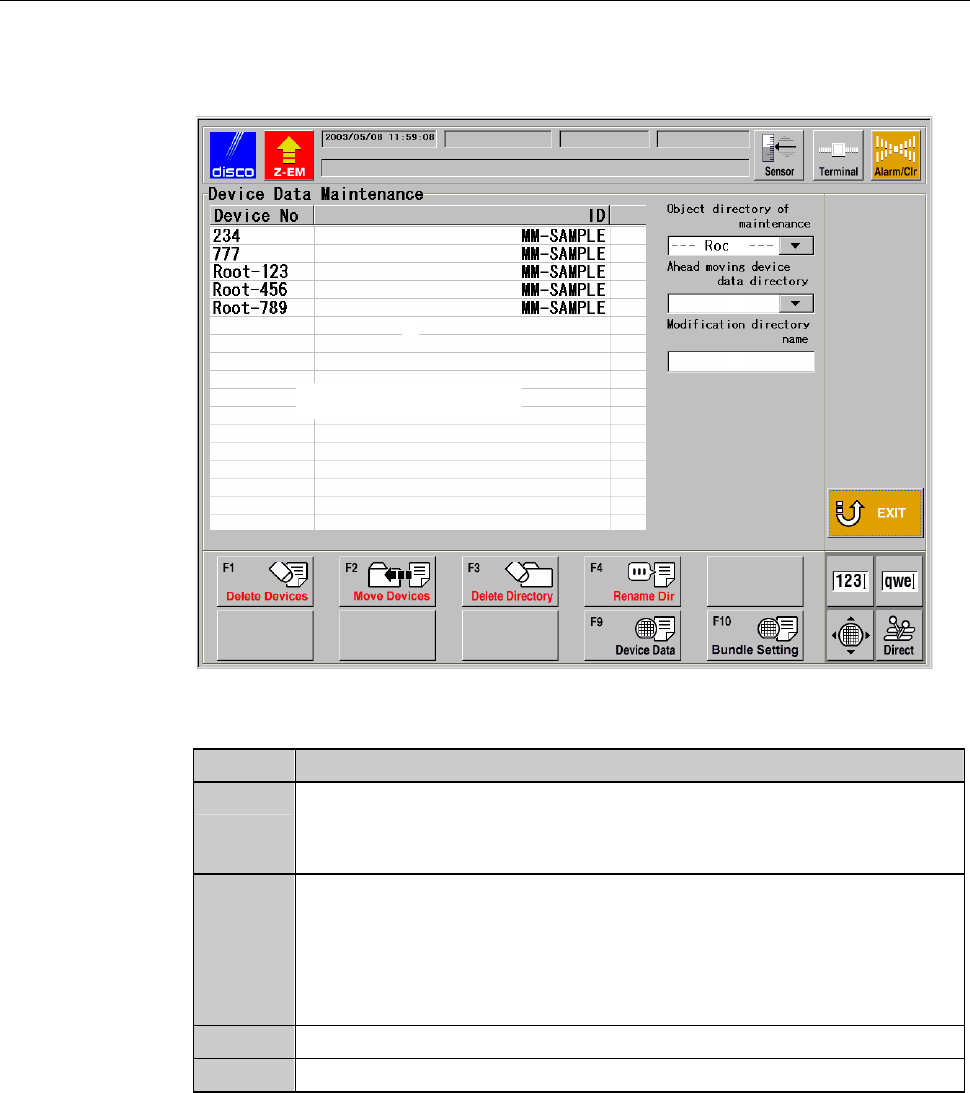
DEVICE DATA MAINTENANCE screen
The description of DEVICE DATA MAINTENANCE screen is as follows:
[Screen]
[3]
[4]
[2]
[1]
Device data list window
[Setting Item]
Item No. Descriptions
[1]
Indicates the directory subject to maintenance.
To select a directory, use the pull-down menu and touch the
directory name for selection.
[2]
Indicates device data contained in the directory subject to
maintenance, selected in [1].
- The currently selected device data is highlighted.
- Touching the same item twice cancels the selection and the
highlighted display returns to the normal display.
[3]
Specify the directory to which the selected device data is moved.
[4]
Enter a new name for the directory whose name is to be changed.
C-61
DEVICE DATA MAINTENANCE screen (Continued)
[Function Button]
Press To
F1
Deletes the currently selected device data.
F2
Moves the currently selected device data to the directory designated
in [3].
- If the device data with the same No. already exists in the directory
to which the selected device data is moved, the move cannot take
place.
F3
Deletes the selected directory.
- All device data contained in the selected directory are also
deleted.
F4
Changes the selected directory name to the new name specified in
[4].
F5
Unused
F6
Unused
F7
Unused
F8
Unused
F9
Displays the last device data selected on the DEVICE DATA
screen (for display only).
F10
Displays the DEVICE CHANGE screen.
All device data settings are modified together for each selected
directory.