00198152-02_OM_VirtualInkspotHandling_for_SSW7xx_EN.pdf - 第18页
Virtual Inkspot Handling for SSW 7xx / Operating Manual 10/2017 Edition 18 The following dial og box is displayed. Figure 5-3: Confirming installati on ► Click Nex t> to confirm and start the installation. 5.1.2 Confi…
Virtual Inkspot Handling for SSW 7xx / Operating Manual 10/2017 Edition
17
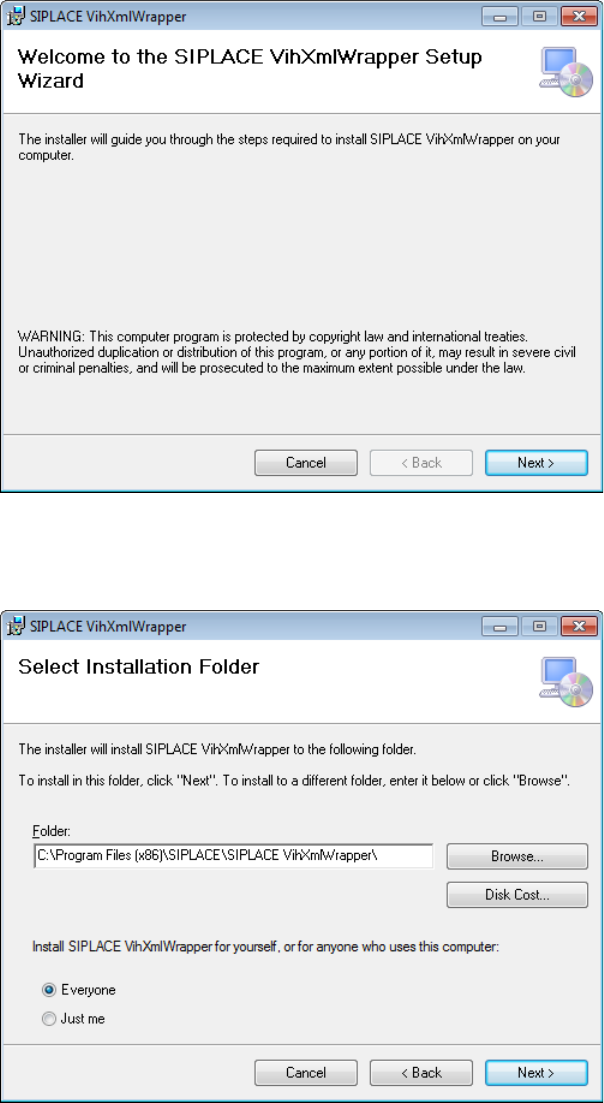
The setup wizard starts.
Figure 5-1: Welcome wizard
► Click Next> to continue.
The following dialog box is displayed.
Figure 5-2: Selecting installation folder
► Select the installation folder.
► Select if you want to install the program for all users (Everyone) or exclusively for you (Just me)
on this computer.
► Click Next> to continue.
Virtual Inkspot Handling for SSW 7xx / Operating Manual 10/2017 Edition
18
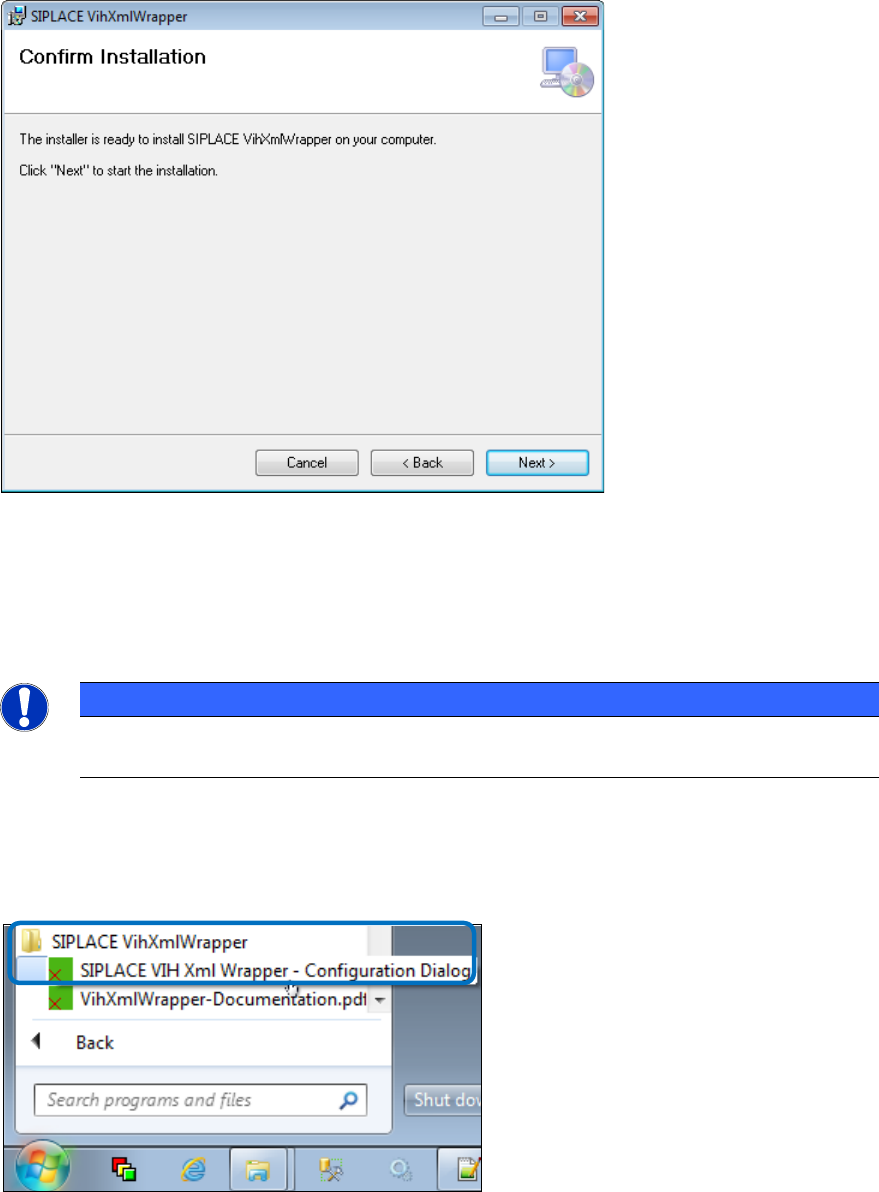
The following dialog box is displayed.
Figure 5-3: Confirming installation
► Click Next> to confirm and start the installation.
5.1.2 Configuring the SIPLACE VIH XML Wrapper
NOTICE
Regarding the configuration, you can always click into a question field and receive help
information in the bottom part of the dialog.
Perform the following steps to configure the SIPLACE VIH XML Wrapper:
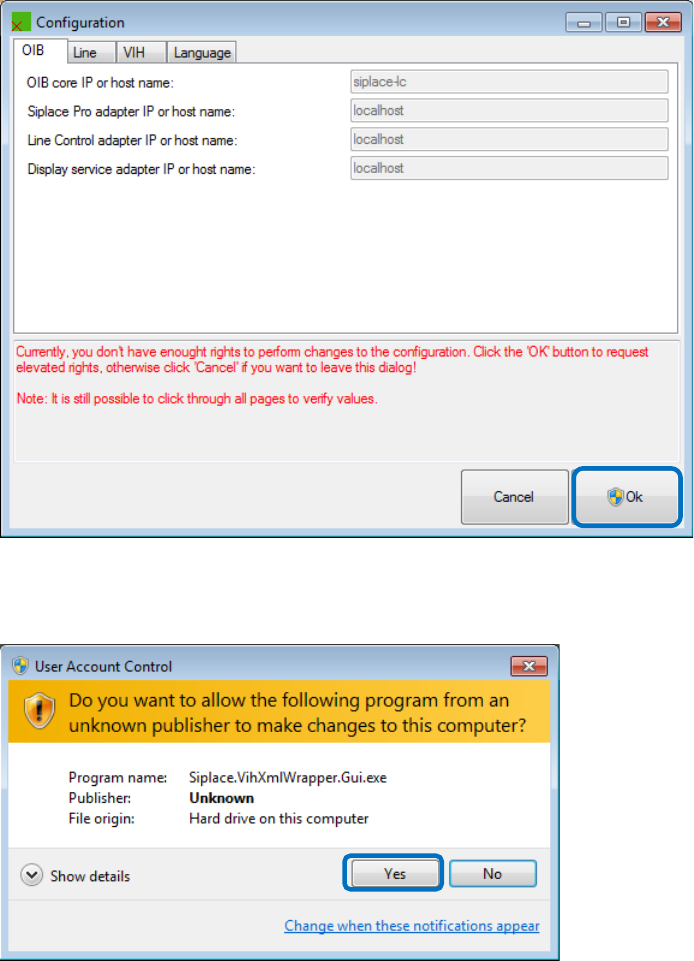
► Open the configuration dialog by clicking on Start – All Programs – SIPLACE VihXmlWrapper –
SIPLACE VIH XmlWrapper – Configuration Dialog.
Figure 5-4: Opening the configuration dialog
Virtual Inkspot Handling for SSW 7xx / Operating Manual 10/2017 Edition
19
You will need administrative rights to perform the configuration.
Figure 5-5: Changing user id
► Click Ok and enter elevated login information with elevated rights depending on your current
rights and / or click Yes to acknowledge the UAC dialog box.
Figure 5-6: User Account Control