00198152-02_OM_VirtualInkspotHandling_for_SSW7xx_EN.pdf - 第35页
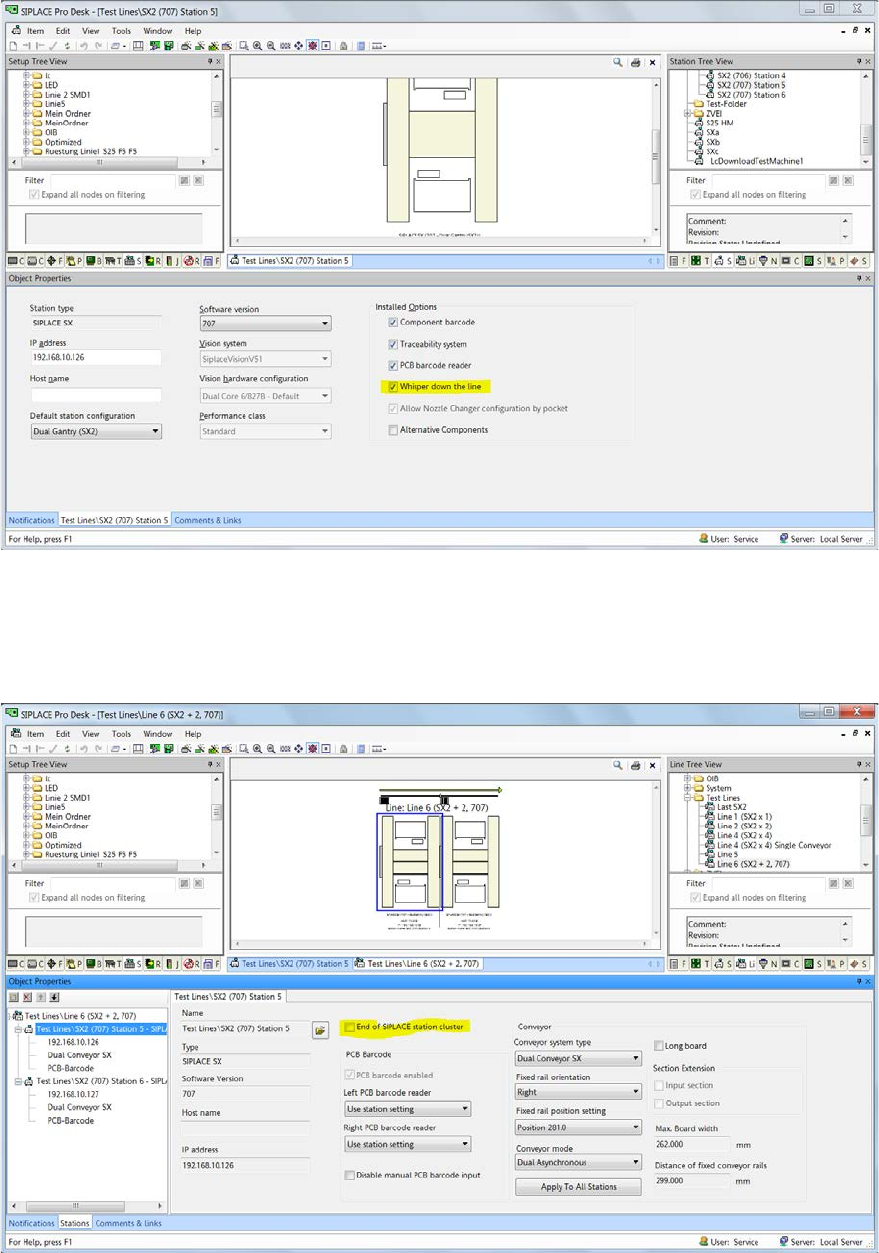
Virtual Inkspot Handling for SSW 7xx / Operating Manual 10/2017 Edition 35 ► Open the Stati on Editor. Figure 5-30: Station Editor ► Select the Whisper do wn the line option for al l used stations. ► Open the line object…

Virtual Inkspot Handling for SSW 7xx / Operating Manual 10/2017 Edition
34
Inkspots and Panel Fiducials:
Disabled Disables the Whispering down the line mode.
Inkspots Only Transfers the inkspot data for the first station measuring to the
other stations. The following stations do not need to measure
the inkspots again.
Inkspots and Panel Fiducials Transfers the inkspot and fiducial data for the first station
measuring to the other stations. The following stations do not
need to measure the inkspots and fiducials again.
An exception is made for the "main fiducials", these usually
being the board fiducials, which always need to be measured,
for reasons of accuracy.
External Inkspots Only Affects the Optimizer calculation of the placement time. This
setting should only be used if VIH with XML files is activated at
the station.
The inkspot data is transferred to the stations via XML files (e.g.
"Cluster Data Ink Spot Matrix"). The stations do not need to
measure the inkspots.
External Inkspots and Panel
Fiducials
Affects the Optimizer calculation of the placement time. This
setting should only be used if VIH with XML files is activated at
the station.
The inkspot and fiducial data is transferred to the stations via
XML files (e.g. "Cluster Data Ink Spot Matrix"). The stations do
not need to measure the inkspots and fiducials.
PCB Barcodes:
Disabled The PCB barcodes read at a station should not be transferred
with the board to the successor stations. This always applies for
placement stations with station software 704.xx or lower.
PCB Barcodes (Board and
Panel)
The board side and panel barcodes read at a station should be
transferred with the board to the successor stations.
External Board Barcode In front of the first station there is an external device connected
to the BGK which in turn transfers the board side barcode read
with the board, to the first station. Within the line, PCB barcodes
are transferred to the succeeding stations.
External Board and Panel
Barcodes
As the External Board Barcode option. However, this option also
means that the panel barcodes are made available by the
external device.
Notice: This mode is currently not supported by the BGK.
Use station Setting As of SIPLACE Pro 15.0, the BGK can be defined as the
whisper predecessor of any station in the line. This option has to
be set if the BGK shall be configured as whisper predecessor for
both the first and another (e.g. the third) station in the line.
Additionally, the External Board Barcode option has to be set
in the respective station setup of the first and, in this case, the
third station.
Table 5-1: Settings for Whisper down the line option
Virtual Inkspot Handling for SSW 7xx / Operating Manual 10/2017 Edition
35
► Open the Station Editor.
Figure 5-30: Station Editor
► Select the Whisper down the line option for all used stations.
► Open the line object in the Line Editor.
Figure 5-31: Line Editor
► Ensure that all machines but the last one are not the End of SIPLACE station cluster.
Therefore disable this option for all machines but the last one.
Virtual Inkspot Handling for SSW 7xx / Operating Manual 10/2017 Edition
36
6 File Description and Mapping
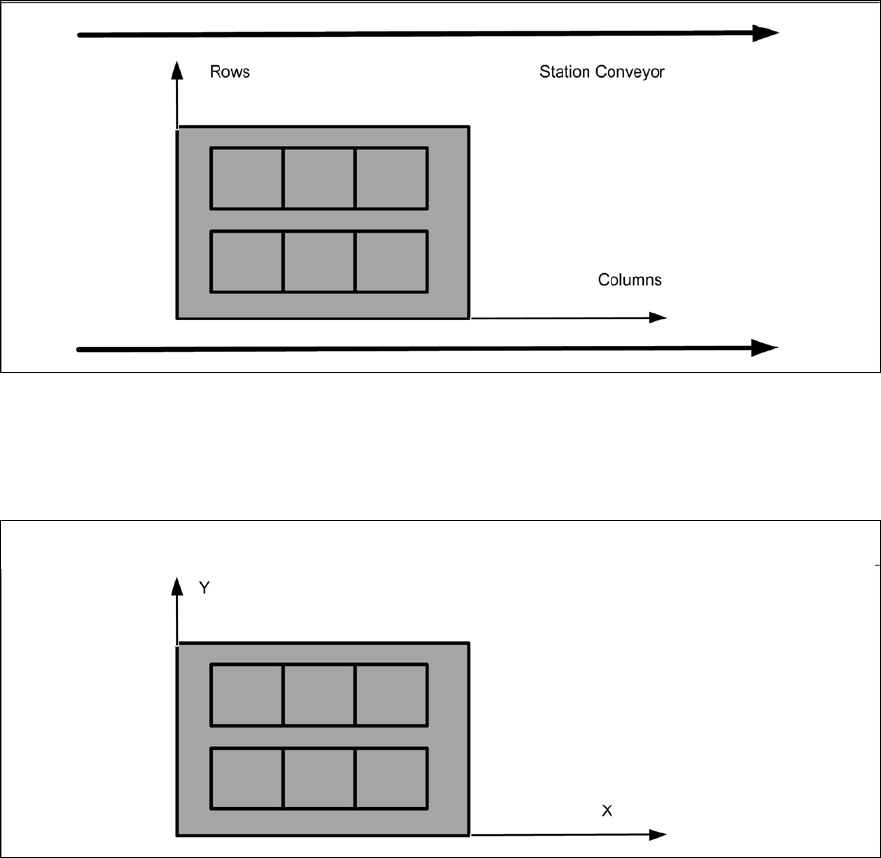
The inkspot file contains a simple multi board layout of rows and columns. It defines for each panel,
if this panel is to be placed or skipped.
The layout of the board in the station conveyor is defined as follows:
Figure 6-1: Inkspot file – rows and columns
This example shows a board with 2 rows and 3 columns inside the station conveyor.
SIPLACE Pro displays the board with the same x=columns and y=rows coordinate system. In case
the board is rotated, the position in the station conveyor is relevant only:
Figure 6-2: Rows and columns in SIPLACE Pro