00194591-01.pdf - 第11页
Installation Guide SIPLACE Setup Center 3 In stal latio n Edition 03/2005 EN 3.1 I mportant Prepar ations Prior to Installation (Software Configuration) 11 3 Inst allation 3.1 Import ant Prep arations Prior to Inst allat…
2 System Components and Configurations Installation Guide SIPLACE Setup Center
2.1 Overview of System Components Edition 03/2005 EN
10
Questions:
– Do the packaging units have Unique ID barcodes?
Each packaging unit in the factory must be marked with a unique barcode. It is possible that
the unique ID is part of a combined barcode.
2
– Do you validate the setup in a pre-setup area?
The pre-setup area is used to validate the setup for correctness and completeness. The vali-
dated tables are docked to the production line(s) for use.
2
– Local database (MSDE)
This scenario does track the numbers of components on each packaging unit. The current
number of componentsare "remembered" when the packaging unit is teared down. If the pack-
aging unit is moved to another line the other Setup Center system does not know this reel and
will start with the start quantity. Therefore the operator need to check each partially fractured
packaging unit he gets from the stock and need to adjust the quantity if necessary.
2
This scenario offers a higher amount of operation safety, because the SIPLACE Setup Center
and a local MSDE database are installed to different computers for each production line. Ifone
componentofSIPLACESetupCenterencountersanerror,onlyoneproductionlineisaffected.
2
– Central database
The SIPLACE Setup Center database can be installed to any available Microsoft SQLServer
2000 (SP3a). In this case, the customer is responsible to set up a backup & recovery strategy
and must provide an operating Microsoft SQLServer2000(SP3a).
2
2.1.1.2 Setup Center GUI
It is recommended to install SIPLACE Setup Center GUI once for each line. With the "central da-
tabase" scenario these can use the same database at the same time.
2
It is recommended to use two barcode scanners per line and SIPLACE Setup Center GUI instal-
lation.
2
2

Installation Guide SIPLACE Setup Center 3 Installation
Edition 03/2005 EN 3.1 Important Preparations Prior to Installation (Software Configuration)
11
3 Installation
3.1 Important Preparations Prior to Installation
(Software Configuration)
All computers must have been set up and prepared appropriately in advance of the complete in-
stallation of SIPLACE Setup Center to function correctly.
These preparatory measures demand knowledge about the administrative functions of Windows
and SQL Server. Please contact your system administrator for assistance if required.
3
3
Important
The following steps are essential before conducting the installation of SIPLACE Setup Center: 3
– Installation of Windows 2000 Server (SP3or SP4) or Windows2000 Workstation (SP3orSP4)
or Windows XP with SP1a.
– Furthermore, you require
Windows 2000/XP administrative rights and write rights for all
computers on which you are installing SIPLACE Setup Center.
3.2 InstallationofSIPLACESetupCenterandPossible
Setup Types
Three setup types are available for installation to install the required system components on the
specific computer.
3
The following setup types can be selected: 3
– SIPLACE Setup Center GUI
– SIPLACE Setup Center Database
– SIPLACE Setup Center Complete
3 Installation Installation Guide SIPLACE Setup Center
3.2 Installation of SIPLACE Setup Center and Possible Setup Types Edition 03/2005 EN
12
3.2.1 Starting Installation - First Steps
These steps are identical for all setup types. The subsequent steps only differ once you have se-
lected the setup type you require.
3
Run through the following steps to start the installation and then refer to the relevant section for
your specific setup type.
3
3.2.1.1 Step 1
→Insert the SIPLACE Setup Center installation CD into the CD-ROM drive. The installation rou-
tine starts automatically.
→You can also start the installation by running the Setup.exe program located in the root direc-
tory on the installation CD.
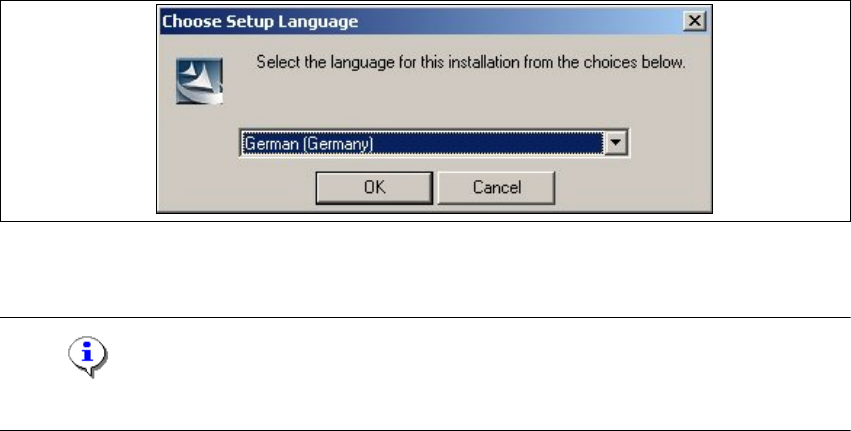
This starts the user-controlled installation of SIPLACE Setup Center; you are prompted to se-
lect the installation language.
3
3
Fig. 3.2 - 1 "Choose Setup Language" dialog box
→Select the language you want and click OK.
Note
This decision only relates to the language used during the installation routine! 3