00194591-01.pdf - 第28页
3 In stal latio n Installation Guide SIPLACE Setup Center 3.2 Installation of SIPLACE Setup Center and Possible Setu p Types Edition 03/2005 EN 28 3.2.2.3 Setup T y pe - SIPLACE Pro Complete This setup type contai ns all…
Installation Guide SIPLACE Setup Center 3 Installation
Edition 03/2005 EN 3.2 Installation of SIPLACE Setup Center and Possible Setup Types
27
Step 5
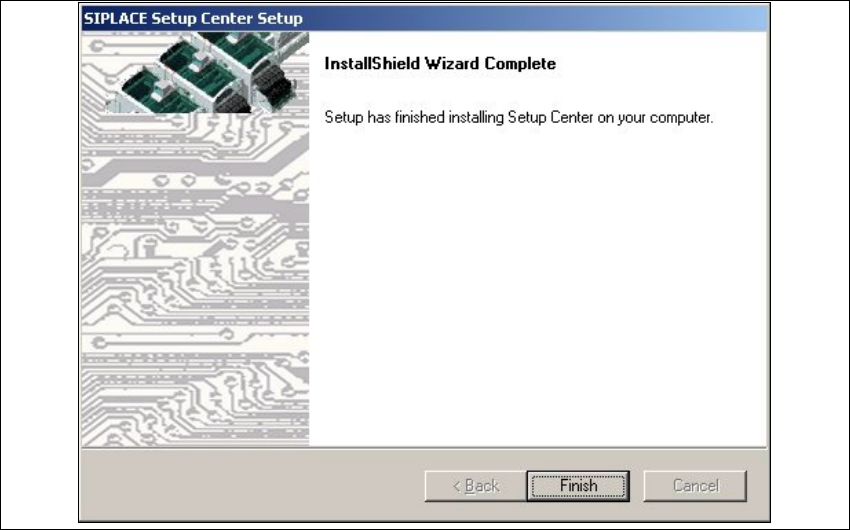
→The installation routine is now started.
The
Setup Complete dialog box confirms that the installation has been completed success-
fully.
3
3
Fig. 3.2 - 16 "InstallShield Wizard Complete" dialog box
3 Installation Installation Guide SIPLACE Setup Center
3.2 Installation of SIPLACE Setup Center and Possible Setup Types Edition 03/2005 EN
28
3.2.2.3 Setup Type - SIPLACE Pro Complete
This setup type contains all SIPLACE Setup Center components for operating the system on a
single computer. It is used to install a Setup Center stand alone system.
3
Setup detects if SQL Server or MSDE (Microsoft Data Desktop Engine) has already been in-
stalled.
3
Select this type to install all SIPLACE Setup Center system components (GUI, Database) on one
computer. However, it is possible to integrate further clients on other computers.
3
Step 1
→Run through the steps in “Starting Installation - First Steps” on page 12.
3
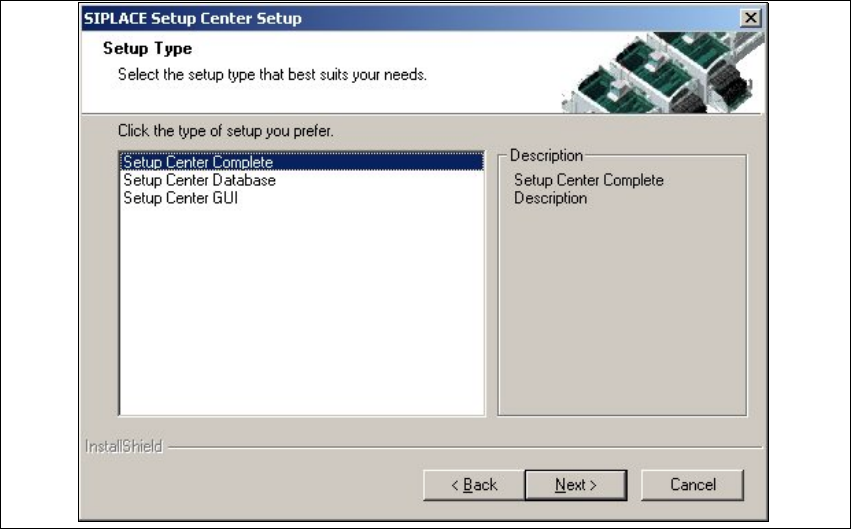
Fig. 3.2 - 17 "Setup Type" dialog box
→Select the Setup Center Complete system setup type and click Next.
3
Installation Guide SIPLACE Setup Center 3 Installation
Edition 03/2005 EN 3.2 Installation of SIPLACE Setup Center and Possible Setup Types
29
Step 2
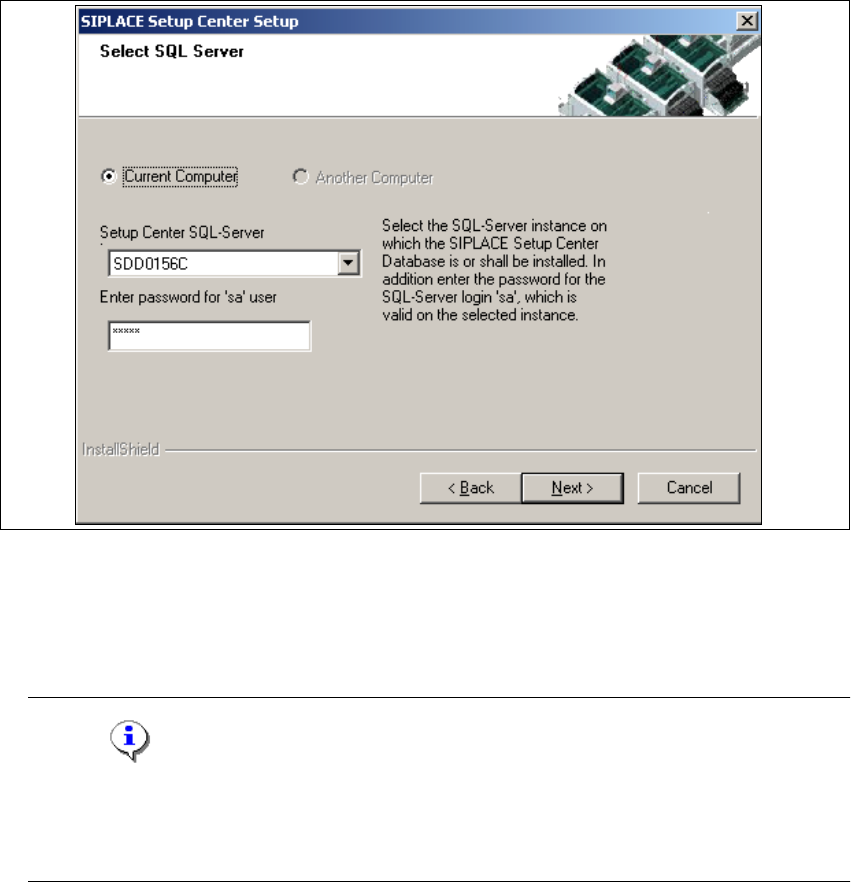
→In the Select SQL-Server dialog box you enter the information required to be connected with
the SQL Server and database.
3
Fig. 3.2 - 18 "Select SQL Server" dialog box
→Enter the Password for the SQL Server user ’sa’,i.e.theSQL server system administrator.
→Selecting the radio button Another Computer will search computers with a database in the
network and will list them in the drop down box
Setup Center Data Source.
Note
This password is empty if MSDE has been freshly installed. In this case, erase the displayed
default password.Subsequently, awindowwillopen, promptingyouto changethispassword.
You may accept the Siemens Service default password or choose one of your own. 3
→Choose your SQL Server Instance from the pull-down menu.
→Click Next.
3