00194591-01.pdf - 第39页
Installation Guide SIPLACE Setup Center 3 In stal latio n Edition 03/2005 EN 3.2 Installation of SIPLACE Se tup Center and Possible Setup Types 39 Aiming p ointer ( standard i s 300 m s). Th e aimin g pointe r hol ds the…
3 Installation Installation Guide SIPLACE Setup Center
3.2 Installation of SIPLACE Setup Center and Possible Setup Types Edition 03/2005 EN
38
3.2.3.8 Setting of the Scanner Address
Each scanner requires a unique address.
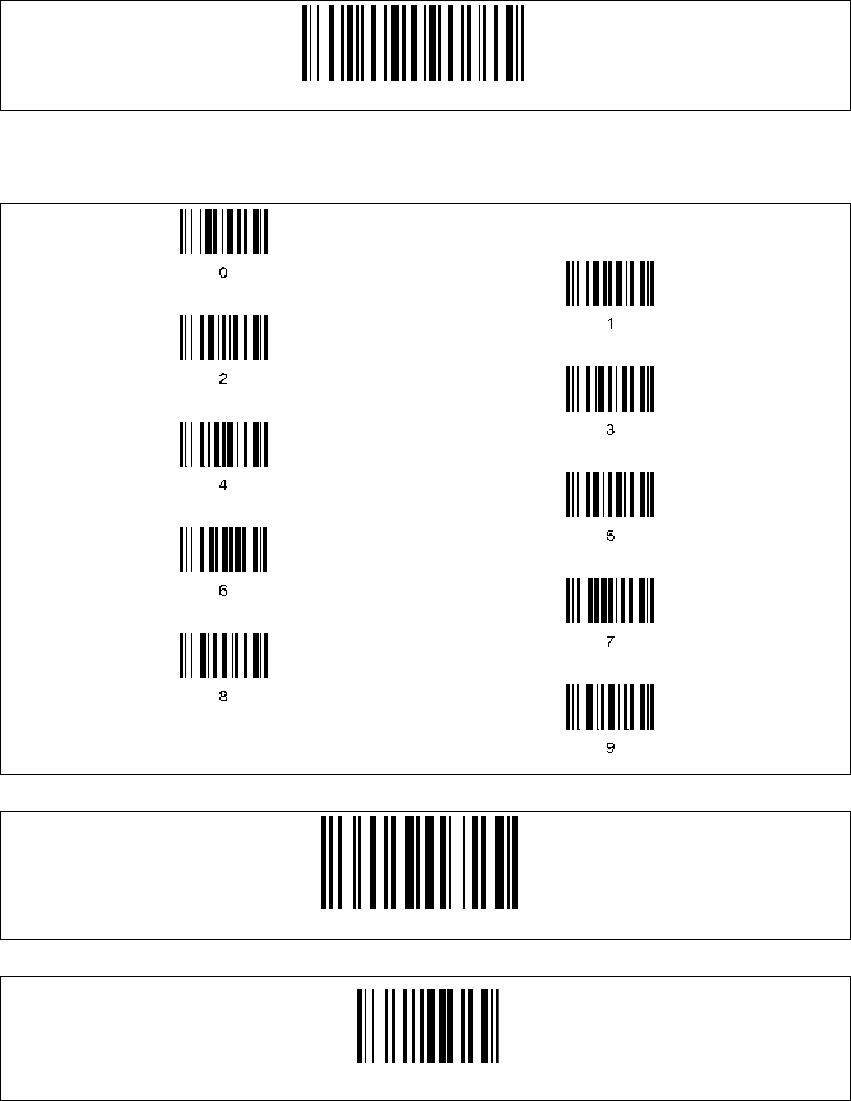
→Enter the following barcode and scan the four digits for the scanner address, e.g. '0''0''0''1'.
3
Four digits for the DRAGON ™ M Address (from 0000 to 1999)
3
3
3
Set Radio Address
BarcodeTypeCode93
Exit and Save configuration
Installation Guide SIPLACE Setup Center 3 Installation
Edition 03/2005 EN 3.2 Installation of SIPLACE Setup Center and Possible Setup Types
39
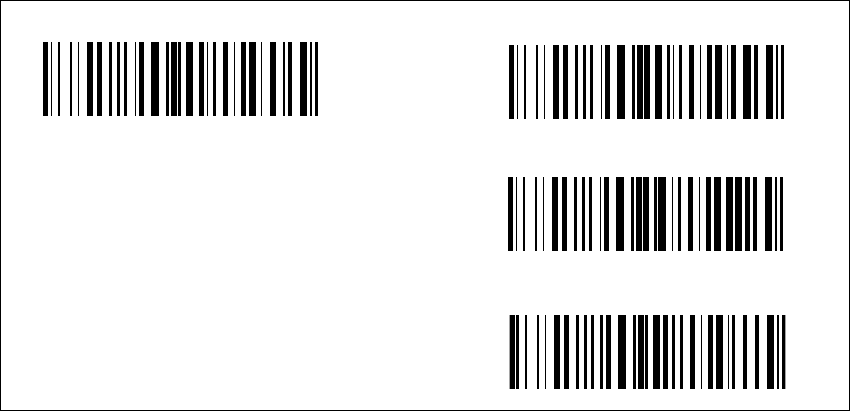
Aiming pointer (standard is 300 ms). The aiming pointer holds the laser beam on a single spot
before reading a barcode.
3
3
3
The scanner is now ready configured. Now it needs to be bound to a RF station as described
below.
3
300ms
500ms
1sec
Aiming system disabled
3 Installation Installation Guide SIPLACE Setup Center
3.2 Installation of SIPLACE Setup Center and Possible Setup Types Edition 03/2005 EN
40
3.2.3.9 Bind or Join the scanner to a RF station
Youcan connectmorethanone scanner to one RFstation.With the first scanner youneedtoscan
the barcode label
Bind, with all further scanners you need to scan the barcode label Join. 3
Please follow one of the following instructions according to your choice. 3
3
Note
You can never recognize if the Dragon scanner has the configuration Bind or Join.Therefore
please note your configuration you did. If you do not remember your configuration you have to
configure it once again. 3
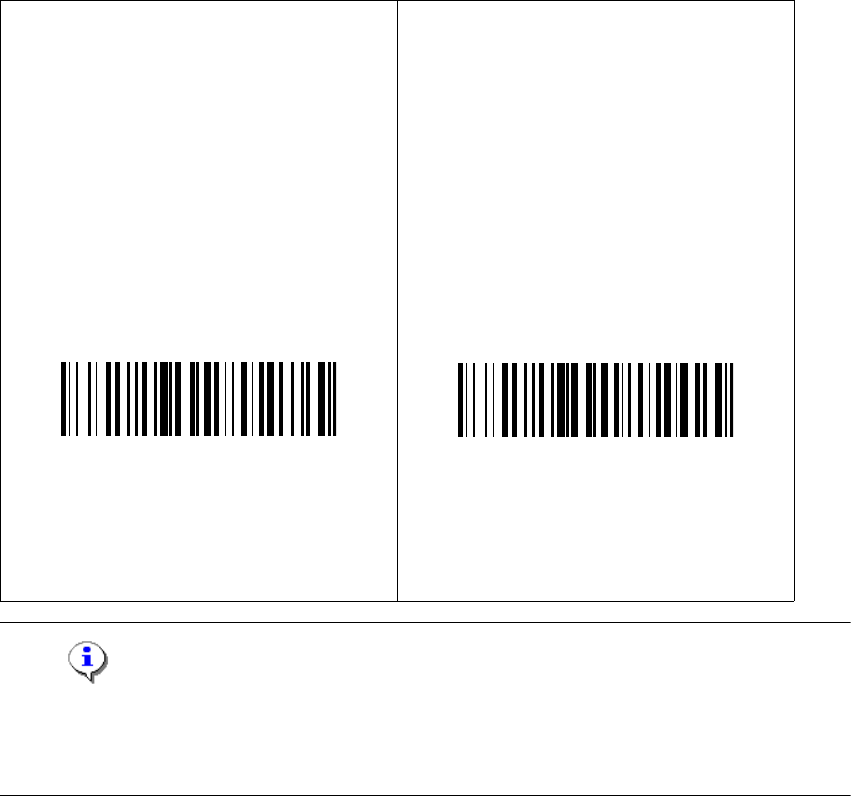
Bind
→Make sure the RF station is on (yellow
light is on).
→When scanning the following barcode
thegreenLEDofthescannerisactivefor
about 10 seconds. Put the scanner into
the RF station during these 10 seconds.
Join
→The following barcode may be used to
add further scanners to one RF station.
→Keep in mind that the first scanner need
tobeboundtothestationasdescribed
on the left side. Each scanner must be
set to a unique address (see “Setting of
the Scanner Address” on page 38).
The connection can be tested by scanning
anybarcodewiththescanner.Afterthescan-
ning, the yellow LED ”power/data” is
switched off for 0.5 seconds.
Bind
Join