00194591-01.pdf - 第33页
Installation Guide SIPLACE Setup Center 3 In stal latio n Edition 03/2005 EN 3.2 Installation of SIPLACE Se tup Center and Possible Setup Types 33 Ste p 5 → The installa tion r outine is no w started. The Setup Complete …
3 Installation Installation Guide SIPLACE Setup Center
3.2 Installation of SIPLACE Setup Center and Possible Setup Types Edition 03/2005 EN
32
Step 4 3
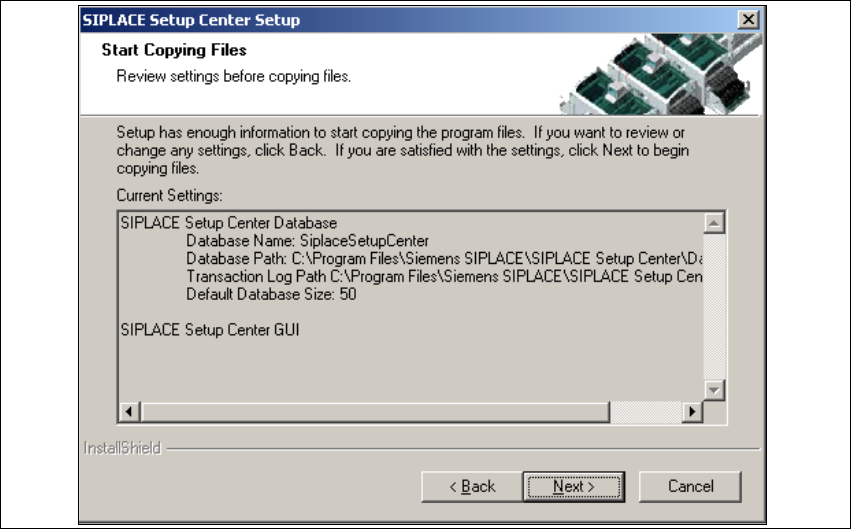
→The Start Copying Filesdialog box gives you a last chance to check the information youhave
entered during the previous steps.
3
Fig. 3.2 - 21 "Start Copying Files" dialog box
→Click Next if you accept all the information entered so far.
→If you want to alter one or more details, click the Back button until you get back to the dialog
box in question.
→There, enter your changes and click Next to continue as usual.
3
Installation Guide SIPLACE Setup Center 3 Installation
Edition 03/2005 EN 3.2 Installation of SIPLACE Setup Center and Possible Setup Types
33
Step 5
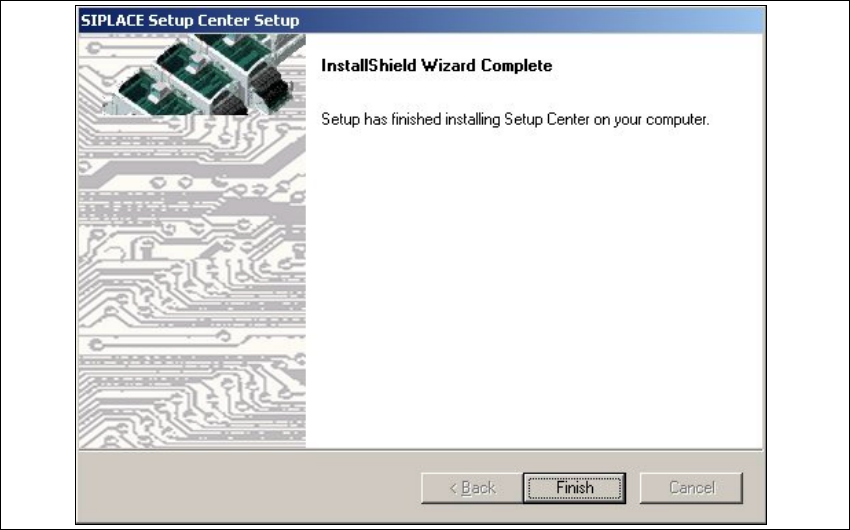
→The installation routine is now started.
The
Setup Complete dialog box confirms that the installation has been completed success-
fully.
3
3
Fig. 3.2 - 22 "InstallShield Wizard Complete" dialog box
→Click Finish.

3 Installation Installation Guide SIPLACE Setup Center
3.2 Installation of SIPLACE Setup Center and Possible Setup Types Edition 03/2005 EN
34
3.2.3 Steps to Perform after installation
3.2.3.1 SIPLACE Setup Center Database and Windows XP SP2
When installing Windows XP Service Pack 2 (SP2), the Windows Firewall, formerly ICF (Internet
Connection Firewall), is enabled by default. The default configuration in SP2 blocks incoming traf-
fic for the most TCP ports.
3
If you are running the SIPLACE Setup Center GUI on a Windows XP SP2 host and the SIPLACE
Setup Center database on another host, you have to open the port
1433 and 1434 for the data-
base connection. Furthermore, you have to open the port
445, becauseblocking will causeerrors
when using mans MMC snap-ins like Event Viewer, Local Users & Groups, Services, Computer
Management, Disk Management, Device Manager, Group Policy, and others.
3
Please refer to Windows help to get further information how to open TCP ports. 3
3.2.3.2 SIPLACE Setup Center Configuration
Setup Center GUI requires to be configured before it can be used. Theconfiguration can be found
via the main menu
Options → Settings.Read"SIPLACE Setup Center - Getting Started" for
more information.
3
3.2.3.3 Dragon Scanner Configuration
New scanners and scanner base stations require the set-up once before the first use. 3
This doesn't necessarily need to happen after the Installation of SIPLACE Setup Center, but it is
recommended. The Scanner configuration is independent from the software installation.
3
Note
The scanner powers off after a period of inactivity. Pulling the trigger will power the scanner on.3