00194591-01.pdf - 第17页
Installation Guide SIPLACE Setup Center 3 In stal latio n Edition 03/2005 EN 3.2 Installation of SIPLACE Se tup Center and Possible Setup Types 17 3.2.1.6 Step 6 → The Setup T ype dia log box d isplays th e SIPL ACE Setu…
3 Installation Installation Guide SIPLACE Setup Center
3.2 Installation of SIPLACE Setup Center and Possible Setup Types Edition 03/2005 EN
16
3.2.1.5 Step 5
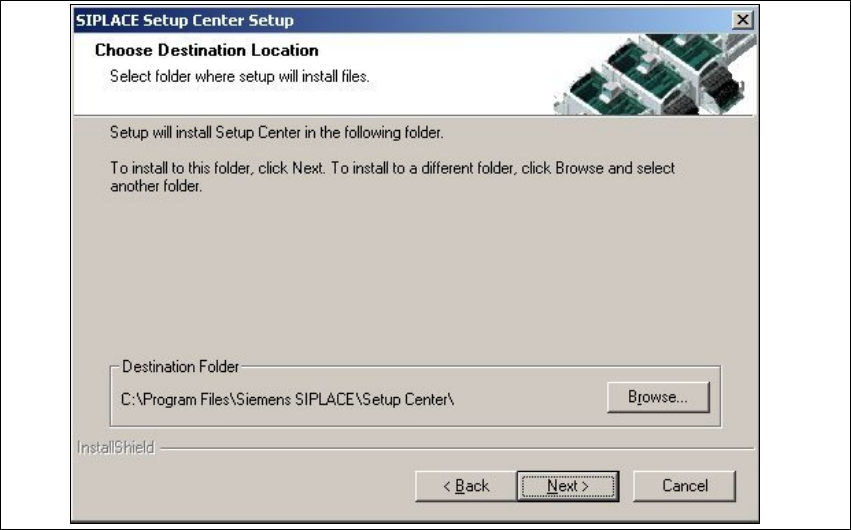
→The Choose Destination Location dialog box prompts you to enter the name of the folder in
which SIPLACE Setup Center should be installed. The system suggests a default destination
folder for you.
→However,you canclicktheBrowse buttontoopenadialogboxinwhichyoucanenterorselect
the path you want to use. If the folder you specify does not exist, it is created after having ac-
cepted a confirmation dialog.
3
Fig. 3.2 - 5 "Choose Destination Location" dialog box
→Click Next.
Installation Guide SIPLACE Setup Center 3 Installation
Edition 03/2005 EN 3.2 Installation of SIPLACE Setup Center and Possible Setup Types
17
3.2.1.6 Step 6
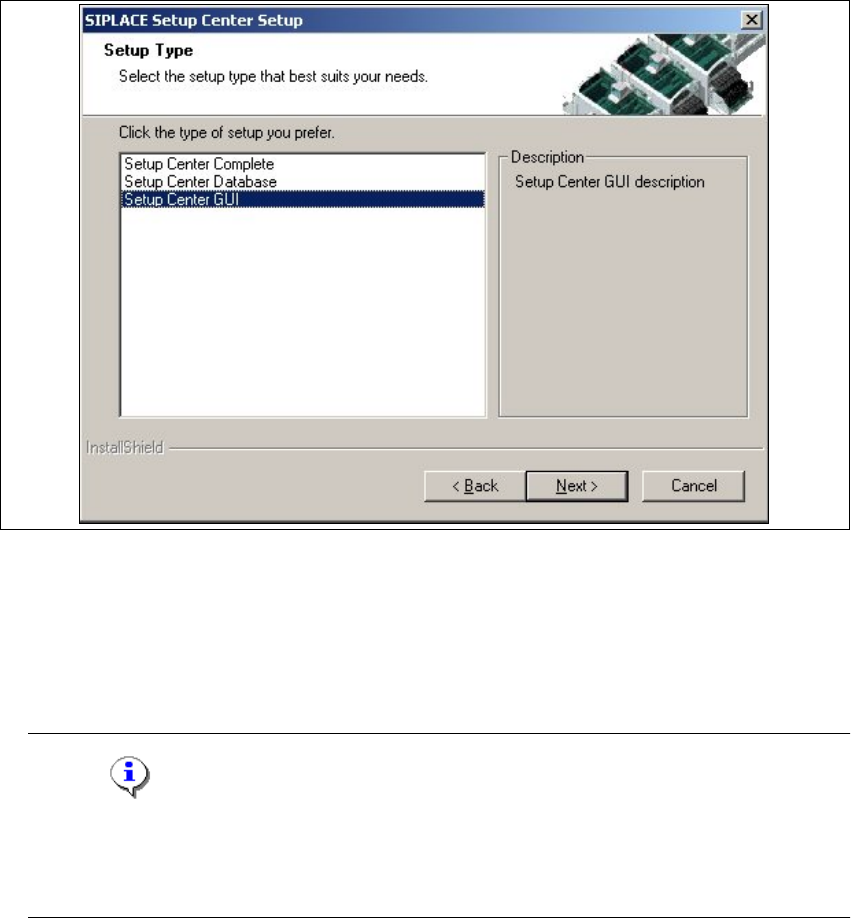
→The Setup Type dialog box displays the SIPLACE Setup Center components you could
choose for installation.
3
Fig. 3.2 - 6 "Setup Type" dialog box
→In the Setup Type dialog box, select the setup type you want to install.
→Click Next.
→AshortdescriptionofthesetuptypeinquestionappearsintheDescription box when you se-
lect a type.
Note
After choosing a setup type which includes a database installation, the setup program imme-
diately checks if SQL server or MSDE (Microsoft Data Desktop Engine) is installed on the
computer. 3
3 Installation Installation Guide SIPLACE Setup Center
3.2 Installation of SIPLACE Setup Center and Possible Setup Types Edition 03/2005 EN
18
3.2.2 Individual Setup Types and next Steps
3.2.2.1 Setup Type - SIPLACE Setup Center GUI
ThissetuptypewillinstalltheGUIapplicationofSIPLACESetupCenter.Itisusedtosetupupa
client system while the database is located on a remote system.
3
Step 1
→Run through the steps in “Starting Installation - First Steps” on page 12.
3
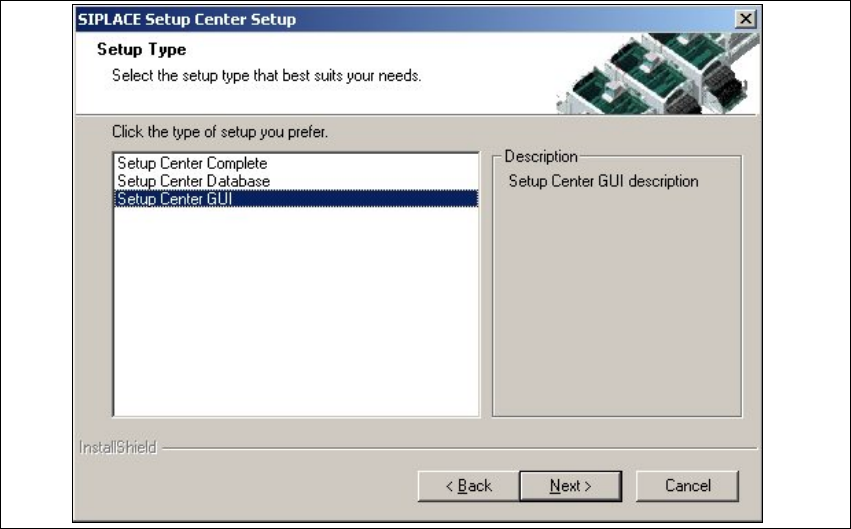
Fig. 3.2 - 7 "Setup Type" dialog box
→Select the Setup Center GUI setup type and click Next.