00194591-01.pdf - 第27页
Installation Guide SIPLACE Setup Center 3 In stal latio n Edition 03/2005 EN 3.2 Installation of SIPLACE Se tup Center and Possible Setup Types 27 Ste p 5 → The installa tion r outine is no w started. The Setup Complete …
3 Installation Installation Guide SIPLACE Setup Center
3.2 Installation of SIPLACE Setup Center and Possible Setup Types Edition 03/2005 EN
26
Step 4
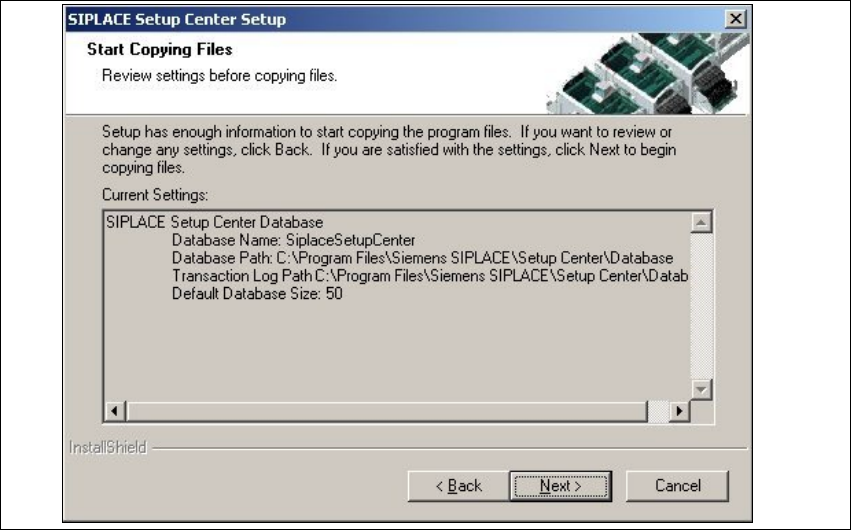
→The Start Copying Filesdialog box gives you a last chance to check the information youhave
entered during the previous steps.
3
Fig. 3.2 - 15 "Start Copying Files" dialog box
Installation Guide SIPLACE Setup Center 3 Installation
Edition 03/2005 EN 3.2 Installation of SIPLACE Setup Center and Possible Setup Types
27
Step 5
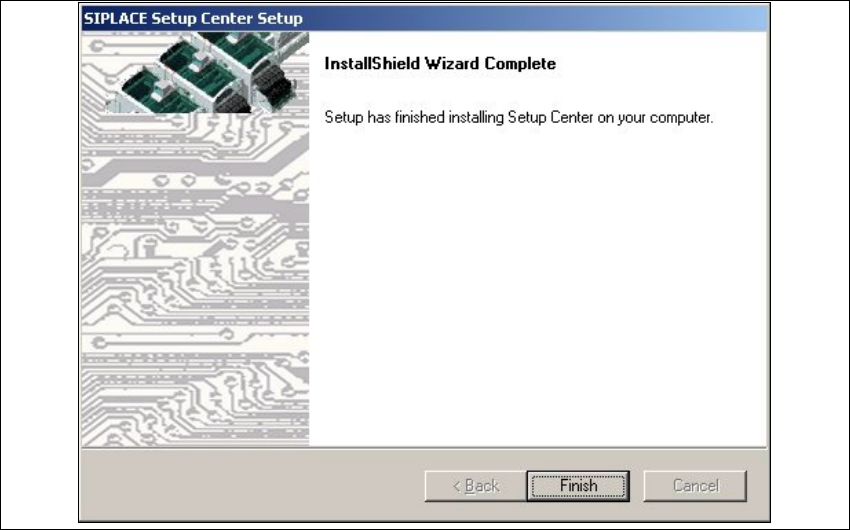
→The installation routine is now started.
The
Setup Complete dialog box confirms that the installation has been completed success-
fully.
3
3
Fig. 3.2 - 16 "InstallShield Wizard Complete" dialog box
3 Installation Installation Guide SIPLACE Setup Center
3.2 Installation of SIPLACE Setup Center and Possible Setup Types Edition 03/2005 EN
28
3.2.2.3 Setup Type - SIPLACE Pro Complete
This setup type contains all SIPLACE Setup Center components for operating the system on a
single computer. It is used to install a Setup Center stand alone system.
3
Setup detects if SQL Server or MSDE (Microsoft Data Desktop Engine) has already been in-
stalled.
3
Select this type to install all SIPLACE Setup Center system components (GUI, Database) on one
computer. However, it is possible to integrate further clients on other computers.
3
Step 1
→Run through the steps in “Starting Installation - First Steps” on page 12.
3
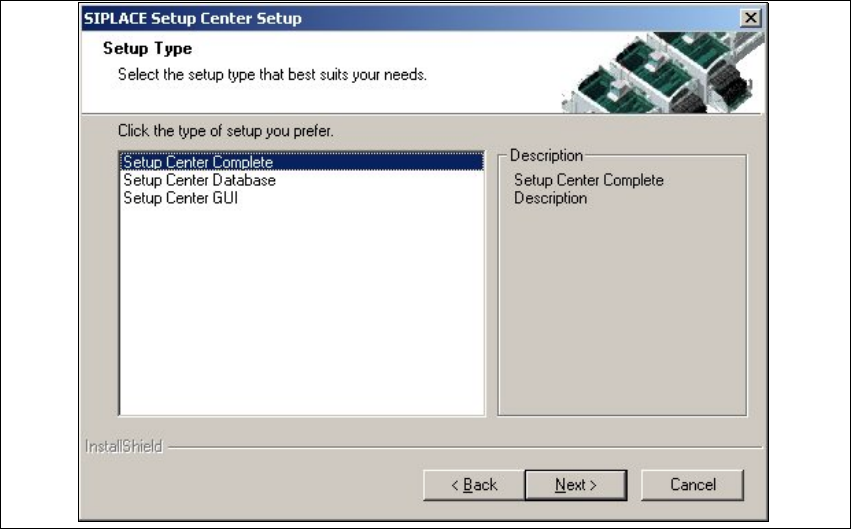
Fig. 3.2 - 17 "Setup Type" dialog box
→Select the Setup Center Complete system setup type and click Next.
3