00194591-01.pdf - 第20页
3 In stal latio n Installation Guide SIPLACE Setup Center 3.2 Installation of SIPLACE Setup Center and Possible Setu p Types Edition 03/2005 EN 20 Ste p 3 → The St art Copying Files dial og box giv es you a last ch ance …
Installation Guide SIPLACE Setup Center 3 Installation
Edition 03/2005 EN 3.2 Installation of SIPLACE Setup Center and Possible Setup Types
19
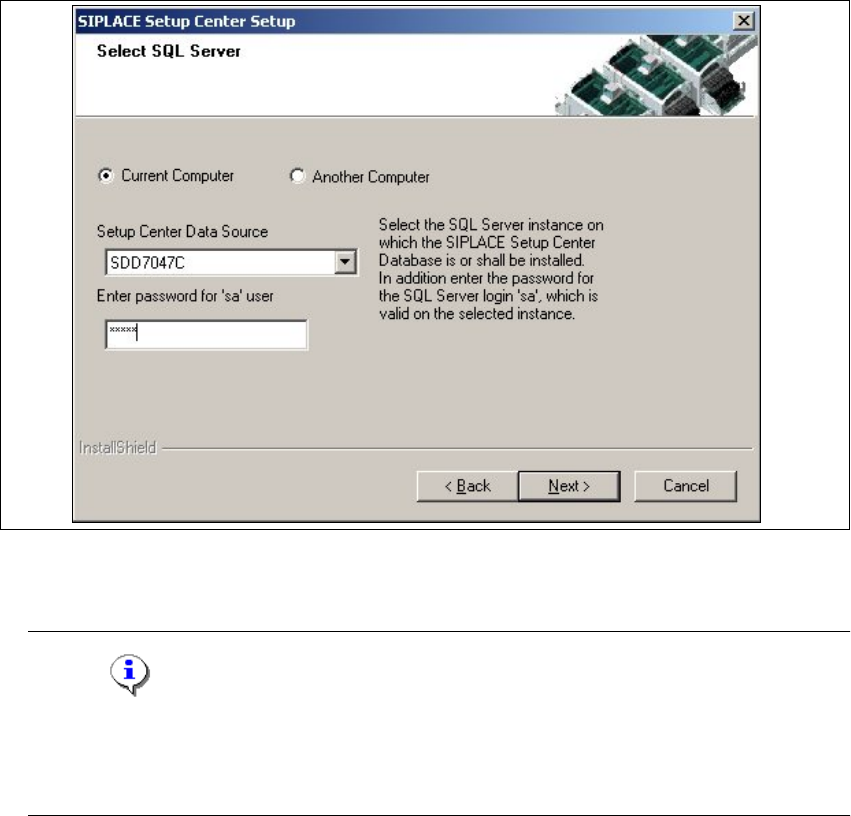
Step 2
→In the Select SQL-Server dialog box you enter the information required to be connected with
the SQL Server and database.
3
Fig. 3.2 - 8 "Select SQL-Server" dialog box
→Enter the Password for the SQL Server user "sa", i.e. the SQL server system administrator.
Note
Thispassword is empty if MSDE has been freshly installed. In thiscase, erasethe displayed
default password.Subsequently, awindowwillopen, promptingyouto changethispassword.
You may accept the Siemens Service default password or choose one of your own. 3
→Choose your Another Computer from the pull-down menu to show other computer.
→Choose your SQL Server Instance from the pull-down menu.
→Click Next.
3 Installation Installation Guide SIPLACE Setup Center
3.2 Installation of SIPLACE Setup Center and Possible Setup Types Edition 03/2005 EN
20
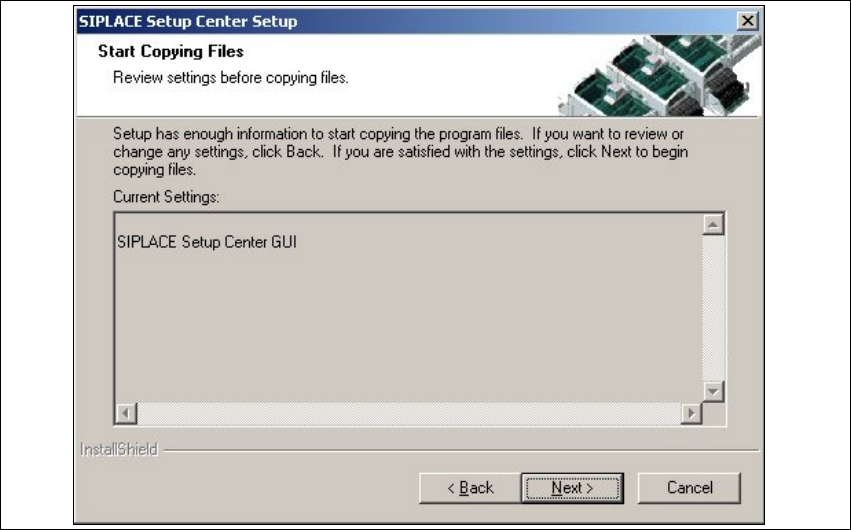
Step 3
→The Start Copying Filesdialog box gives you a last chance to check the information youhave
entered during the previous steps.
3
Fig. 3.2 - 9 "Start Copying Files" dialog box
→Click Next if you accept all the information entered so far.
→If you want to alter one or more details, click the Back button until you get back to the dialog
box in question.
→There, enter your changes and click Next to continue as usual.
Installation Guide SIPLACE Setup Center 3 Installation
Edition 03/2005 EN 3.2 Installation of SIPLACE Setup Center and Possible Setup Types
21
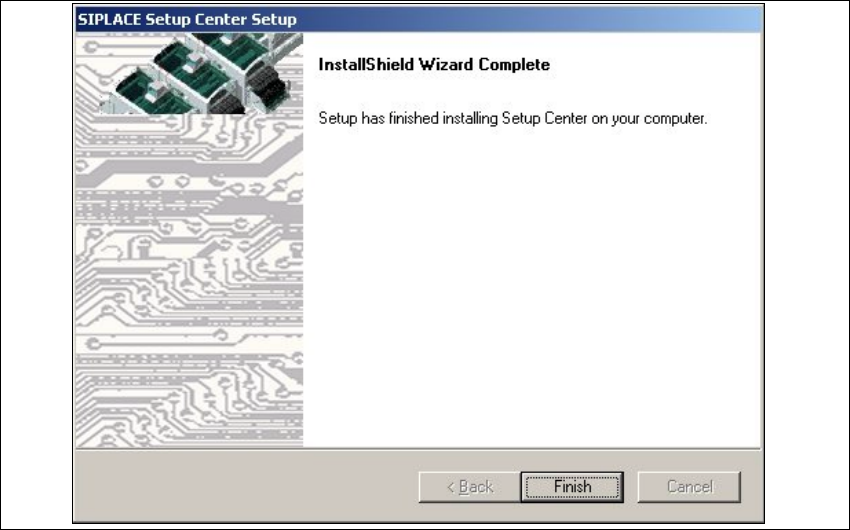
Step 4
→The installation routine is now started.
The
Installation Complete dialog box confirms that the installation has been completed suc-
cessfully.
3
3
Fig. 3.2 - 10 "InstallShield Wizard Complete" dialog box
→Click Finish.