00194591-01.pdf - 第15页
Installation Guide SIPLACE Setup Center 3 In stal latio n Edition 03/2005 EN 3.2 Installation of SIPLACE Se tup Center and Possible Setup Types 15 3.2.1.4 Step 4 → Ent er your User Name and Company Name in the Cu stomer …
3 Installation Installation Guide SIPLACE Setup Center
3.2 Installation of SIPLACE Setup Center and Possible Setup Types Edition 03/2005 EN
14
3.2.1.3 Step 3
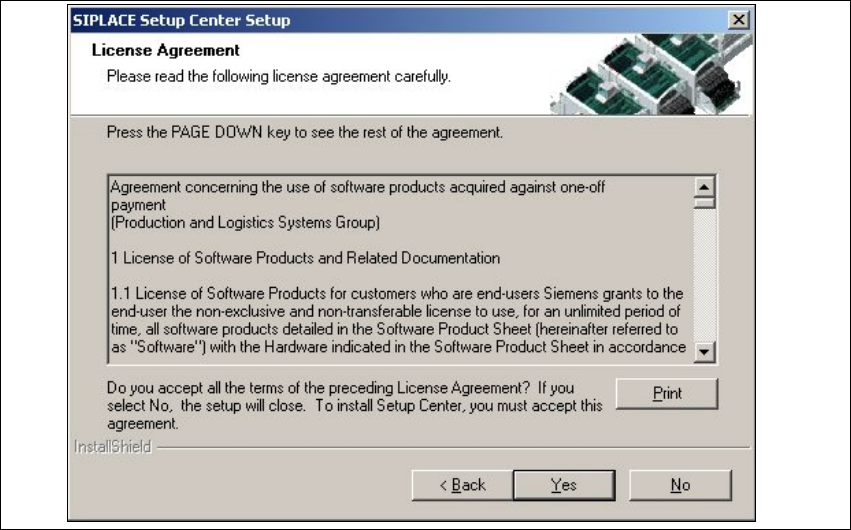
→Read the license agreement of Siemens AG relating to use of this software.
3
Fig. 3.2 - 3 "Software License Agreement" dialog box
→The installation routine continues if you click the Yes to accept the license agreement.
→Clicking No cancels the installation.
→Clicking Print will print the License Agreement on the default printer of the PC.
Installation Guide SIPLACE Setup Center 3 Installation
Edition 03/2005 EN 3.2 Installation of SIPLACE Setup Center and Possible Setup Types
15
3.2.1.4 Step 4
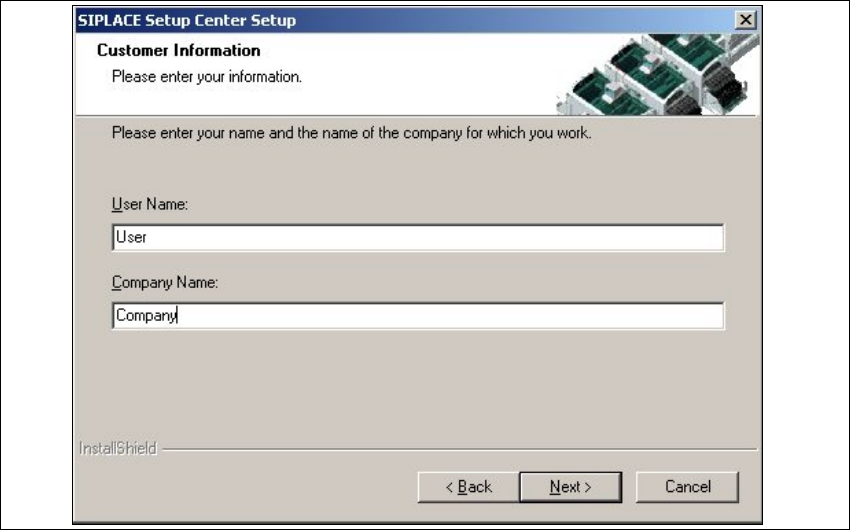
→Enter your User Name and Company Name in the Customer Information dialog box. Both
boxes must be filled in before the installation process can be continued.
3
Fig. 3.2 - 4 "Customer Information" dialog box
→Click Next.
3 Installation Installation Guide SIPLACE Setup Center
3.2 Installation of SIPLACE Setup Center and Possible Setup Types Edition 03/2005 EN
16
3.2.1.5 Step 5
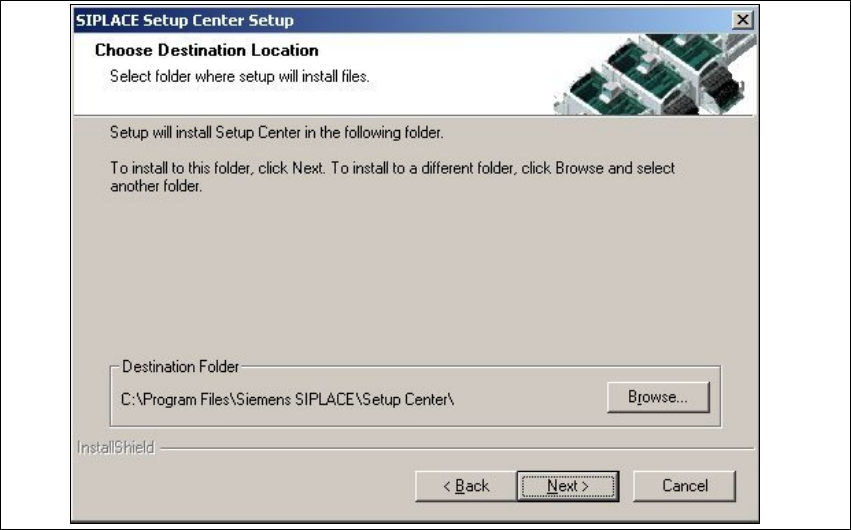
→The Choose Destination Location dialog box prompts you to enter the name of the folder in
which SIPLACE Setup Center should be installed. The system suggests a default destination
folder for you.
→However,you canclicktheBrowse buttontoopenadialogboxinwhichyoucanenterorselect
the path you want to use. If the folder you specify does not exist, it is created after having ac-
cepted a confirmation dialog.
3
Fig. 3.2 - 5 "Choose Destination Location" dialog box
→Click Next.