00194591-01.pdf - 第30页
3 In stal latio n Installation Guide SIPLACE Setup Center 3.2 Installation of SIPLACE Setup Center and Possible Setu p Types Edition 03/2005 EN 30 Ste p 2 a → In cas e no da tabase wit h the name Sip laceSet upCenter and…
Installation Guide SIPLACE Setup Center 3 Installation
Edition 03/2005 EN 3.2 Installation of SIPLACE Setup Center and Possible Setup Types
29
Step 2
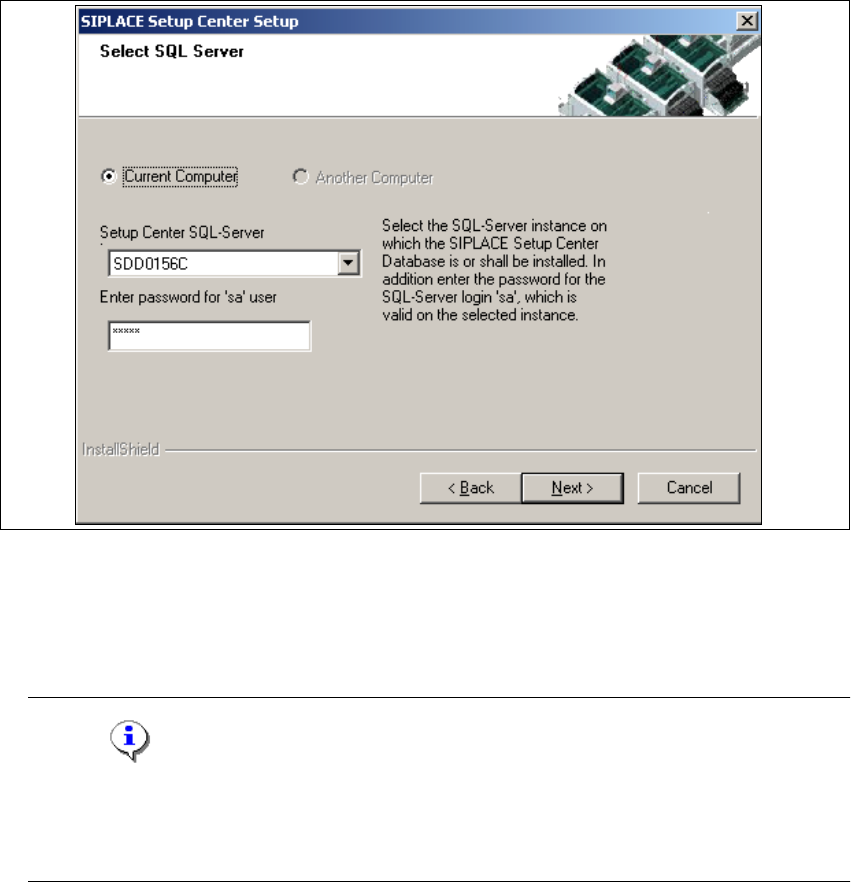
→In the Select SQL-Server dialog box you enter the information required to be connected with
the SQL Server and database.
3
Fig. 3.2 - 18 "Select SQL Server" dialog box
→Enter the Password for the SQL Server user ’sa’,i.e.theSQL server system administrator.
→Selecting the radio button Another Computer will search computers with a database in the
network and will list them in the drop down box
Setup Center Data Source.
Note
This password is empty if MSDE has been freshly installed. In this case, erase the displayed
default password.Subsequently, awindowwillopen, promptingyouto changethispassword.
You may accept the Siemens Service default password or choose one of your own. 3
→Choose your SQL Server Instance from the pull-down menu.
→Click Next.
3
3 Installation Installation Guide SIPLACE Setup Center
3.2 Installation of SIPLACE Setup Center and Possible Setup Types Edition 03/2005 EN
30
Step 2a
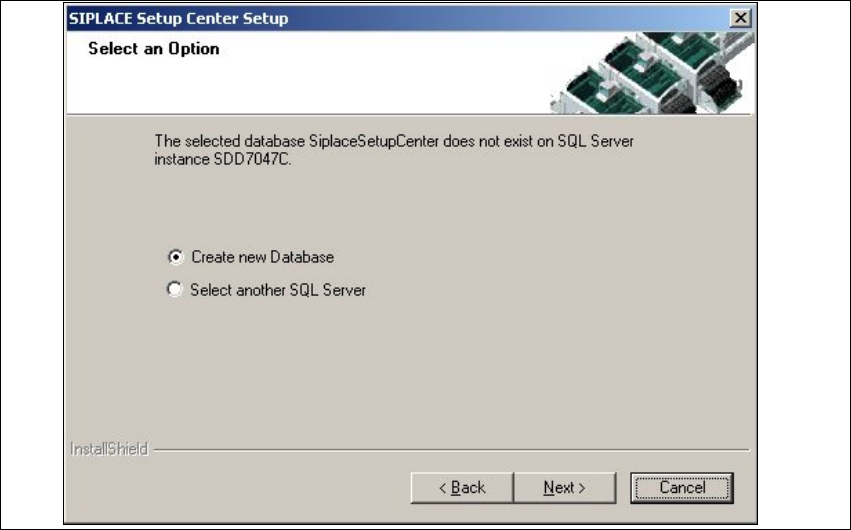
→In case no database with the name SiplaceSetupCenter and the correct version exists, the
following dialog will appear:
3
Fig. 3.2 - 19 "Select an Option" dialog box
→If you choose Select another SQL Server instance you will be returned to the previous dialog.
→Click Next to create a new database.
3
Installation Guide SIPLACE Setup Center 3 Installation
Edition 03/2005 EN 3.2 Installation of SIPLACE Setup Center and Possible Setup Types
31
Step 3
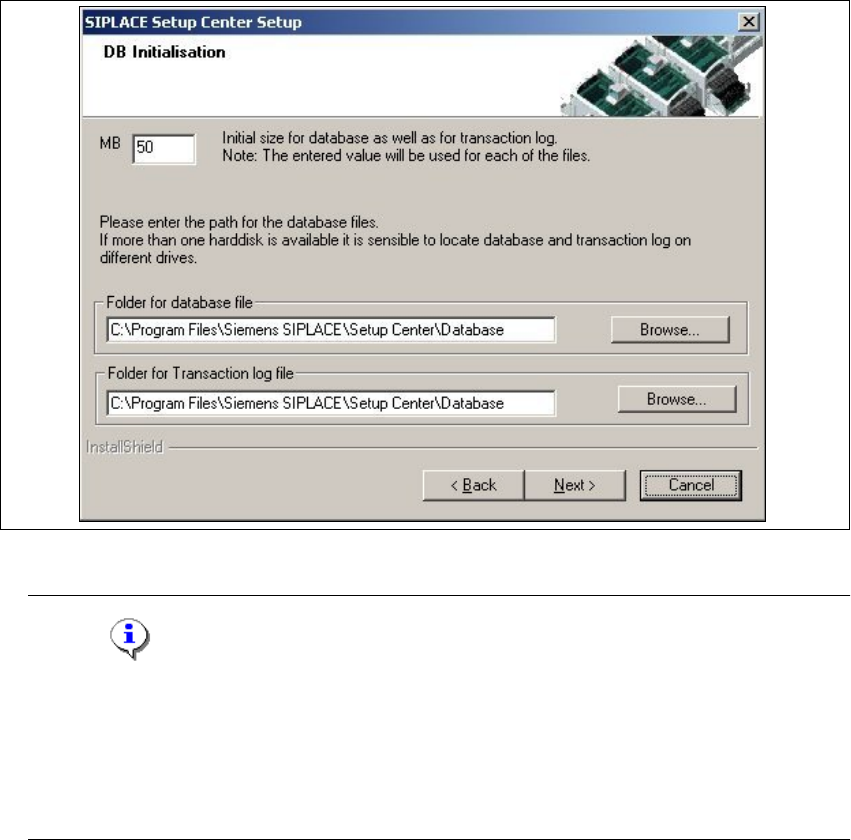
→In the DB Initialization dialog box you enter the information required to be connected with the
SQL Server and database.
→ThefigureyouenterintheMB text box defines the size of the SIPLACE Setup Center data-
base files (default:
50) which are to be created during the installation.
→Confirm the default value or enter the size you want in the MB text box.
3
Fig. 3.2 - 20 "DB Initialization" dialog box
Note
The specified size is only an initial value. The database will grow automatically as required.
However, only the database administrator is capable of freeing up unused disk space.
In the "database files" edit field, enter the directory in which the
SIPLACESetupCenter.mdf
file is to be created. In the transaction log files edit field, enter the name of the directory in
which the SIPLACESetupCenter.mlf database file is to be created. 3