00194591-01.pdf - 第23页
Installation Guide SIPLACE Setup Center 3 In stal latio n Edition 03/2005 EN 3.2 Installation of SIPLACE Se tup Center and Possible Setup Types 23 Ste p 2 → In the Sel ect SQL-Serve r dial og box you enter the informa ti…
3 Installation Installation Guide SIPLACE Setup Center
3.2 Installation of SIPLACE Setup Center and Possible Setup Types Edition 03/2005 EN
22
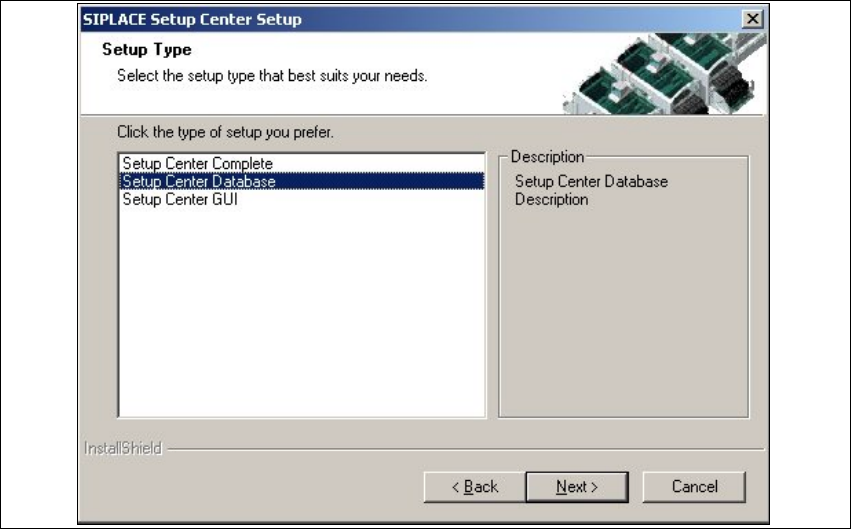
3.2.2.2 Setup Type - SIPLACE Setup Center Database
This setup type contains the database components of the SIPLACE Setup Center. Setup detects
if SQL Server or MSDE (Microsoft Data Desktop Engine) has already been installed. Select this
type to install the SIPLACE Setup Center database to a SQLServer.
3
Step 1
→Run through the steps in “Starting Installation - First Steps” on page 12.
3
Fig. 3.2 - 11 "Setup Type" dialog box
→Select the Setup Center Database setup type and click Next.
3
Installation Guide SIPLACE Setup Center 3 Installation
Edition 03/2005 EN 3.2 Installation of SIPLACE Setup Center and Possible Setup Types
23
Step 2
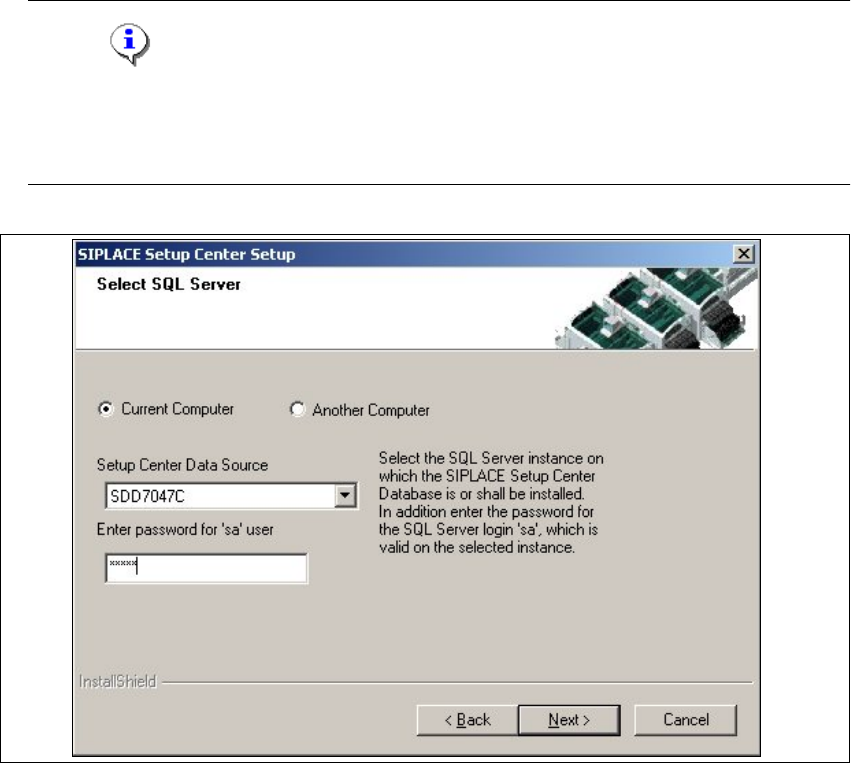
→In the Select SQL-Server dialog box you enter the information required to be connected with
the SQL Server and database.
Note
Thispassword is empty if MSDE has been freshly installed. In thiscase, erasethe displayed
default password.Subsequently, awindowwillopen, promptingyouto changethispassword.
You may accept the Siemens Service default password or choose one of your own. 3
3
Fig. 3.2 - 12 "Select SQL-Server" dialog box
→Enter the Password for the SQL Server user ’sa’,i.e.theSQL server system administrator.
→Choose your Another Computer from the pull-down menu to show other computer.
→Choose your SQL Server Instance from the pull-down menu.
→Click Next.
3 Installation Installation Guide SIPLACE Setup Center
3.2 Installation of SIPLACE Setup Center and Possible Setup Types Edition 03/2005 EN
24
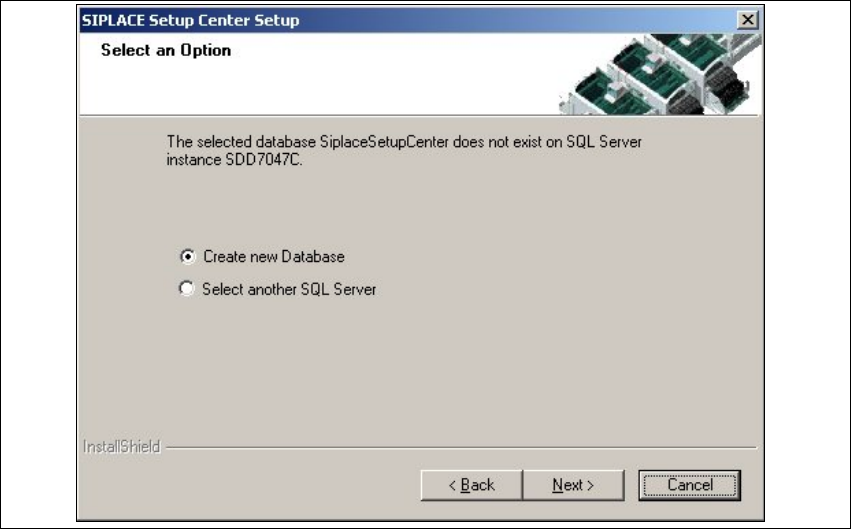
In case no database with the name
SiplaceSetupCenter exists, the following dialog will ap-
pear:
3
3
Fig. 3.2 - 13 "Select an Option" dialog box
→If you choose Select another SQL Server instance you will be returned to the previous dialog.
→Click Next to create a new database.