00193325-01.pdf - 第23页
SIPLACE S oftware Guide SR.503.xx 3 Graphical user i nterface Issue 12/01 E N 3.2 Components of t he user in terface 23 Title bar 3 The title b ar displ ays the name of the cu rrent view (e.g. Mai n view) . 3 Menu bar 3 …
3 Graphical user interface SIPLACE Software Guide SR.503.xx
3.2 Components of the user interface Issue 12/01 EN
22
3
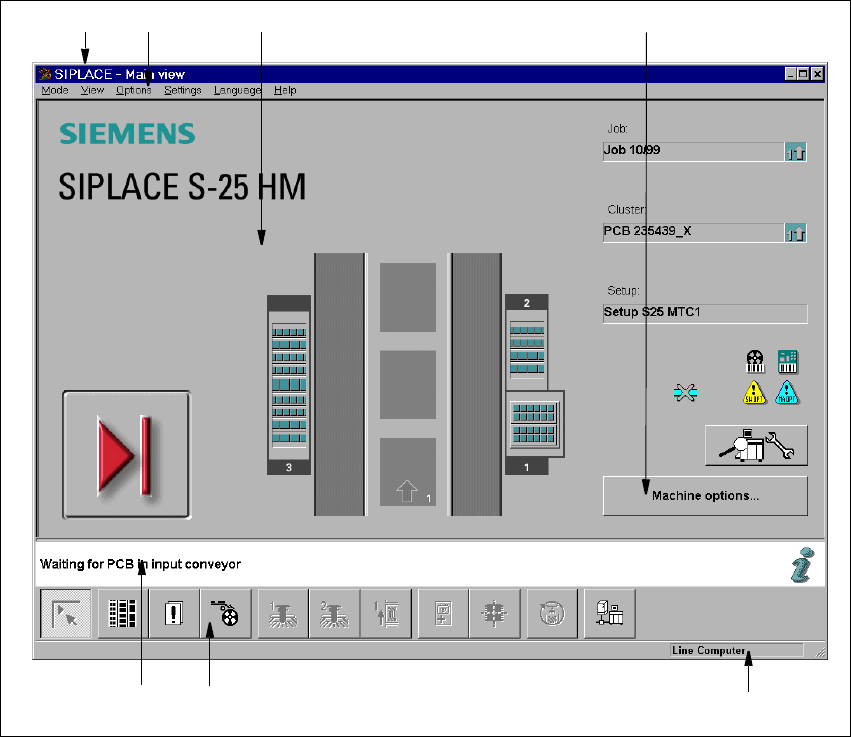
Fig. 3.2 - 2 Components of the user interface (for example, the Main view of the S-25 HM)
3
Key to Fig. 3.2 - 2
(1) Title bar
(2) Menu bar
(3) Working area/display area
(4) Controls
(5) Status area
(6) Toolbar
(7) Info bar
3
1
6 75
2 3 4
SIPLACE Software Guide SR.503.xx 3 Graphical user interface
Issue 12/01 EN 3.2 Components of the user interface
23
Title bar 3
The title bar displays the name of the current view (e.g. Main view). 3
Menu bar 3
The menu bar contains menus, the contents of which (functions and options available in the menu)
may change depending on the current view. 3
Working area/display area 3
This area displays the controls (buttons, icons) used to set/trigger functions, along with the con-
tents of active menus and submenus, general messages, error messages and other comments.
In addition, in the Main view, animated and/or different color objects may be used to indicate cer-
tain processes or statuses (e.g. processing, feeder location empty etc.). 3
Controls 3
You trigger actions, select options or make settings by clicking the corresponding controls with the
left mouse button.
If a control is displayed in inverse video (light gray), this means that the conditions for the execu-
tion of the corresponding functions are not satisfied. 3
Status area 3
The status area displays the current machine status, the last error to have occurred and the action
which is to be performed by the operator 3
Toolbar 3
This bar contains buttons which are used to switch the user interface to a different view where you
can then perform the necessary operations. 3
Clicking a button on the toolbar takes you to the view which corresponds to it. The button matching
the active view then itself becomes inactive. 3
Info bar 3
This bar displays concise information about the menu item or icon/button over which the mouse
pointer is currently positioned. The current control mode is displayed next to this in a separate
area. 3
If the „GEM Interface“ option has been configured, the status of the connection to the host com-
puter is also displayed at the right-hand side of this area. 3
3 Graphical user interface SIPLACE Software Guide SR.503.xx
3.2 Components of the user interface Issue 12/01 EN
24
3.2.1 Icons in the working or display area
In main view, certain operating statuses (processing, error etc.) are indicated by different icons or
by changes in the color of the corresponding graphic in the display area. 3
Meaning of the Icons for the various different operating statuses 3
Machine power-up and reference run 3
When this icon is displayed, the majority of the functions of the machine cannot be operated. The
software is being loaded. Then the status field displays the status „Waiting for reference run“ and
the action „Press start key“. 3
Press the start key. The reference run is then performed.
After the reference run, the machine is ready to perform placement operations.
The following icon is then displayed.
3
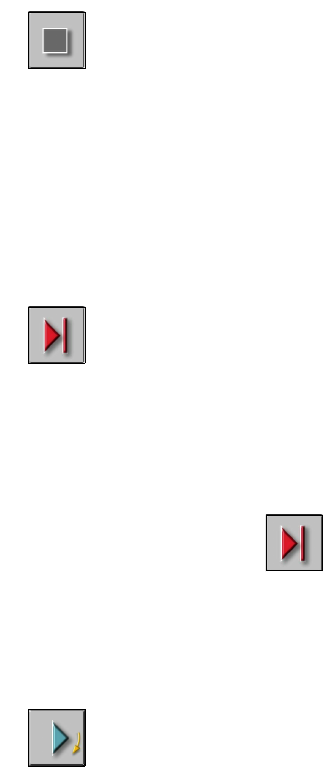
Stop processing PCB 3
When you click this icon, the current placement sequence is stopped.
Assembly of the PCBs already located on the processing conveyors is completed and they are
then transported to the intermediate or output conveyor of the associated conveyor track. Printed
circuit boards of a previous model machine are not transported into the machine.
3
Click the icon .
The icon changes to one shown below. This icon is then displayed until assembly of the PCBs
in the machine has been completed and these have been transported into the intermediate or
output conveyor, or in other words, until the processing conveyors have been emptied.
3
Shown after „Stop processing PCB“ and while waiting for the processing convey-
ors to be emptied 3
(The triangle in the icon is continuously circled by a small yellow arrow.)
Once the processing areas have been emptied, the following icon is displayed. 3
3