00193325-01.pdf - 第83页
SIPLACE S oftware Guide SR.503.xx 6 Online help system Issue 12/01 E N 6.1 General 83 6.1.2 Functions in the main help s ystem window 6.1.2.1 Printing a help topi c The topi c curr ently di spla yed in the ma in help s y…
6 Online help system SIPLACE Software Guide SR.503.xx
6.1 General Issue 12/01 EN
82
6.1.1.6 Calling help on an object
Press the key combination Shift + F1 in the currently active view of the station computer user
interface. A question mark is displayed next to the mouse pointer
Move the mouse pointer and question mark to the required object (e.g. to the „Display errors“
icon) and then click the object.
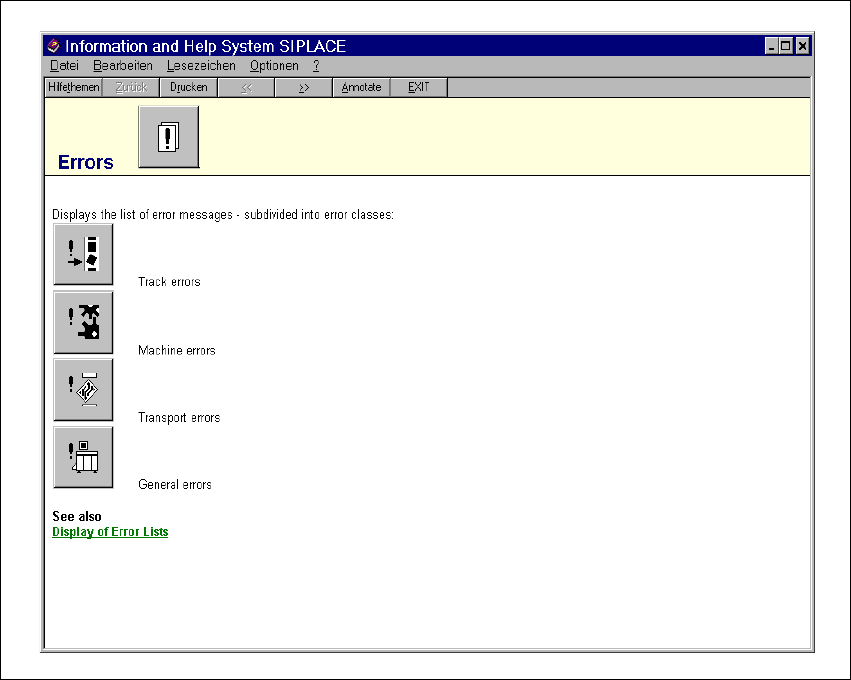
The main help system window is opened. The display area contains help information on the
selected object (see example in Fig. 6.1 - 7).
6
Fig. 6.1 - 7 Example: Help on the "Display errors" icon
6
SIPLACE Software Guide SR.503.xx 6 Online help system
Issue 12/01 EN 6.1 General
83
6.1.2 Functions in the main help system window
6.1.2.1 Printing a help topic
The topic currently displayed in the main help system window can be output to the installed
printer. 6
To do this, enter the File menu and select the function Print Topic... or click the Print (below
the menu bar).
The currently selected help topic is printed.
6
6.1.2.2 Printing a help topic
The station computer’s help system allows you to search for specific help topics. 6
To do this, open the main window of the help system.
In this window, click the Help Topics button (below the menu bar).
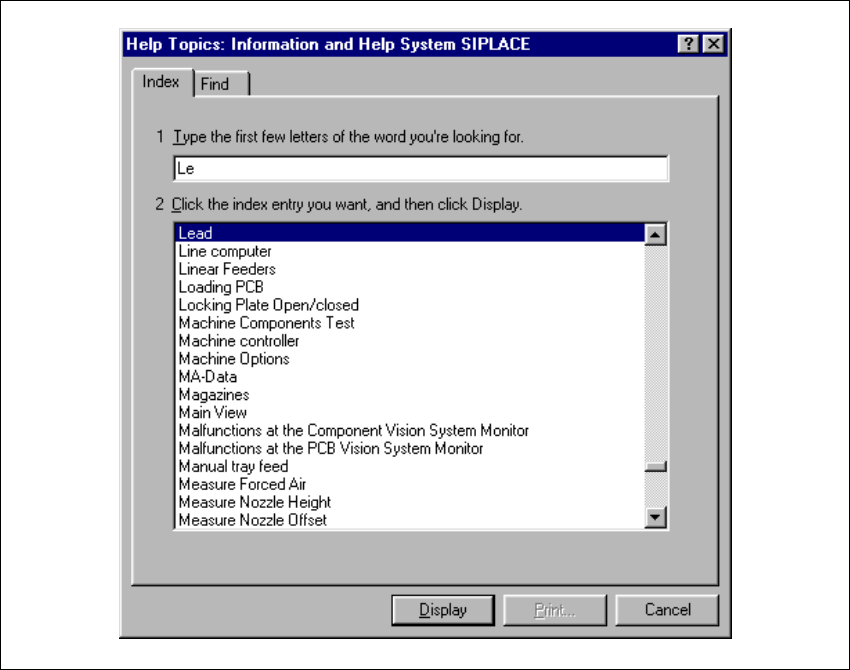
The „Help Topics“ window is opened with the tabs „Index“ and „Find“.
Fig. 6.1 - 8 "Help Topics" window (Index)
6 Online help system SIPLACE Software Guide SR.503.xx
6.1 General Issue 12/01 EN
84
6
Enter the first few letters of the required term in the edit field.
The first index entry that starts with the entered letters is selected in the list.
Click the Display button.
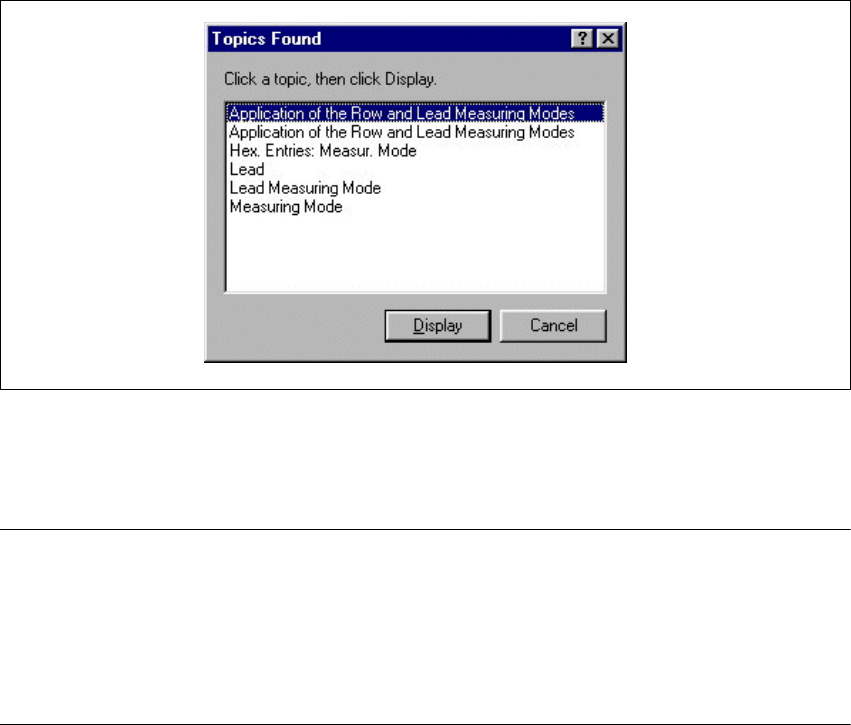
If several Help topics are linked to the selected index entry, the subsequent window
opens first.
6
Fig. 6.1 - 9 „Index - Topics found“ dialog box
Select the entry for the required topic and click the Display button. Both windows are closed
and the selected topic is displayed in the main help system window.
NOTE
If you click the „Find“ tab in the „Help Topics“ window, the extended search functions are displayed
(see Fig. 6.1 - 10). These functions can be used to search for words or phrases that are used in
the help topics.
By clicking the „?“ button (top right of window), you can call up a description of or help on the dif-
ferent objects in this window. 6