00193325-01.pdf - 第43页
SIPLACE S oftware Guide SR.503.xx 3 Graphical user i nterface Issue 12/01 E N 3.3 User interface - views and menus 43 Access level... 3 It is possi ble to protect some of the funct ions of th e user i nterface agains t u…
3 Graphical user interface SIPLACE Software Guide SR.503.xx
3.3 User interface - views and menus Issue 12/01 EN
42
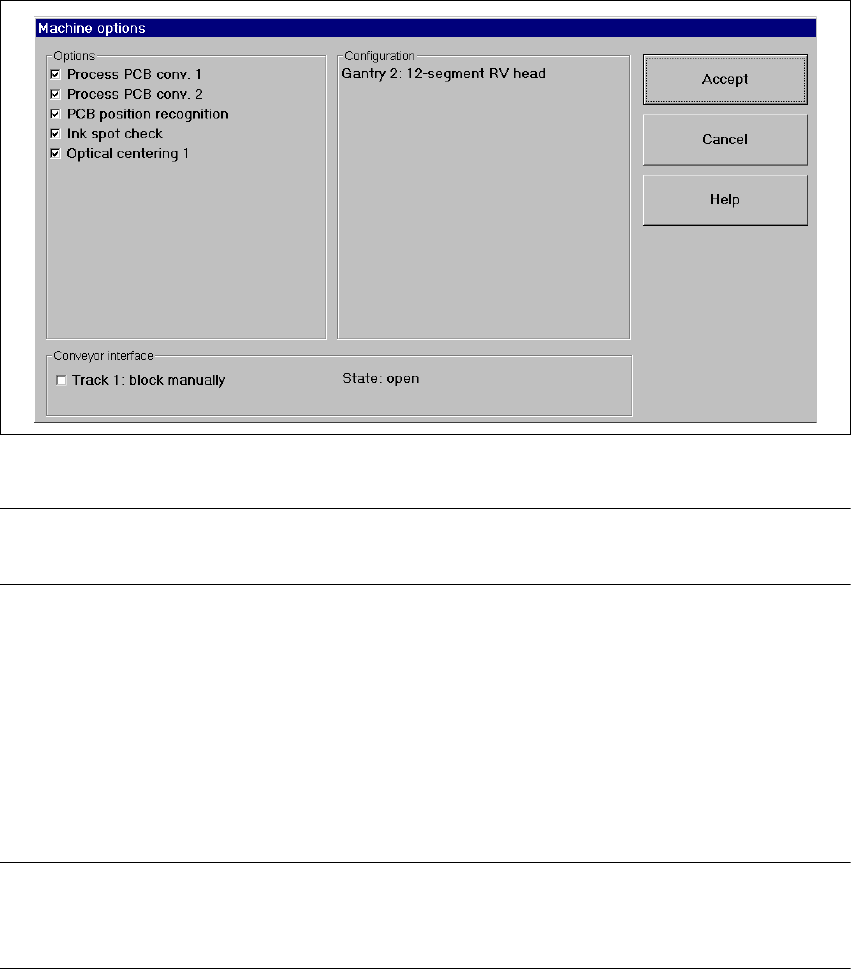
Click the Machine options... menu item (or the appropriate button in the working area of the
main view). The following window is displayed.
3
Fig. 3.3 - 6 „Machine options - entire machine“ (Example: S25-HM) dialog box
NOTE
Only those machine options are displayed which are configured at the current station. 3
Click the checkboxes corresponding to the machine options which you want to activate or de-
activate.
When the machine is switched off, all options are reset except those listed below:
– Comp. verification with barcode
– Feeder position recognition
– MTC: Component pick-up strategy FiFo
NOTE
At "Operator" access level, it is only possible to activate and deactivate the conveyor interface op-
tions. 3
SIPLACE Software Guide SR.503.xx 3 Graphical user interface
Issue 12/01 EN 3.3 User interface - views and menus
43
Access level... 3
It is possible to protect some of the functions of the user interface against unauthorized use by
setting an access level and allocating a password. Functions which are not accessible from a
given access level cannot be executed since the associated push buttons, radio buttons and
menu commands are either inactive or not displayed. 3
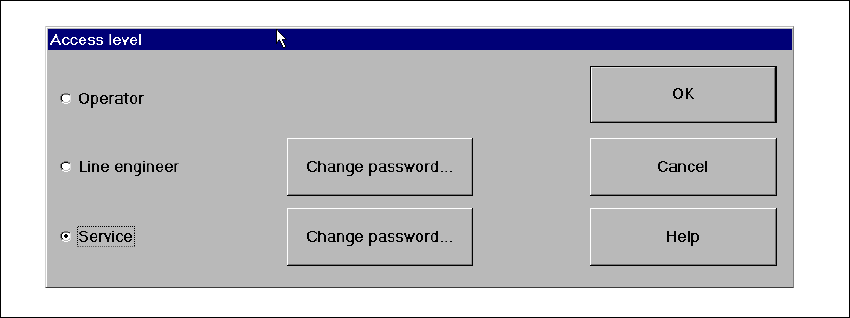
You can choose between the access levels "Operator", "Line engineer" and "Service". Passwords
can be allocated for the access levels "Line engineer" and "Service". 3
Click the Access level... menu item.
The „Access level“ dialog box is displayed.
3
Fig. 3.3 - 7 "Access level" dialog box
Click the radio button for the required access level.
Click the "Change password" button to the right of the access level if you want to allocate a
password or change an existing password.
The dialog box for password entry is now displayed.
3 Graphical user interface SIPLACE Software Guide SR.503.xx
3.3 User interface - views and menus Issue 12/01 EN
44
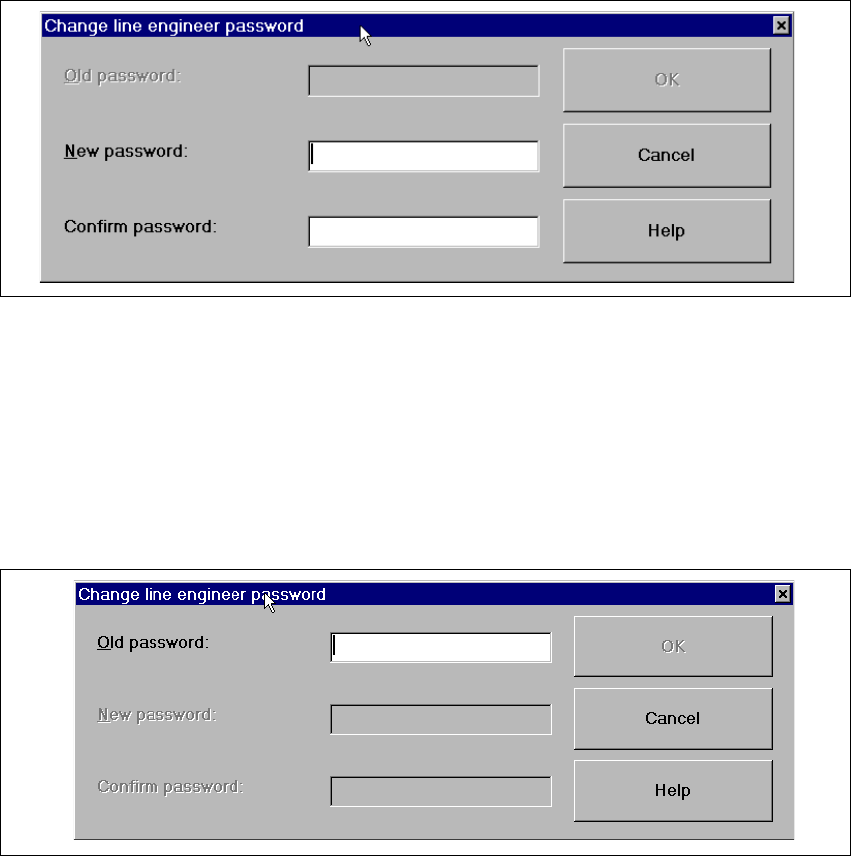
Example of initial password allocation 3
3
Fig. 3.3 - 8 "Change line engineer password - initial allocation" dialog box
Click the "New password" text box and enter the required password.
Click the "Confirm password" text box and re-enter the password.
Click the OK button to confirm the password.
Example for the modification of an existing password 3
3
Fig. 3.3 - 9 „Change line engineer password - change an existing password“ dialog box
Click the "Old password" text box and enter the current password.
The other two text boxes now become active.
Click the "New password" text box and enter the new password.
Click the "Confirm password" text box and enter the new password for a second time.
Click the OK button to confirm the password.
Click OK to close the "Access level" dialog box.