00193325-01.pdf - 第99页
SIPLACE S oftware Guide SR.503.xx Issue 12/01 E N 7.6 "Traceability" Option 99 7.6 "T r aceability" Op tion Please refer to the T raceab ility Use r Manual for complete docum entation of the T raceabi…
SIPLACE Software Guide SR.503.xx
7.5 Option „GEM Interface“ Issue 12/01 EN
98
SIPLACE Software Guide SR.503.xx
Issue 12/01 EN 7.6 "Traceability" Option
99
7.6 "Traceability" Option
Please refer to the Traceability User Manual for complete documentation of the
Traceability option. 7
7.6.1 Introduction
In printed circuit board production, Traceability means the tracing back of production over a long
period of time. For example, traceability allows you to determine which components out of what
batches have been used for the in-line assembly of a specific printed circuit board.
This kind of knowledge can be important to a manufacturer to conduct targeted callbacks or to es-
tablish damage claim against suppliers. 7
This option allows you to generate traceability data during production on all mentioned ma-
chines. 7
7.6.2 Functionality
Each printed circuit board engaged into the machine is identified with the help of the printed circuit
board barcode reader. 7
The machine knows the setup and the currently used component batches. Via the internal in-line
assembly information the machine recognizes which batches were used to assemble the
particular printed circuit board. In case a batch is exchanged (Refill), the operator records the
information about the new batch with a barcode reader. The machine is able to recognize batch
changes either through splice recognition or the counting of level indicators.
All collected data for a printed circuit board are finally combined into a data package and
exported through the Traceability interface. 7
SIPLACE Software Guide SR.503.xx
7.6 "Traceability" Option Issue 12/01 EN
100
7.6.3 User Interface Settings
7.6.3.1 Machine Options Settings
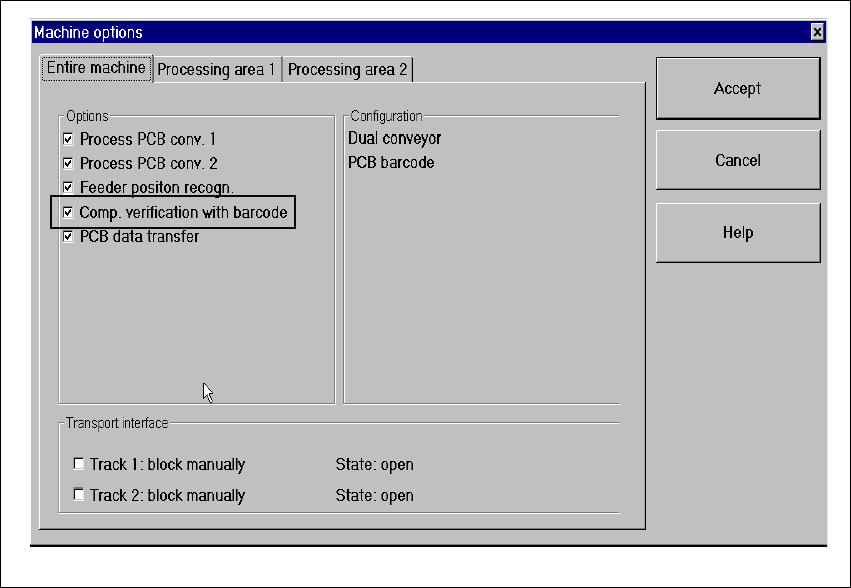
In order to operate Traceability or Setup Control, the "Setup control with barcode" setting in the
machine’s options must be activated. 7
Fig. 7.6 - 1 Dialog: Machine Options – Setup Control with Barcode