00193325-01.pdf - 第48页
3 Graphical user int erface SIPLACE Software Guide SR.503.xx 3.3 User interf ace - views and menus Issue 12/01 E N 48 When u sing a d ual con veyor , the foll owing dialo g appears: 3 Fig. 3.3 - 12 "Enter ne w clu…

SIPLACE Software Guide SR.503.xx 3 Graphical user interface
Issue 12/01 EN 3.3 User interface - views and menus
47
NOTE
The data, including the fiducial and component package form data, of the last cluster successfully
specified by the line computer, is now saved on the station computer’s hard disk under the cluster
name „AKTUELL“ and can be loaded by entering this name. 3
3 Graphical user interface SIPLACE Software Guide SR.503.xx
3.3 User interface - views and menus Issue 12/01 EN
48
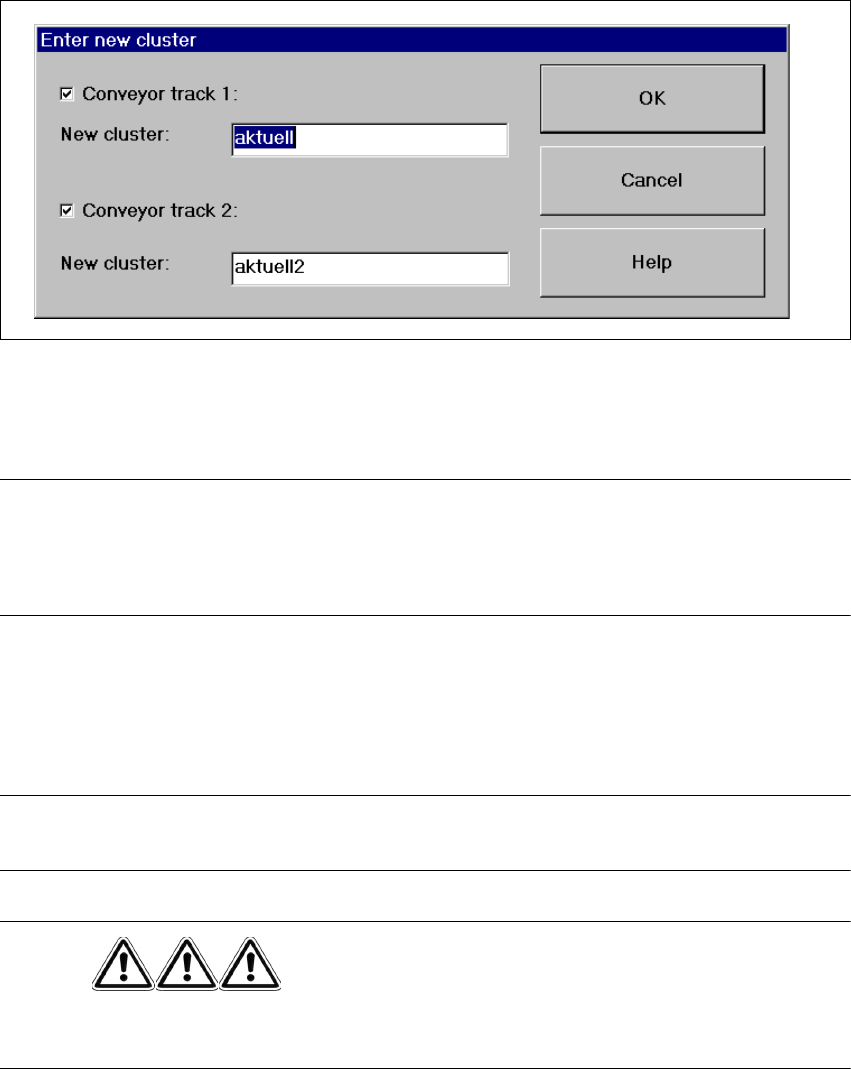
When using a dual conveyor, the following dialog appears:
3
Fig. 3.3 - 12 "Enter new cluster" dialog box for dual conveyor
Now enter the name of the required cluster in the displayed text box and click OK to confirm.
The cluster data is now loaded.
NOTE
The data, including the fiducial and component package form data, of the last cluster successfully
specified by the line computer, is now saved on the station computer’s hard disk under the cluster
name „AKTUELL“ and can be loaded by entering this name. 3
Software options 3
This menu item is used to activate the test commands (test functions) for checking a variety of
machine components. 3
NOTE
This menu item can only be called from the "Service" access level. 3
DANGER
Settings for test commands and test command execution should be performed by service engi-
neers only. 3
Click the Software options menu item.
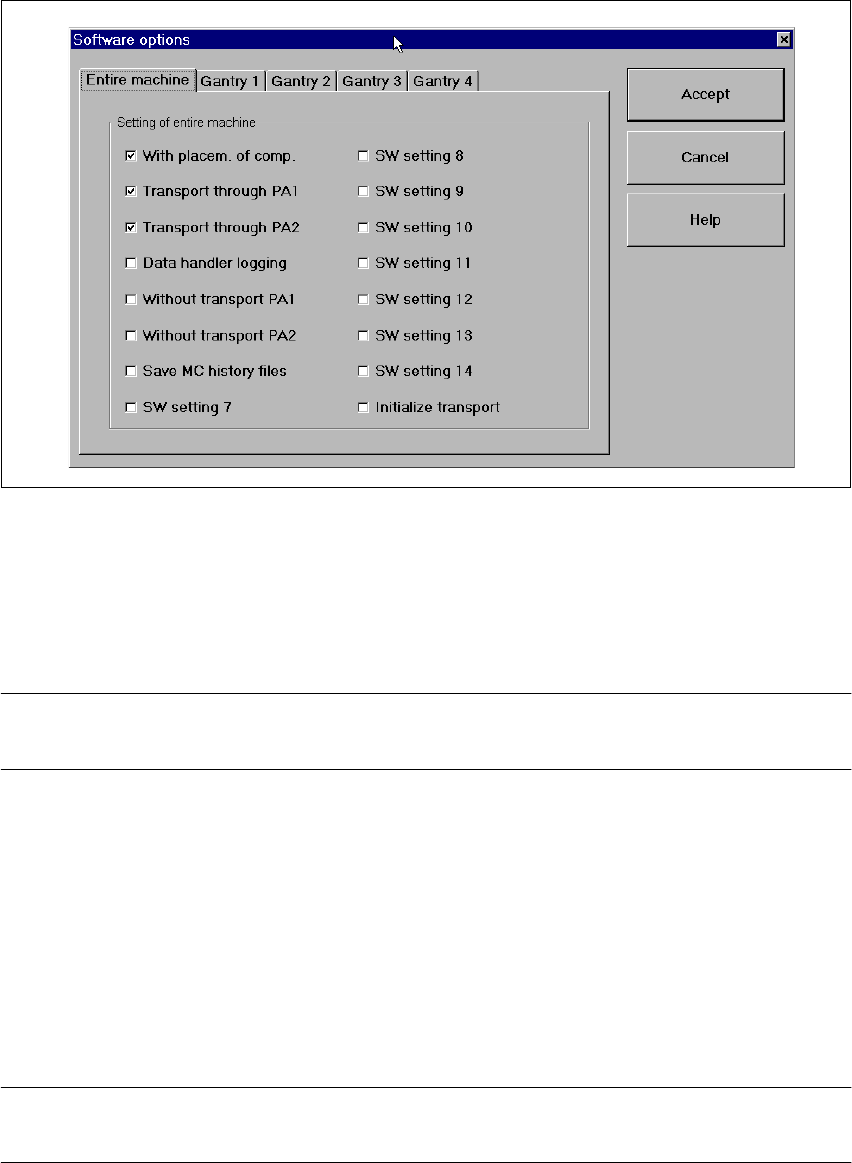
The following window is opened.
SIPLACE Software Guide SR.503.xx 3 Graphical user interface
Issue 12/01 EN 3.3 User interface - views and menus
49
3
Fig. 3.3 - 13 „Example HS-50 Software options“ dialog box
Select the tab corresponding to the required machine component and activate/deactivate the
test commands by clicking the corresponding checkboxes.
Click Accept to set the software options. The changes take effect with the next printed circuit
board.
NOTE
When the station is rebooted, the software options are reset to their original settings. 3
Cycle mode... Alt+t 3
Once the station has been stopped (by hitting the stop button) you can use this menu item to
switch to cycle mode. This function can be used to localize errors. 3
Click the Cycle mode... menu item or press the key combination ALT+t. The „Cycle mode“ set-
tings box is opened.
Click the On radio button to activate cycle mode or the Off radio button to deactivate it.
Click the OK button. Cycle mode is now either activated or deactivated.
NOTE
In cycle mode, you must press the Start button on the machine for every operating step. 3