00197496-01_UM_SiClusterMultiline_DE_EN.pdf - 第115页
Getting Started and Overview of SiCluster Multiline 3.4.1 Tab - Line KPIs Tab - Run & Results SIPLACE SiCluster Multiline SIPLACE SiCluster Multiline 115 3.4 3 . 4 T a b - R u n & R e s u lt s Tab - Run & Res…
Getting Started and Overview of SiCluster Multiline
Tab - Configuration 3.3.3 Tab - Cycle Times
114 SIPLACE SiCluster Multiline SIPLACE SiCluster Multiline
3.3.3
3.3.3 Tab - Cycle Times
Tab - Cycle Times
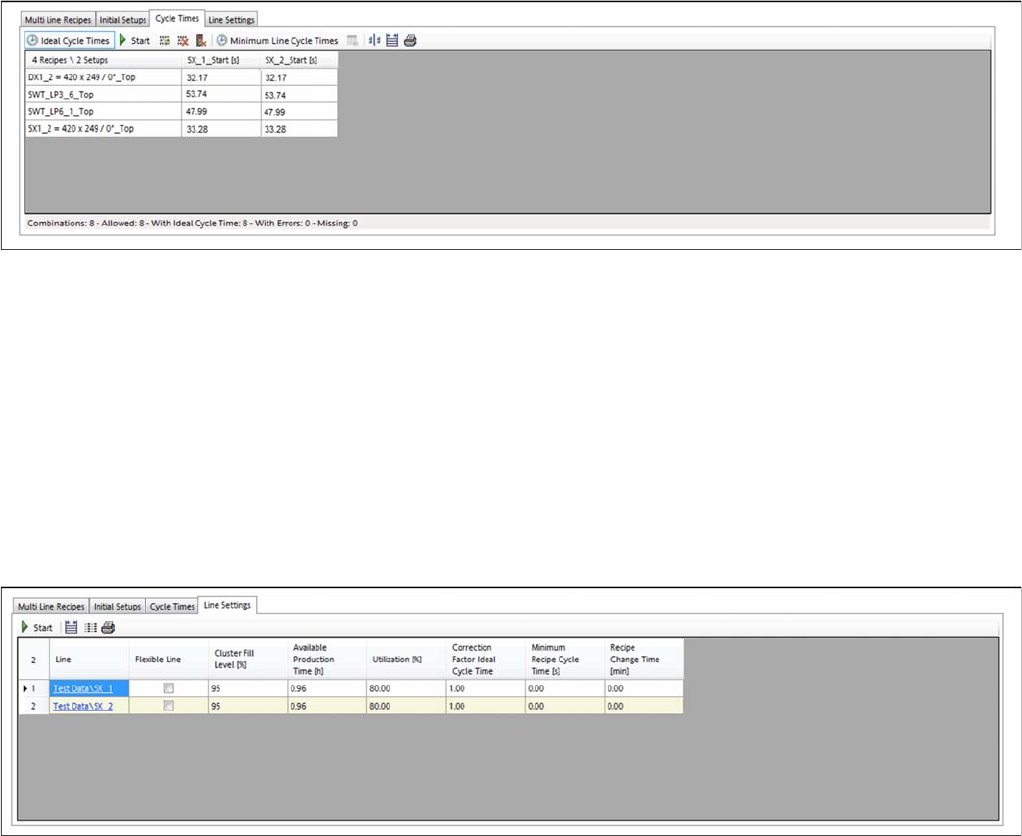
The ideal cycle time is a prerequisite for optimization of the multi line jobs. The ideal cycle time for a rec-
ipe on the line is the recipe cycle time calculated in the optimization runtime you defined, for the produc-
tion with a setup which has been specially optimized for this recipe and, if applicable, for its inclusive
group. See also "4.8 Ideal Line Cycle Times" [ ➙ 139].
► Go to Configuration and select the Cycle Times tab.
Configuration – tab: cycle times
▪ Enable the Ideal Cycle Times button.
– Generate the ideal cycle times for the recipes on the lines.
▪ Minimum Line Cycle Times button when enabled.
– Enter the recipe-specific cycle times on the lines manually or import them with the help of the
CSV Import Wizard.
3.3.4
3.3.4 Tab - Line Settings
Tab - Line Settings
The minimum required production time and individual settings for your lines can be set in the Line Set-
tings tab. You can also enter the minimum required production time manually.
► Go to Configuration and select the Line Settings tab.
Configuration – tab: line settings
▪ This allows you to calculate the available production time for the line or to enter this manually. The
production times for the lines must either be available or calculated.
▪ You can also define individual settings for your line. These settings then influence the results calcu-
lated by the optimization.
Getting Started and Overview of SiCluster Multiline
3.4.1 Tab - Line KPIs Tab - Run & Results
SIPLACE SiCluster Multiline SIPLACE SiCluster Multiline 115
3.4
3.4 Tab - Run & Results
Tab - Run & Results
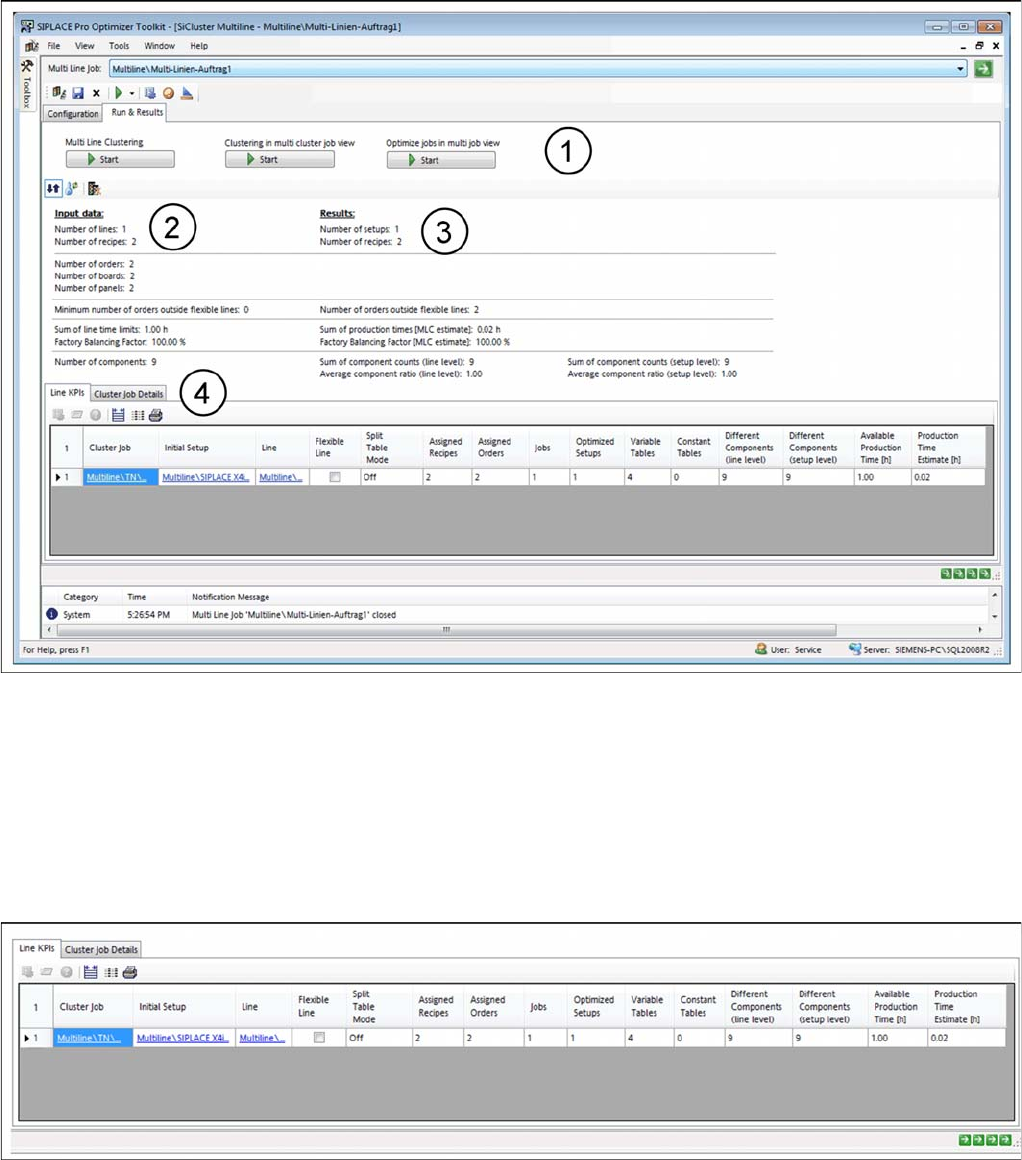
The Run & Results tab allows you to start multi line clustering and optimization of the calculated jobs (1).
You will see an overview of the input data (2) and the results data (3).
SiCluster Multiline - tab: run & results
The Run & Results tab contains the following two tabs (4), in which you can view the key performance
indicators (KPIs) and the cluster job parameters.
▪Tab: Line KPIs
▪Tab: Cluster Job Details
3.4.1
3.4.1 Tab - Line KPIs
Tab - Line KPIs
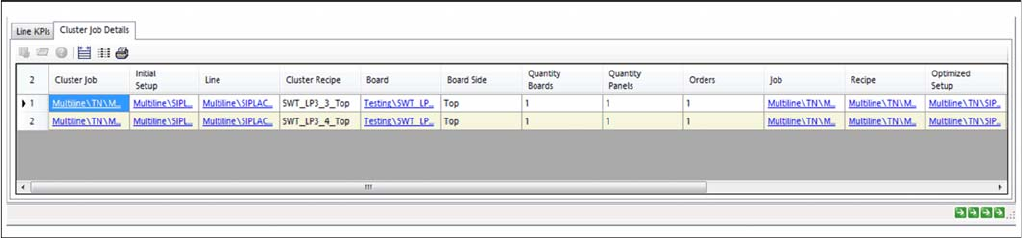
Shows the general key performance indicators (KPIs) for the lines.
Run & results - tab: line KPIs
Getting Started and Overview of SiCluster Multiline
Tab - Run & Results 3.4.2 Tab - Cluster Job Details
116 SIPLACE SiCluster Multiline SIPLACE SiCluster Multiline
3.4.2
3.4.2 Tab - Cluster Job Details
Tab - Cluster Job Details
The Cluster Job Details tab shows which recipes are allocated to the lines and the corresponding pa-
rameters for the cluster job. If clustering has already been performed within the lines, you will see the
setups (cluster) in which the recipes are present.
Run & results - tab: cluster job details