00197496-01_UM_SiClusterMultiline_DE_EN.pdf - 第142页
How to Configure a Multi Line Job Ideal Line Cycle Times 4.6.1 Initial Setups Added - Result 142 SIPLACE SiCluster Multiline SIPLACE SiCluster Multiline Multi-job optimi zation. ▪T h e Status, Errors, Warnings, Infos col…
How to Configure a Multi Line Job
4.6.1 Initial Setups Added - Result Ideal Line Cycle Times
SIPLACE SiCluster Multiline SIPLACE SiCluster Multiline 141
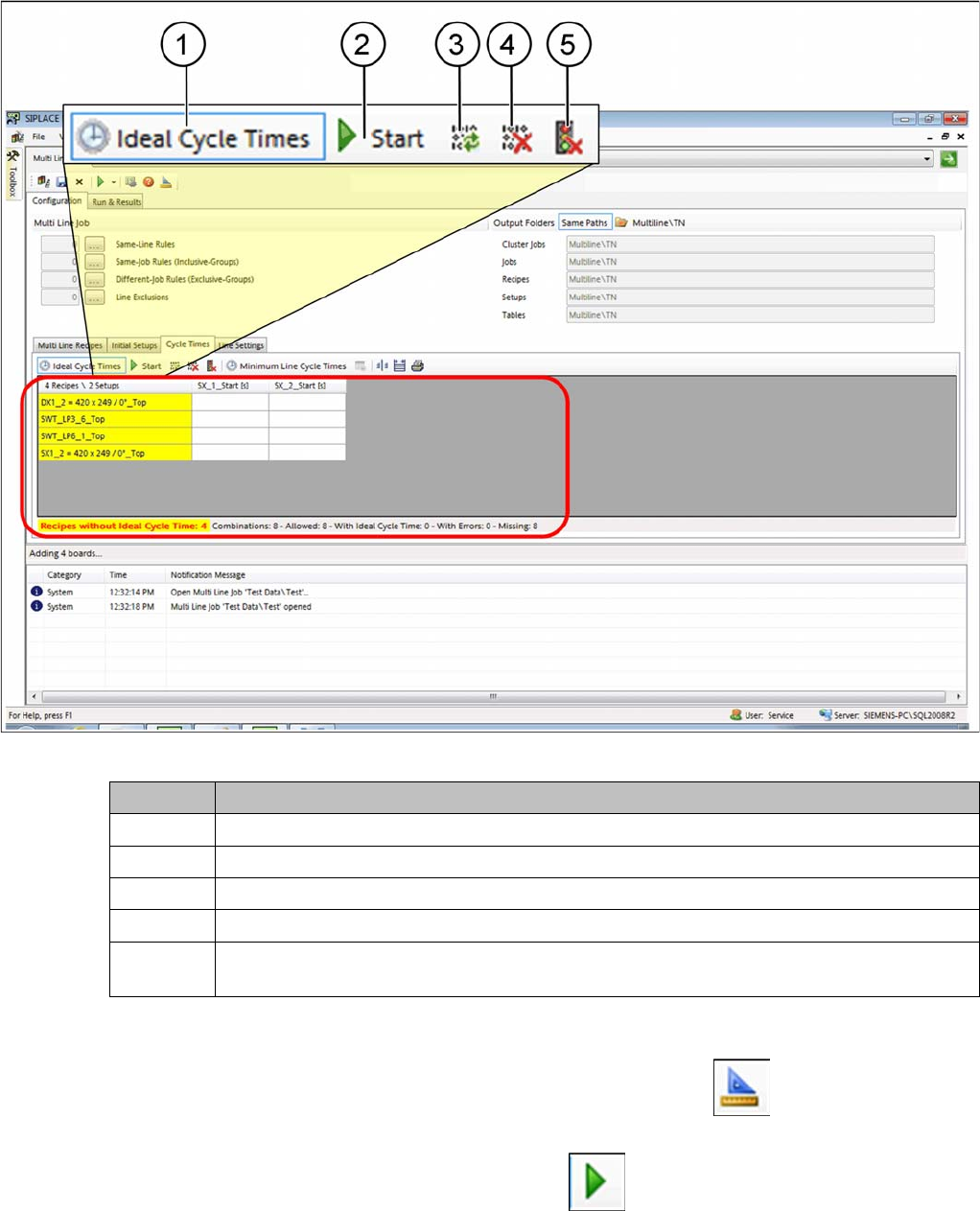
Creating ideal cycle times
Tab: cycle times: creating ideal cycle times
Procedure
Define the required settings in the SiCluster Multiline menu, at Settings . See also ."4.8.1 Dialog
Box: Settings" [ ➙ 143].
► Start calculation of the ideal cycle times with Start .
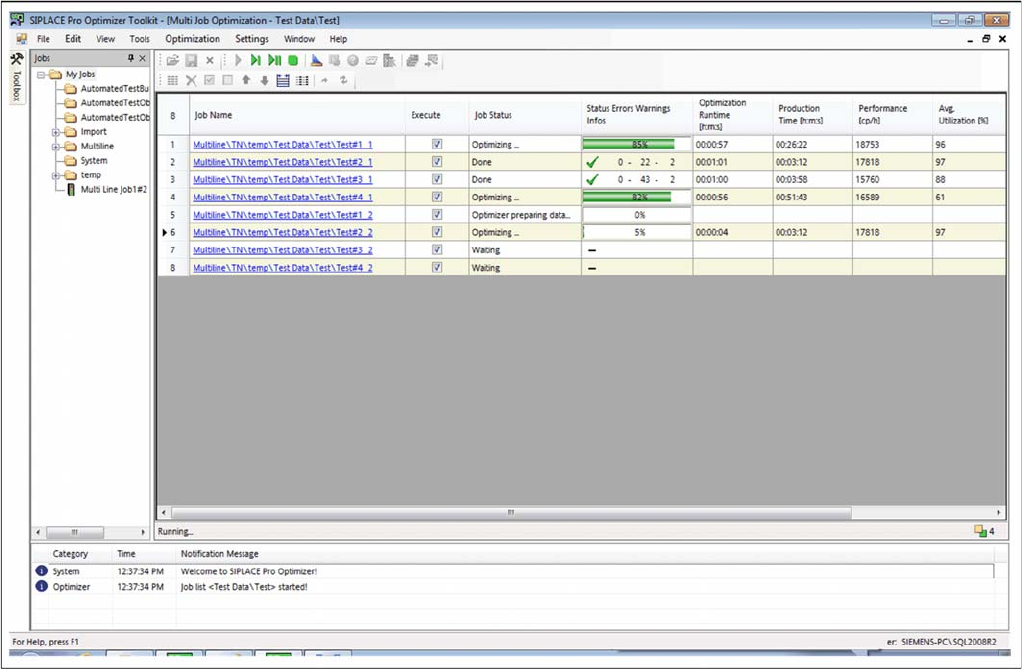
⇨ Calculation begins with the help of the Multi Job Optimization.
Icon Description
1 Enable the Ideal cycle times icon and the table will show the ideal cycle times.
2 Starts calculation of the ideal cycle times in the multi job optimizer.
3 The ideal cycle times will be refreshed from the clipboard or from temporary jobs.
4 The ideal cycle times will be deleted (even those in the clipboard, if present).
5 Delete the temporary jobs which are generated when calculating the ideal cycle times. This
enables you to release memory capacity in the SIPLACE Pro database.
How to Configure a Multi Line Job
Ideal Line Cycle Times 4.6.1 Initial Setups Added - Result
142 SIPLACE SiCluster Multiline SIPLACE SiCluster Multiline
Multi-job optimization.
▪The Status, Errors, Warnings, Infos column shows messages which occurred during the calculation
of the ideal cycle times.
How to Configure a Multi Line Job
4.8.1 Dialog Box: Settings Ideal Line Cycle Times
SIPLACE SiCluster Multiline SIPLACE SiCluster Multiline 143
Result
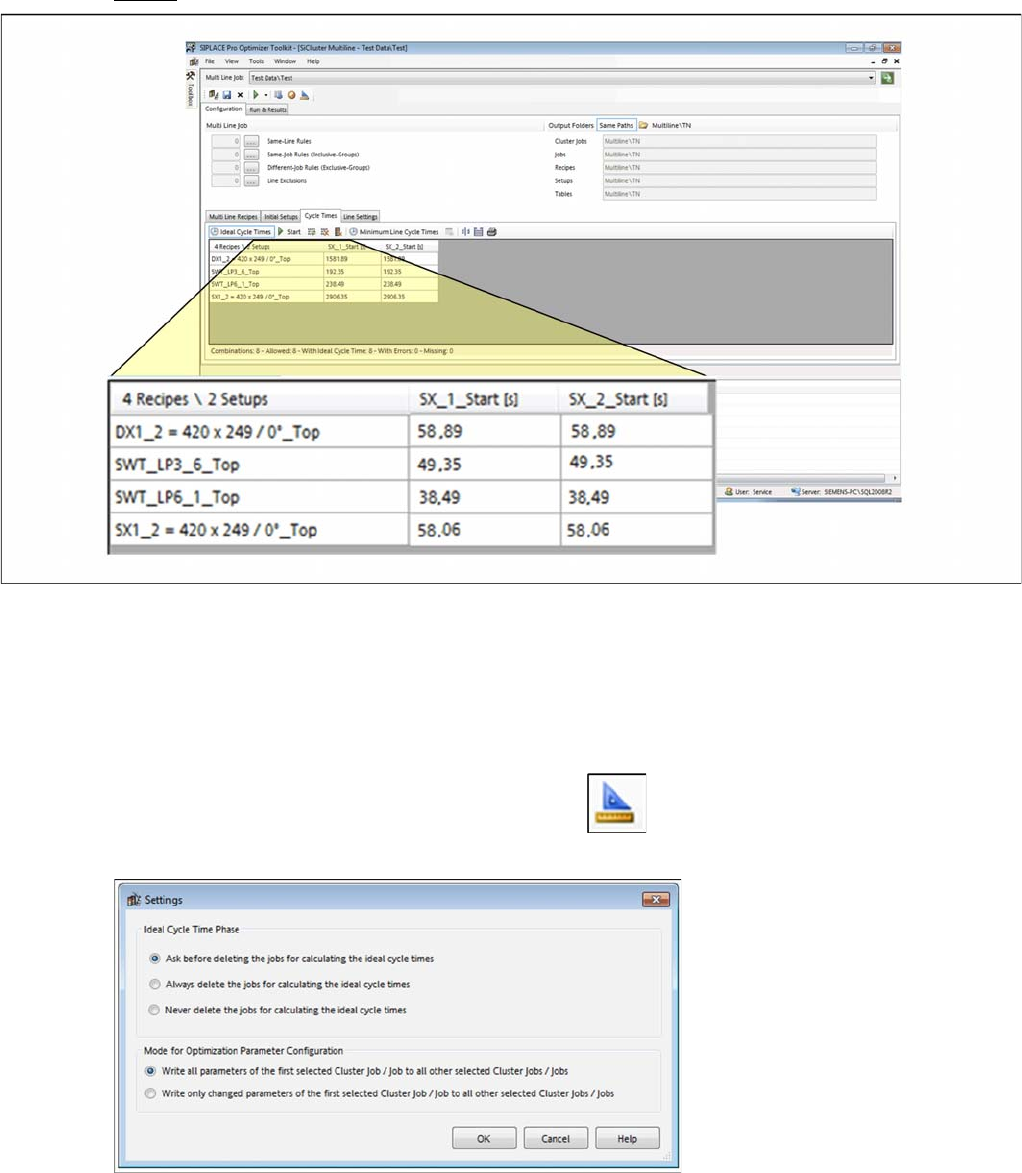
Result: ideal cycle times successfully calculated
▪ Calculation of ideal cycle times was successful.
4.8.1
4.8.1 Dialog Box: Settings
Dialog Box: Settings
You can define multi line job settings for handling temporary jobs which are created when ideal cycle
times are calculated.
► Go to the SiCluster Multiline menu and select the icon.
⇨ The Settings dialog box is opened.
Dialog box: settings