00197496-01_UM_SiClusterMultiline_DE_EN.pdf - 第139页
How to Configure a Multi Line Job 4.6.1 Initial Setups Added - Result Ideal Line Cycle Times SIPLACE SiCluster Multiline SIPLACE SiCluster Multiline 139 Result Result: process capability for setup ▪ Attribute B will be e…
How to Configure a Multi Line Job
Editing Process Capabilities for Lines (Optional) 4.6.1 Initial Setups Added - Result
138 SIPLACE SiCluster Multiline SIPLACE SiCluster Multiline
Procedure
► Select the icon from the toolbar in the table.
⇨ The Edit Process Capabilities dialog box will open.
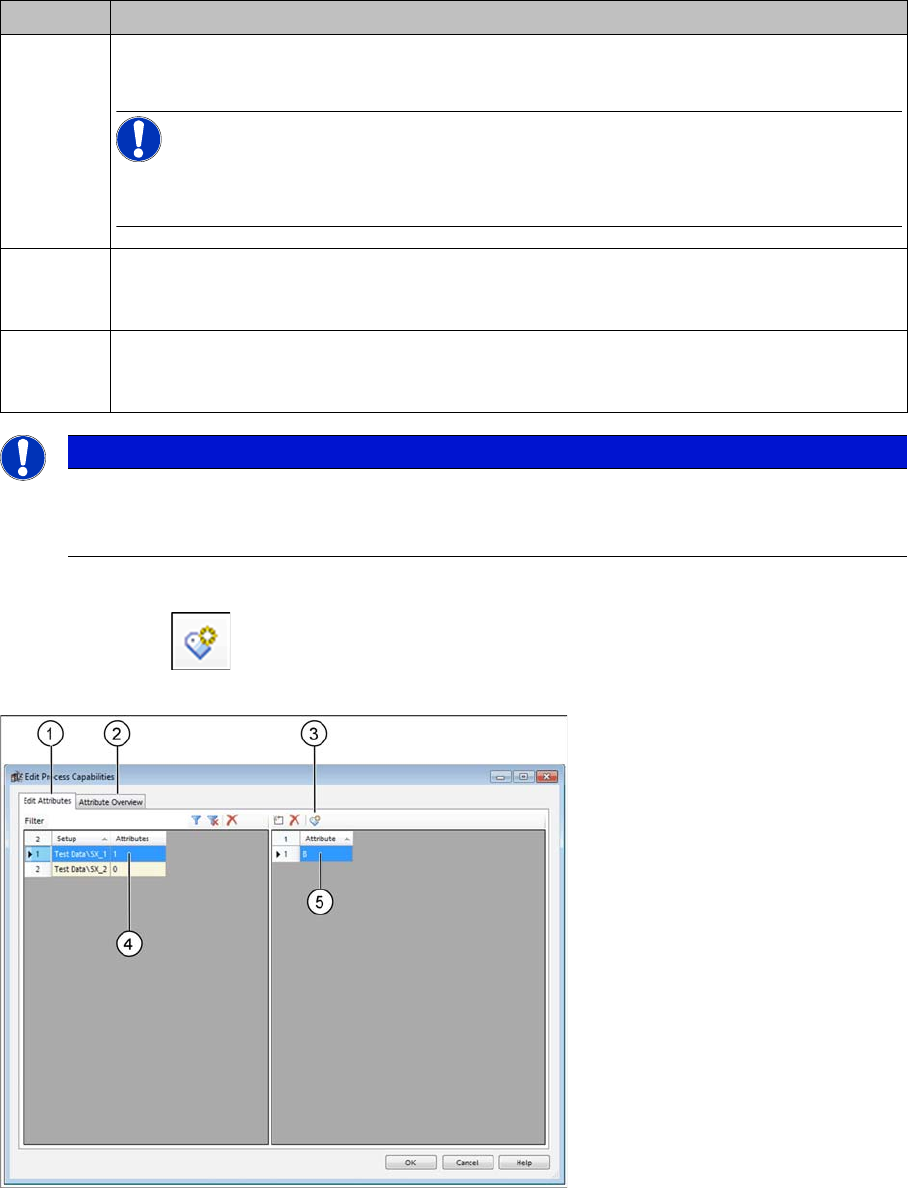
Dialog box: edit process capabilities
► Go to the Edit Attributes tab (1) and select the setup (4).
► Use the (3) icon to add a new attribute from the list of existing attributes. The "6.5 Adding Attributes"
[ ➙ 169] dialog box will open.
⇨ To continue this example (5), we will add attribute B . This attribute specifies that boards with the
process requirement B can be produced on this line.
⇨ The Attribute Overview (2) tab shows all the existing process capabilities for all recipes in the current
multi line job.
Icon Description
1 The Edit Process Capabilities dialog box will open.
You can also edit the process capabilities for the line or setup.
NOTICE!
These changes are for test purposes and are only effective in the context of the multi line
job. These changes are not automatically transferred to the SIPLACE Pro data.
2 The process capabilities from the SIPLACE Pro Line Editor will be imported into the multi
line job by SiCluster Multiline. Changes made to the SiCluster Multiline multi line job will
be overwritten with the data from SIPLACE Pro.
3 The process capabilities from the SIPLACE Multiline multi line job will be exported to the
SIPLACE Pro line descriptions. Data from the SIPLACE Pro Line Editor will be overwritten
by data from the SiCluster Multiline multi line job.
NOTICE
Alternative for existing process capabilities
With a doubleclick in the relevant cell of the table column Process Capabilities, you also open
the Edit Process Capabilities dialog box.
How to Configure a Multi Line Job
4.6.1 Initial Setups Added - Result Ideal Line Cycle Times
SIPLACE SiCluster Multiline SIPLACE SiCluster Multiline 139
Result
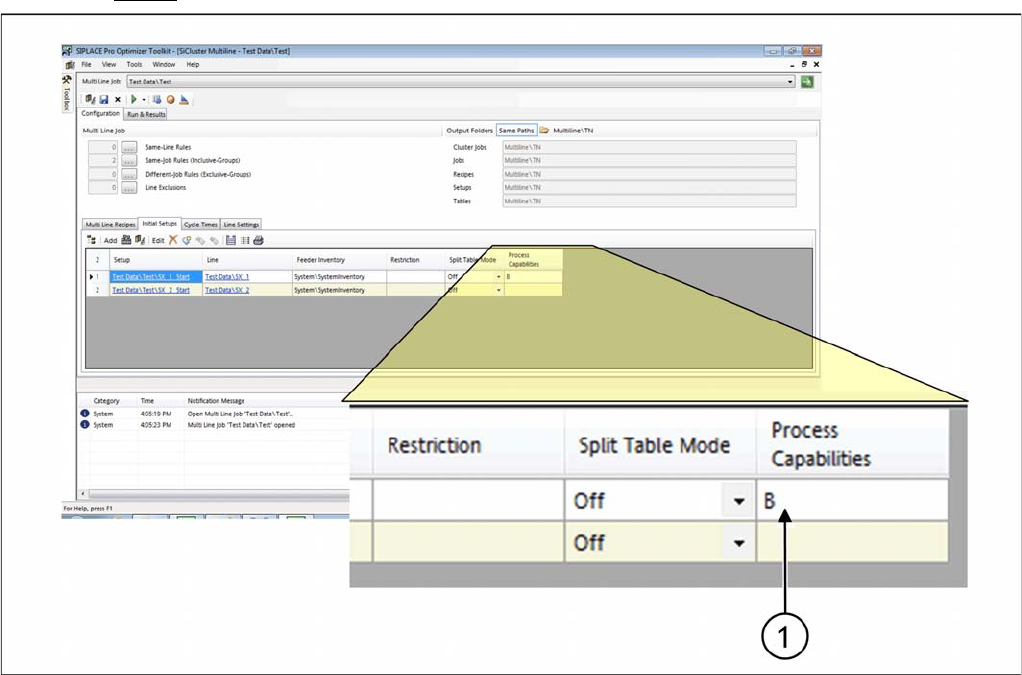
Result: process capability for setup
▪ Attribute B will be entered in the column Process capabilities.
▪ All recipes in the multi line job which have the attribute B, will be distributed on this line or on other
lines with the process capability B during clustering.
4.8
4.8 Ideal Line Cycle Times
Ideal Line Cycle Times
The ideal cycle time is a prerequisite for optimization of the multi line jobs. The ideal cycle times for the
recipes on the lines are generated in the Cycle Times tab. Since recipes can only be allocated to lines
for which an ideal cycle time exists, you need to calculate an ideal cycle time for each recipe on at least
one line, in order to make recipe-line assignment possible. The ideal cycle time for a recipe on the line
is the recipe cycle time calculated in the optimization runtime you defined, for the production with a setup
which has been specially optimized for this recipe and, if applicable, for its inclusive group.
If the ideal cycle time has already been calculated, this can be loaded from the clipboard.
As an option, you can define whether to supplement the minimum recipe cycle time for your production
line with the recipe-line-specific cycle time lower threshold. These cycle time lower thresholds forms the
minimum cycle time for the recipes which arise outside the placement process e.g. from a printer, test
system or furnace.
► Go to Configuration and select the Cycle Times tab.
How to Configure a Multi Line Job
Ideal Line Cycle Times 4.6.1 Initial Setups Added - Result
140 SIPLACE SiCluster Multiline SIPLACE SiCluster Multiline
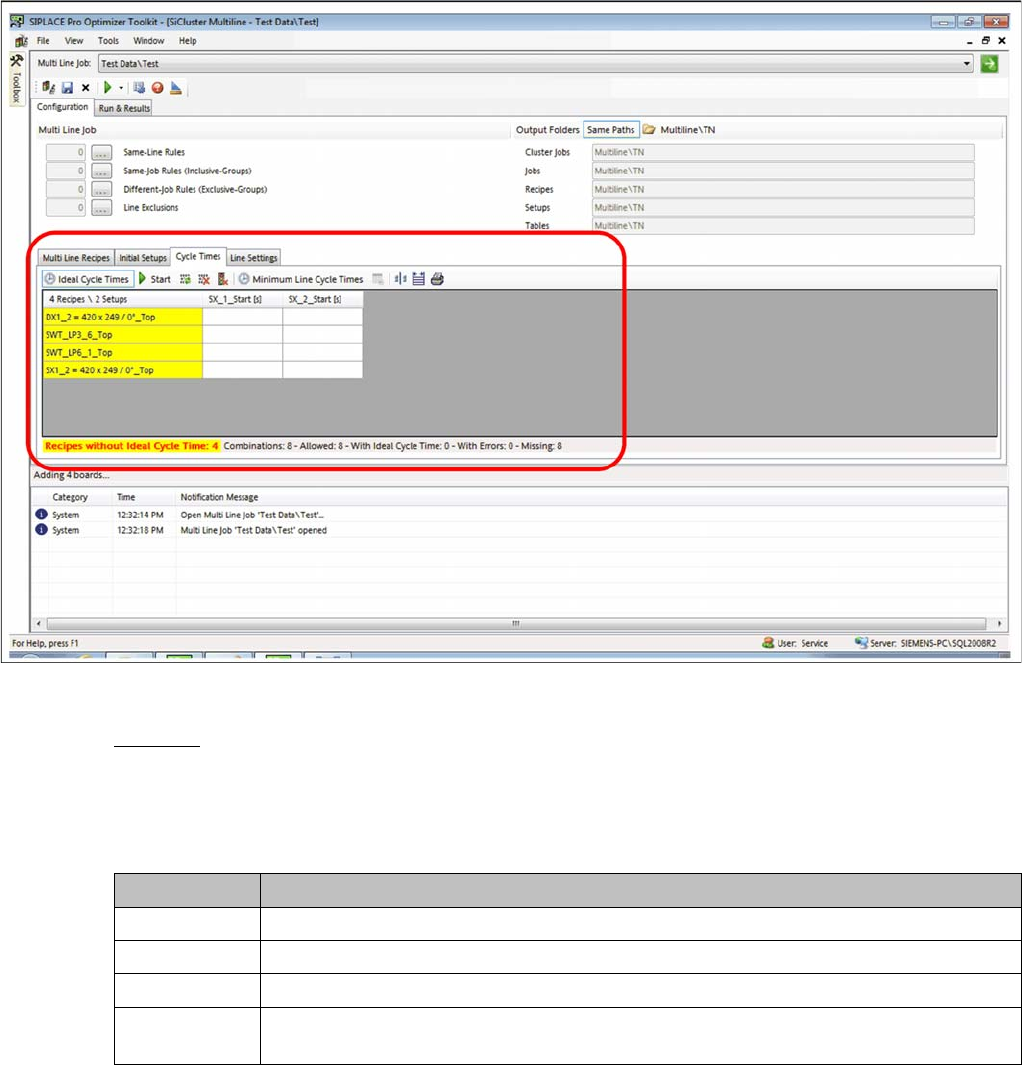
Tab: configuration: tab: cycle times
Example
The ideal cycle times are not yet present for any of the existing lines and need to be calculated. This is
shown by the yellow marking of cells. The process requirements for the boards will be fulfilled (marked
white).
The recipe and setup statuses will be color-coded in the cells of the table.
Status Description
White The line fulfills the process requirements of the respective boards.
Gray The line does not fulfill the process requirements for the board.
Yellow The ideal cycle times are not yet present and need to be created.
Red Errors have occurred when generating the ideal cycle times. To localize the source of
the error, doubleclick on the relevant table cell to start the Optimizer Messages.