00197496-01_UM_SiClusterMultiline_DE_EN.pdf - 第125页
How to Configure a Multi Line Job 4.3.3 Board Added - Result Adding Recipes or Boards SIPLACE SiCluster Multiline SIPLACE SiCluster Multiline 125 4.3.3 4 . 3 . 3 B o a r d A d d e d - R e s u lt Board Added - Result You …
How to Configure a Multi Line Job
Adding Recipes or Boards 4.3.2 Selecting Board Side for Adding
124 SIPLACE SiCluster Multiline SIPLACE SiCluster Multiline
4.3.2
4.3.2 Selecting Board Side for Adding
Selecting Board Side for Adding
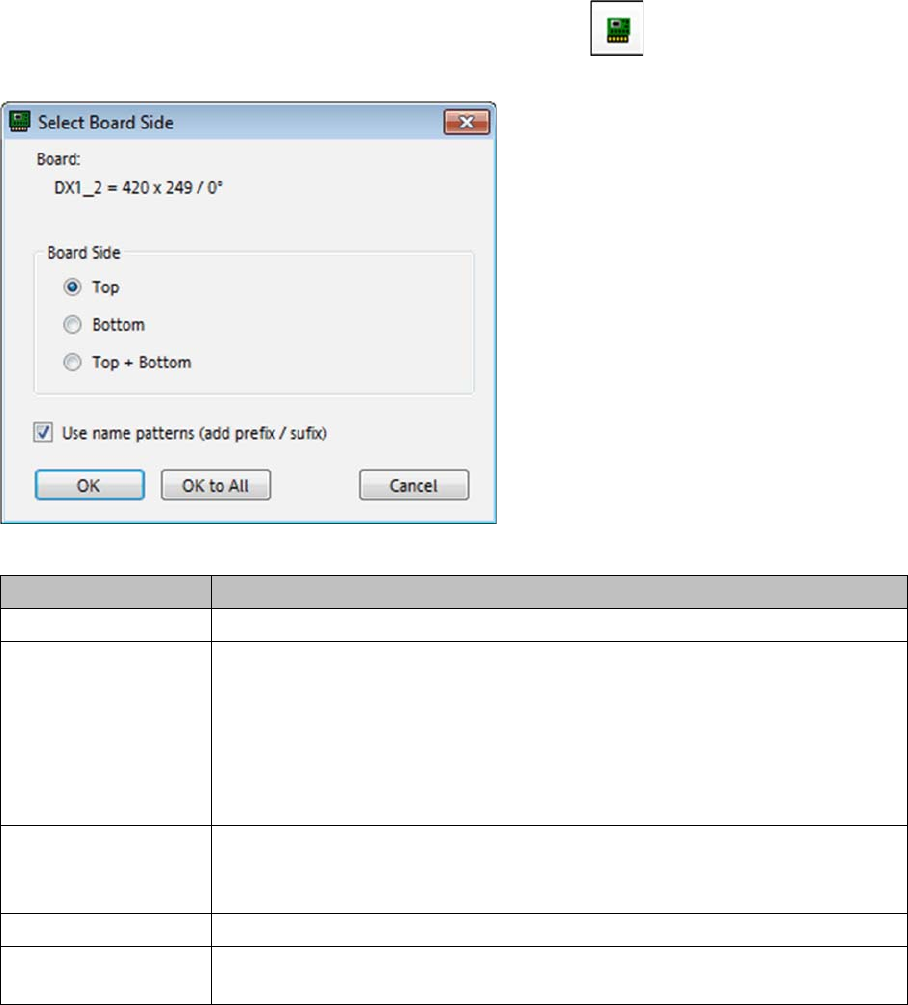
If you selected double-sided board descriptions, you will be asked whether the board top and/or bottom
sides should be added. If multiple boards were selected, a separate dialog box will be shown for each
board.
► To add boards, go to the Multi Line Recipes tab and select the icon.
⇨ The Select Board Sides dialog box will be opened.
Dialog box: select board sides
Parameter Description
Board Shows the name of the board you selected.
Board side Top
Defines that the top side of the board is to be added.
Bottom
Defines that the bottom side of the board is to be added.
Top + bottom
Defines that the top and bottom side of the board are to be added.
Use name patterns
(add prefix / suffix)
If special parts of the name have been used to identify the board, you can de-
fine here whether to have this part of the name applied or not.
See also "4.3.1 Defining Options for Adding Boards" [ ➙ 123].
OK Applies the settings for this board.
OK to all The settings are applied for all selected boards. A new dialog box is not shown
for each board.
How to Configure a Multi Line Job
4.3.3 Board Added - Result Adding Recipes or Boards
SIPLACE SiCluster Multiline SIPLACE SiCluster Multiline 125
4.3.3
4.3.3 Board Added - Result
Board Added - Result
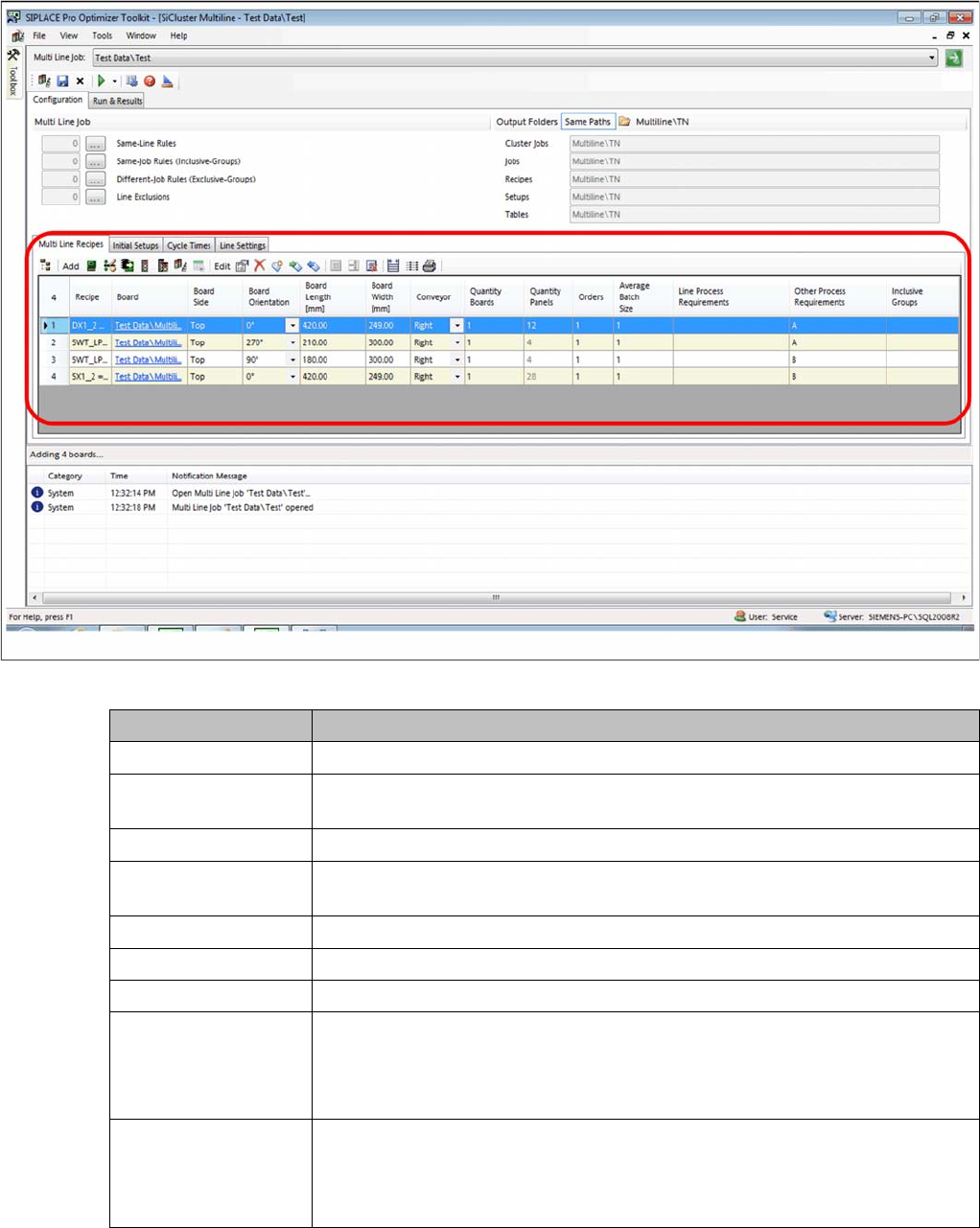
You have added four boards. The board side is defined as top is each case. Attributes A and B are the
Other Process Requirements. No inclusive groups have been formed yet.
Result: board added
Parameter Description
Recipe Shows the recipe path and name.
Board Shows the path and the name of the board. Click on the entry to open the board
in the SIPLACE Pro Editor.
Board side Shows the top or bottom side of the board.
Board orientation Shows the position of the board in the board conveyor (0, 90, 180, 270 de-
grees).
Board length [mm] Shows the length of the board at 0 degrees orientation in the board conveyor.
Board width [mm] Shows the width of the board at 0 degrees orientation in the board conveyor.
Conveyor Shows which conveyor lane the board is in.
Number of boards Shows the overall quantity of boards for production. The Average Batch Size
value changes accordingly.
You can edit this value and enter a new production quantity. If the value is
changed, the number of panels will change also.
Number of Panels Shows the overall quantity of panels for production. The Average Batch Size
value changes accordingly.
You can edit this value and enter a new production quantity. If the value is
changed, the number of boards will change also.
How to Configure a Multi Line Job
Adding Recipes or Boards 4.3.3 Board Added - Result
126 SIPLACE SiCluster Multiline SIPLACE SiCluster Multiline
Orders Shows the number of individual jobs with which the overall production quantity
of boards or panels is produced.
Example: you want to produce 4000 boards over the entire planning period.
Each individual ERP job for this recipe contains 500 boards. In this case 8 is
entered as the number of orders.
Average Batch Size Shows the average number of boards in the individual jobs. The result shown
depends on your selection (panel or board).
Line Process Require-
ments
Shows which process capabilities the line must have in order for the recipe to
be produced on that line.
Double click on this cell to open the Edit Process Requirements dialog box.
Other Process Re-
quirements
Shows the other process requirements for the recipes. These process require-
ments for the recipes do not require the lines to which the recipe is allocated to
have any special process capabilities. The other process requirements can,
however, be used to define rules.
See also "8 Working with the Rule Editor" [ ➙ 175]
Inclusive groups Shows the affiliation to an inclusive group.
Parameter Description