00197496-01_UM_SiClusterMultiline_DE_EN.pdf - 第117页
How to Configure a Multi Line Job SIPLACE SiCluster Multiline SIPLACE SiCluster Multiline 117 4 4 H o w t o C o n f ig u r e a M u lti L in e J o b How to Configure a Multi Line Job The Configuration tab contains the fol…
Getting Started and Overview of SiCluster Multiline
Tab - Run & Results 3.4.2 Tab - Cluster Job Details
116 SIPLACE SiCluster Multiline SIPLACE SiCluster Multiline
3.4.2
3.4.2 Tab - Cluster Job Details
Tab - Cluster Job Details
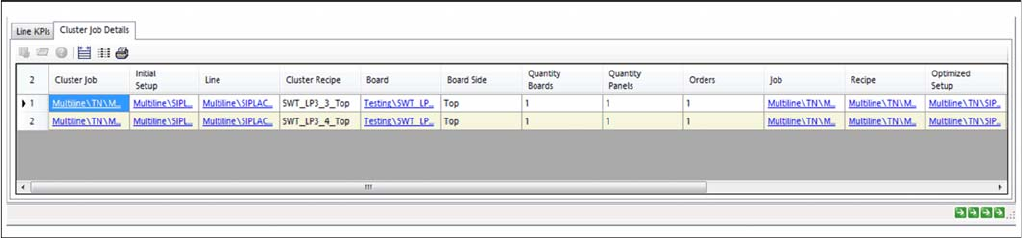
The Cluster Job Details tab shows which recipes are allocated to the lines and the corresponding pa-
rameters for the cluster job. If clustering has already been performed within the lines, you will see the
setups (cluster) in which the recipes are present.
Run & results - tab: cluster job details
How to Configure a Multi Line Job
SIPLACE SiCluster Multiline SIPLACE SiCluster Multiline 117
4
4 How to Configure a Multi Line Job
How to Configure a Multi Line Job
The Configuration tab contains the following four tabs in which you need to collect the input data for the
multi line job and define the required settings.
► Perform the following steps, which are described in this chapter using an example, to configure a
multi line job.
▪ In the Configuration tab
– Organizing a Multi Line Job
– Defining the Output Folder
▪ In the Configuration => Multi Line Recipes tab
– Adding Recipes or Boards
– Forming Inclusive Groups (Optional)
– Editing Process Requirements for Boards (Optional)
▪ In the Configuration => Initial Setups tab
– Adding Initial Setups
– Editing Process Capabilities for Lines (Optional)
▪ In the Configuration => Cycle Times tab
– Creating Ideal Cycle Times for Recipes on Lines
– Defining Recipe-Specific Cycle Times on Lines (Optional)
▪ In the Configuration => Line Settings tab
– Individual Line Settings (e.g. Minimum Cycle Time on Line)
– Entering/Allow Prompted Line Production Times
How to Configure a Multi Line Job
Organizing a Multi Line Job
118 SIPLACE SiCluster Multiline SIPLACE SiCluster Multiline
4.1
4.1 Organizing a Multi Line Job
Organizing a Multi Line Job
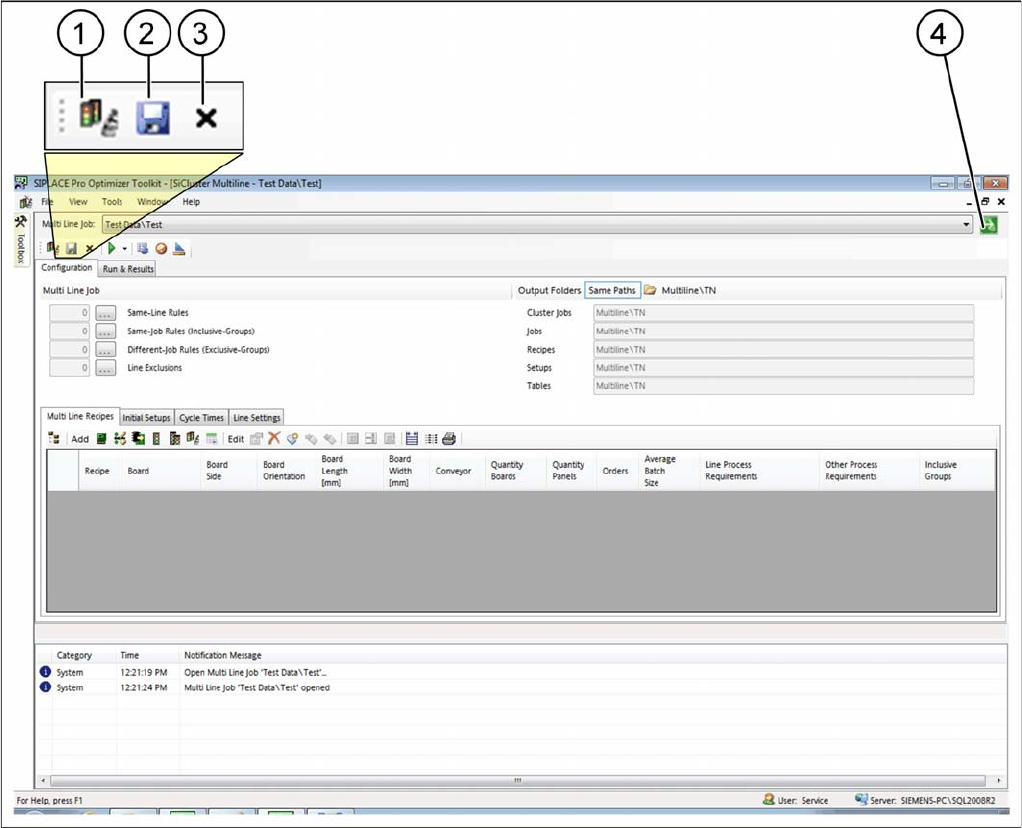
Organizing a multi line job
1. Creates a multi line job
2. Saves a multi line job
3. Closes a multi line job
4. Opens multi line jobs which have already been opened
Selecting from all existing cluster jobs
► Go to the SiCluster Multiline menu and select the (1) icon.
⇨ The Organize Multi Line Jobs dialog box will open.
► Select a multi line job and open it with the Open Multi Line Job button or a doubleclick.
Selecting Open Multi Line Jobs
► Go to the SiCluster Multiline menu and select the (4) icon.
⇨ The list box shows the open multi line jobs.
► Select a multi line job from the list box.
Backup of multi line jobs
► Go to the SiCluster Multiline menu and select the (2) icon.
⇨ A backup will be created of the active multi line job.