00197496-01_UM_SiClusterMultiline_DE_EN.pdf - 第188页
Tips and Tricks Inserting the Attributes with the SIPLACE Data Mainten ance Tool 188 SIPLACE SiCluster Multiline SIPLACE SiCluster Multiline 10.4 1 0 . 4 I n s e r t in g t h e A t t r ib u t e s w it h t h e S I P L A C…
Tips and Tricks
Creating a Template for Multi Line Jobs
SIPLACE SiCluster Multiline SIPLACE SiCluster Multiline 187
10
10 Tips and Tricks
Tips and Tricks
10.1
10.1 Creating a Template for Multi Line Jobs
Creating a Template for Multi Line Jobs
Create a multi line job with all lines and all settings, including the multiline cluster/optimization settings.
Each time you use SiCluster Multiline, this multi line job will be copied as a template. This means that all
settings are available and you can immediately begin to import the job data with the CSV Import function.
You can then begin the multi line clustering procedure.
10.2
10.2 Optimizing Ideal Cycle Times for all Existing Boards
Optimizing Ideal Cycle Times for all Existing Boards
When introducing SiCluster Multiline, we recommend that you optimize the ideal cycle time for all exist-
ing boards and all lines.
This makes the ideal cycle times available for all recipe-line combinations. When using SiCluster Multi-
line, you can then use the cycle times directly from the clipboard. You will only have to optimize the ideal
cycle times for new boards. The most time needed for optimizing ideal cycle times has been invested
and you can begin the actual mutliline clustering more quickly.
10.3
10.3 Creating a Board as Central Editor for Defining Process Requirements
Creating a Board as Central Editor for Defining Process Require-
ments
Create a board in SIPLACE Pro which is only used to define the process attributes. All the process at-
tributes needed in the production process will be defined here. This board is therefore the central editor
for defining process attributes. The board itself has no placement position, fiducials etc. as it is not in-
tended for placement.
Tips and Tricks
Inserting the Attributes with the SIPLACE Data Maintenance Tool
188 SIPLACE SiCluster Multiline SIPLACE SiCluster Multiline
10.4
10.4 Inserting the Attributes with the SIPLACE Data Maintenance Tool
Inserting the Attributes with the SIPLACE Data Maintenance Tool
The SIPLACE Data Maintenance Tool can be used to quickly import the process requirements and pro-
cess capabilities.
Board process requirements
To avoid having to edit the process requirements separately for each individual board, use the SIPLACE
Data Maintenance Tool.
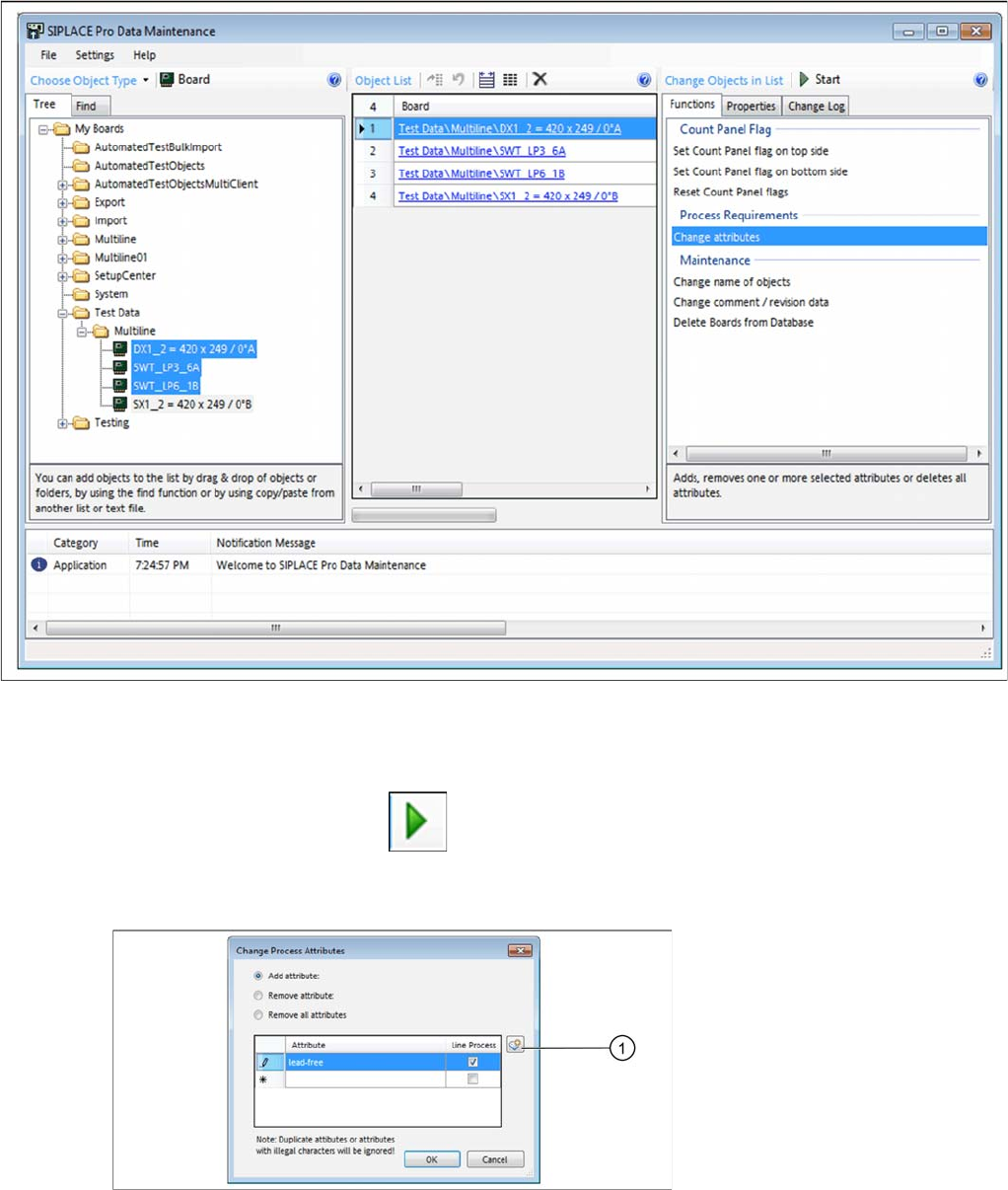
SIPLACE Data Maintenance Tool – boards selected
► Select the boards and add these to the list of objects.
► Go to Process Requirements and select the function Edit Attributes.
► Start the process with Start .
► A dialog box will open and you need to select whether to process the top, bottom or both board sides.
⇨ The Change Process Attributes dialog box will open.
Dialog box: change process attributes
Tips and Tricks
Inserting the Attributes with the SIPLACE Data Maintenance Tool
SIPLACE SiCluster Multiline SIPLACE SiCluster Multiline 189
► You can enter an attribute manually or select an attribute which is already present in the system from
the list, by clicking on the icon (1) .
► For more information about handling the SIPLACE Data Maintenance Tool, refer to the Online Help.
Line process capabilities
To avoid having to edit the process capabilities separately for each individual line, use the SIPLACE
Data Maintenance Tool.
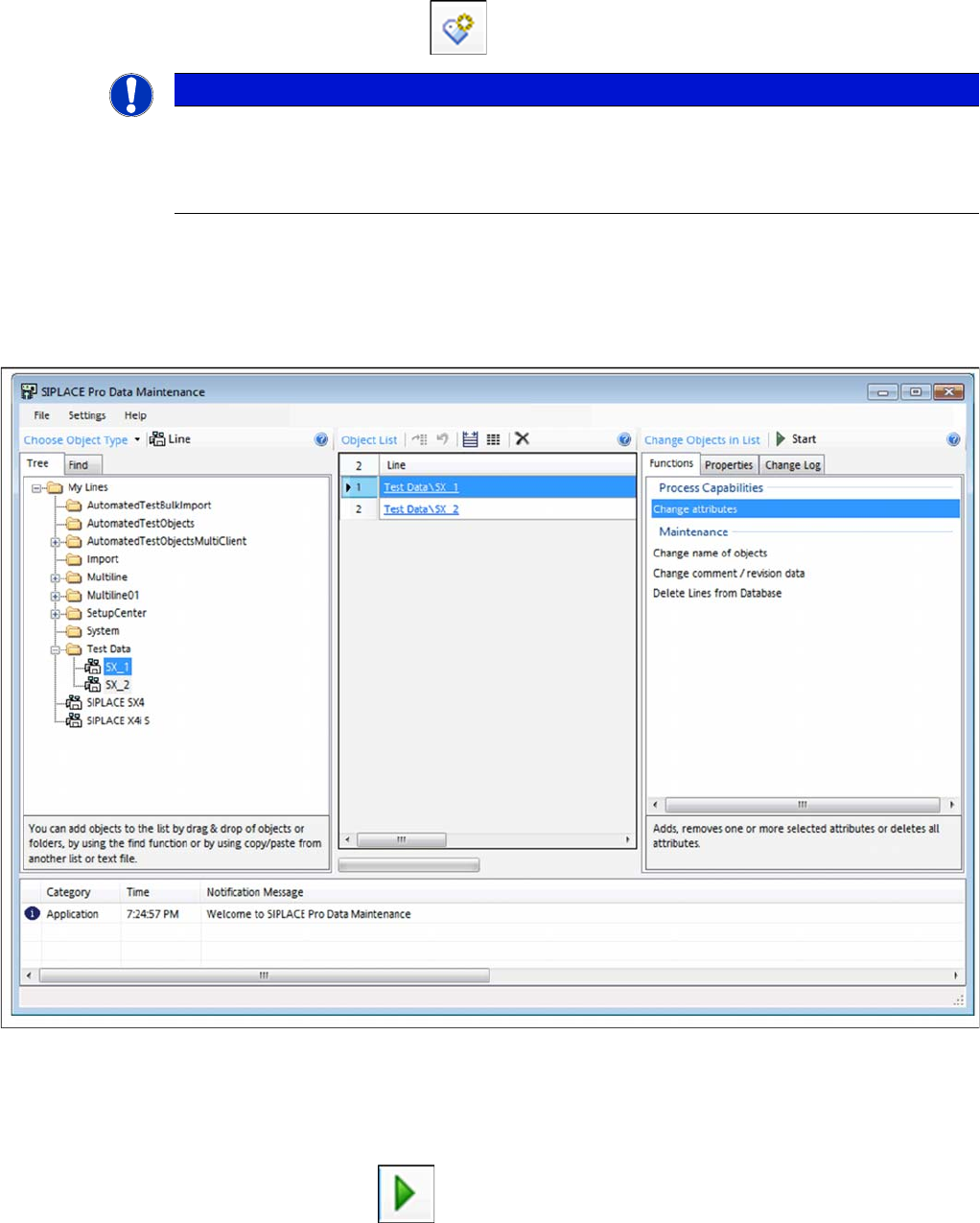
SIPLACE Data Maintenance Tool – line selected
Procedure
► Select the lines and add these to the list of objects.
► Go to Process Capabilities and select the function Change Attributes.
► Start the process with Start .
⇨ The Change Process Attributes dialog box will open.
NOTICE
Process attributes for selection already in the list
If all process attributes have already been defined in a board (see tip "10.3 Creating a Board
as Central Editor for Defining Process Requirements" [ ➙ 187]), these process attributes will
appear for selection in the list.