00197496-01_UM_SiClusterMultiline_DE_EN.pdf - 第128页
How to Configure a Multi Line Job Forming Inclusive Groups (Optional) 4.3.3 Board Added - Result 128 SIPLACE SiCluster Multiline SIPLACE SiCluster Multiline Icon Descriptio n 1 The selected recipes will be add ed to a se…
How to Configure a Multi Line Job
4.3.3 Board Added - Result Forming Inclusive Groups (Optional)
SIPLACE SiCluster Multiline SIPLACE SiCluster Multiline 127
4.4
4.4 Forming Inclusive Groups (Optional)
Forming Inclusive Groups (Optional)
Recipes can be gathered together into one job by defining inclusive groups. Recipes with identical inclu-
sive group names are clustered to form one job.
Inclusive groups are often used to cluster the top and bottom sides of a board into a common setup. For
example, the top and bottom side(s) of boards can be assigned to the same line first of all. During clus-
tering within the line, the top and bottom side(s) are then allocated to one setup together.
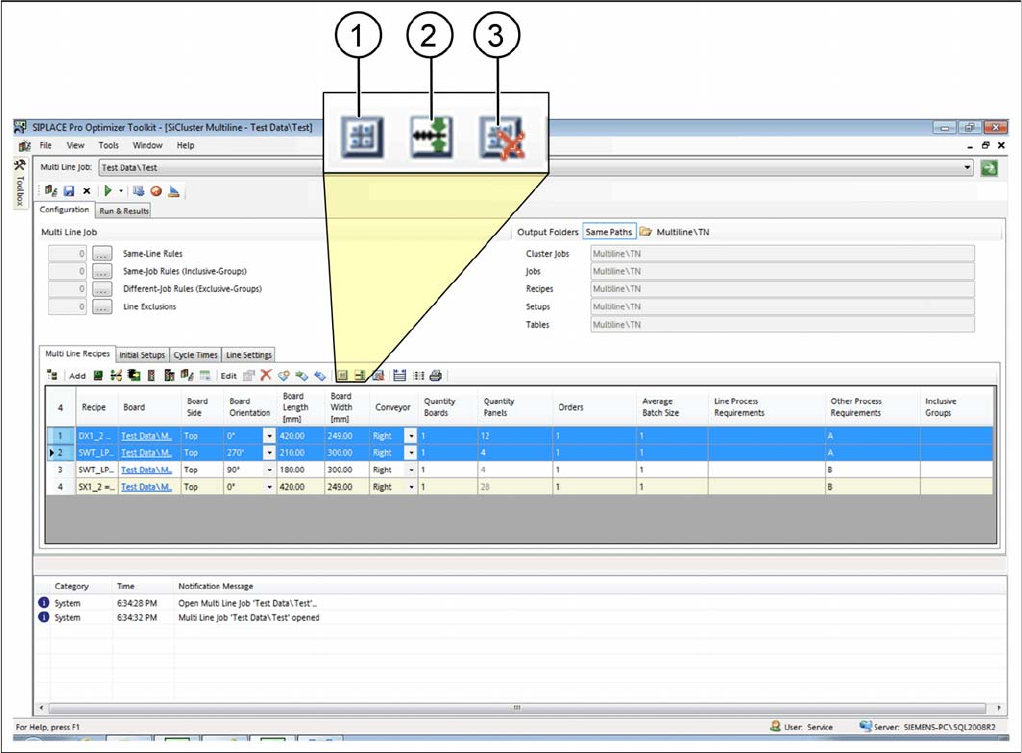
► Select one or more recipes in the multi line recipes table.
⇨ The icons for editing inclusive groups will be enabled.
Tab: multi line recipe: inclusive groups
How to Configure a Multi Line Job
Forming Inclusive Groups (Optional) 4.3.3 Board Added - Result
128 SIPLACE SiCluster Multiline SIPLACE SiCluster Multiline
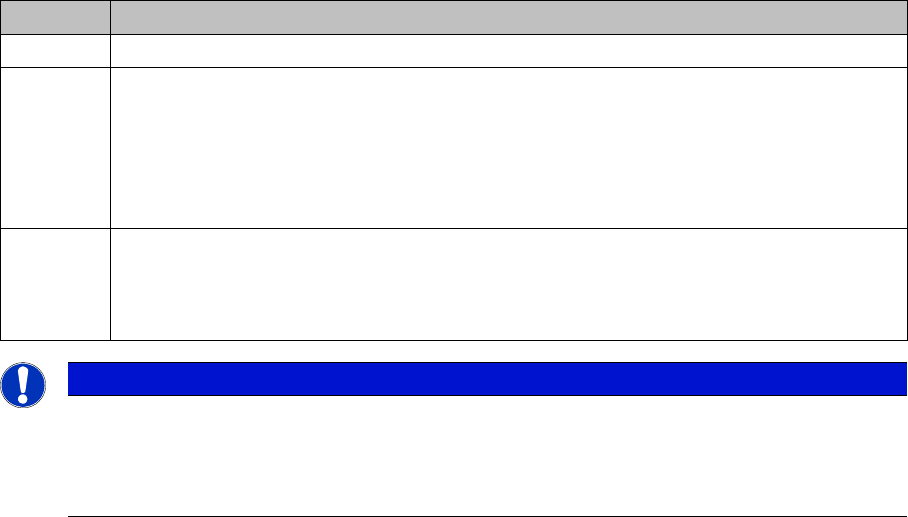
Icon Description
1 The selected recipes will be added to a separate inclusive group.
2 Within the selected recipes, the top and bottom side of each board will be added to a sep-
arate inclusive group.
The "4.4.2 Dialog Box: Put Into Separate Inclusive Groups " [ ➙ 130] dialog box will open.
This enables you to define the designator for the top side and/or bottom side in the recipe
name. This designator is used by the search function to locate the corresponding top and
bottom sides.
3 The binding of recipes to the inclusive group will be canceled.
If multiple boards with inclusive groups have been selected, you can delete individual in-
clusive groups. In this case, the "4.4.3 Dialog Box: Remove Inclusive Groups"
[➙131]dialog box will open.
NOTICE
Creating inclusive groups in the Rule Editor
Inclusive groups can be created with the help of the Rule Editor. See also "8 Working with the
Rule Editor" [ ➙ 175].
► Open the Rule Editor with the Same Job Rules (Inclusive Groups) function.
How to Configure a Multi Line Job
4.4.1 Example of Inclusive Groups Forming Inclusive Groups (Optional)
SIPLACE SiCluster Multiline SIPLACE SiCluster Multiline 129
4.4.1
4.4.1 Example of Inclusive Groups
Example of Inclusive Groups
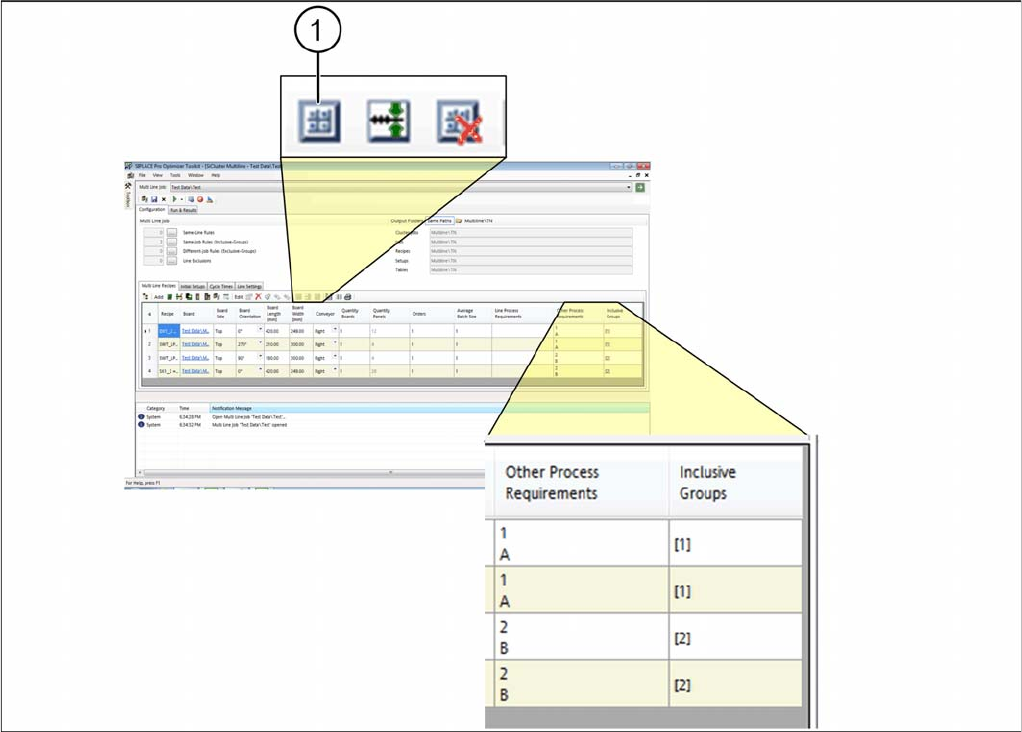
The two top boards and the the two bottom boards are marked in the table and each are gathered to
form an inclusive group, with the icon (1).
Example: inclusive groups of boards
There are two inclusive groups with the name [1] and with the name [2]. The other process requirements
are generated automatically.
▪ In the Inclusive Groups column, the two top boards are marked with the group name [1].
▪ In the Inclusive Groups column, the two bottom boards are marked with the group name [2].
▪ In the Other Process Requirements column, the group name 1 is also entered as an attribute for the
two top boards. A stands for an already existing process requirement which was, however, not de-
fined as a line process.
▪ In the Other Process Requirements column, the group name 2 is also entered as an attribute for the
two top boards. B stands for an already existing process requirement which was, however, not de-
fined as a line process.
These entries are used to create a rule which you can view and edit in the Rule Editor.