00197496-01_UM_SiClusterMultiline_DE_EN.pdf - 第181页
Import Wizard for CSV Data SIPLACE SiCluster Multiline SIPLACE SiCluster Multiline 181 9 9 I m p o r t W iz a r d f o r C S V D a t a Import Wizard for CSV Data With the help of the CSV Import Wizard , you can import boa…
Working with the Rule Editor
Creating Rules for Line Exclusions
180 SIPLACE SiCluster Multiline SIPLACE SiCluster Multiline
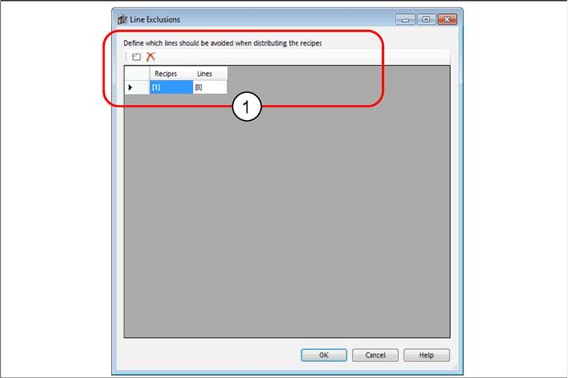
Dialog box: line exclusions - result
Example of line exclusions
The process requirement "S-line" is entered for all lines with S tables.
The process requirement "Customer X" is entered for some recipes.
To prevent the recipes from customer X being produced on an S-line, a new line exclusion will be created
with the recipe rule "Customer X" and a line rule with "S-line".
Import Wizard for CSV Data
SIPLACE SiCluster Multiline SIPLACE SiCluster Multiline 181
9
9 Import Wizard for CSV Data
Import Wizard for CSV Data
With the help of the CSV Import Wizard, you can import board data or the minimum line cycle times for
your production line.
▪The Configuration => Multi Line Recipes tab enables you to import job data for the boards to be pro-
duced.
▪The Configuration => Cycle Times tab enables you to import the minimum line cycle times for your
production line.
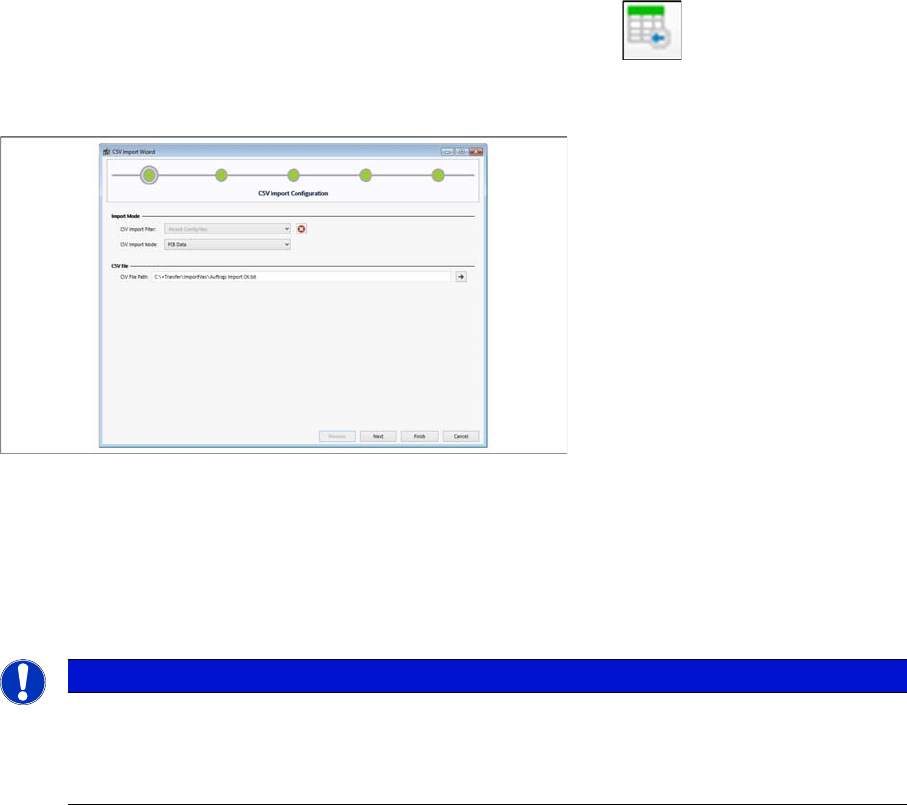
► Open the CSV Import Wizard in the relevant tab by clicking on the icon.
⇨ The CSV Import – Configuration dialog box will open.
⇨ The steps shown in this wizard depend on the function selected.
CSV import wizard for CSV data - CSV import configuration
► Select Import Mode.
PCB Data
Selects the importing of board data. The respective boards must be present in SIPLACE Pro.
Minimum Line Cycle Times
Selects the importing of minimum line cycle times for your production line.
► Select the CSV file path in *.csv or *.txt format.
► Click Next to confirm.
⇨ The CSV Import Delimiters dialog box will open.
NOTICE
Example with PCB data
The screenshots in this section show the process with PCB Data. The process with Minimum
Line Cycle Times is largely identical. Any differences will be explicitly indicated in the descrip-
tion.
Import Wizard for CSV Data
CSV Import Delimiters
182 SIPLACE SiCluster Multiline SIPLACE SiCluster Multiline
9.1
9.1 CSV Import Delimiters
CSV Import Delimiters
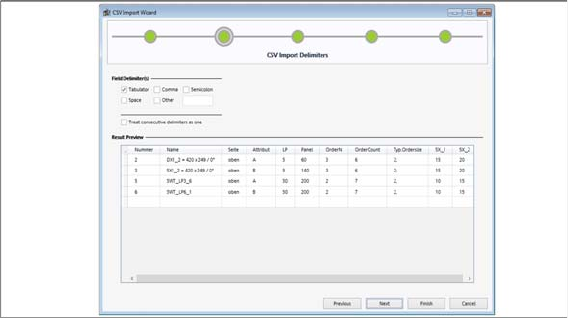
CSV import wizard for CSV data - CSV import delimiters
► Go to Field Delimiters and select the relevant delimiters for your CSV file.
▪ The most common characters (tab, comma etc.) can be selected with checkboxes. You can also en-
ter a character of your choice in the text box at Other.
▪ Multiple delimiters in sequence will be recognized as a single delimiter with the option Treat consec-
utive delimiters as one.
▪ A preview of the data separated with delimiters is shown at Result Preview. This preview enables
you, for example, to recognize format errors in the CSV files to be imported.
► Click Next to confirm.
⇨ The CSV Import Column Mappings dialog box will open.