00197496-01_UM_SiClusterMultiline_DE_EN.pdf - 第132页
How to Configure a Multi Line Job Editing Process Requirements fo r Recipes (Optional) 4.4.3 Dialog Box: Remove I nclusive Groups 132 SIPLACE SiCluster Multiline SIPLACE SiCluster Multiline 4.5 4 . 5 E d itin g P r o c e…
How to Configure a Multi Line Job
4.4.3 Dialog Box: Remove Inclusive Groups Forming Inclusive Groups (Optional)
SIPLACE SiCluster Multiline SIPLACE SiCluster Multiline 131
Edit field: Position of designators
4.4.3
4.4.3 Dialog Box: Remove Inclusive Groups
Dialog Box: Remove Inclusive Groups
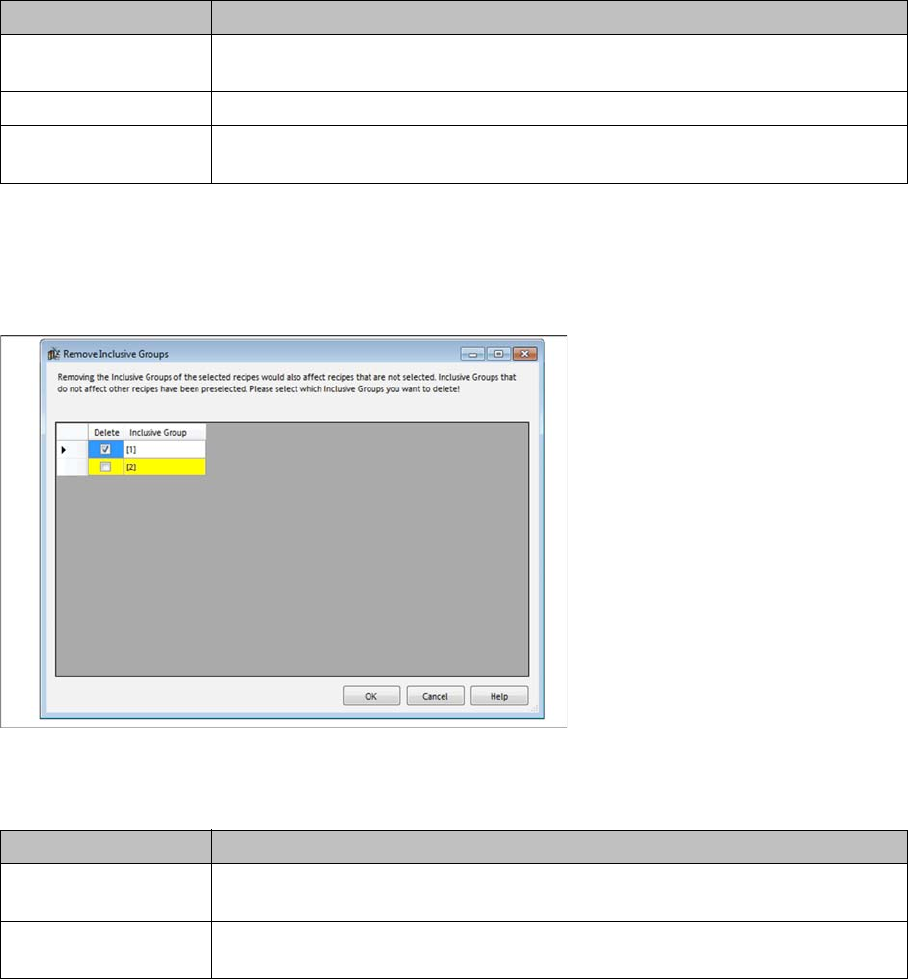
If the recipes in inclusive groups are only partly marked, this dialog box enables you to specify which
inclusive groups are to be deleted.
Observe the information text in this dialog box.
Dialog box: remove inclusive groups
Edit field:
Example
▪ Recipe1 and recipe2 form an inclusive group. Attribute (1)
▪ Recipe1 and recipe3 form an inclusive group. Attribute (2)
– To delete, mark recipe1 and recipe2. The Remove Inclusive Groups dialog box will appear and
attribute (1) will become white and attribute (2) will be marked yellow.
– The attributes which are not only in the marked recipes but which are also present in other reci-
pes will be marked yellow as well. If the Delete checkbox is marked with the yellow attribute, the
inclusive group will be deleted. The attribute will also be deleted but will remain in the recipes
which are not marked.
– If the attribute (2) is also marked for deletion, the inclusive group will be deleted and the attribute
removed from recipe1. However, the attribute will remain in recipe3.
Parameter Description
Begin Defines that the board side designator is to be at the beginning of the recipe
name.
End Defines that the board side designator is to be at the end of the recipe name.
Any (designator may
occur only once)
Defines that the board side designator can be at any position in the recipe
name.
Parameter Description
Delete Enable this checkbox to mark an inclusive group for deletion. Click on OK and
the marked inclusive group will be deleted.
Board side designator
for bottom side
Shows the designator for the inclusive group.
How to Configure a Multi Line Job
Editing Process Requirements for Recipes (Optional) 4.4.3 Dialog Box: Remove Inclusive Groups
132 SIPLACE SiCluster Multiline SIPLACE SiCluster Multiline
4.5
4.5 Editing Process Requirements for Recipes (Optional)
Editing Process Requirements for Recipes (Optional)
You can allocate Process requirements to the recipes. See also "6 Working with Process Requirements
and Process Capabilities" [ ➙ 163].
SiCluster Multiline takes into account the process requirements by distributing boards with certain line
process requirements in SiCluster Multiline only on those lines which also have these process capabili-
ties. The rules which are defined based on the other process requirements must also be observed.
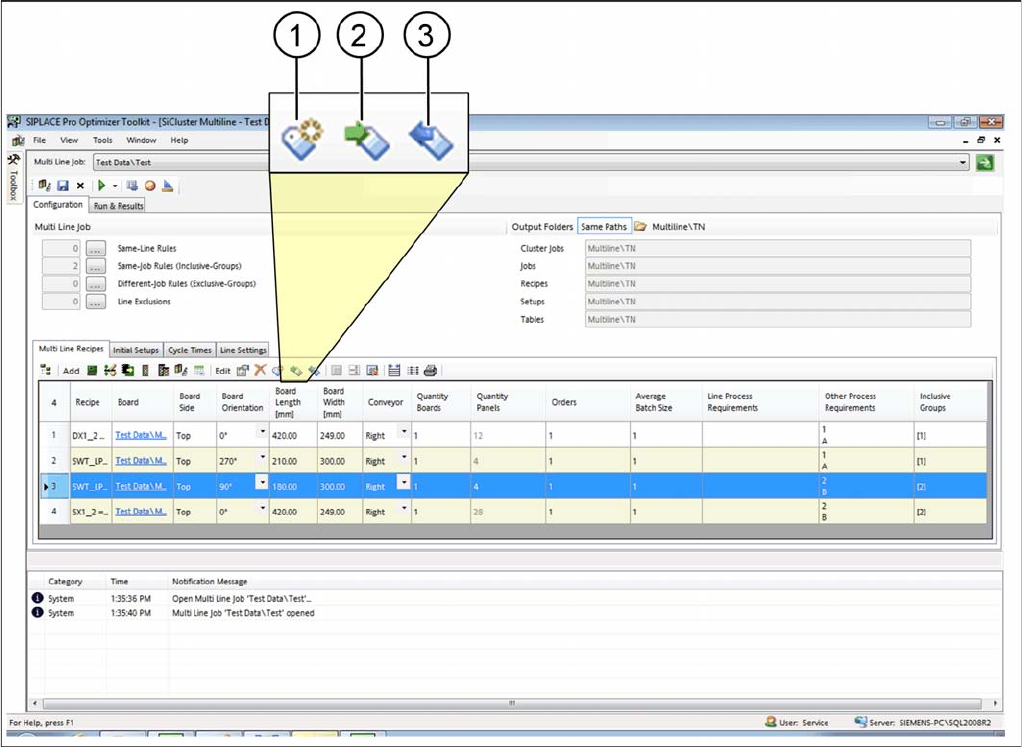
In this example, the process requirements A and B are defined. For example, the purpose of this could
be to specify that boards with the process requirement A are only produced on lines for customer A and
boards with the process requirement B are only produced on lines for customer B.
► Select one or more recipes in the multi line recipes table.
⇨ The icons for editing process requirements will be enabled.
Tab: multi line recipe: process requirements
How to Configure a Multi Line Job
4.4.3 Dialog Box: Remove Inclusive Groups Editing Process Requirements for Recipes (Optional)
SIPLACE SiCluster Multiline SIPLACE SiCluster Multiline 133
Procedure
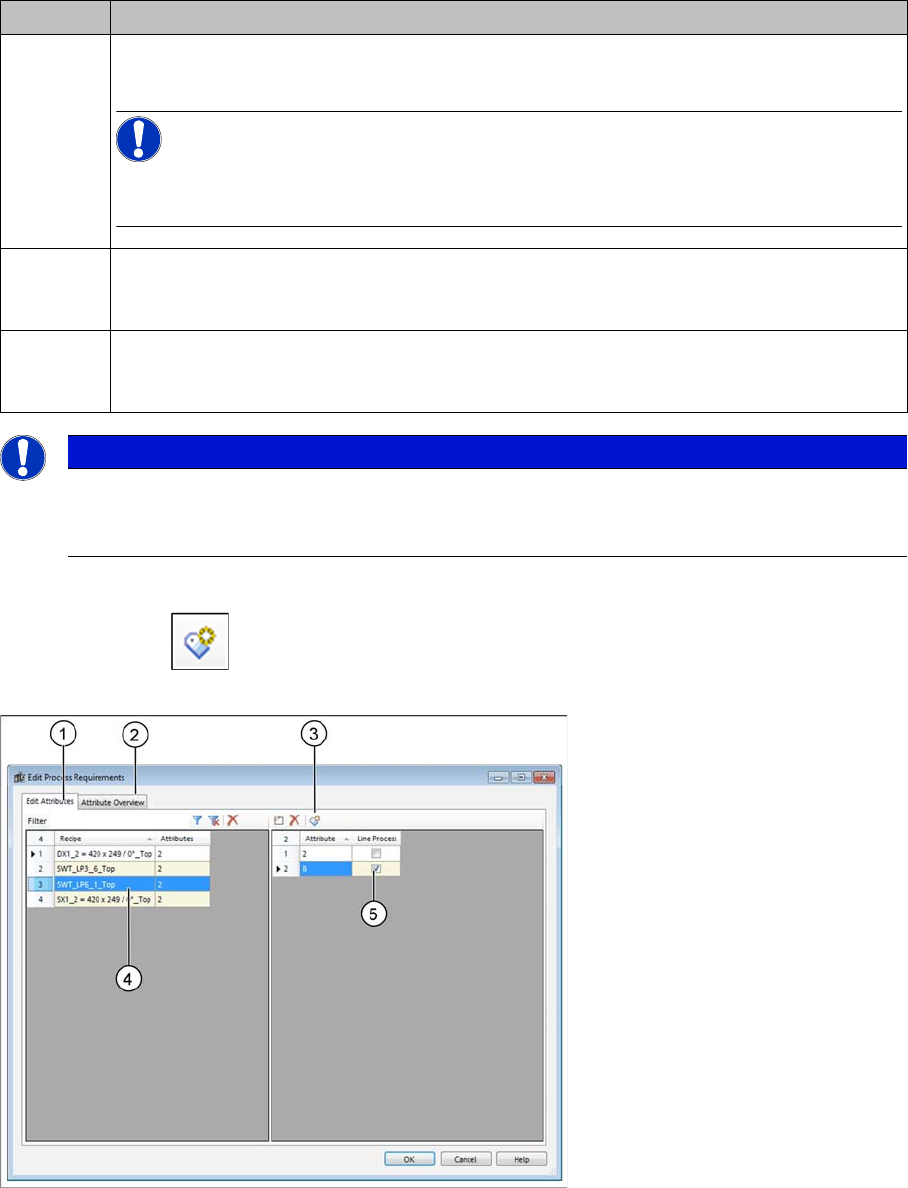
► Select the icon from the toolbar in the table.
⇨ The Edit Process Requirements dialog box will open.
Dialog box: edit process requirements
► Go to the Edit Attributes tab (1) and select the recipe (4) with the relevant attribute.
► Use the (3) icon to add a new attribute from the list of existing attributes. The "6.5 Adding Attributes"
[ ➙ 169] dialog box will open.
► Enable the Line Process (5) checkbox for the individual recipes, if these are to be produced on a line
which has the process capability B.
⇨ The Attribute Overview (2) tab shows all the existing process requirements for all recipes in the cur-
rent multi line job.
Icon Description
1 The Edit Process Requirements dialog box will open.
You can edit the process requirements for recipes.
NOTICE!
These changes are for test purposes and are only effective in the context of the multi line
job. These changes are not automatically transferred to the SIPLACE Pro data.
2 The process requirements from the SIPLACE Pro Board Editor will be imported into the
SiCluster Multiline multi line job. Changes made to the SiCluster Multiline multi line job will
be overwritten with the data from SIPLACE Pro.
3 The process requirements from the SiCluster Multiline multi line job will be exported to the
SIPLACE Pro board descriptions. Data from the SIPLACE Pro Board Editor will be over-
written by data from the SiCluster Multiline multi line job.
NOTICE
Alternative for existing process requirements
With a double-click in the relevant line of the table column Line Process Requirements or Other
Process Requirements, you also open the Edit Process Requirements dialog box.