00197496-01_UM_SiClusterMultiline_DE_EN.pdf - 第120页
How to Configure a Multi Line Job Organizing a Multi Line Job 4.1.2 Opening an Existing Multi Line Job 120 SIPLACE SiCluster Multiline SIPLACE SiCluster Multiline 4.1.2 4 . 1 . 2 O p e n in g a n E x is t in g M u lti L …
How to Configure a Multi Line Job
4.1.1 Creating a New Multi Line Job Organizing a Multi Line Job
SIPLACE SiCluster Multiline SIPLACE SiCluster Multiline 119
Closing multi line jobs
► Go to the SiCluster Multiline menu and select the (3) icon.
⇨ This closes the active multi line job.
4.1.1
4.1.1 Creating a New Multi Line Job
Creating a New Multi Line Job
► Go to the Multi Line Recipes tab and select the
icon.
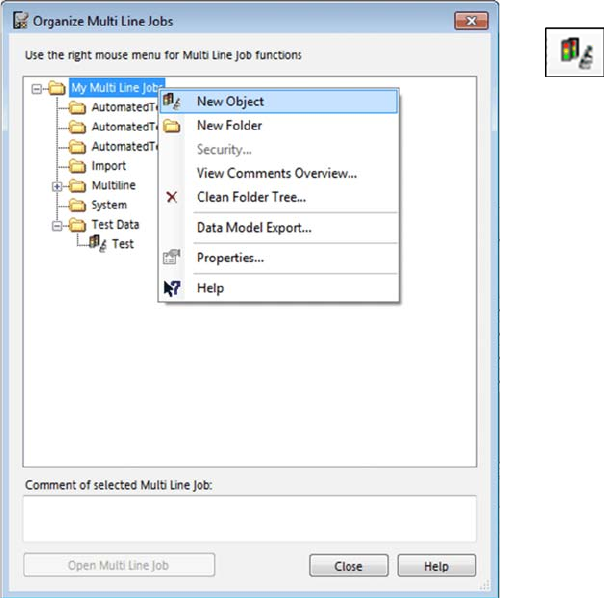
⇨ The Organize Multi Line Jobs dialog box will open.
► Right click with the mouse to open the context menu.
► Select a folder from the tree structure or create a new
folder with the New Folder function.
► Select the New Object function and enter the name of
the new multi line job.
► Open the multi line job with the Open Multi Line Job
button or a doubleclick.
How to Configure a Multi Line Job
Organizing a Multi Line Job 4.1.2 Opening an Existing Multi Line Job
120 SIPLACE SiCluster Multiline SIPLACE SiCluster Multiline
4.1.2
4.1.2 Opening an Existing Multi Line Job
Opening an Existing Multi Line Job
4.1.3
4.1.3 Copying/Renaming/Creating/Deleting a Multi Line Job
Copying/Renaming/Creating/Deleting a Multi Line Job
► Go to the Multi Line Recipes tab and select the
icon.
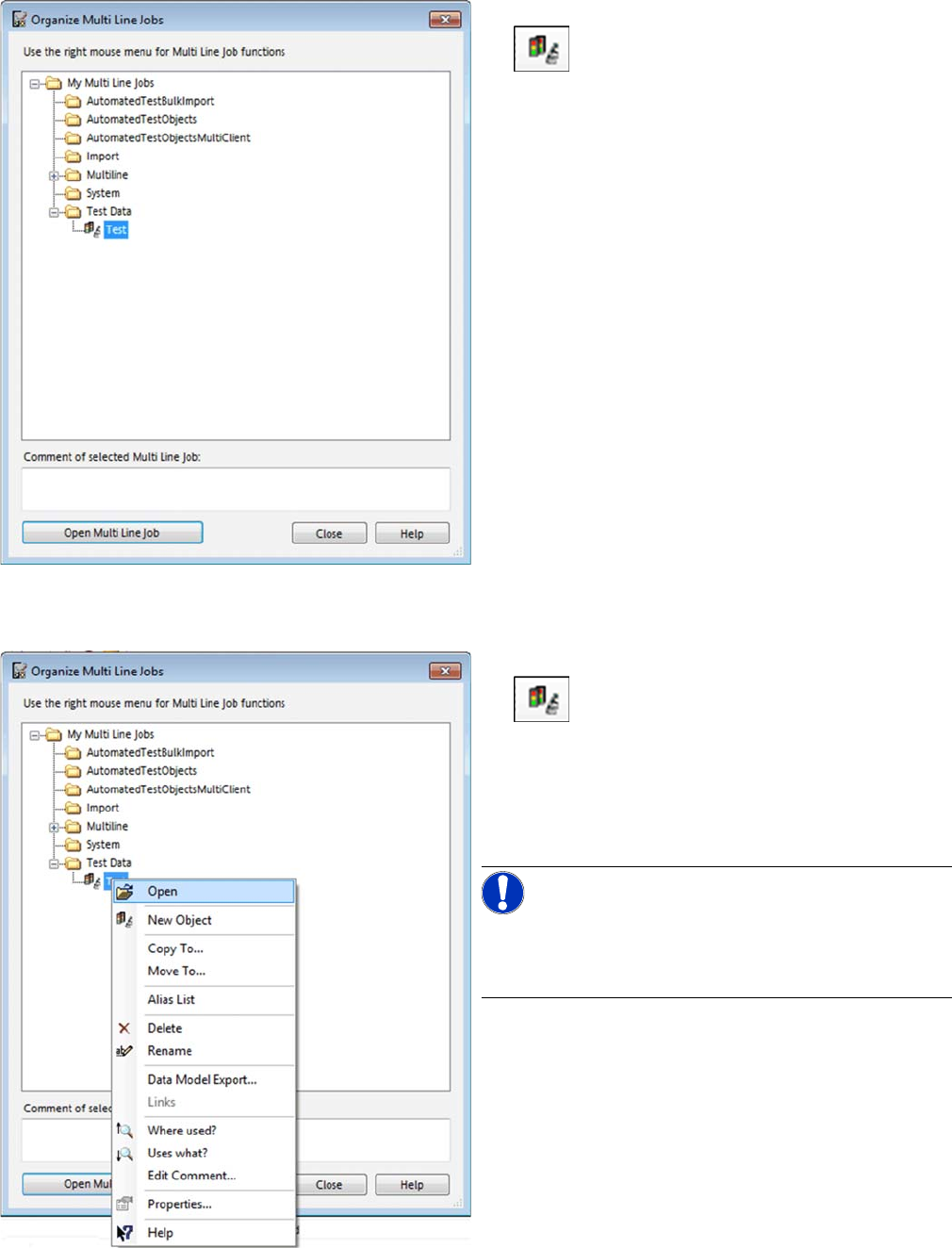
⇨ The Organize Multi Line Jobs dialog box will open.
► Open the multi line job with the Open Multi Line Job
button or a doubleclick.
► Go to the Multi Line Recipes tab and select the
icon.
⇨ The Organize Multi Line Jobs dialog box will open.
► Select the multi line job from the tree structure.
► Right click with the mouse to open the context menu.
► Select the relevant function from the context menu.
NOTICE!
When you use the "Copy to…" function, the existing opti-
mization results will not be copied. Only the ideal cycle
times will be copied.
How to Configure a Multi Line Job
4.1.3 Copying/Renaming/Creating/Deleting a Multi Line Job Defining the Output Folder
SIPLACE SiCluster Multiline SIPLACE SiCluster Multiline 121
4.2
4.2 Defining the Output Folder
Defining the Output Folder
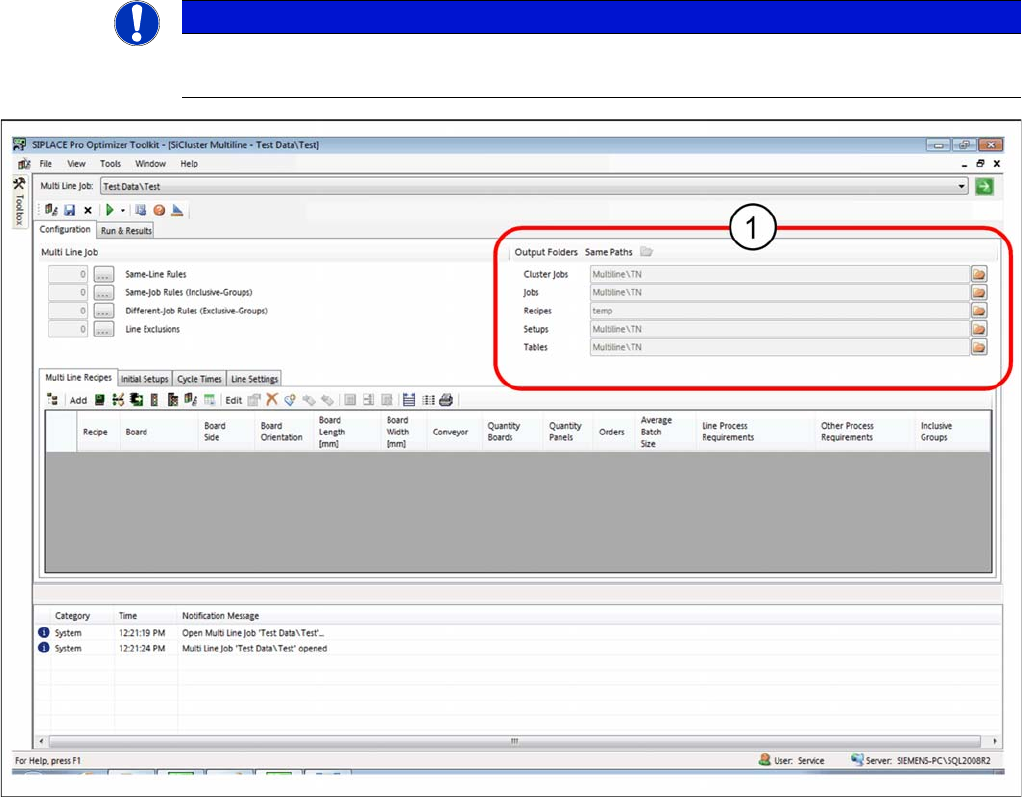
If a new multi line job has been created, this means that you still need to define an output folder in which
the SiCluster Multiline results can be stored for this multi line job.
Tab: configuration: defining output folders
► Go to (1) and define the folders in which the results for this multi line job are to be stored. This is
where the temporarily generated recipes/jobs ( e.g. when creating ideal cycle times) are saved.
▪The Same Paths function saves cluster jobs, jobs, recipes, setups and tables in the same folder.
▪ You can select different folders for each of the result objects, provided the Same Path button has not
been enabled.
▪ The topmost folder is shown with a "\".
NOTICE
The output folder must be defined.
If there is no output folder defined, you will be unable to start optimization.