00197496-01_UM_SiClusterMultiline_DE_EN.pdf - 第135页
How to Configure a Multi Line Job 4.4.3 Dialog Box: Remove Inclusive Groups Adding Initial Setups SIPLACE SiCluster Multiline SIPLACE SiCluster Multiline 135 4.6 4 . 6 A d d in g I n it ia l S e t u p s Adding Initial Se…
How to Configure a Multi Line Job
Editing Process Requirements for Recipes (Optional) 4.4.3 Dialog Box: Remove Inclusive Groups
134 SIPLACE SiCluster Multiline SIPLACE SiCluster Multiline
Result
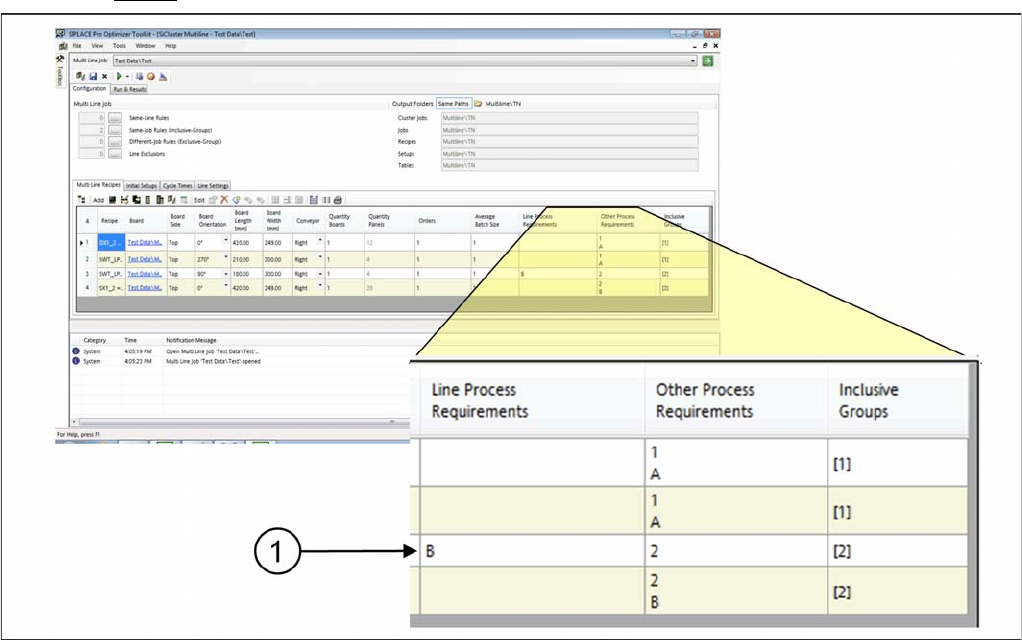
Result: process requirement with line process
▪Attribute B has been removed from the column Other Process Requirements and entered in the col-
umn Line Process Requirements (1).
▪ This recipe can only be produced on lines which have the process capability B. SiCluster Multiline
takes this into account during clustering.
How to Configure a Multi Line Job
4.4.3 Dialog Box: Remove Inclusive Groups Adding Initial Setups
SIPLACE SiCluster Multiline SIPLACE SiCluster Multiline 135
4.6
4.6 Adding Initial Setups
Adding Initial Setups
The initial setups for all lines can be defined in the Initial Setups tab. This defines which lines are to be
taken into account in the multi line job. SiCluster Multiline then distributes the boards/recipes across
these lines.
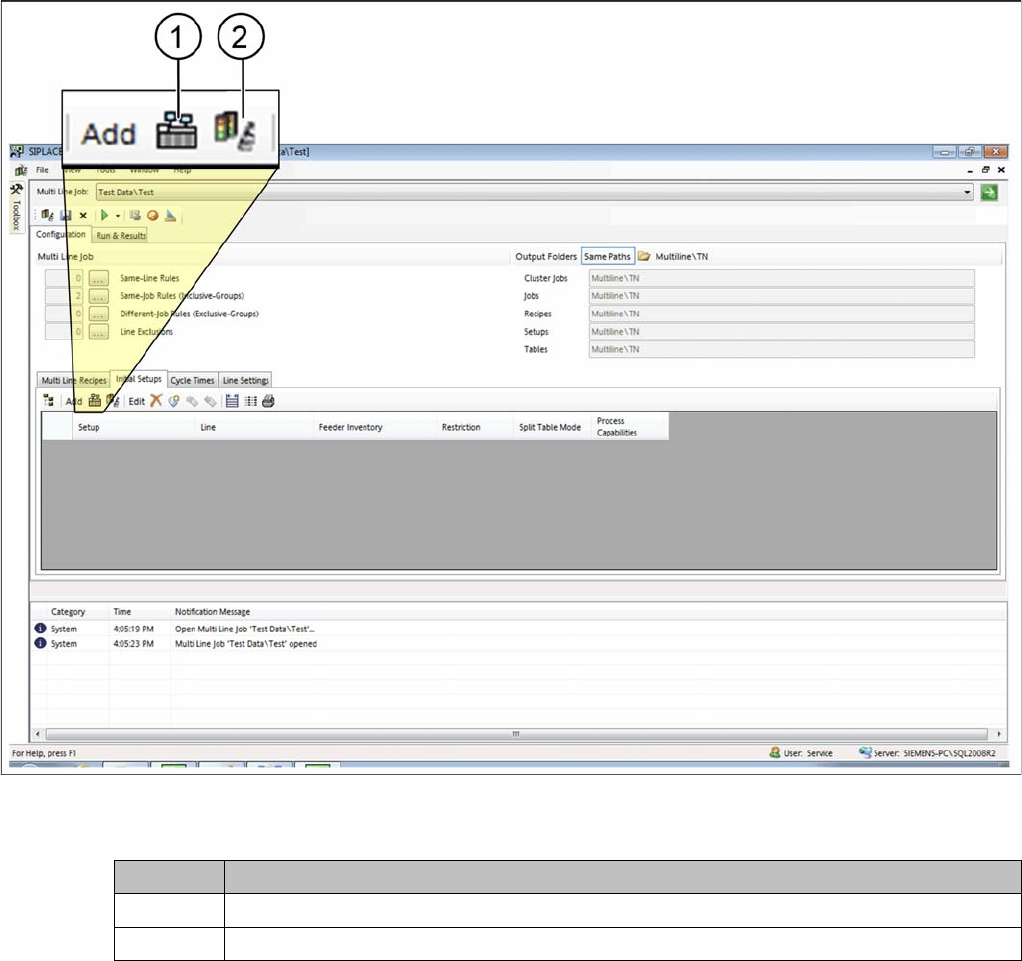
► Go to Configuration and select the Initial Setups tab.
Tab: configuration - tab: initial setups - add setups
► Select individual setups or setups which are in existing multi line jobs.
Icon Description
1 Adds the setup with the line as initial setup.
2 Initial setups from the selected multi line job will be applied.
How to Configure a Multi Line Job
Adding Initial Setups 4.6.1 Initial Setups Added - Result
136 SIPLACE SiCluster Multiline SIPLACE SiCluster Multiline
4.6.1
4.6.1 Initial Setups Added - Result
Initial Setups Added - Result
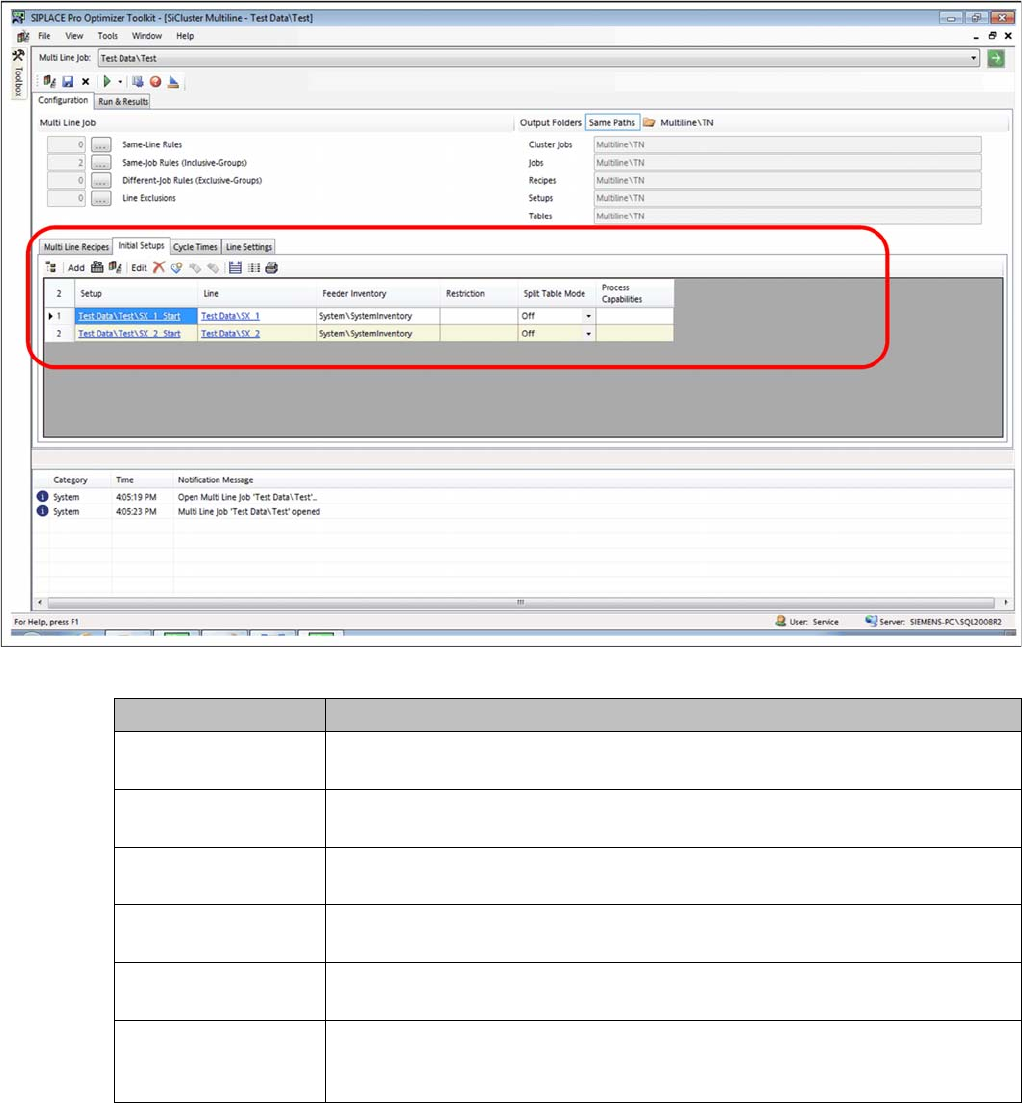
You have added two setups. However, there are no process capabilities or line omissions defined.
Result: Setup added
Parameter Description
Setup Shows the path and the name of the setup. Click on the entry to open the setup
in the SIPLACE Pro Editor.
Line Shows the path and the name of the line. Click on the entry to open the line in
the SIPLACE Pro Editor.
Feeder Inventory Enables you to allocate a feeder inventory. Doublelclick on this cell to select a
feeder inventory from the list of available feeder inventories.
Restriction Enables you to assign a restriction. By doubclicking on this cell you can select
a restriction from the list of available restrictions.
Split Table Mode Allows you to enable/disable split table mode. Split table mode must be defined
in the initial setup of the respective line.
Process capabilities Shows the process capabilities for the line. Double click on this cell to open the
Edit Process Capabilities dialog box. You can edit the process capabilities for
the line.