00197496-01_UM_SiClusterMultiline_DE_EN.pdf - 第123页
How to Configure a Multi Line Job 4.3.1 Defining Options for Ad ding Boards Adding Recipes or Boards SIPLACE SiCluster Multiline SIPLACE SiCluster Multiline 123 4.3.1 4 . 3 . 1 D e f in in g O p t io n s f o r A d d in g…
How to Configure a Multi Line Job
Adding Recipes or Boards 4.1.3 Copying/Renaming/Creating/Deleting a Multi Line Job
122 SIPLACE SiCluster Multiline SIPLACE SiCluster Multiline
4.3
4.3 Adding Recipes or Boards
Adding Recipes or Boards
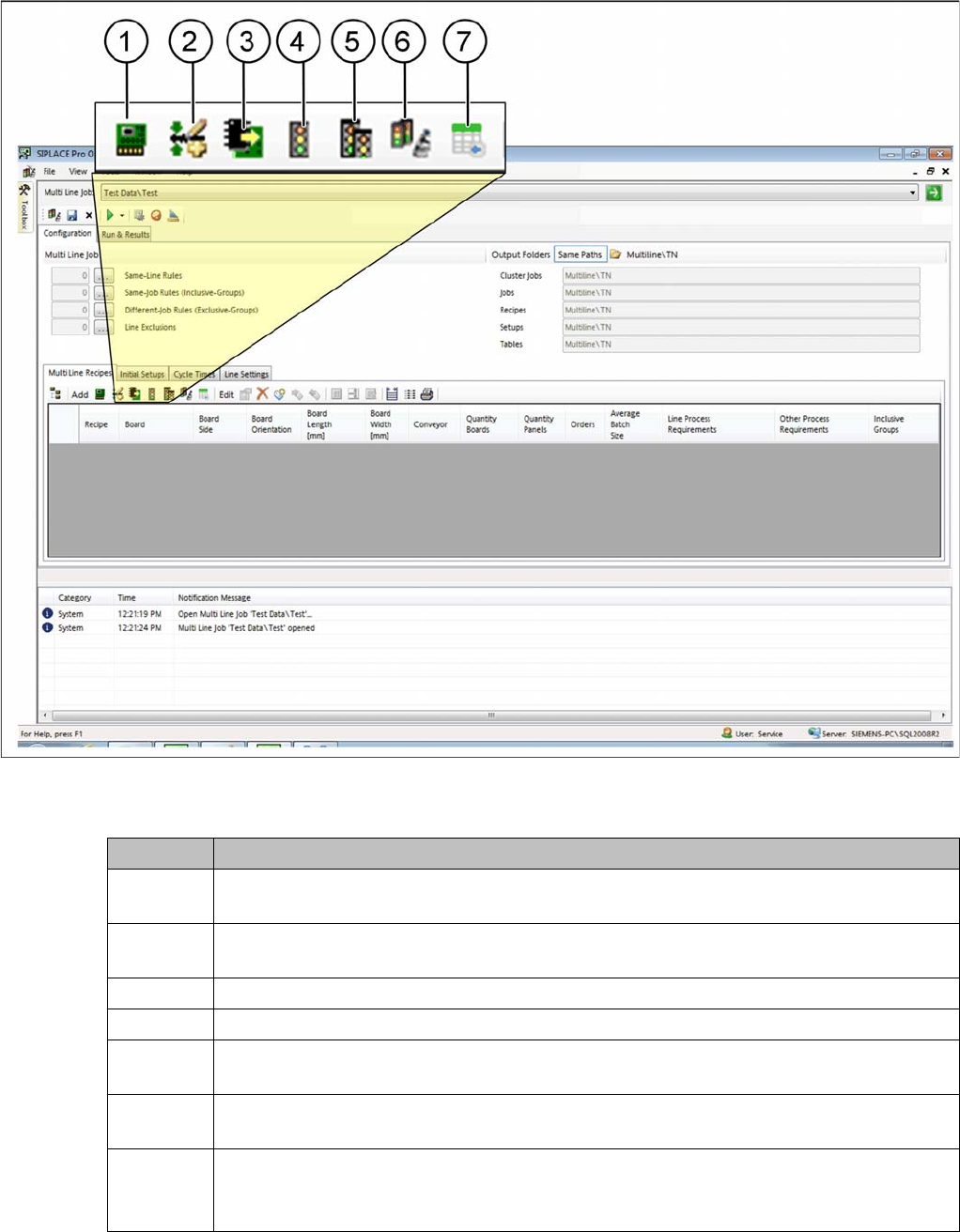
In the Multi Line Recipes tab you can define the recipes for the multi line job by adding boards or recipes.
These boards/recipes should be optimally allocated to the defined recipes.
► Go to Configuration and select the Multi Line Recipes tab.
Tab: configuration - tab: multi line recipes - add boards
► Add individual boards or boards which are in recipes, jobs, cluster jobs and multi line jobs.
Icon Description
1 Add boards. You can add one or more boards. The "4.3.2 Selecting Board Side for Add-
ing" [ ➙ 124] dialog box will be opened. You will be asked to select the board side.
2 Select Options to add boards. The "4.3.1 Defining Options for Adding Boards" [ ➙ 123]
dialog box will open.
3 Adding boards from recipes.
4 Adding boards from the recipes of a job. This adds all boards for a job to the multi line job.
5 Adding recipes from a cluster job. This adds all recipes for the cluster job to the multi line
job.
6 Adding recipes for a multi line job. This adds all recipes for the multi line job to the multi
line job.
7 Opens the CSV Import Wizard dialog box. This enables you to import recipe/job data with
the recipe size information. The boards must be present in SIPLACE Pro.
See also "9 Import Wizard for CSV Data" [ ➙ 181].
How to Configure a Multi Line Job
4.3.1 Defining Options for Adding Boards Adding Recipes or Boards
SIPLACE SiCluster Multiline SIPLACE SiCluster Multiline 123
4.3.1
4.3.1 Defining Options for Adding Boards
Defining Options for Adding Boards
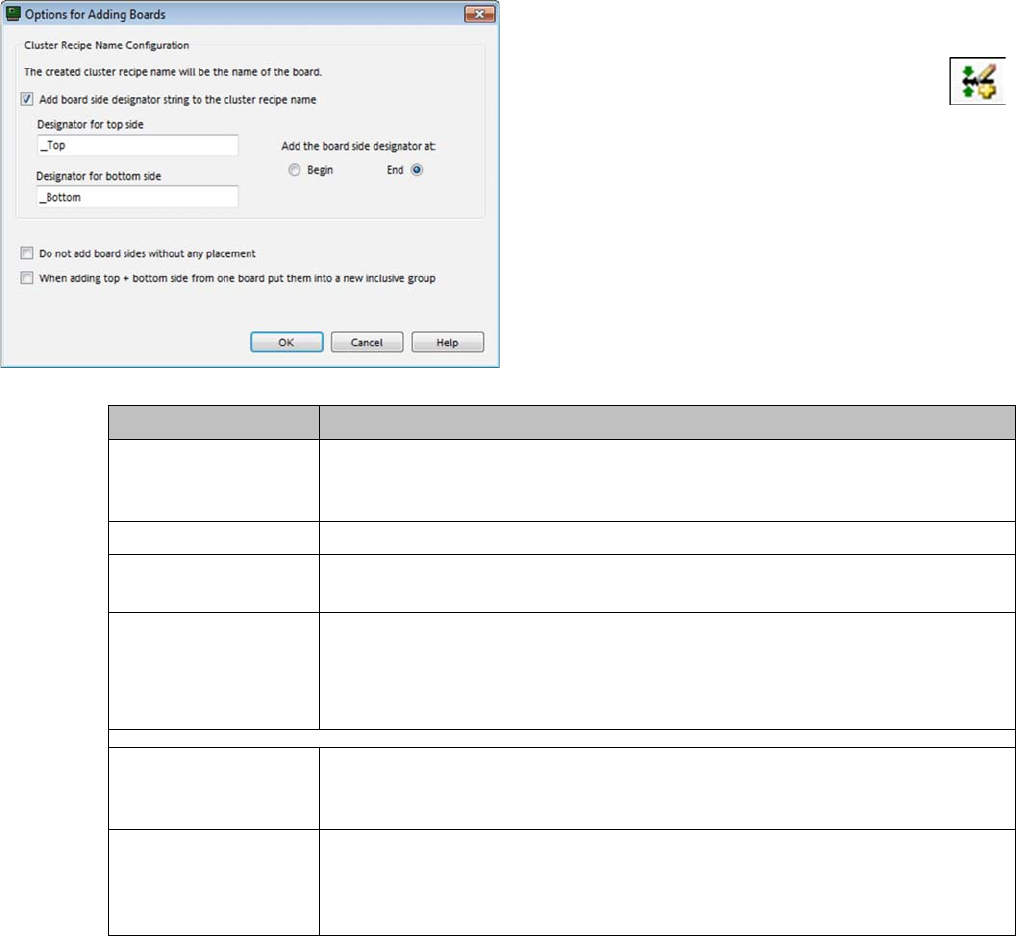
► In this area you can define how the cluster recipe
names are to be formed when adding boards.
► Go to the Multi Line Recipes tab and select the
icon.
⇨ The Options for Adding Boards dialog box will open.
Parameter Description
Add board side desig-
nator string to the clus-
ter recipe name
Enabled: the entered designator is added to the cluster name recipe. To en-
sure that the top and/or bottom is recognized, enter the relevant designator at
Designator for Top Side and/or Designator for the Bottom Side.
Designator for top side This is the part of the name which is added to the cluster recipe for the top side.
Designator for bottom
side
This is the part of the name which is added to the cluster recipe for the bottom
side.
Add the board side
designator at:
Begin
End
This is where you can define whether the additional designator is to be added
at the beginning or end.
Do not add board
sides without any
placement
If you do not want to add boards without placements, enable this option.
When adding top +
bottom side from one
board put them into a
new inclusive group
Enabled: A new inclusive group is created for the top and bottom sides and is
allocated to the recipe for the top and bottom sides.
How to Configure a Multi Line Job
Adding Recipes or Boards 4.3.2 Selecting Board Side for Adding
124 SIPLACE SiCluster Multiline SIPLACE SiCluster Multiline
4.3.2
4.3.2 Selecting Board Side for Adding
Selecting Board Side for Adding
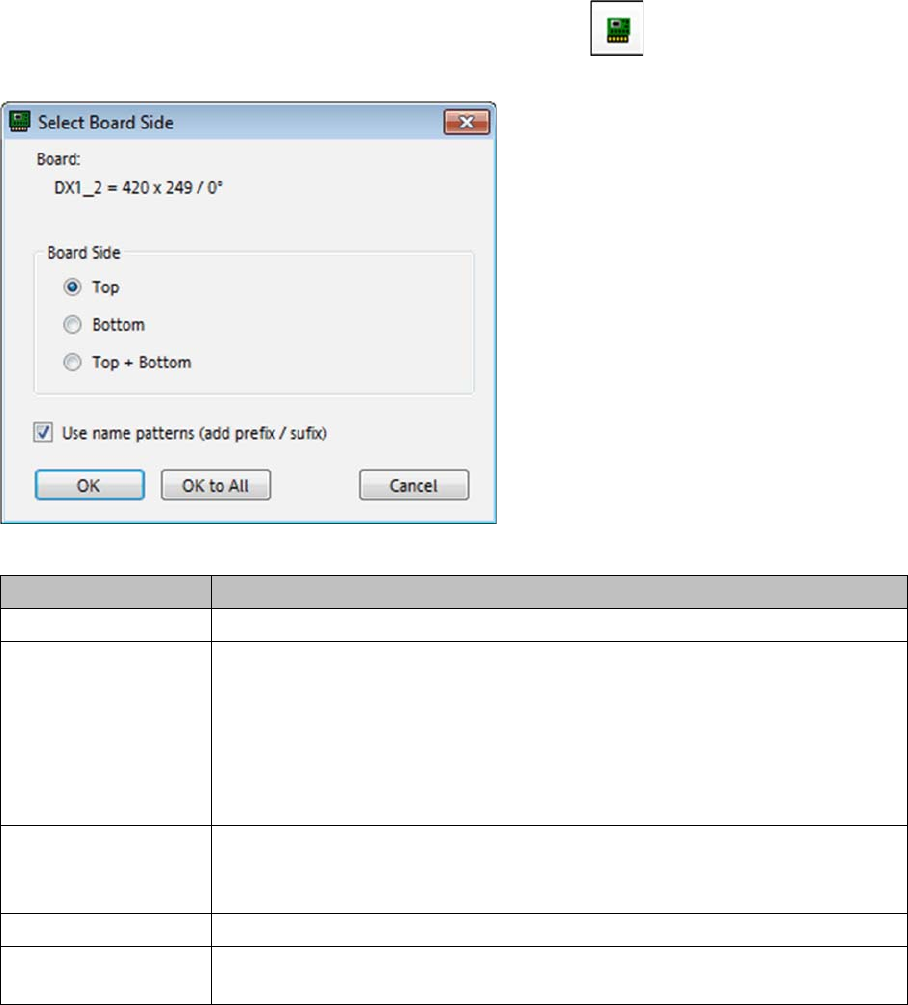
If you selected double-sided board descriptions, you will be asked whether the board top and/or bottom
sides should be added. If multiple boards were selected, a separate dialog box will be shown for each
board.
► To add boards, go to the Multi Line Recipes tab and select the icon.
⇨ The Select Board Sides dialog box will be opened.
Dialog box: select board sides
Parameter Description
Board Shows the name of the board you selected.
Board side Top
Defines that the top side of the board is to be added.
Bottom
Defines that the bottom side of the board is to be added.
Top + bottom
Defines that the top and bottom side of the board are to be added.
Use name patterns
(add prefix / suffix)
If special parts of the name have been used to identify the board, you can de-
fine here whether to have this part of the name applied or not.
See also "4.3.1 Defining Options for Adding Boards" [ ➙ 123].
OK Applies the settings for this board.
OK to all The settings are applied for all selected boards. A new dialog box is not shown
for each board.