presto_en.pdf - 第29页
Page 29 Check environmen t variable WINEDLLPATH . It should point to direct ory where are 32-bit wine DLLs, typically / usr/lib/i38 6-linux-gnu /wine . Install lin_ftd 2xx b y AS IX into this directo ry. Installation of …

Page 28
4
Usage under Linux
The support of ASIX products in Linux was
discontinued.
Last version where we tested our products was
UBUNTU 20.04.2 LTS and Wine 5.0.
Our customers informed us that our products could
be successfully used up to Wine 6.0, but not in
higher versions.
The software for the programmers is capable of working
under Wine. For USB access it uses libftd2xx.
Step 1: Install libftd2xx and libftchipid
Install 32-bit versions of libftd2xx and libftchipid by FTDI,
even if you use 64-bit kernel. The application is a 32-bit
binary and requires 32-bit libraries.
The driver can be found on
FTDI web at "Drivers/D2XX
Drivers" section.
• Extract
libftd2xx.so.1.1.0 (in case of newer version
replace 1.1.0 with the latest version) and
libftchipid
and copy the files libftd2xx.1.1.0.so and
libftchipid0.1.0 into the directory for 32-bit
libraries (typically
/usr/lib/i386-linux-gnu/).
•
ln -s libftd2xx.so.1.1.0 /usr/lib/i386-linux-
gnu/libftd2xx.so.1
(it is typically sufficient to run
ldconfig to achieve this)
• ln -s libftd2xx.so.1.1.0 /usr/lib/i386-linux-
gnu/libftd2xx.so.0
(must be made manually)
• ln -s libftchipid.so.0.1.0 /usr/lib/i386-
linux-gnu/libftchipid.so.0 (it is typically sufficient
to run ldconfig to achieve this)
• The library searches for device files in
/dev/bus/usb.
Please ensure that
/dev/bus/usb directory contains
special files to access USB devices.
• Check that your device is recognized by the system
(use command
lsusb).
• Check your access rights to the corresponding files in
/
dev/bus/usb
(command ls -la /dev/bus/usb/).
Probably you will not have as a user the r+w access
rights for these files.
• If you have not access rights and you are using udev:
Add a new file with udev rules to the directory
/etc/
udev/rules.d
or /lib/udev/rules.d (Depending on
your distribution). Suitable name for this new file is 51-
asix_tools.rules. Insert the following lines to this file :
SUBSYSTEMS=="usb", ATTRS{idVendor}=="0403",
ATTRS{idProduct}=="f1a0", MODE:="0666", SYMLINK
+="asix_presto"
SUBSYSTEMS=="usb", ATTRS{idVendor}=="a600",
ATTRS{idProduct}=="a000", MODE:="0666", SYMLINK
+="asix_sigma"
SUBSYSTEMS=="usb", ATTRS{idVendor}=="a600",
ATTRS{idProduct}=="a003", MODE:="0666", SYMLINK
+="asix_forte"
SUBSYSTEMS=="usb", ATTRS{idVendor}=="a600",
ATTRS{idProduct}=="a004", MODE:="0666", SYMLINK
+="asix_omega"
VID and PID values can be determined using the listing of
connected devices by the lsusb command.
Step 2: Install wine
It is necessary to install 32-bit version of wine (for
example
wine-1.4:i386).
The Wine versions over 6.0 are not supported.
Step 3: Install lin_ftd2xx
The lin_ftd2xx is available at ASIX web.

Page 29
Check environment variable WINEDLLPATH. It should
point to directory where are 32-bit wine DLLs, typically
/
usr/lib/i386-linux-gnu/wine
. Install lin_ftd2xx by ASIX
into this directory.
Installation of the Microsoft™ TrueType core fonts are
recommended. These fonts may be obtained by installing
msttcorefonts package from Ubuntu package repository.
Note:
Library libftd2xx requires also access rights during
opening of the programmer or logic analyzer to all FTDI
serial devices to check that this is not the device it wants
to open.
Page 30
5
UP SOFTWARE
UP is a name for control software designed for
programmers made by ASIX. The program offers many
advanced functions and enables an operator to control
the programming process either from the software
interface or remotely from the command line utilizing
Windows messages and the DLL library. The program runs
under Windows.
5.1
Abbreviations Used
Menu ➙ item
bold italics followed by the arrow sign ➙ make
references to particular items in menus, names of
tabs (cards) in a particular window.
5.2
Installation
Installation is very easy. The installation program can be
downloaded from
www.asix.tech/prg_up_en.html. Run the
installer (UP_xxx_EN.EXE, where xxx represents the
version number). There is no need to close other running
applications. The installation process takes only a few
seconds and requires you to press the Enter key a few
times. No modifications to the operating system take
place during installation, i.e. no computer restart is
needed and the program can be used immediately after
completion (by clicking its icon, for example). After the
first start, the program asks which language it should use
(English or Czech), which programmer to work with (e.g.
FORTE) and which port the programmer is connected to.
If needed, the program can be uninstalled using the Add/
Remove Programs icon in the Control Panel or manually
by deleting the corresponding directory and desktop
shortcut(s).
A previous program version (if it exists) does not have to
be removed before installing a newer version. Use of the
latest available version is recommended.
5.3
Device Programming
The following sections describe the ways of programming
devices and things to pay special attention to.
5.3.1 Programmer
Selection
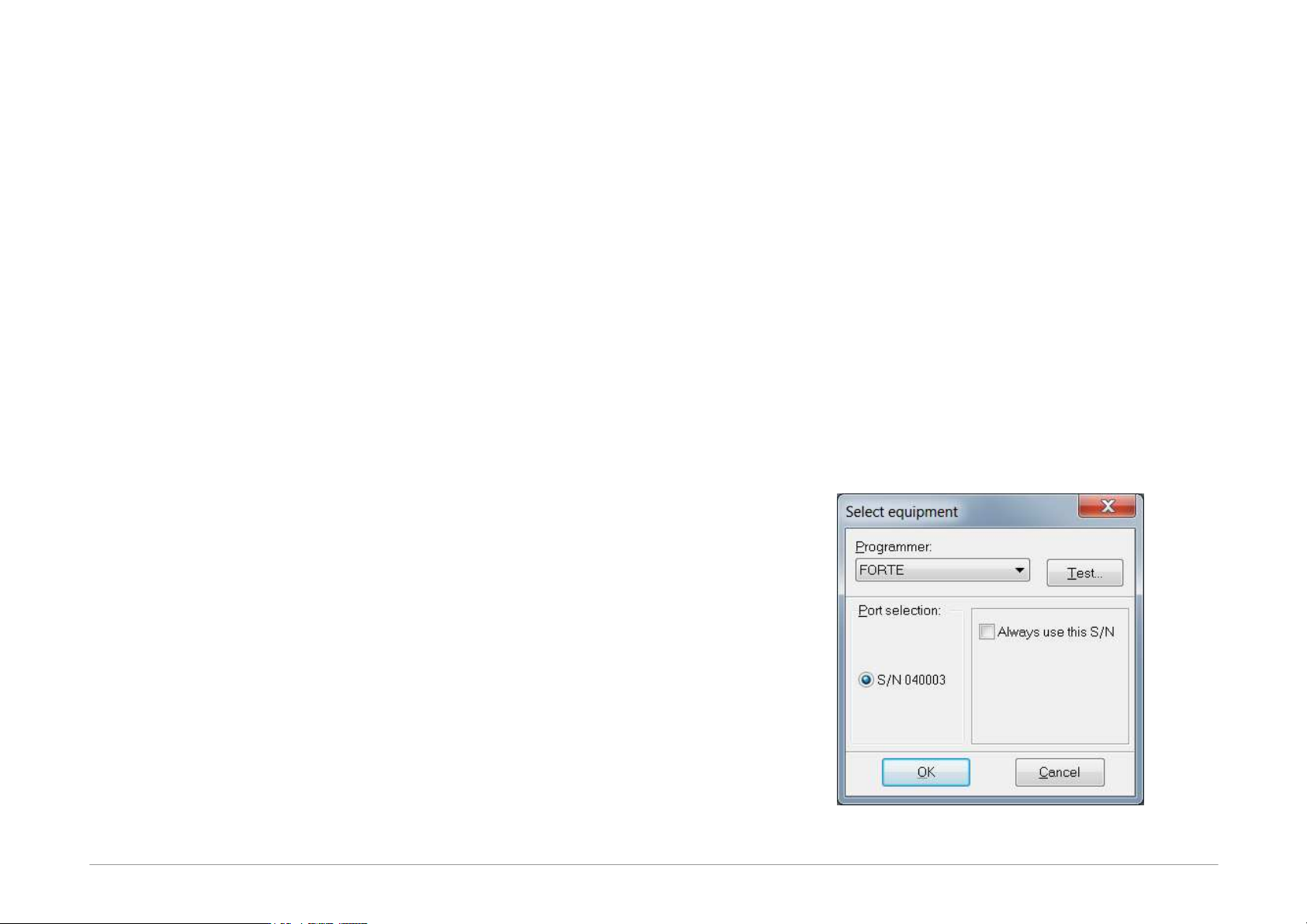
Before a device can be programmed, the programmer
which will be used needs to be selected. Currently either
FORTE or PRESTO can be chosen.
Select the programmer by going to Options ➙ Select
programmer or by double-clicking the programmer
name displayed in the top right corner of the program
window. The following dialog window opens:
Fig.18: Programmer selection