presto_en.pdf - 第30页
Page 30 5 UP SOFTWARE UP is a name for c ontrol software designed for programmers made b y ASIX. The program offers many advanced fu nctions and enables an operator to control the prog ramming p rocess eith er from the s…

Page 29
Check environment variable WINEDLLPATH. It should
point to directory where are 32-bit wine DLLs, typically
/
usr/lib/i386-linux-gnu/wine
. Install lin_ftd2xx by ASIX
into this directory.
Installation of the Microsoft™ TrueType core fonts are
recommended. These fonts may be obtained by installing
msttcorefonts package from Ubuntu package repository.
Note:
Library libftd2xx requires also access rights during
opening of the programmer or logic analyzer to all FTDI
serial devices to check that this is not the device it wants
to open.
Page 30
5
UP SOFTWARE
UP is a name for control software designed for
programmers made by ASIX. The program offers many
advanced functions and enables an operator to control
the programming process either from the software
interface or remotely from the command line utilizing
Windows messages and the DLL library. The program runs
under Windows.
5.1
Abbreviations Used
Menu ➙ item
bold italics followed by the arrow sign ➙ make
references to particular items in menus, names of
tabs (cards) in a particular window.
5.2
Installation
Installation is very easy. The installation program can be
downloaded from
www.asix.tech/prg_up_en.html. Run the
installer (UP_xxx_EN.EXE, where xxx represents the
version number). There is no need to close other running
applications. The installation process takes only a few
seconds and requires you to press the Enter key a few
times. No modifications to the operating system take
place during installation, i.e. no computer restart is
needed and the program can be used immediately after
completion (by clicking its icon, for example). After the
first start, the program asks which language it should use
(English or Czech), which programmer to work with (e.g.
FORTE) and which port the programmer is connected to.
If needed, the program can be uninstalled using the Add/
Remove Programs icon in the Control Panel or manually
by deleting the corresponding directory and desktop
shortcut(s).
A previous program version (if it exists) does not have to
be removed before installing a newer version. Use of the
latest available version is recommended.
5.3
Device Programming
The following sections describe the ways of programming
devices and things to pay special attention to.
5.3.1 Programmer
Selection
Before a device can be programmed, the programmer
which will be used needs to be selected. Currently either
FORTE or PRESTO can be chosen.
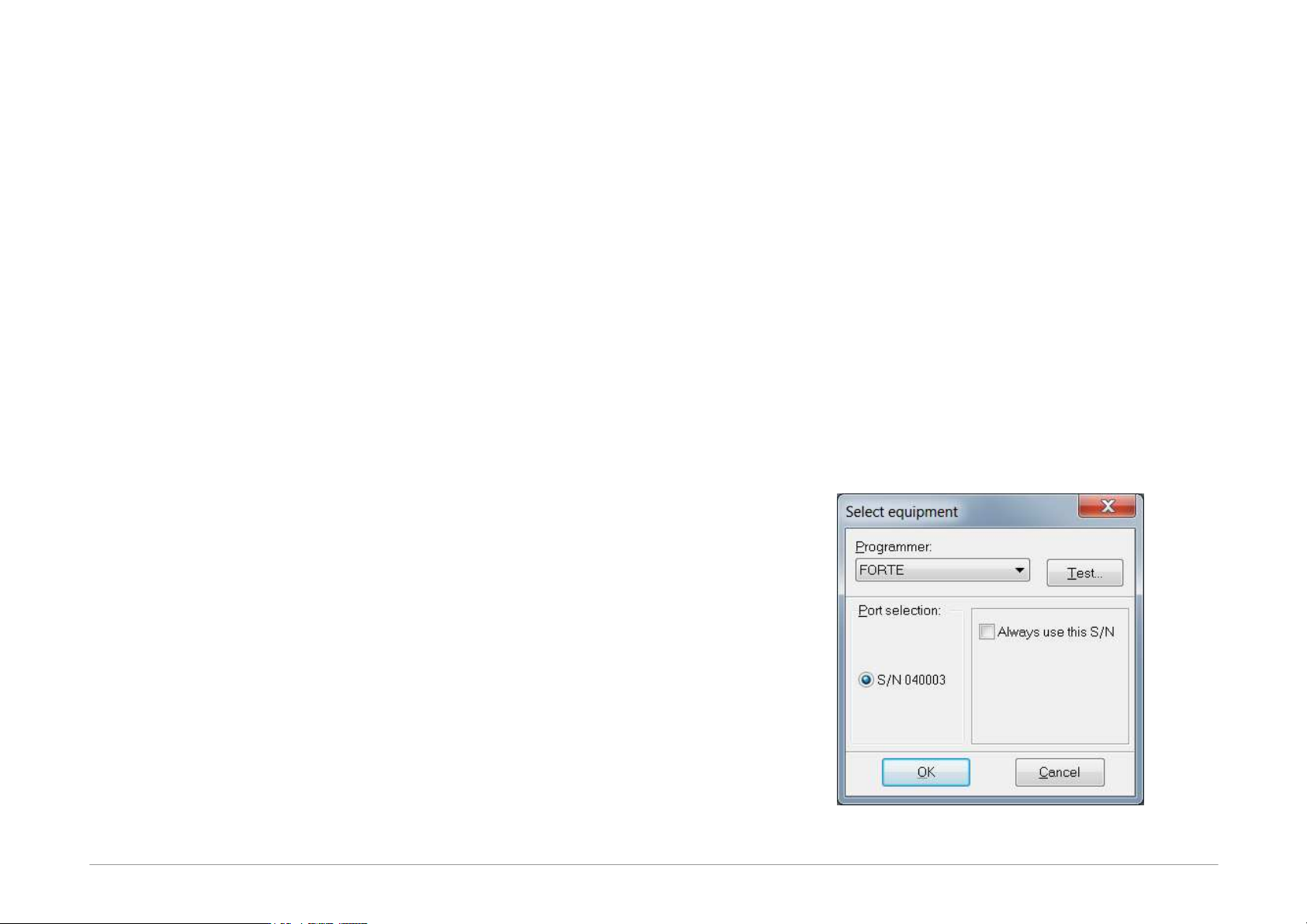
Select the programmer by going to Options ➙ Select
programmer or by double-clicking the programmer
name displayed in the top right corner of the program
window. The following dialog window opens:
Fig.18: Programmer selection
Page 31
If the programmer is connected to a computer and no
other program communicates with it, its serial number
gets displayed. You can test communication with the
selected programmer by pressing the Test... button.
If the Always use this S/N choice is set, the currently
selected programmer is used even when in a loaded
project file there is defined a different programmer serial
number. Serial number defined on the CommandLine has
priority before this choice.
5.3.2 Projects
It is recommended to use projects for device programing
in UP.
Projects save all settings directly associated with
particular device programming such as device type,
required voltage, verification method, name of file
containing the programming data and many other
important pieces of information.
A new project can be created by choosing File ➙ New
project.
This is followed by selecting a device type, a file with
programming data, settings of the device's configuration
word, applied voltage and other important parameters.
configuration word, applied voltage and other important
parameters.
Once all required selections are made, save the project by
choosing File ➙ Save project...
An existing project can be opened by choosing File ➙
Open project....
5.3.3 Device Type
Selection
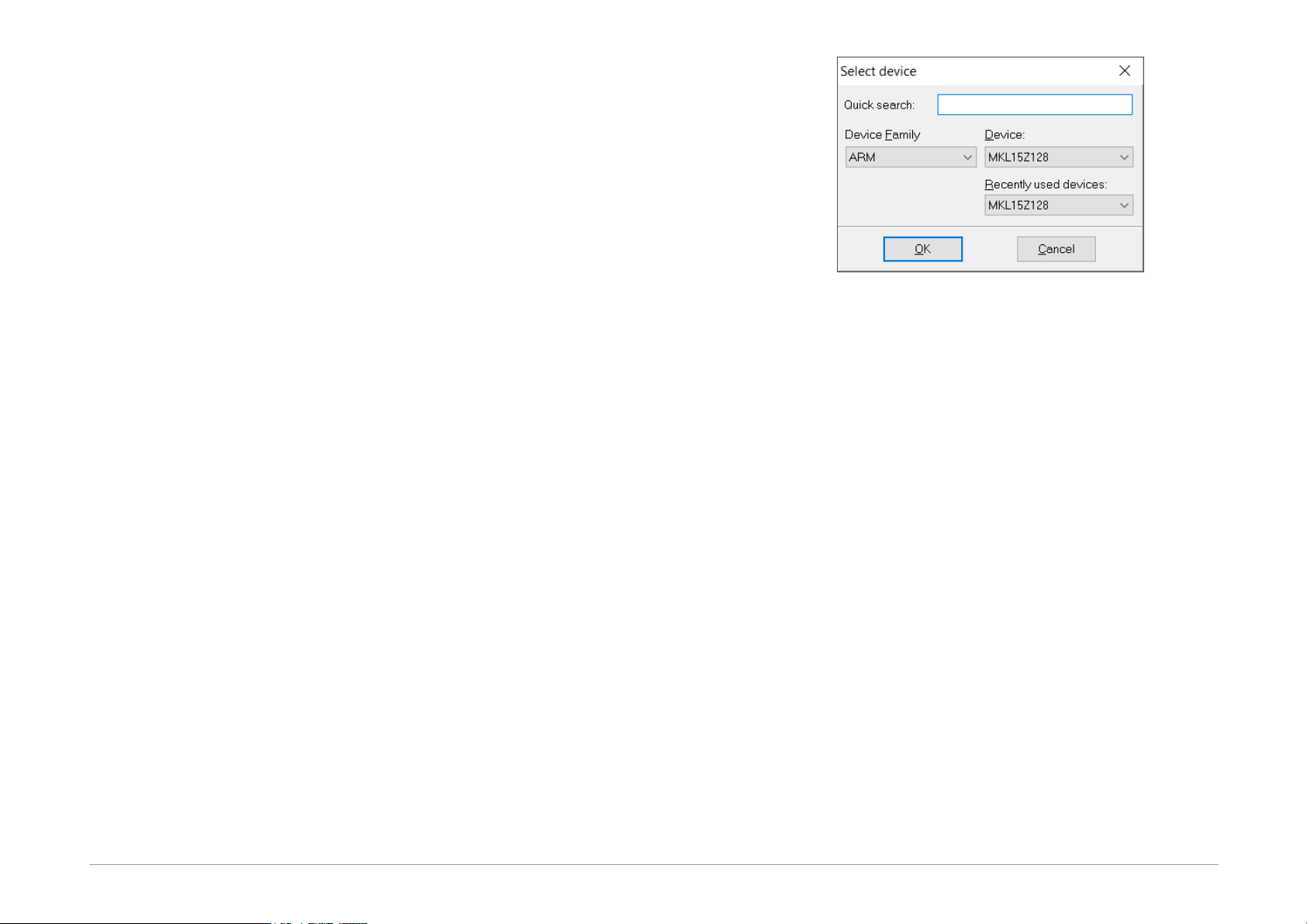
Select the device type by choosing Device ➙ Select
device or by double-clicking the device name displayed
in the top right corner of the program window.
Fig.19: Device selection
A filter is available for sorting devices by families and
another one for Quick search. Just start typing an
important part of the device's name in its field. This
radically reduces the list of devices and speeds up the
whole selection process.
The Quick search filter allows use of the question mark as
a wild-card for a part of the name, for example
PIC18?20.
There is also a list of 10 Recently used devices where it
is possible to select one.
5.3.4 Program settings
It is advisable to fine-tune the program behavior by
adjusting the settings to suit your particular needs. This
can be done by choosing Options ➙ Program settings.
There is a great number of possible settings. If you are
not sure that all the settings are correct, use the Load
defaults button, which returns all the setting to the
original (default) state.
If you are updating UP to a new version, all the existing
settings will be preserved.
A detailed description of all settings can be found in
Menus, so we will pay attention to only a few important
settings for now.