presto_en.pdf - 第34页
Page 34 Programmer Settings Each time a particular program mer is selected (FORTE or PRESTO), the prog rammer settings window is d isplayed allowing the u ser t o set the voltag e used and some other important pro grammi…

Page 33
Production Programming
Settings
If you want to perfectly verify your production to make
sure that the device is correctly programmed, you can
use the Program settings ➙ Programming ➙ Verify
with two supply voltages option and to apply the
lowest and the highest voltage allowed for the device as
the limits. Some manufacturers recommend this option
for the production programming. However, it is only
available if the application is supplied with power from
FORTE.
Program settings ➙ Panels ➙ Show mass production
counter in status bar could be a useful tool visibly
monitoring numbers of successfully and unsuccessfully
programmed devices. The counter can be reset in Device
➙ Program ➙ Mass production ➙ Counter reset.
Program settings ➙ Serial numbers ➙ Log to file can
be used as another convenient assistant. With this option
selected, information on the programming progress of
individual devices gets recorded (logged) in a selected
file.
If you wish to automatically include the serial number
during production programming, you have a great range
of possibilities concerning what the number should look
like and where it should be positioned in the memory. All
serial number settings can be found on the Serial
numbers tab.
For further information on serial numbers see
Serial
Numbers
.
Settings for Programming
During Development
If you are frequently changing the content of the
programming data such as during application
development, for example, you can simplify your work by
using the GO button, which typically serves for
programming and verification of the whole memory
content. The function of this button is programmable and
can be set up under the Options ➙ Key shortcuts menu
in the GO button section.
The use of the GO button for programming should be
accompanied by Options ➙ Program settings ➙
Programming ➙ Reload file before every
programming option.
Options ➙ Program settings ➙ Programming ➙ Keep
manually modified data causes that manually modified
data are not rewritten using the automatical file reload
before programming.
Options ➙ Program settings ➙ Programming ➙ Warn
before file load, when data in some editor have
been changed causes that a warning appears if data
have been changed in any editors and automatic file
reloading option is set.
Options ➙ Program settings ➙ Programming ➙
Warn, when the loaded file has not changed causes
that a warning appears if the file loaded before
programming has not changed.
The following option can also be useful: Program
settings ➙ Programming ➙ After programming:
Close status window if there is no error.
There are special cases when developers do not have the
device's voltage supply pin available in an application
powered by an external source. In order to feed the
programmer's output circuits, power supply from the
programmer must be switched on in such a case and its
voltage set at the same value as used in the application.
Yet as some voltage still “sneaks” into the programmer
from the application through the programming pins, the
programmer “sees” that there is some voltage present
and refuses to activate its own output voltage. For such a
case the following option is available: Program settings
➙ Others ➙ Allow internal and external supply
voltages collision.
WARNING: Activating this option in other situations
could damage the programmer!
Page 34
Programmer Settings
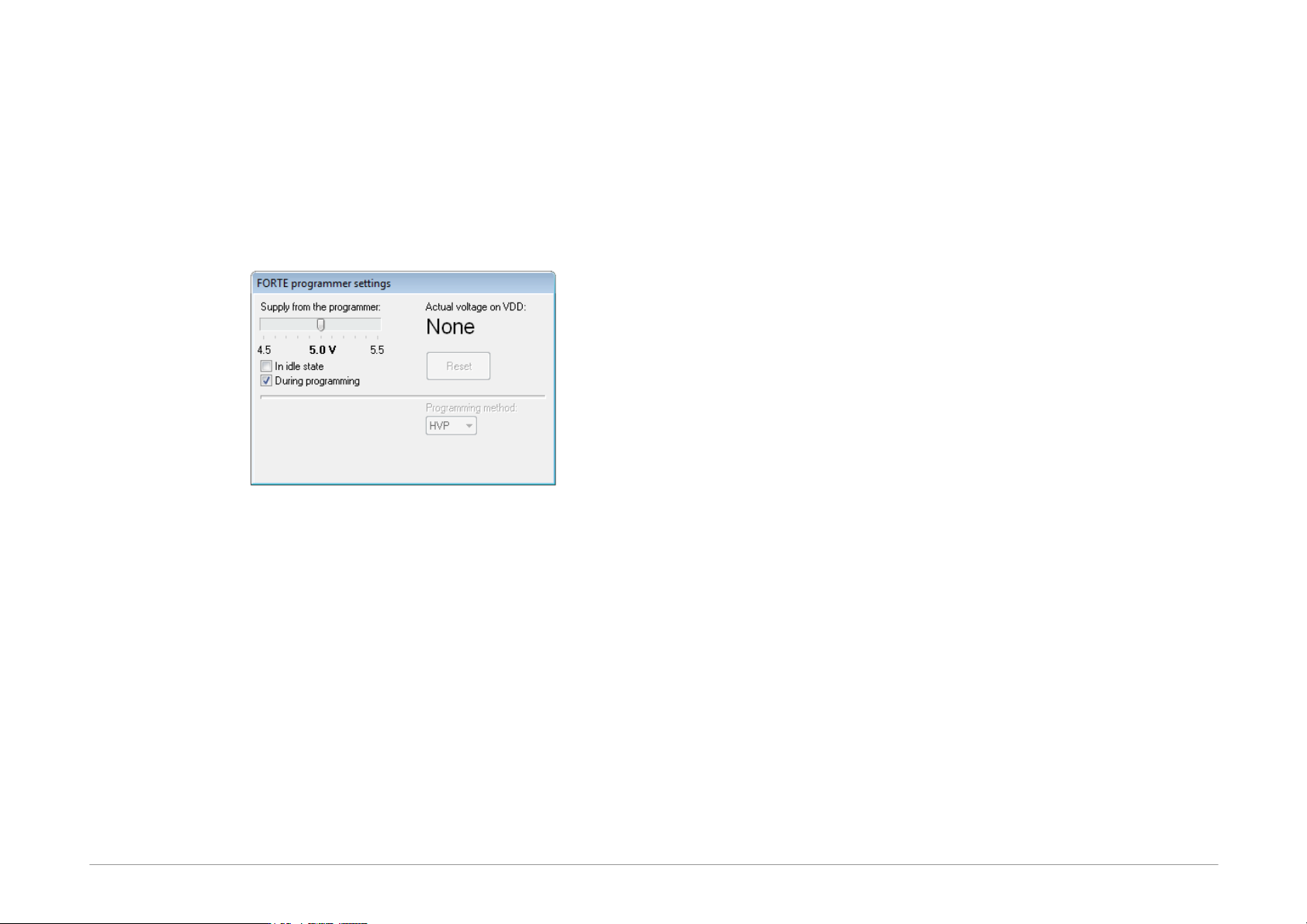
Each time a particular programmer is selected (FORTE or
PRESTO), the programmer settings window is displayed
allowing the user to set the voltage used and some other
important programming options.
If you are using an external power source for feeding the
application, the During programming option must not
be checked.
Fig.21: Programmer settings
The current voltage is continuously displayed in the top
right corner of this window.
Should an error i.e. overload occur, a warning appears at
this place.
The output voltage in the idle state if it is turn on can be
changed only if it is allowed under Options ➙ Program
settings ➙ Others ➙ Allow to change supply voltage
level when it is on (FORTE only).
If a voltage is present at the VDD pin, you can stop the
running microcontroller application by pressing the Reset
button and restart it by pressing the same button again.
Fuses and Working with Them
Characteristics of the device (fuse) to be programmed
can be set in the Configuration window. Changes in
fuses can be saved by choosing File ➙ Save or File ➙
Save project....
If the given .hex file of device includes definitions of its
fuses, fuses are saved in it.
Fuses are saved together with a project in the case of
Atmel microcontrollers and memory chips. If you are
working with these, right-click the Configuration window
once you have set the fuses and use the Learn fuses
option.
If the Options ➙ Program settings ➙ Programming ➙
Reload file before every programming option is
active, the software reloads current file after the
Program button is pressed. If, however, fuses are not
saved in current file and no project is created from which
fuses could be used, the configuration memory initializes
into the default state before each programming
procedure. This can be avoided by deactivating the
Program settings ➙ Files ➙ Erase configuration
memory before file reading option.
Many devices have specific requirements for fuse
settings. Further information on how to correctly set their
fuses can be found in the particular device data sheet.
5.3.5 Programming
Select the file that you want to program by choosing File
➙ Open....
Once the file opens, you can see the current code/main
memory, data memory and configuration memory (fuses).
If you cannot see these windows, activate them under
the View menu.
The memory being programmed can be manually
modified at any time by simply marking the required
location and rewriting its value from the keyboard. If you
Page 35
want to save such a modification, choose File ➙ Save,
File ➙ Save as... or File ➙ Export data memory to
file....
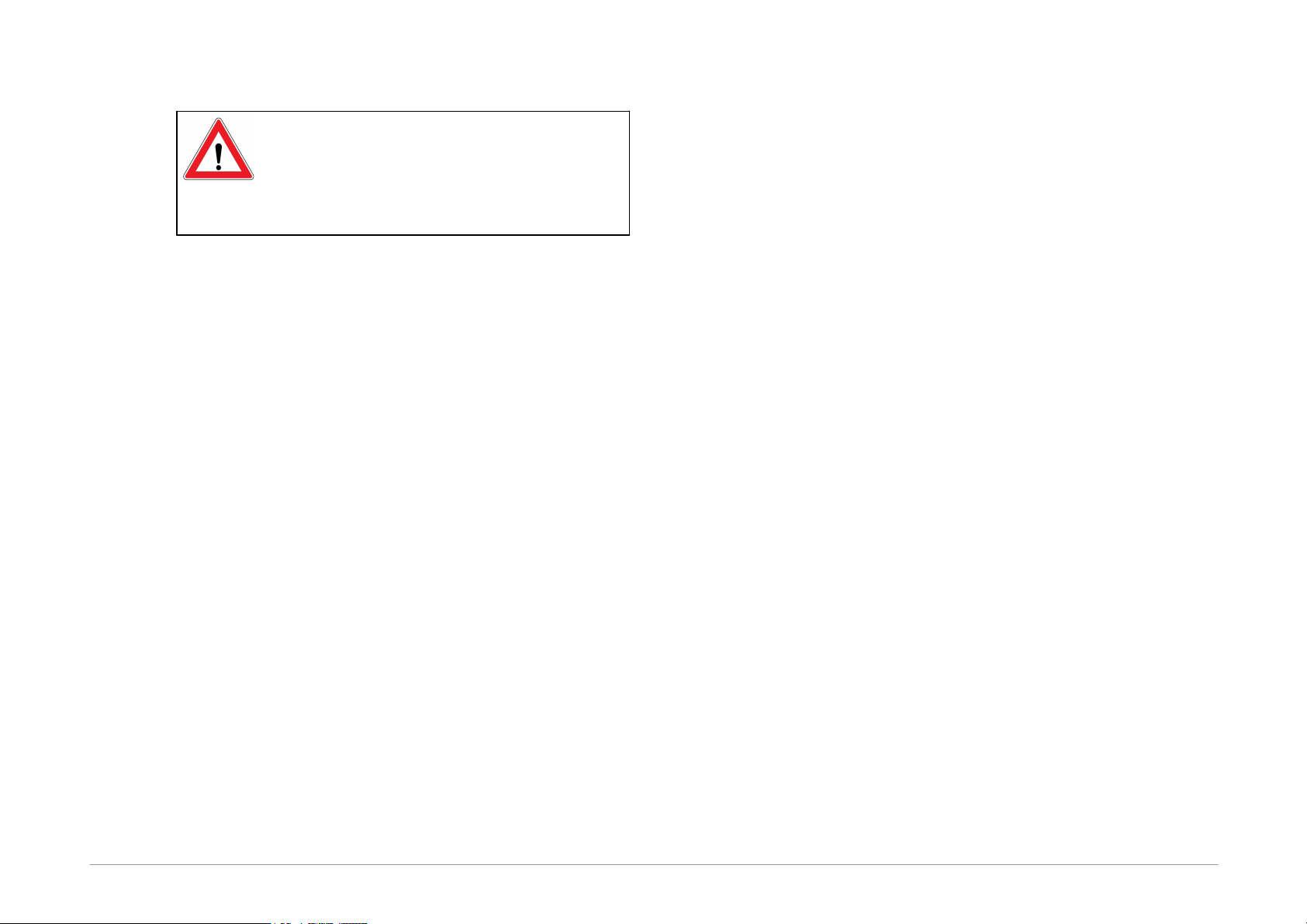
Important warning
It is recommended to check the programmer
settings and fuse settings before starting the
actual programming as an error in these
parameters could damage the device or even
the programmer.
The programming process is triggered by choosing
Device ➙ Program or by clicking the Program button.
In some devices, the system checks the Device ID (device
electronic signature) and the code/data protection bits
before launching the programming process. If the ID does
not match the selected device type, a warning message is
displayed.
Displaying of this warning message is frequently caused
by a fault in the interconnection of the device and the
programmer.
If things are in order, the programmer performs the
following operations: erases the device, checks the
erasure, programs the device and checks the
programmed device.
If only a particular memory of a microcontroller needs to
be programmed, it can be done by choosing the
corresponding item in the Device ➙ Program menu or
by clicking the pull-down arrow next to the Program
button on the button bar. Depending on the device type,
the following options may be available: program code/
main memory, program data (EEPROM) memory, program
configuration memory or program all.
Differential Programming
The Device ➙ Program menu offers a possibility of
differential programming, provided the device to be
programmed supports it. If selected, the existing memory
content is read first and only cells that differ are then
programmed.
Differential programming is useful for development during
which content of the programming data changes very
often, but the changes are tiny. As only changed cells are
overwritten, the differential programming is advisable for
devices with a low number of writing cycles. It can also be
faster than the conventional re-writing of the whole
memory content.
5.4
Further Features
The following section focuses on selected additional
functions of UP available for device programming.
5.4.1 Setting the GO
Button
ASIX programmers feature a GO button, which allows the
user to trigger the programming process without a
computer mouse or keyboard.
The function of the GO button can be set under the
Options ➙ Key shortcuts menu in the GO button field
to suit user's needs.
The UP software must be running if the user wants to use
the GO button, but may be minimized on the screen.
Additional settings associated with the GO button can be
found in
Settings for Programming During Development.
5.4.2 Mass Production
The mass production function is available under the
Device ➙ Program ➙ Mass production menu. It can
also be called up by clicking the arrow next to the
Program button on the toolbar.