presto_en.pdf - 第93页
Page 93 10 TROUBLE-SHOOTING This chap ter describes how to proceed if experiencing difficulties with device programming . It also describes testing ut ilities for PRESTO and FORTE programmers designed to ch eck if the pr…

Page 92
9
MultiUP
MultiUP is utility usable for programming with up to 4
ASIX programmers at once. MultiUP uses program UP.
The utility is installed together with the UP program.
MultiUP can simply, using one button, run programming
of selected task, which is deffined with the UP program
project and other settings.
To increase speed the utility loads the programming data
only once, it is suitable for using in production.
9.1
Programming settings
In the "Options/Programming settings" it is possible to
select programmers to be used, UP program project to be
programmed, whether they will program the common
way or using the differential programming and the
memories to be programmed.
To improve clarity it is possible to select a name for each
of the programmers.
Each of the programmers can program a different project
or all of them can be the same project.
All of the programmers do not have to be of the same
type (PRESTO, FORTE), but the selected project have to
use the same type of the programmer.
In the Options it is also possible to select Keyboard
shortcuts for running work of the praticular programmers
and to set the console saving during the program closing.
The parameters configured in the Options can be used
once or they can be saved to MPPR file for other using.
9.2
Programming
For programming of predefined tasks it is advisable to
open MultiUP project file in menu "File/Open MPPR file".
The project can be crated in the "Options" menu.
Afterwards the particular programmings can be run
separately using the "Run" button on the appropriate
programmer panel or all the active programmings can be
run at once using the "Run all" button, eventually the
associated keyboard shortcuts can be used.
9.3
CommandLine
It is possible to provide the MPPR project path on the
commandline, it will be loaded on the utility start.
Example:
multiup.exe C:\data\project.mppr

Page 93
10
TROUBLE-SHOOTING
This chapter describes how to proceed if experiencing
difficulties with device programming. It also describes
testing utilities for PRESTO and FORTE programmers
designed to check if the programmer is in good condition
or damaged. Please go through all the tips and tricks
before you send your programmer to a service shop.
The testing utilities are not part of the UP software
installation, but they can be downloaded separately from
https://www.asix.tech/prg_testers_en.html.
10.1
Tips and Tricks
Should you experience difficulties with programming, we
recommend checking the following points:
• Check the microcontroller and programmer
connections according to the description in Connecting
to Application. Even though it may seem trivial, it is
recommended to check the connection twice and to
assume the second time that the link does not always
lead where you want it to or it leads to more than one
point.
• If a crystal or other auxiliary devices are used for
programming, (typically pull-down or pull-up resistors),
check if their values and connections are correct.
• It is advisable (and often necessary) to have blocking
capacitors at the power supply of the device to be
programmed.
• If the device to be programmed has more than one
power-supplying pin, all of them must be really fed. It
is often recommended to check their voltage with a
voltmeter.
• Use of the latest version of UP is recommended. If you
are still using an older version, an update is
recommended.
• Are you programming a new device or has it been
previously programmed? If so, the problems may be
caused by unsuitably set fuses in the device.
• The length of the ICSP cable should not exceed 15cm.
• Make sure that there is no additional capacity present
at the programming (data) pins. Consider if circuits on
the programming pins could cause too large a load for
programming.
• It is important that the crystal or the communication
speed settings reflect the reality in devices that need
that settings.
• Some devices may be programmed using several
different methods. Programming problems may be
caused by selecting a different programming interface
or a different programming mode than the ones that
the application is prepared for.
If none of the above tips help to eliminate the problem
and if it absolutely sure that the device to be
programmed is not faulty, the fault may lie in the
programmer.
To easily find out whether the programmer is in order or
not, you can use the testing utilities described in the
following chapters.
10.2
PRESTO Tester
he PRESTO Tester utility easily tests the “health
state” (usability) of the PRESTO programmer right at the
customer's site.
In order to run it successfully, only one PRESTO
programmer may be connected to the control PC and its
drivers must be correctly installed. This is confirmed by
the green LED being on.
Page 94
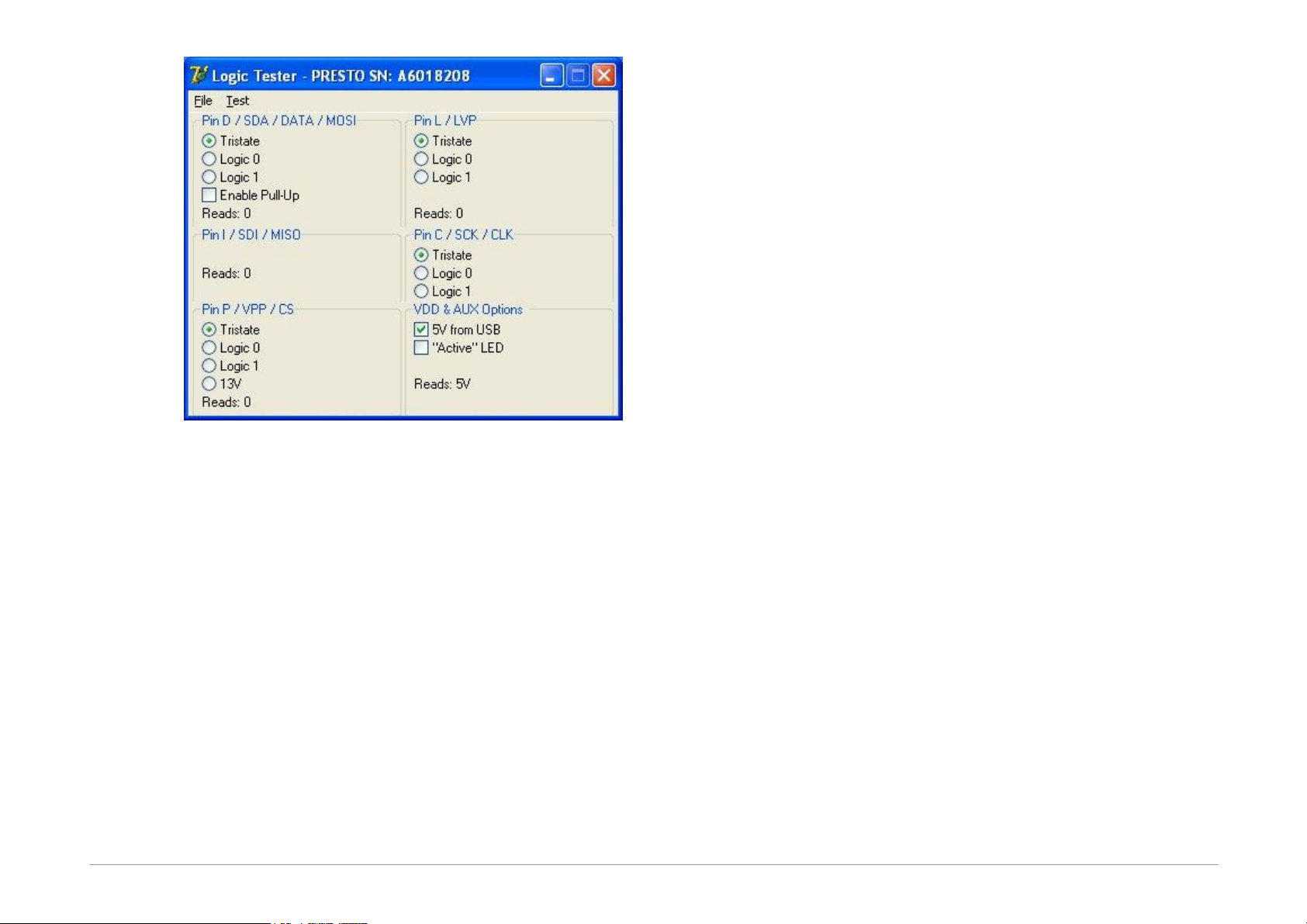
Fig.27: Tester PRESTO
After you start the tester, make sure that the
programmer's output buffers are fed. You can either use
the 5VfromUSB option or connect an external power-
supply voltage to the VDD pin. The level of detected
voltage is displayed in the lower part of the VDD&AUX
panel.
Basic communication with the programmer can easily be
recognized by the Active diode being on. You can also
use the Test ➙ USB Flood Test menu option, which
tests the USB communication with the programmer in
both directions.
The programmer's serial number is displayed in the
window title bar. This number is necessary for any
communication with the service shop. You can also find
this number on the bar code label attached to the
programmer bottom.
Now you can switch logical levels for individual output
pins (pins P, D, D and L) and check the output signal
quality using a voltmeter. At the same time, the input
pins (pins P, D, I and L) indicate what logical level is
currently seen by the programmer.
In addition, a pull-up resistor may be connected to pin D.
This means that if its output is in the Tristate mode, pin D
starts reading log.1.
The programming voltage of 13V can be connected to
the output of pin P.
If everything seems to be in order, but the device still fails
to get programmed, it is recommended to check the
application connection according to instructions for
connecting a microcontroller to the programmer.
If in doubt as to whether the programmer is in order or
faulty, do not hesitate to contact our technical support.