EUS0153210_YFact_Standard_E.pdf - 第117页
2-83 2 Board Explorer 10.2 Multi Lane Utility Multi Lane Utility is a tool to combine single board data into combined board data or divide combined board data into single board data. Thiscanbeperformedbyselectingth…
2-82
2
Board Explorer
●
Multi Lane Utility can be used. Refer [10.2 Multi Lane Utility] about details of Multi Lane Utility.
●
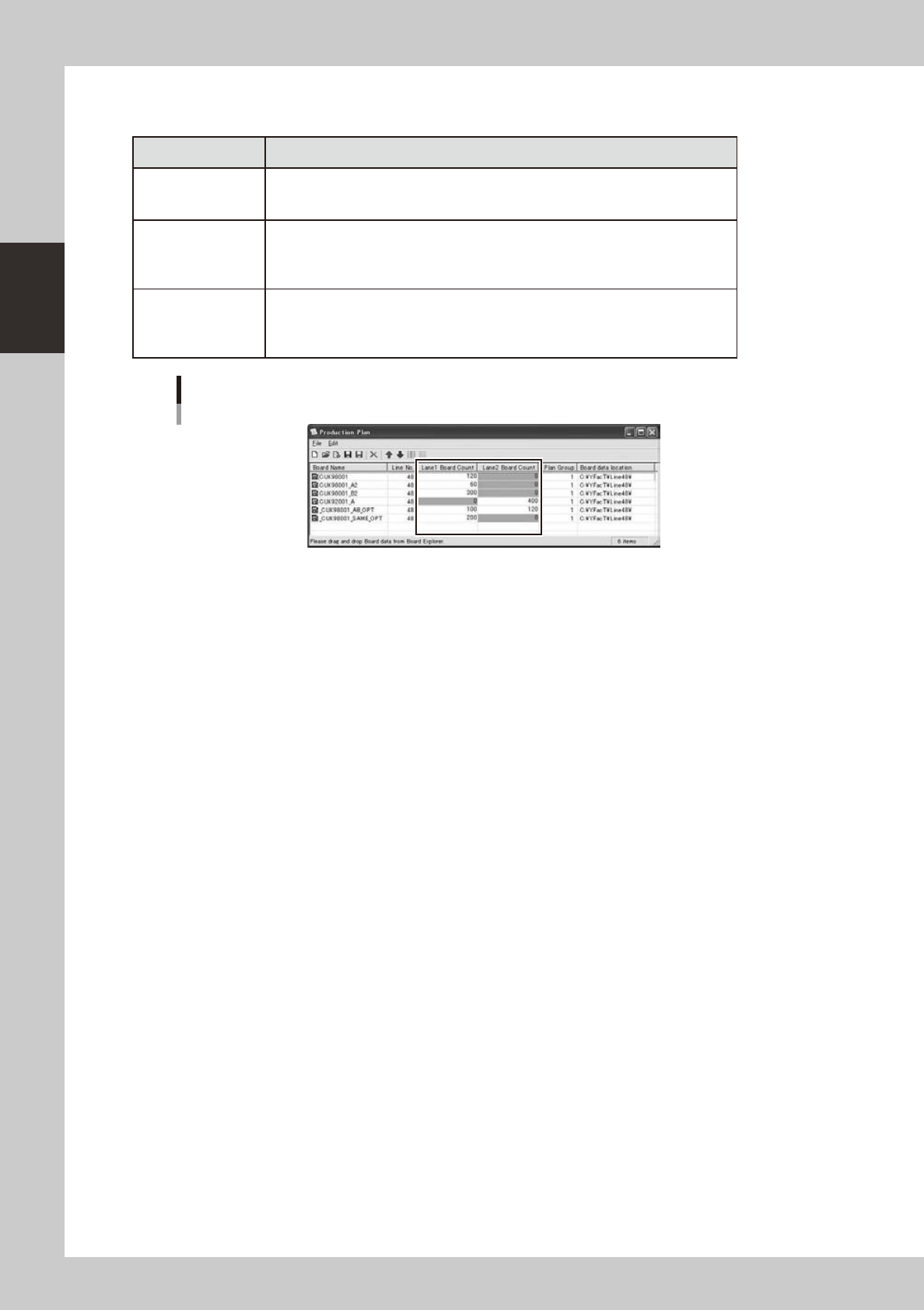
Production Plan dialog is extended for board count of dual lane.
Kind of Board Data Setting
Single Board Data
YGX
Only the board count of single lane of internal setting is able to edit. As following
figure, "CUK98001" "CUK98001_A2" "CUK98001_B2" are produced only on lane 1,
and "CUK92001_A" is done only on lane 2.
Combined Board
Data YGX(Combined)
Same Board Same
Side
Only lane 1 is able to edit. Enter the total count produced by all lanes. As following
figure, "_CUK98001_SAME_OPT" is set "200", it is produced 200 board the total sum
on machine.
Combined Board
Data YGX(Combined)
Same Board Both
Side
It is able to edit for both lane. Enter the board count for each lane. As following
figure, "_CUK98001_AB_OPT", the board on lane 1 are produced 100 board, and the
board on lane 2 are produced 120 board.
“Production Plan” dialog
642F3-S0-00
2-83
2
Board Explorer
10.2 Multi Lane Utility
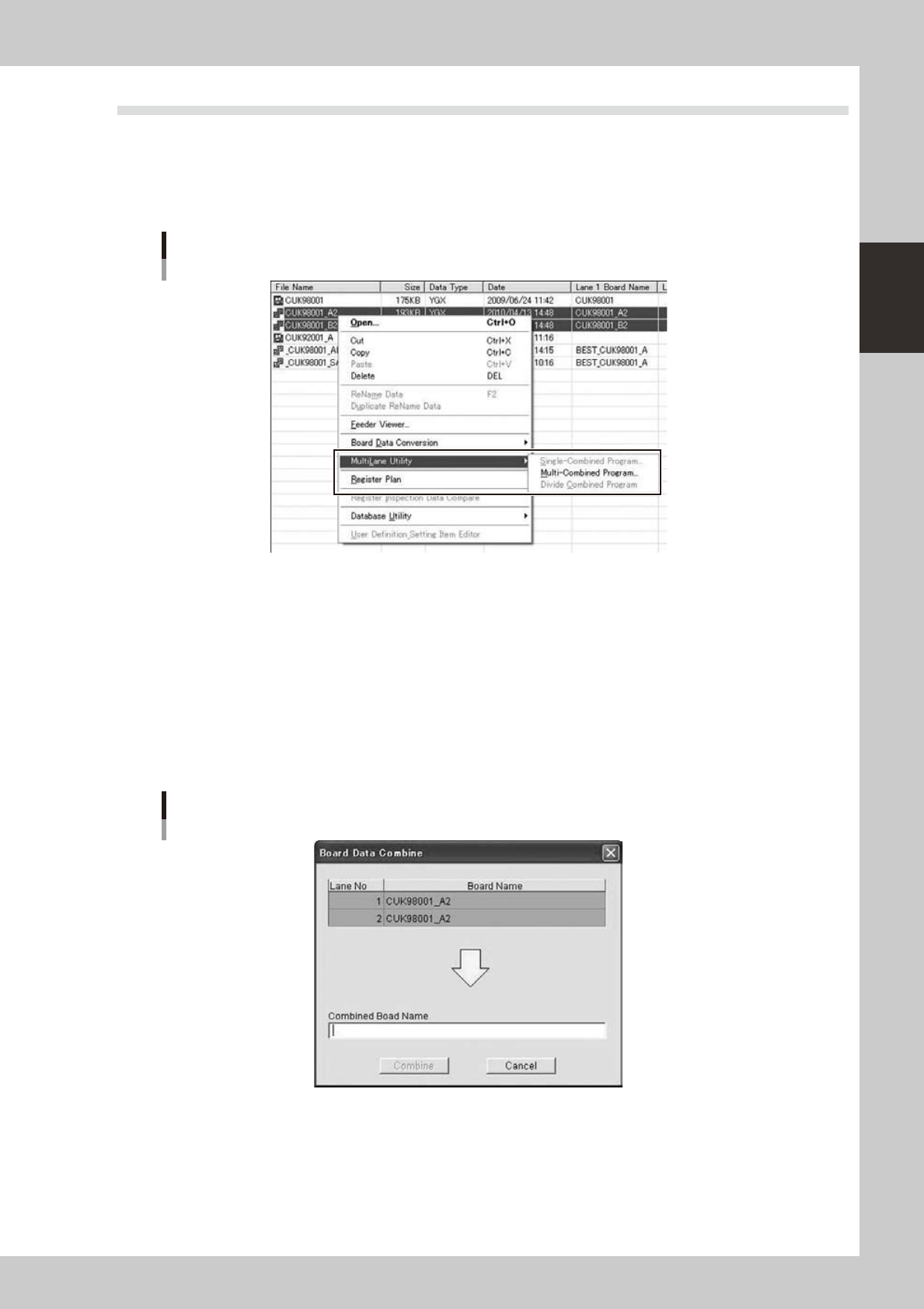
Multi Lane Utility is a tool to combine single board data into combined board data or divide combined board
data into single board data.
Thiscanbeperformedbyselectingthemainviewboarddataandspecifyingtheoperationfromtheright-click
context menu. However, this feature is enabled only when "View" – "Multi Lane View" is enabled and line
board data is selected. Note that this feature does not work for machine single board data.
Multi Lane Utility
642F5-S0-10
10.2.1 Single-Combined Program
It is able to combine to the board data for same board and same side. It is active only on line with dual lane
machine and one single board data is selected on main view.
1
Displaying the “Board Data Combine” dialog
Select the main view board data and select “Multi Lane Utility” – “Single-Combined Program” from the
right-click context menu to display the “Board Data Combine” dialog.
2
Combined board data name entry
Enter the name for the combined board data and click the [Combine] button.
“Board Data Combine” dialog
642F6-S0-00
2-84
2
Board Explorer
10.2.2 Multi-Combined Program
It is able to combine the board data for same board and both side. It is active only on line with dual lane
machine and some single board data are selected on main view. The mount mode (Parallel or Alternate) is set
automatically from the parts arrangement.
1
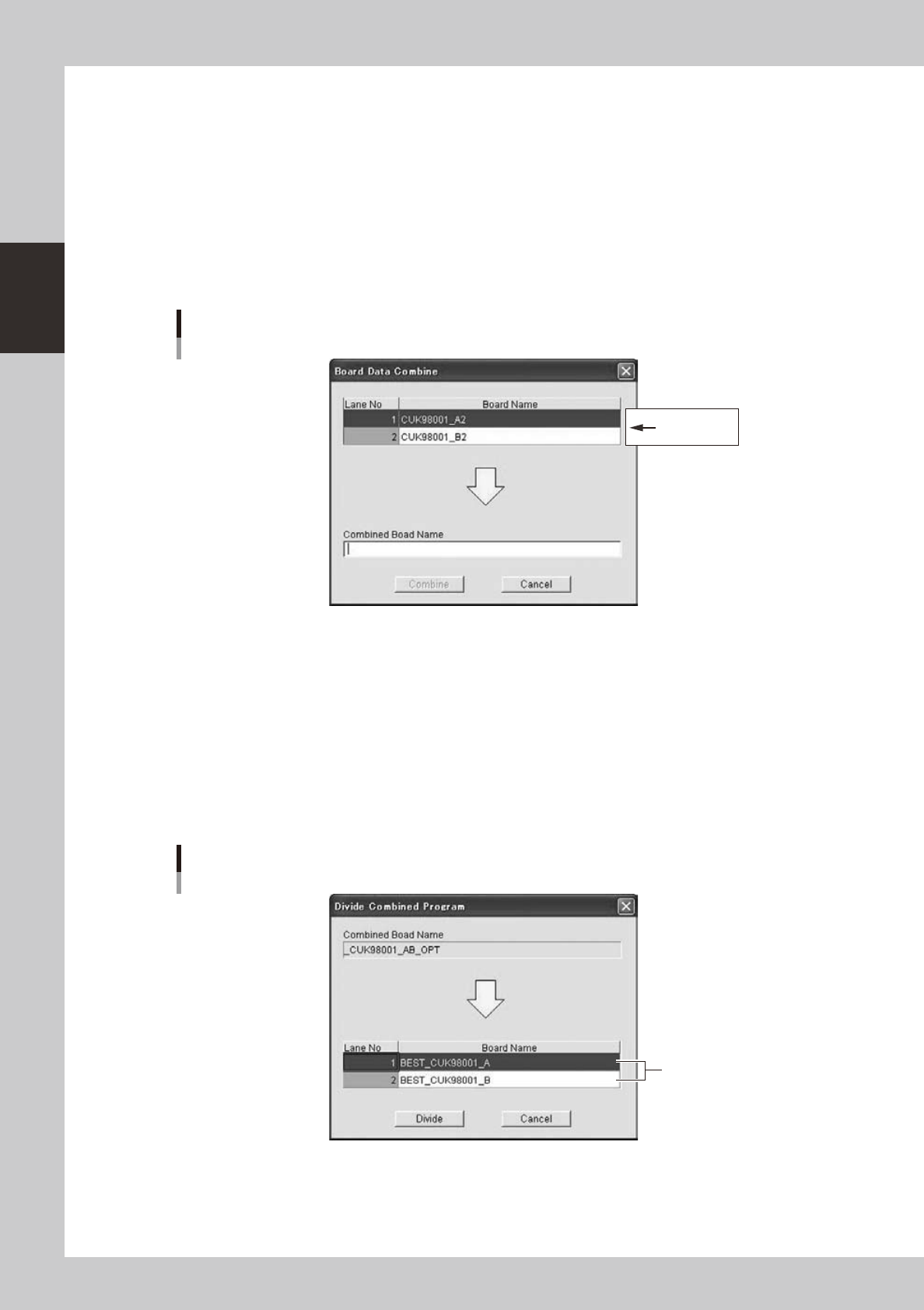
Displaying the “Board Data Combine” dialog
Select the main view board data and select “Multi Lane Utility” – “Multi-Combined Program” from the
right-click context menu to display the “Board Data Combine” dialog.
2
Combined board data name entry
Enter the name for the combined board data and click the [Combine] button.
“Board Data Combine” dialog
Changeable
642F7-S0-00
10.2.3 Divide Combined Program
It is able to divide the combined board data. It is active only when the combined board data is elected on main
view.
1
Displaying the “Divide Combined Program” dialog
Select the main view board data and select “Multi Lane Utility” – “Divide Combined Program” from the
right-click context menu to display the “Divide Combine Program” dialog.
2
Enter the names for the divided board data.
Enter the names for the divided board data in "Board name" and click the [Divide] button.
“Divide Combined Program” dialog
Enter the names for the
divided board data
642F8-S0-00