EUS0153210_YFact_Standard_E.pdf - 第179页
4-4 4 Feeder Viewer 2. Basic operation This section explains basic operations on the “plan information screen” used to create or edit the board production plan and feeder setup information. 2.1 Plan information screen Th…
4-3
4
Feeder Viewer
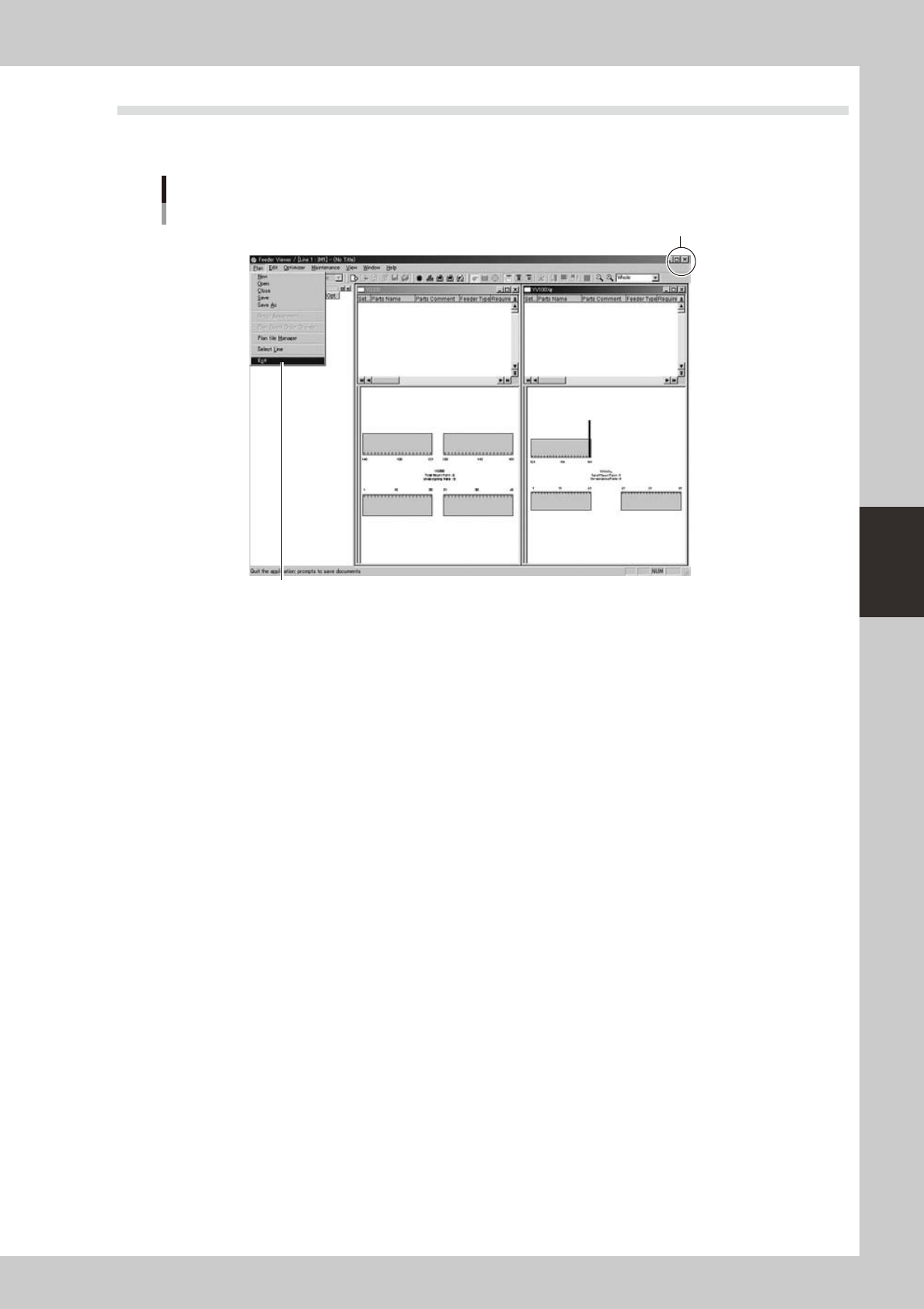
1.2 Quitting the Feeder Viewer
ToquittheFeederViewer,select“Exit”fromthePlanmenuintheFeederViewerwindoworclickthe[Close
(x)]buttonintheupperrightcornertoclosetheFeederViewerwindow.
Quitting the Feeder Viewer
[Close] button
Select "Exit" from Plan menu.
64403-S0-00
4-4
4
Feeder Viewer
2. Basic operation
This section explains basic operations on the “plan information screen” used to create or edit the board
production plan and feeder setup information.
2.1 Plan information screen
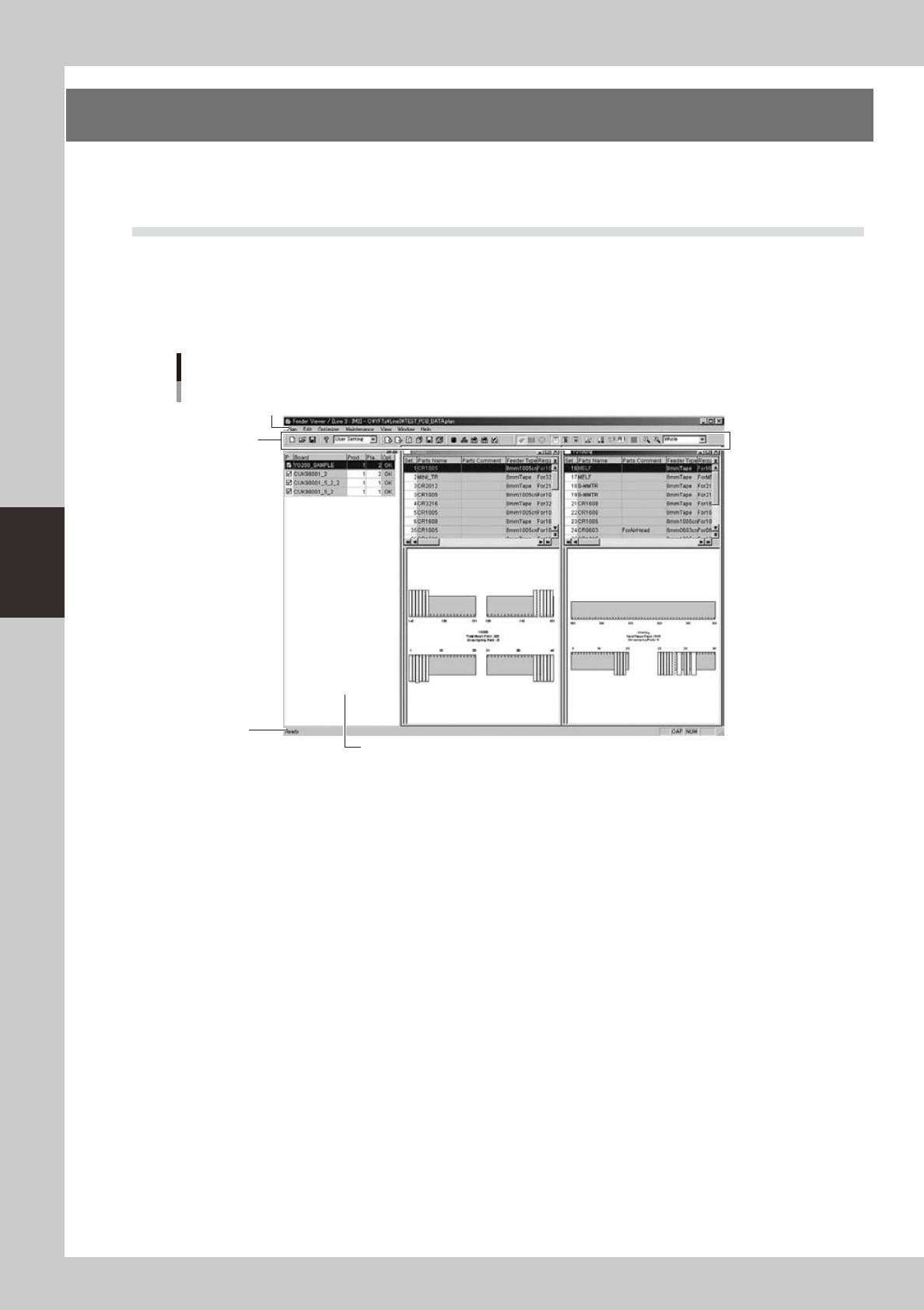
The following screen appears when you open a plan information file from the “Open” command in the Plan
menu(or[Open]buttononthetoolbar).Thisscreenisreferredtoas“planinformationscreen”andbasically
consistsoftwopanes:theleftpaneshowsaproductionboardlistandtherightpaneshowstheplan
information window of each machine. The menu bar and toolbars are available at the top of the screen to
perform various tasks in the Feeder Viewer.
Plan information screen
Toolbar
Menu bar
Production board list
Status bar
64404-S0-00
●
Menu bar
ThemenubaratthetopoftheFeederViewercontainspull-downmenuswithcommandsgroupedbyfunction.
• Plan
The Plan menu allows you to select commands, such as to create or save feeder setups, switch the line and quit the
Feeder Viewer.
• Edit
The Edit menu allows you to select commands to add, delete or update board data.
• Optimizer
The Optimizer menu allows you to select commands to optimize the current feeder setups while selecting an
optimization method such as single optimization, sequential optimization and common optimization.
• Maintenance
Setting of maintenance feeder viewer, dump station information and option can be selected and executed.
• View
The View menu allows you to select commands, such as to show or hide various information and zoom in or out the
display.
• Window
TheWindowmenuallowsyoutoselectcommands,suchastoopenorclosethefeedersetupinformationwindowof
each machine, as well as to select the window arrangement.
• Help
The Help menu displays the program version information.
4-5
4
Feeder Viewer
●
Toolbars
AmongtheFeederViewerfunctions,thosethatarefrequentlyusedareregisteredasthetoolbarbuttons.Thereare4
toolbarsusedwiththeFeederViewer:“Standardtoolbar”forinitialsetting,“Boardtoolbar”formanipulatingboarddata
files, “Plan information toolbar” displaying feeder setup information and “Plan window manipulation toolbar” for
manipulating the feeder setup information windows.
Each toolbar can be hidden or redisplayed by selecting it from the Toolbar submenu on the View menu.
Reference
• Some buttons on the "Plan window manipulation toolbar" are grayed out and unavailable depending on the
specifications
• The same functions performed with the toolbar buttons can also be selected from commands in the menu bar.
Toolbar
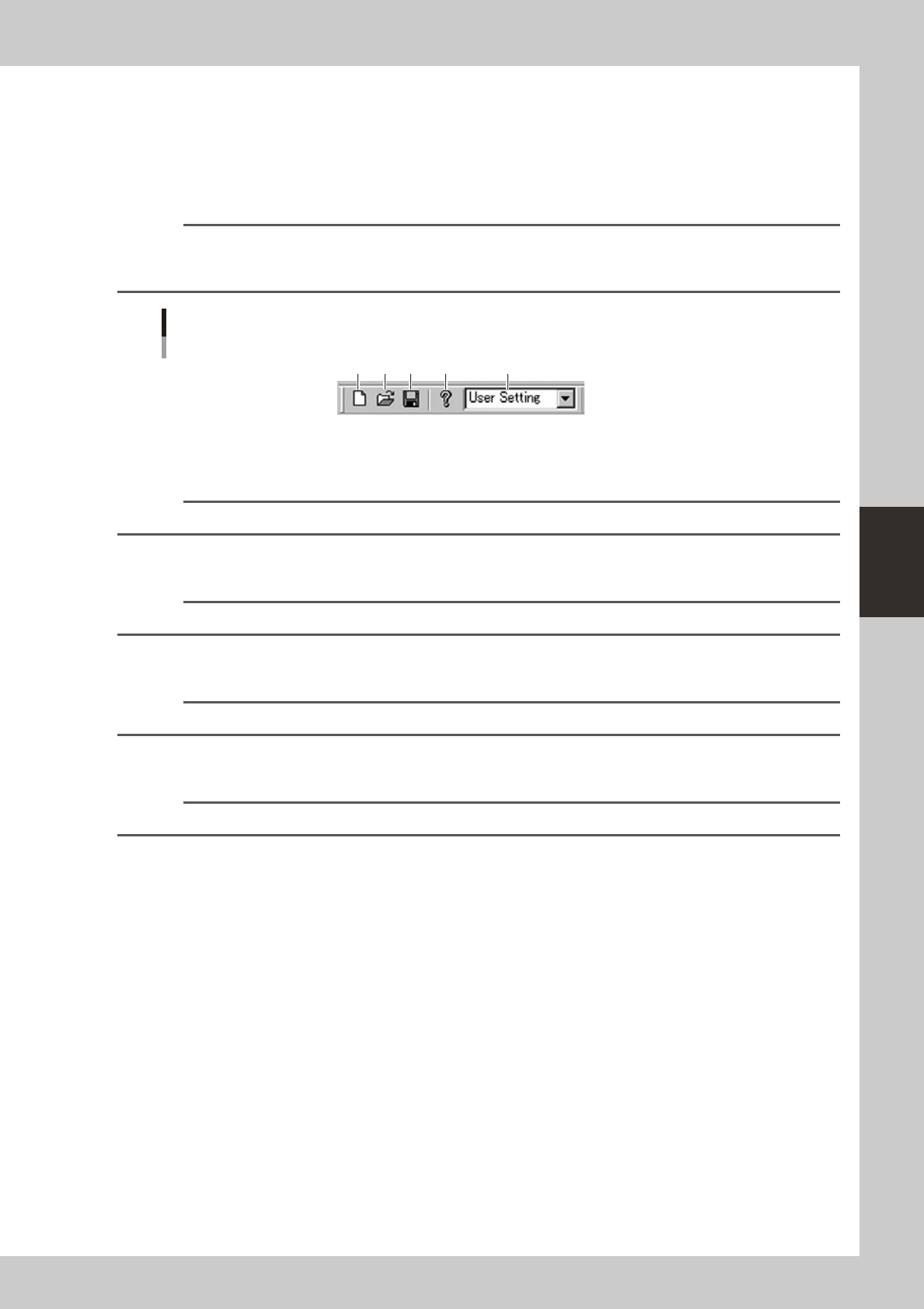
Standard toolbar
1 2 3 4 5
64405-S0-00
1. [New] button
Creates new feeder setup information.
Reference
The [New] button has the same function as the "New" command in the Plan menu.
2. [Open] button
Opens feeder setup information that has been registered.
Reference
The [Open] button has the same function as the "Open" command in the Plan menu.
3. [Save] button
Saves feeder setup information.
Reference
The [Save] button has the same function as the "Save" and "Save As" commands in the Plan menu.
4. [Version] button
Shows the version of the Feeder Viewer.
Reference
The [Version] button has the same function as the "About" command in the Help menu.
5. Drop-down list box for selecting group display
Whensettingmultiplegroupsforfeedersetup,youcanselectthegroupthatshouldbedisplayed.