EUS0153210_YFact_Standard_E.pdf - 第125页
3-5 3 Board Editor The small right arrow mark “ ” next to a command indicates that the command has a submenu. Sub menu Sub menu 64306-S0-00 The check mark next to a menu item indicates that the menu item has been selecte…
3-4
3
Board Editor
2. Basic operation
This section explains basic operations for editing board data and creating production data.
2.1 Board Editor main window
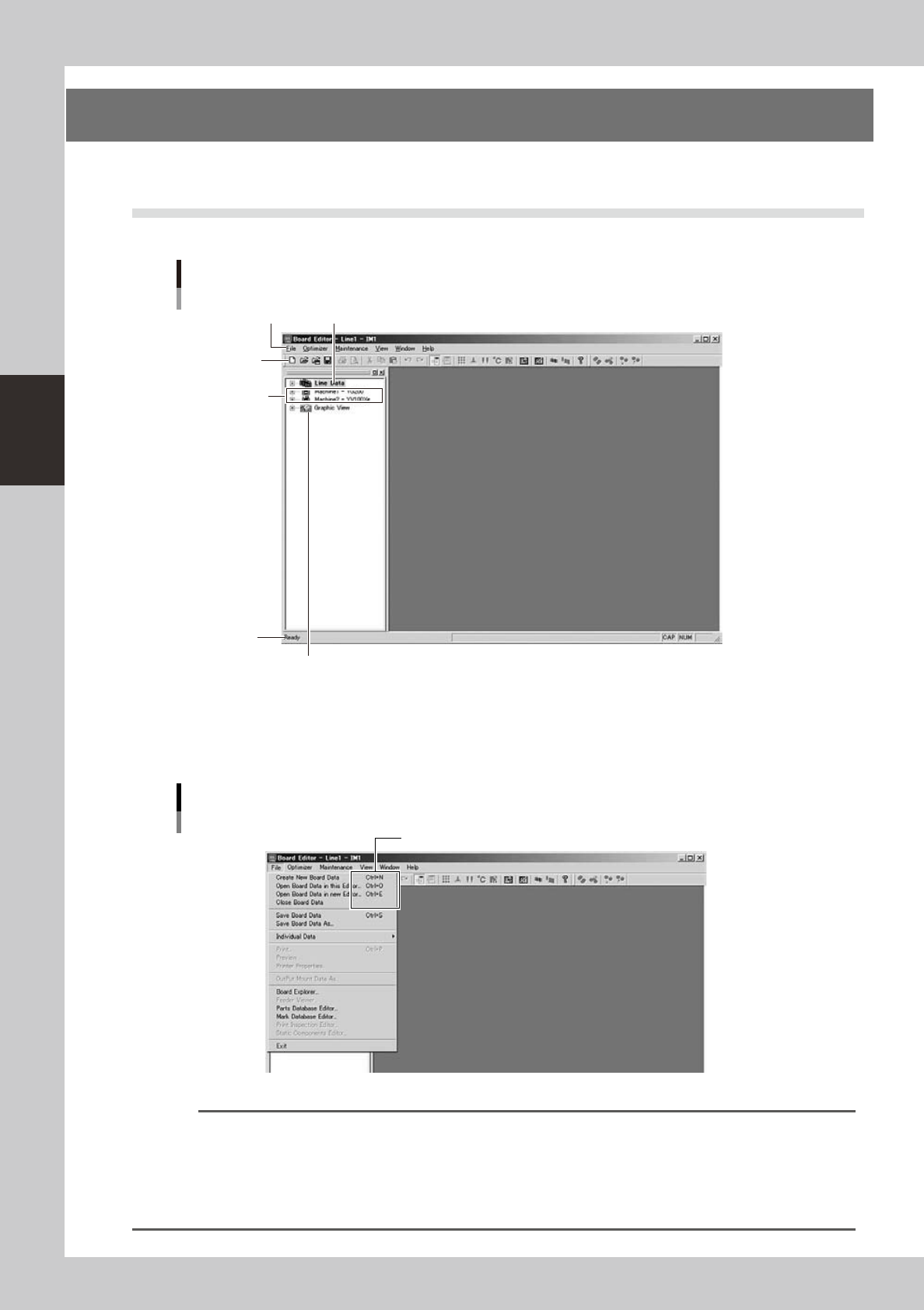
The following main window appears when the Board Editor starts.
Board Editor main window
Menu bar
"Line Data" icon
Toolbar
"Machine" icon
Graphic View icon
Status bar
64304-S0-00
●
Menu bar
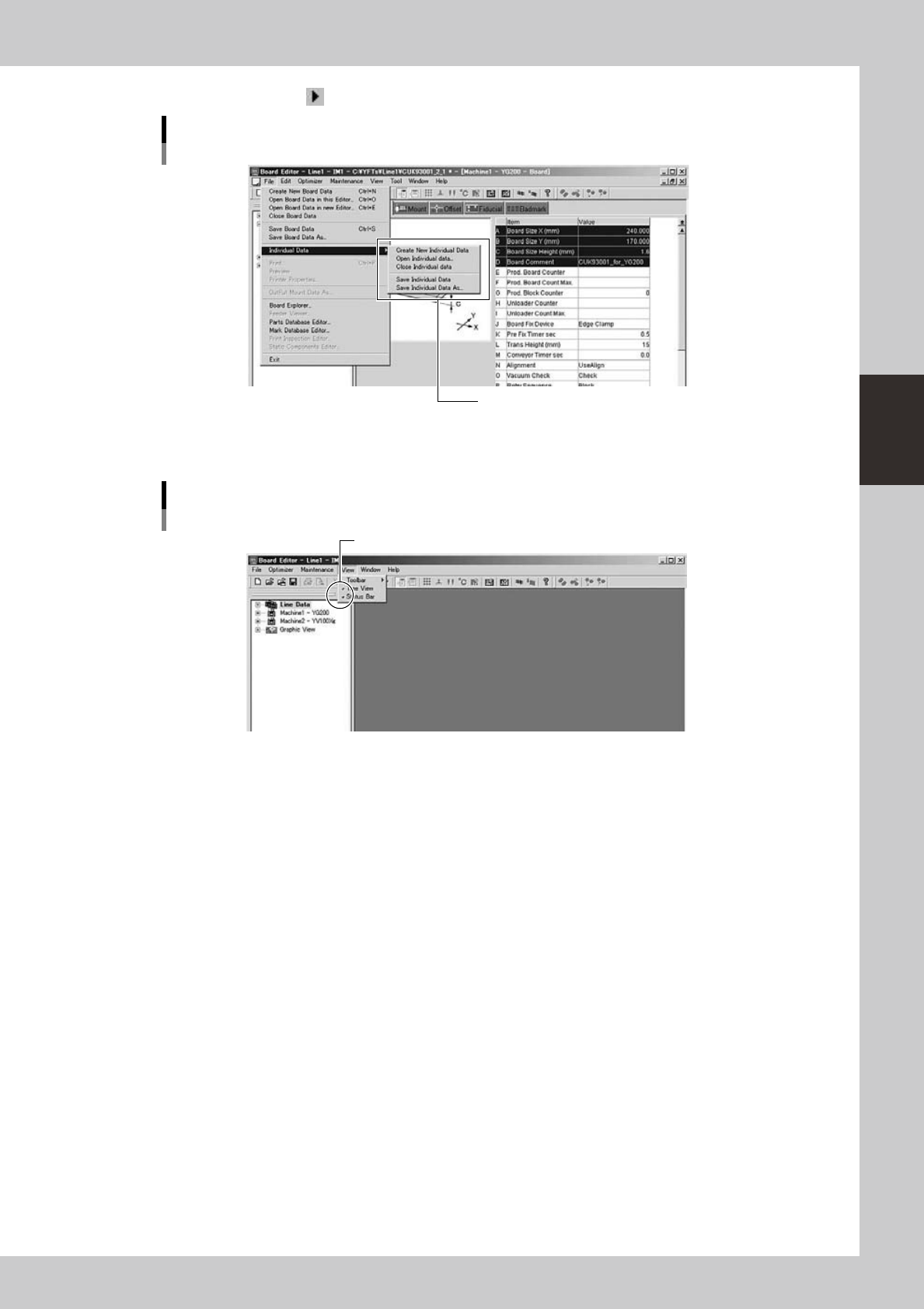
ThemenubaratthetopoftheBoardEditormainwindowcontainspull-downmenuswithcommandsgroupedby
function.
Shortcut keys
Menu bar
64305-S0-00
Reference
A shortcut key is a combination of keys or a function key (such as [F1] and [F2] keys) on the keyboard to execute a
defined command. A shortcut key is displayed to the right of a command if it can be executed with the shortcut key.
For example, the "Create New Board Data" command on the Edit menu can be executed by pressing the [Ctrl] and
[N] keys simultaneously.
When you have become accustomed to operating the Board Explorer, try to use shortcut keys to edit data more
efficiently.
3-5
3
Board Editor
The small right arrow mark “ ” next to a command indicates that the command has a submenu.
Sub menu
Sub menu
64306-S0-00
The check mark next to a menu item indicates that the menu item has been selected.
Menu items are alternately selected and deselected each time they are clicked.
Check mark
Check mark
64307-S0-00
3-6
3
Board Editor
●
Toolbars
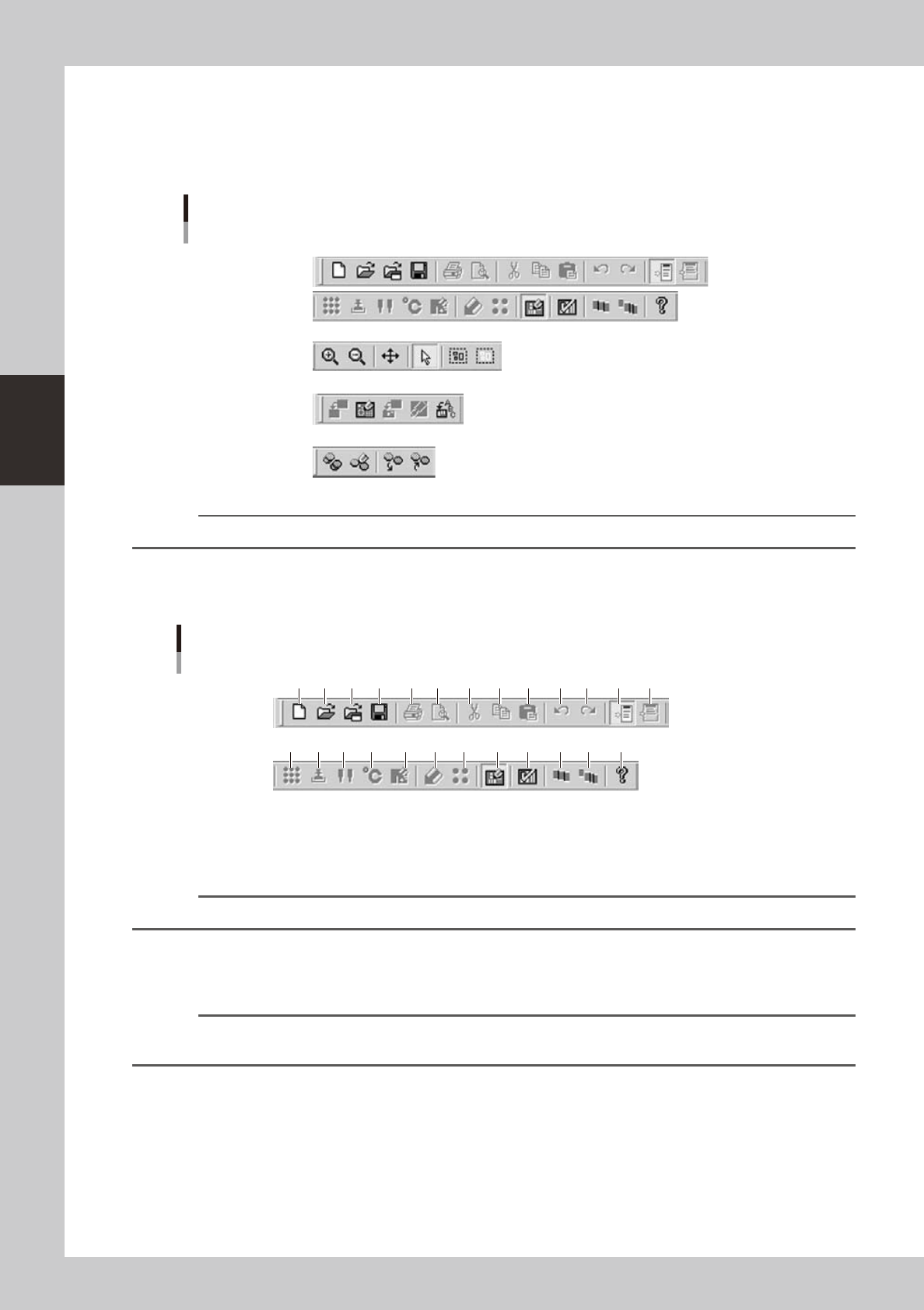
Among the Board Editor functions, those that are frequently used are registered as the toolbar buttons. There are 5 types
oftoolbars:“Standardtoolbar”,“Graphictoolbar”,“Solder-printinspectiontoolbar”(option),“Databasetoolbar”.
Each toolbar can be hidden or redisplayed by selecting it from the “Toolbar” submenu on the View menu.
Toolbars
Standard toolbar
Graphic toolbar
Solder-print inspection toolbar
Database toolbar
64308-S0-00
Reference
Some buttons on the toolbars are grayed out (dimmed) and cannot be used depending on the specifications.
Standard toolbar
This toolbar is available when you are manipulating the Board Editor window.
1 2 3 4 5 6 7 8 9 10 11 1312
14 16 17 18 19 20 21 22 23 24 2515
Standard toolbar
64309-S0-00
1. [New Board Data] button
Click this button to create new board data.
The initial data is loaded for creating new board data.
Reference
The [New Board Data] button has the same function as the "Create New Board Data" command in the File menu.
2. [Open Board Data on This Editor] button
Click this button to load board data that is already registered.
The “Board data select” dialog box appears. Select the Board you want to load in the current window of the Board Editor.
Reference
The [Open Board Data on This Editor] button has the same function as the "Open Board Data on This Editor" command
in the File menu.